

If you want to efficiently summarize YouTube videos and transform passive watching into an active, permanent knowledge base, avoid basic text-only copy tools. Use a dedicated multi-modal ecosystem like NoteAi to auto-capture PPT slides, generate click-to-jump mind maps, chat with video context, and export pristine Markdown, PDF, or Word documents.
Why Traditional Video to Text Workflows Fail
If you rely on online videos for academic research, technical upskilling, or professional development, you already know the inherent friction of the medium.
When you watch a dense 2-hour university lecture or a complex software tutorial, attempting to review the content later exposes three glaring limitations:
-
The Text Blindness Trap: Native closed captions or basic browser extensions only convert audio speech to words. If a professor references an anatomical diagram or a developer displays a critical code snippet on screen, plain text completely misses it.
-
The Tab-Switching Fatigue: Juggling between a video player in your browser and a separate note-taking app destroys your focus and breaks cognitive flow.
-
The Data Isolation Problem: Standard summary exports usually end up as messy text files trapped in local download folders, entirely disconnected from your personal knowledge management (PKM) vault or document repository.
To overcome these roadblocks, modern workflows demand a systematic approach to transcribe YouTube video to text, capture visual assets, and organize information seamlessly.
The 5-Step Professional Workflow with NoteAi
To build a sustainable audio-visual knowledge base, professionals and students rely on NoteAi. Below is the step-by-step workflow to turn any video into structured notes.
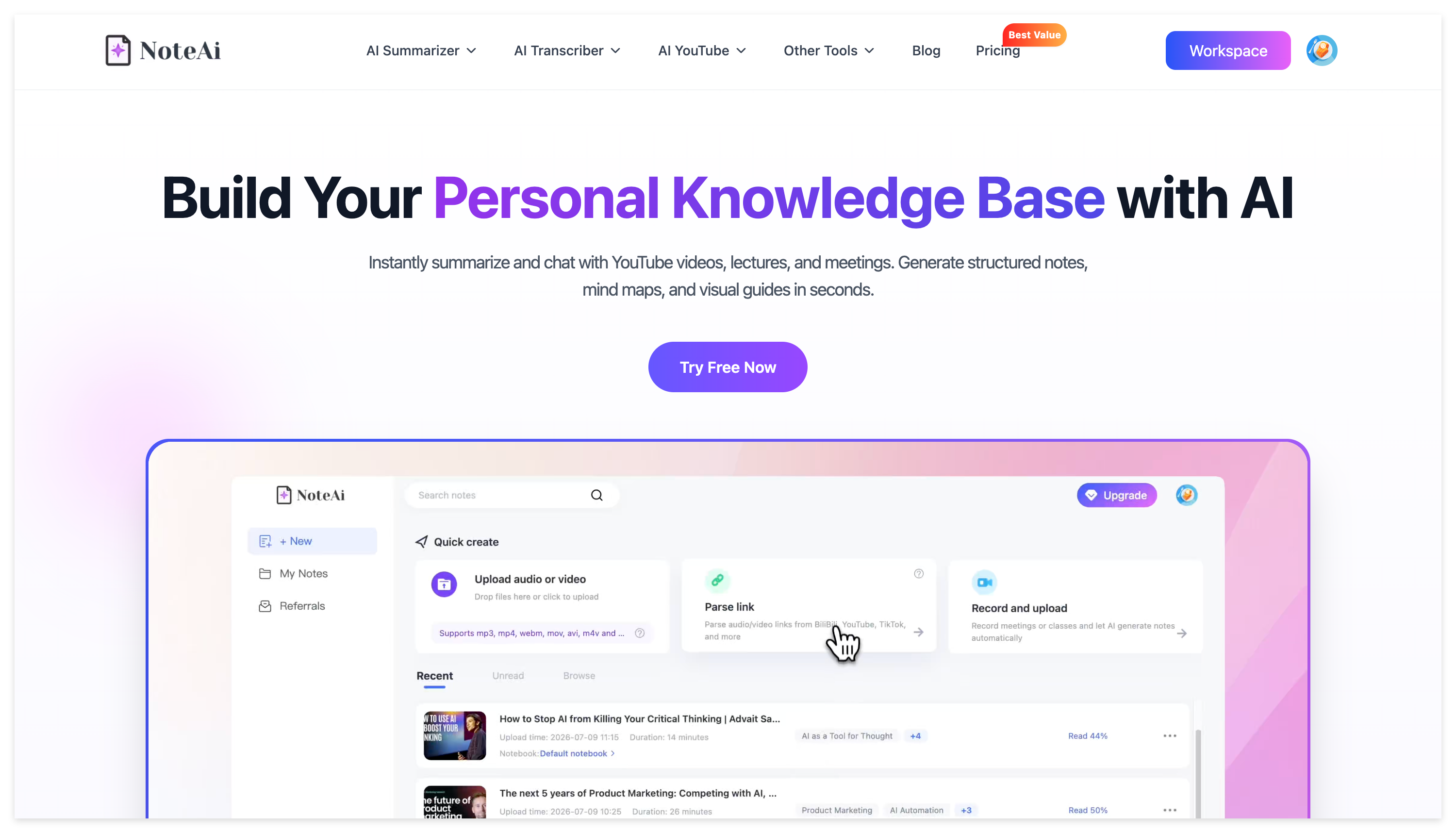
Step 1: Universal Input (Online, Local, or Screen Recording)
You are never restricted by source formats. Head over to NoteAi and choose your preferred ingestion method:
-
Paste public URLs from YouTube or Bilibili.
-
Directly upload local video (
.mp4) or audio (.mp3) files. -
Activate the Screen Recording Parsing feature to capture and analyze live web seminars, Zoom conferences, or desktop software training sessions in real-time.
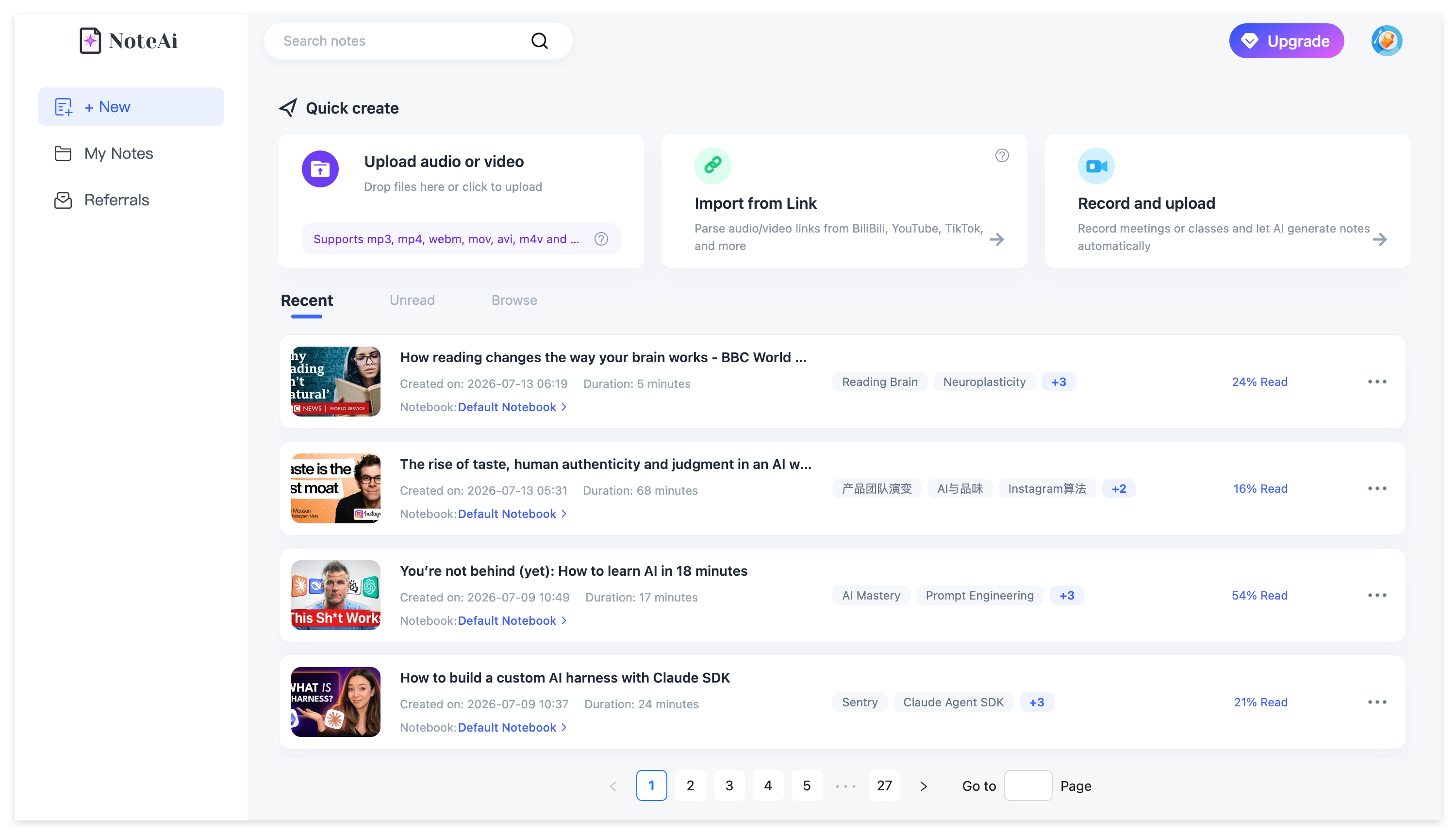
Step 2: High-Accuracy Transcription & Dual-Track Translation
Once your content is ingested, NoteAi generates a meticulously time-stamped text transcript.
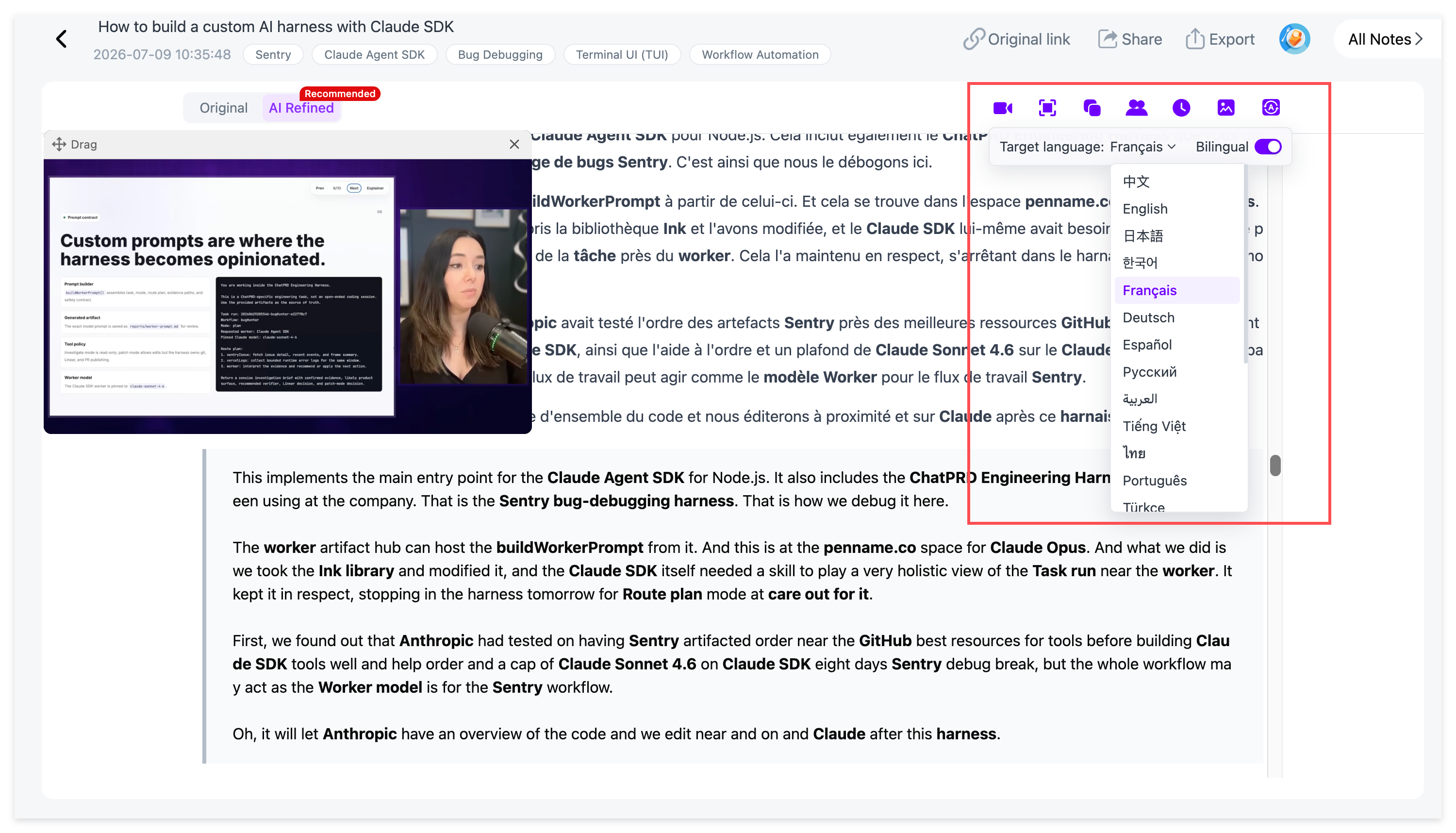
For international research or language learners, you can activate the Dual-Track Translation View. Supporting 22 languages, it aligns the original transcript and translated text side-by-side line by line, ensuring zero loss of nuance.
Step 3: Multi-Modal AI Summary & Auto-PPT Capture
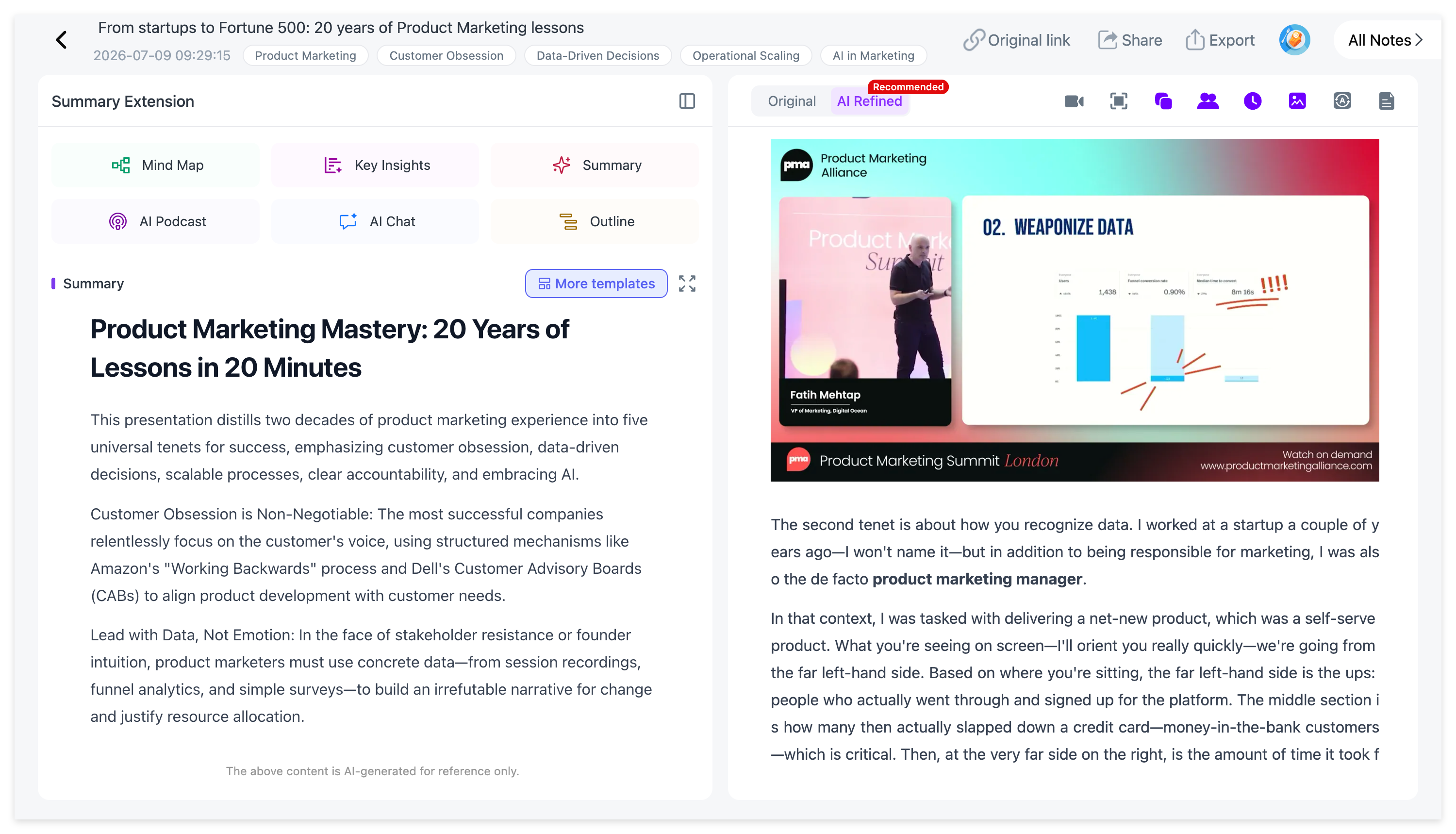
As NoteAi structures the transcript into an organized summary, its Vision AI engine constantly monitors the visual stream.
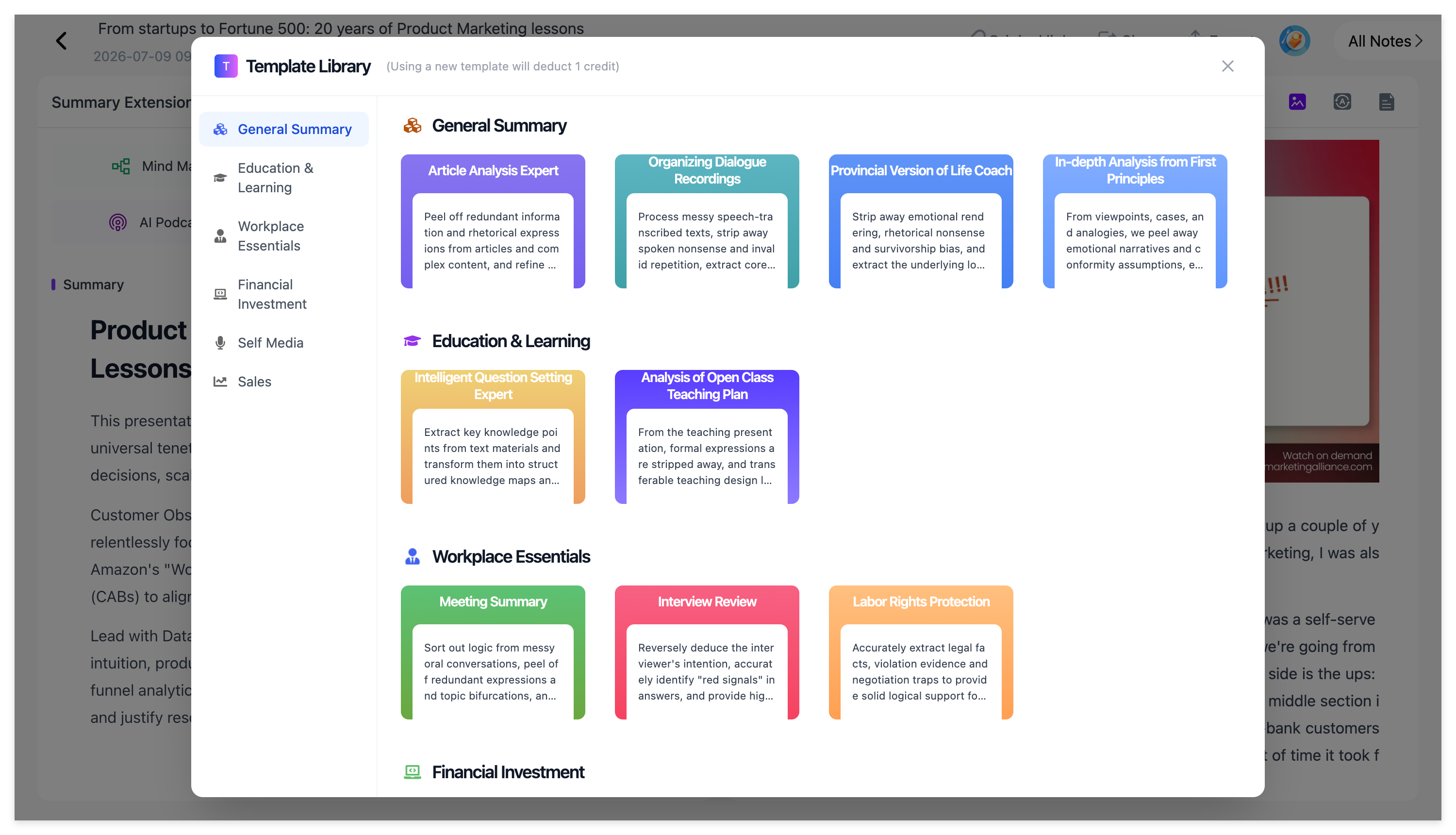
Whenever a presenter switches to a new slide, displays a chart, or draws on a whiteboard, NoteAi takes a high-resolution screenshot and embeds it directly inline with the corresponding transcript text.
Step 4: Interactive Review (PiP, Mind Maps & AI Chat)
Reviewing complex material is interactive and frictionless:
-
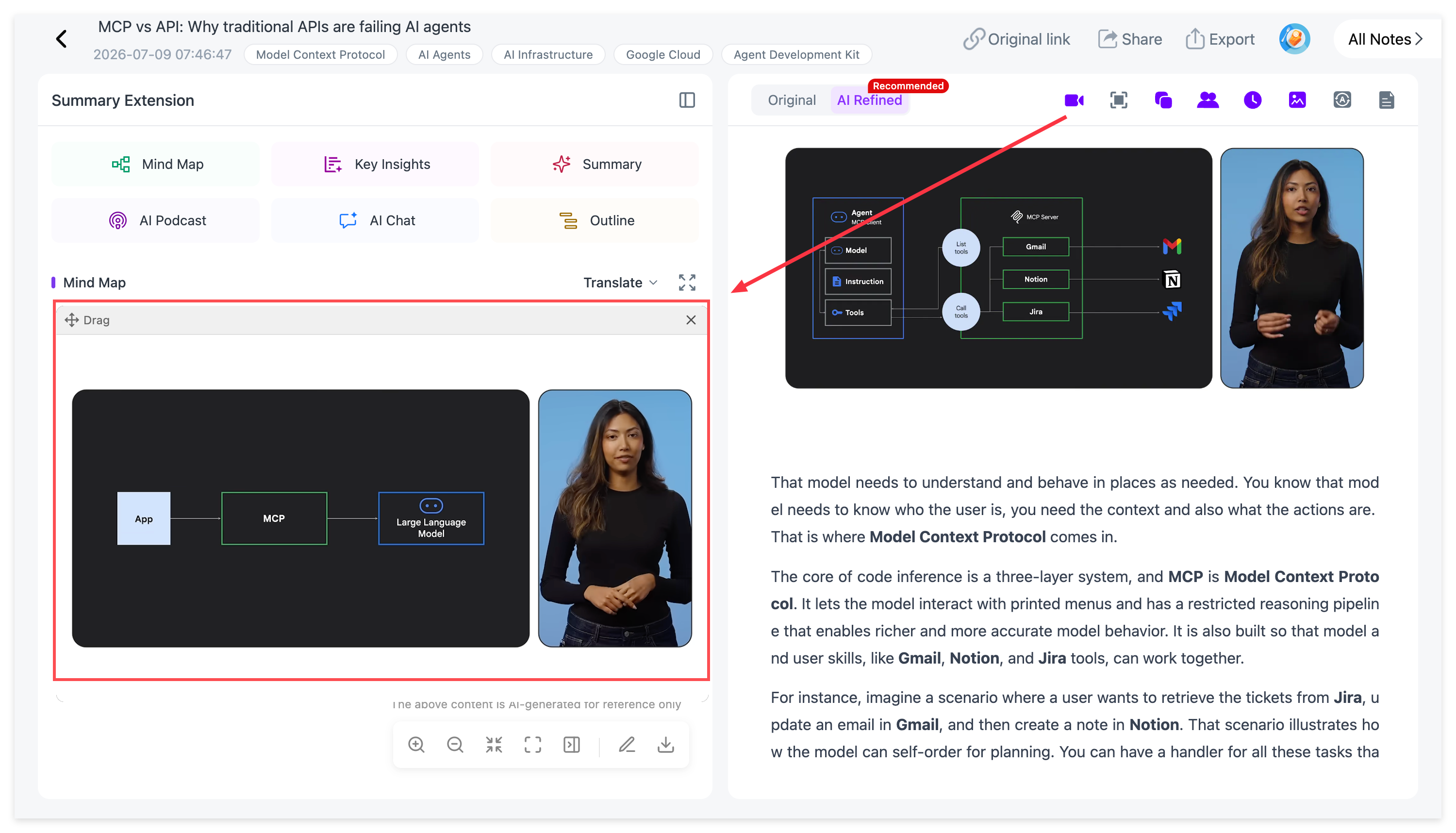
Floating Mini-Player : Keep the video playing in a sleek floating corner window while reading your transcripts or typing personal notes on the same screen.
-
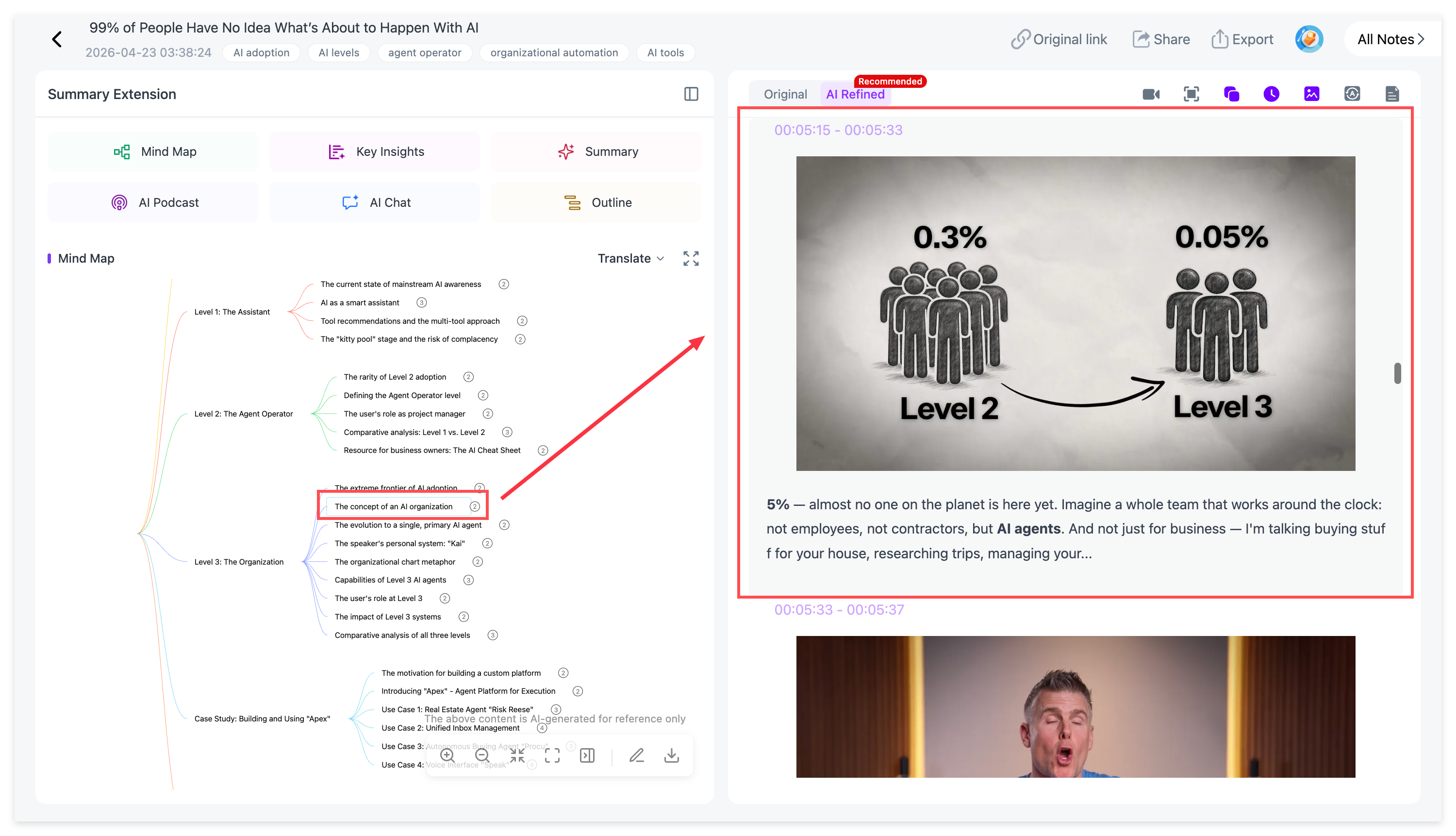
Click-to-Jump Mind Maps: NoteAi generates a timeline-synced mind map. Clicking any node instantly jumps the video player to that exact second.
-
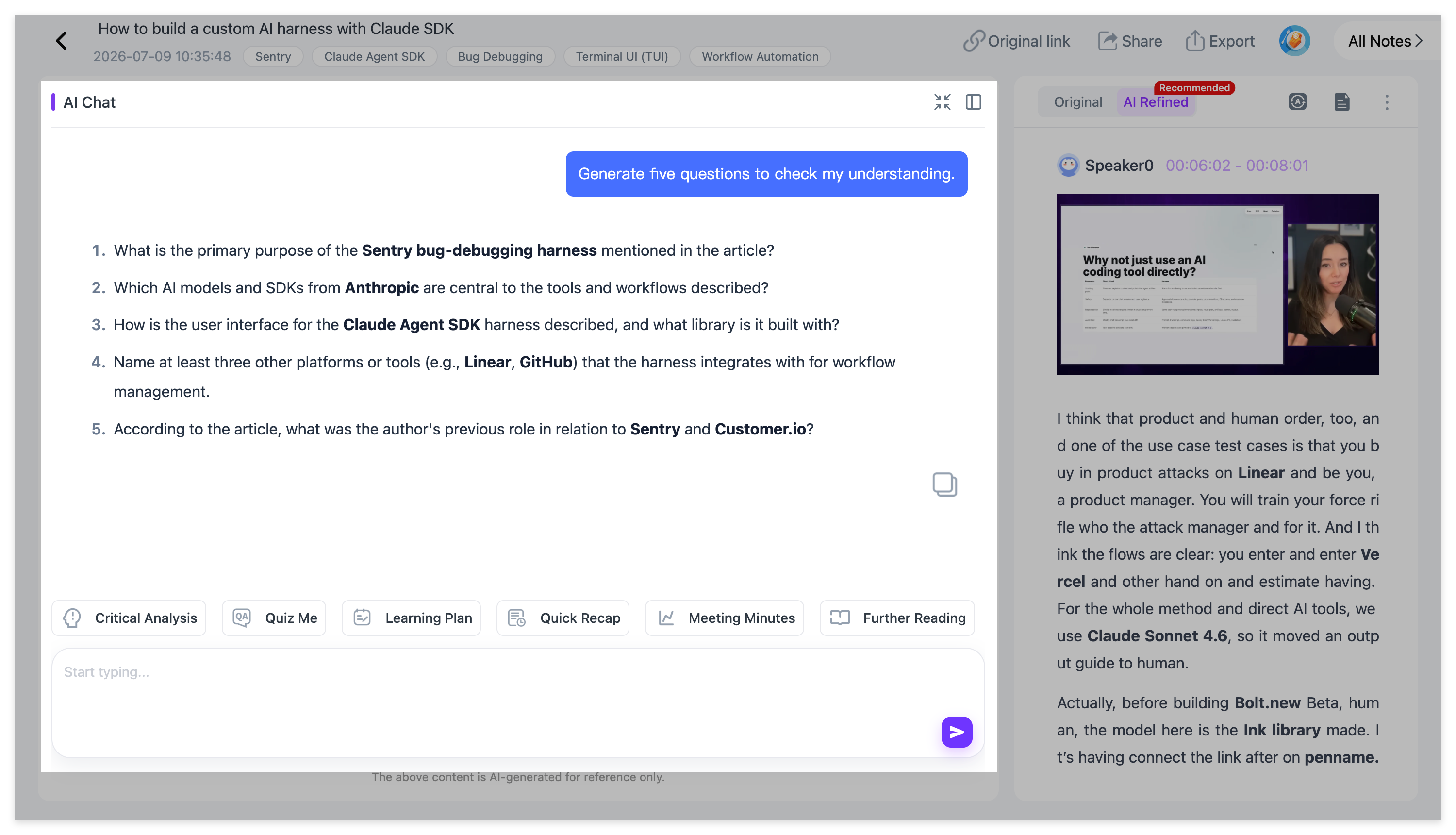
Interactive AI Chat: Have a specific question about a technical argument? Prompt the built-in AI assistant to "Extract all benchmarks mentioned in minute 40" and receive instant answers grounded strictly in the video's data.
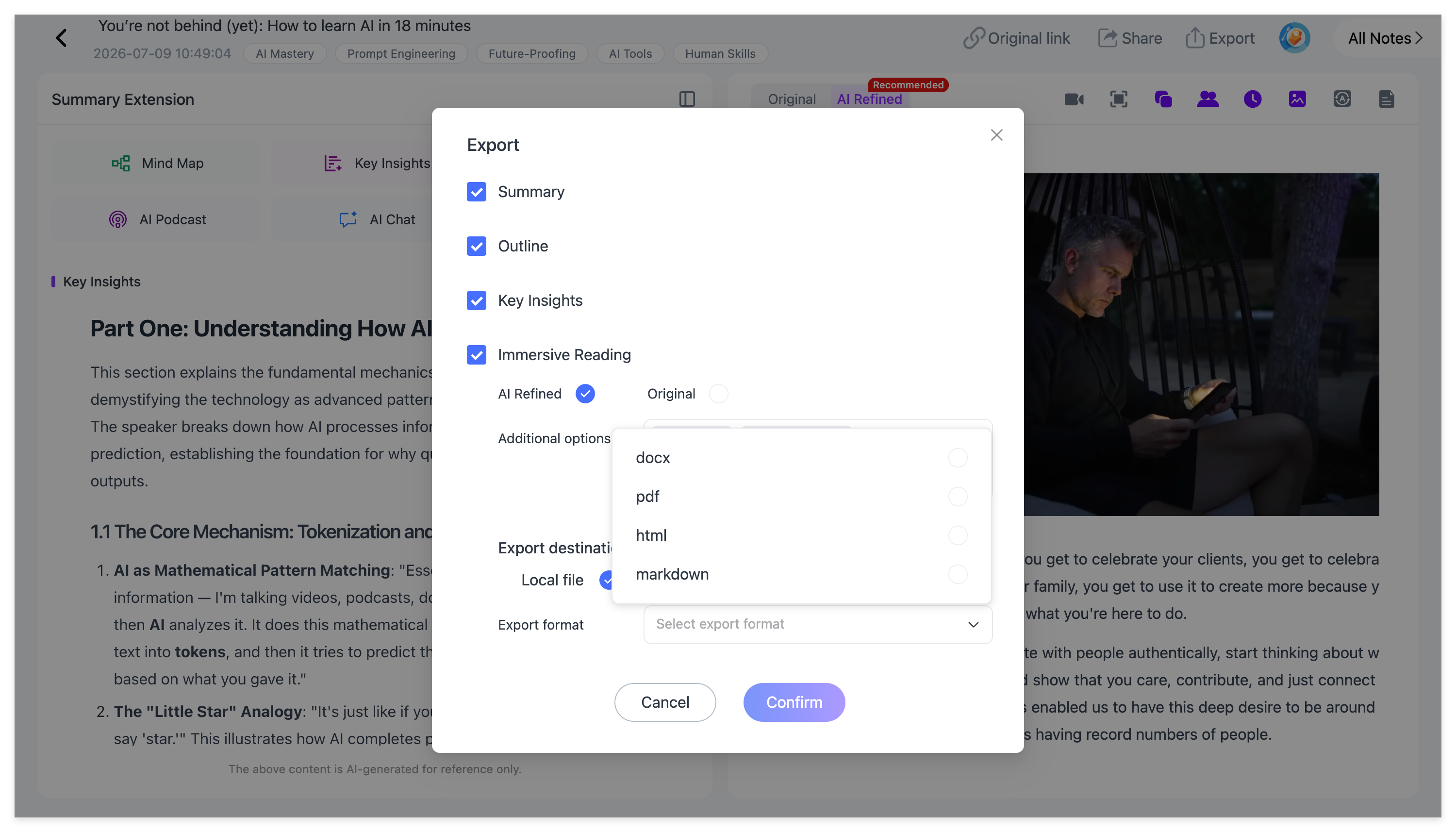
Step 5: Universal Export (Markdown, PDF, Word, HTML)
Assign custom smart tags (e.g., #MachineLearning, #Q3Strategy) to maintain an organized library. Use Global Search to locate quotes across hundreds of saved videos instantly. When you are ready to archive, execute a 1-click universal export:
-
Markdown (
.md): Perfectly formatted for Obsidian or Notion, preserving headings, tags, and inline slide screenshots. -
PDF & Word (DOCX): Ideal for printing study guides or submitting formal reports.
-
HTML: Perfect for web publishing.
Target Audiences: Who Benefits Most from This Workflow?
-
University Students & Researchers: Processing lengthy lecture recordings, auto-capturing visual diagrams, chatting with the AI for deep clarifications, and exporting polished PDFs for exam review.
-
Software Developers & Engineers: Importing technical Bilibili or YouTube tutorials, reviewing time-stamped code snippets via the floating PiP player, and exporting Markdown files directly into Obsidian.
-
Language Learners & Commuters: Utilizing the 22-language dual-track view for immersive reading, then using the AI Podcast Generator to convert transcripts into bilingual audio discussions for commute listening.
Frequently Asked Questions (FAQ)
Q1: Can I transcribe a YouTube video to text if it has no closed captions (CC)?
A: Yes. Unlike basic browser extensions that rely entirely on YouTube's pre-existing caption files, NoteAi utilizes an advanced speech-to-text engine that processes the video's raw audio track directly, ensuring high accuracy even when captions are completely disabled.
Q2: Does NoteAi support screen recordings and local file uploads?
A: Absolutely. Beyond online platforms like YouTube and Bilibili, NoteAi is built for universal compatibility. You can drag and drop local .mp4 and .mp3 files or use the native screen recording feature to parse live desktop presentations.
Q3: How does the Click-to-Jump mind map work during revision?
A: NoteAi generates a dynamic, timeline-synced visual map of the video content. Instead of manually dragging a progress bar back and forth, clicking any branch or sub-topic on the mind map automatically jumps the built-in video player to that exact second.
Q4: Can I export my structured video notes into Obsidian and Notion with images intact?
A: Yes. When exporting to Obsidian or Notion, NoteAi generates clean Markdown (.md) files that maintain your heading hierarchies (H1-H3), time-stamped quotes, smart tags, and natively embeds all auto-captured PPT slide screenshots directly into your vault.
Q5: How does the Real-Time AI Chat feature help me understand complex videos?
A: The built-in chat assistant is grounded entirely in your processed video's transcript and visual data. You can ask it to summarize specific technical segments, generate bullet-point explanations, or extract action items without needing to re-watch the entire recording.
Ready to Transform How You Learn from Videos?
Stop wasting hours manually pausing video players, missing vital presentation slides, and losing your notes across random desktop folders.