

Many AI video summarizers work well when all you need is a quick answer to “What is this video about?”
The harder question is what happens when the source is an uploaded lecture, interview, webinar, screen recording or local MP4 that you will need again later. At that point, a few bullet points are not really the whole job.
For this roundup, I would look first at whether the tool can handle uploaded or multi-source media, then at what happens after the first summary: transcript, visual context, source return and long-term reuse.
How this comparison was prepared: We reviewed each tool's current official product or help pages for the workflow described here. We do not publish controlled accuracy rankings unless the products have been tested under the same conditions.
What Should a Useful AI Video Summarizer Give You?
For a short social clip, you may only need a recap. For lectures, interviews, tutorials and research videos, these questions matter more:
- Can you paste links from the platforms you actually use?
- Can you upload your own video or audio?
- Can it create a transcript when the source has weak or missing captions?
- Does it keep timestamps and different speakers?
- Can it preserve important slides, charts, code or screen content?
- Can you ask follow-up questions about the source?
- Can you change the summary format later?
- Can you export the result or find it again in a library?
If your main goal is transcription rather than summarization, the YouTube-to-text guide goes deeper into captions, timestamps and clean transcripts.
6 AI Video Summarizers for Uploaded Videos and Local Files
For this list, the first requirement is simple: the tool must let you upload a video file or work with local video, not just paste a YouTube URL. The useful differences show up after the upload — transcript quality, timestamps, speaker handling, visual context, AI follow-up and what you can do with the result later.
| Tool | Uploaded / local video workflow | What you get after processing | Best fit |
|---|---|---|---|
| NoteAi | Upload local video/audio or use supported online-video links; batch up to 15 links/files; local media up to 7 hours / 4GB | Original + AI-polished transcript, timestamps, speakers, Visual Notes, editable Mind Map + Smart Sync, AI Q&A, templates, translation, export and knowledge base | Long lectures, interviews, tutorials and visual videos you want to reuse later |
| NoteGPT | Upload local video files; current official page supports files up to 5GB and a queue of up to 20 tasks | Summary, transcript, timestamped subtitles, Mind Map and AI chat | Large-file and batch video summarization |
| ScreenApp | Upload MP4/MOV/AVI/MKV/WebM or import supported video URLs | Timestamped summary, chapters, transcript, speaker-attributed quotes and action items | Fast summaries of meetings, lectures and interviews |
| Descript | Upload raw footage or recordings into a Descript project | Transcript + AI summary inside the same media-editing workspace | Creators who want summarization tied to video editing |
| Notta | Upload video directly or add YouTube / cloud-storage links | Transcript, AI summary, chapters, action items and reusable summary templates | Meetings, interviews and lecture recordings |
| VOMO | Upload video files directly or paste a YouTube link | Transcript, summary, highlights / key takeaways and AI follow-up | Straightforward uploaded-video summarization with notes and Q&A |
Comparison note: Feature descriptions above are based on the current official product pages for each tool. This is a workflow comparison, not a controlled accuracy ranking. File limits and plan allowances can change.
This article is published by NoteAi. NoteAi is covered in more depth because this is the official NoteAi blog; the other tools are included as factual workflow references.
How NoteAi Handles Uploaded Videos After the First Summary
NoteAi is an AI Note Taker, AI Video Summarizer and personal AI knowledge base for long-form video and audio. What matters is what happens after the video is imported: you can read it, search it, check the source, edit the notes and reuse them later.
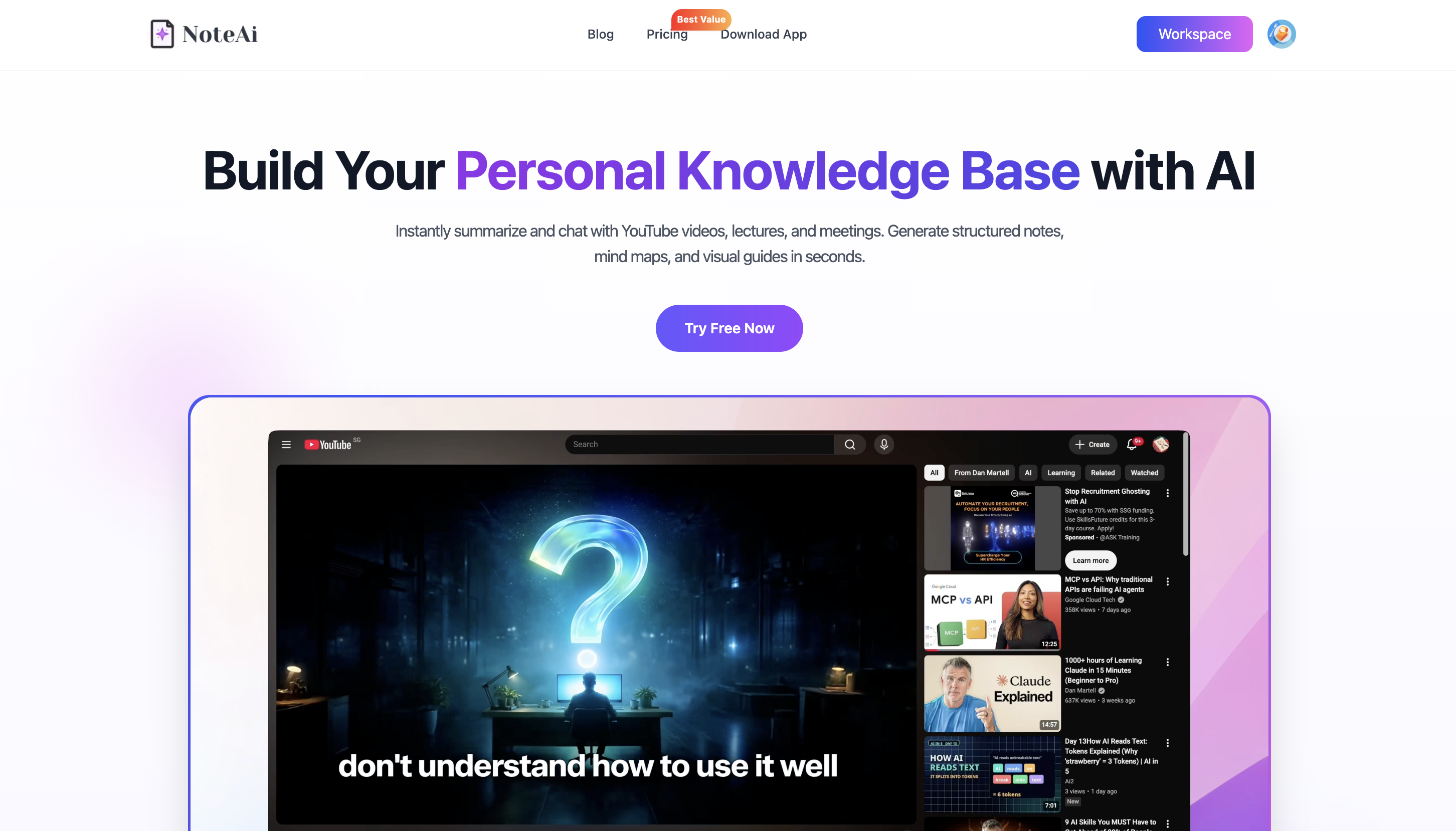
Start With the Video or File You Already Have
NoteAi accepts supported links from YouTube, TikTok, Bilibili and other online video platforms, plus local video/audio and recorded content. You can add up to 15 links or files in one batch, and local media can be up to 7 hours and 4GB.
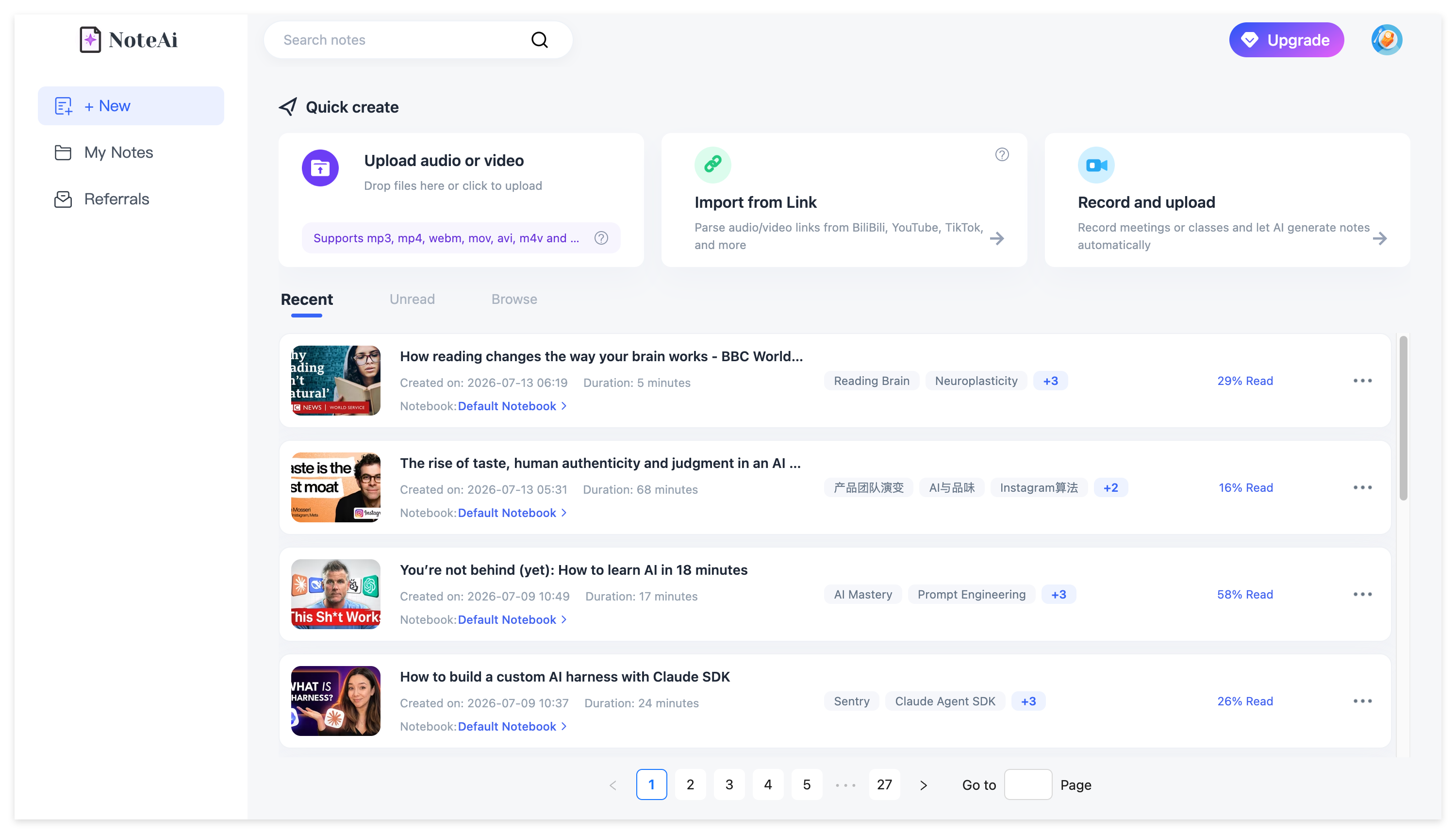
For a multi-part course, a long webinar or a research folder, that means you can bring the source in as it is instead of preparing or converting every file first.
Keep the Original Transcript and a Cleaner Reading Version
A raw transcript is useful for checking a quote. It is less pleasant when you are trying to read a 90-minute conversation from top to bottom.
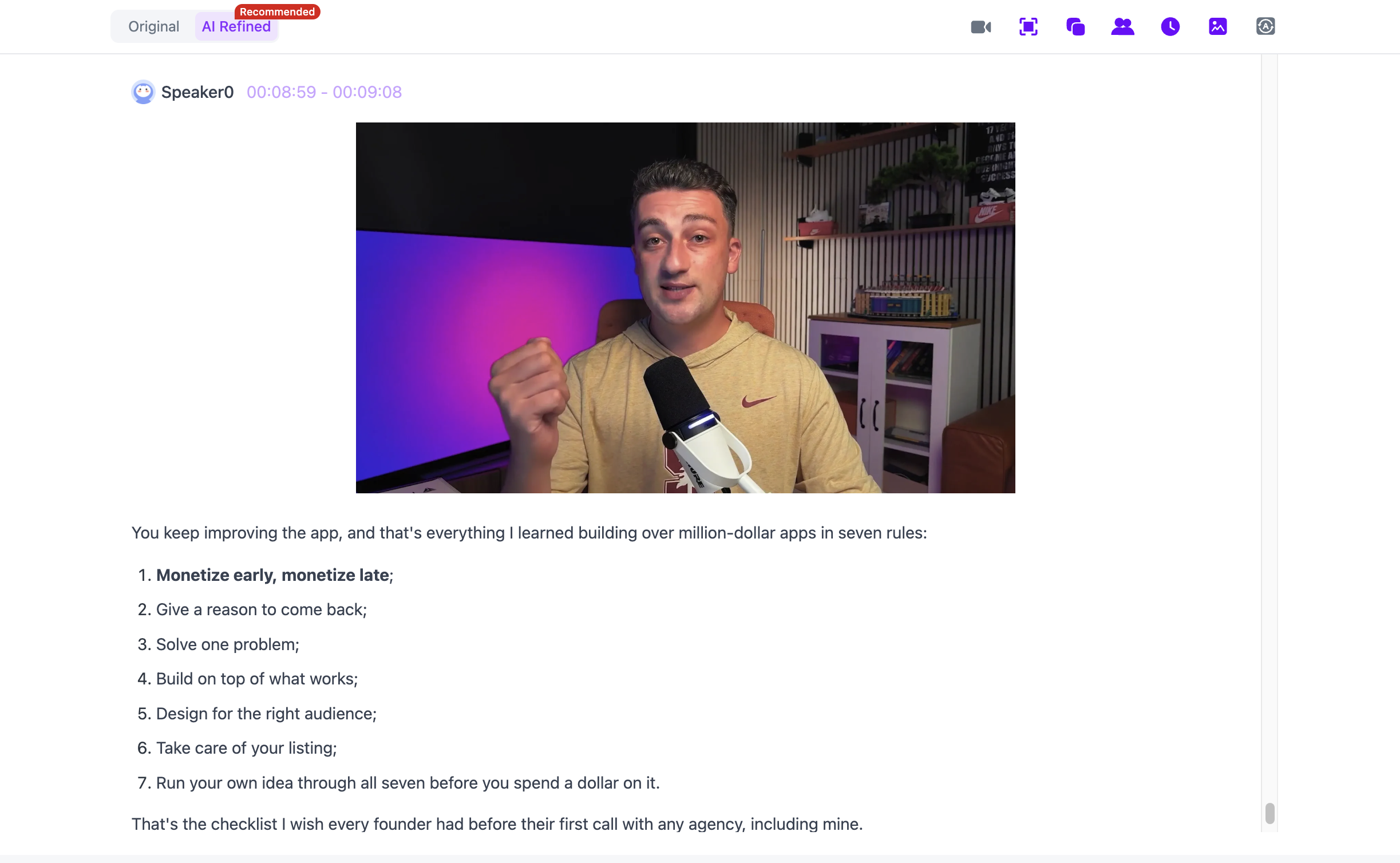
NoteAi keeps the original transcript with timestamps and speaker-aware text for source checking. It can also produce an AI-polished transcript that removes filler words, repeated spoken phrases and other conversational clutter while leaving the original version available.
That gives you two useful views of the same source: one for reading, one for verification.
Keep Slides and Key Frames With the Explanation
A transcript works until the speaker says, “look at this chart.”
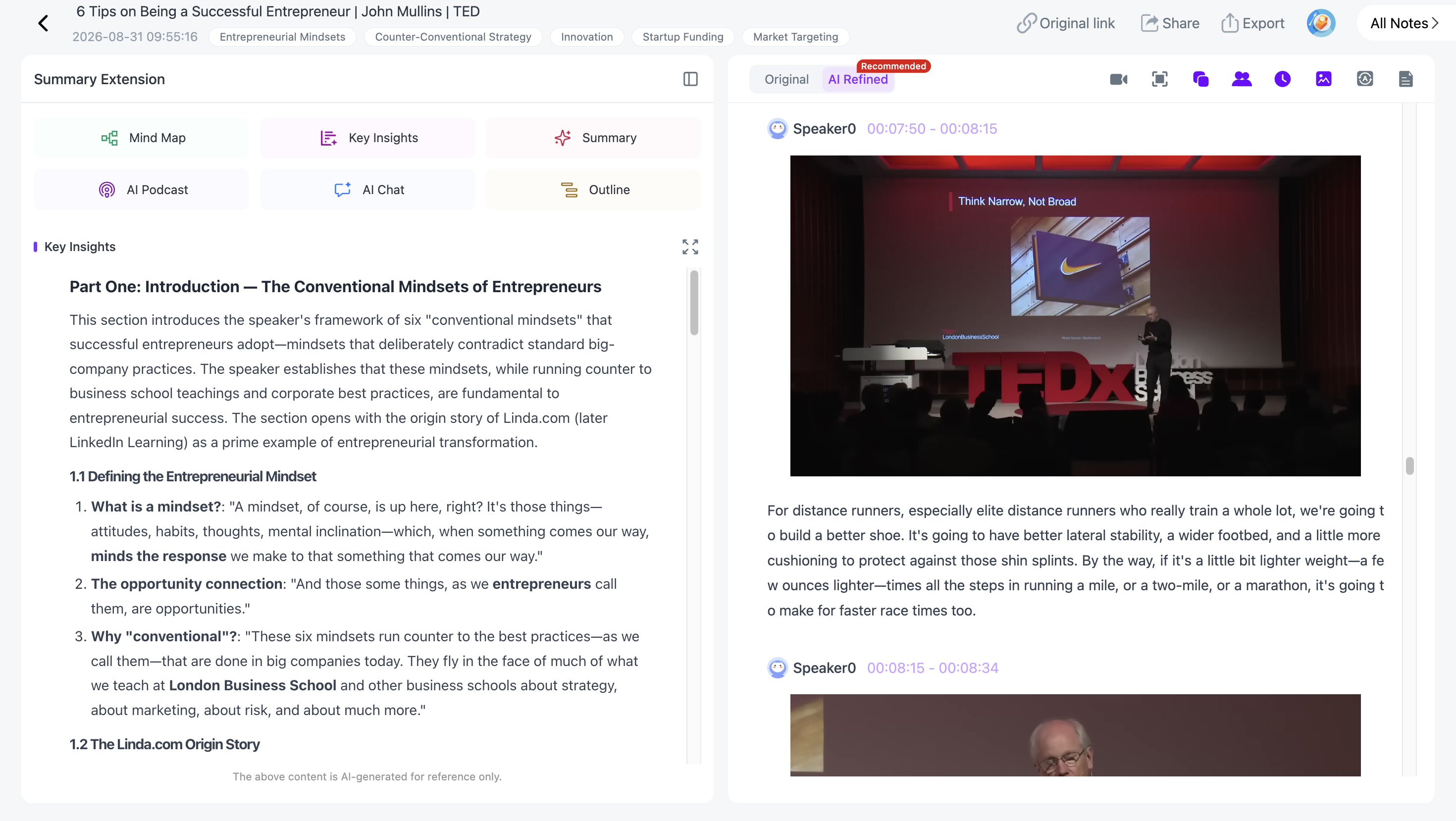
For visual content, NoteAi can automatically capture useful PPT slides, charts, diagrams, formulas, code, software interfaces and other key frames, then place those visuals beside the matching transcript or summary content.
The important detail is the relationship between the image and the text. You do not end up with a pile of screenshots that need to be matched manually later.
If this is the problem you care about most, see the video-to-notes guide.
Generate a Summary, Then Change the Format
AI Summary / Insights gives you a quick overview of what the source covers, the main ideas and where the useful sections are.
From there, NoteAi lets you reuse Summary Templates or write a custom prompt.
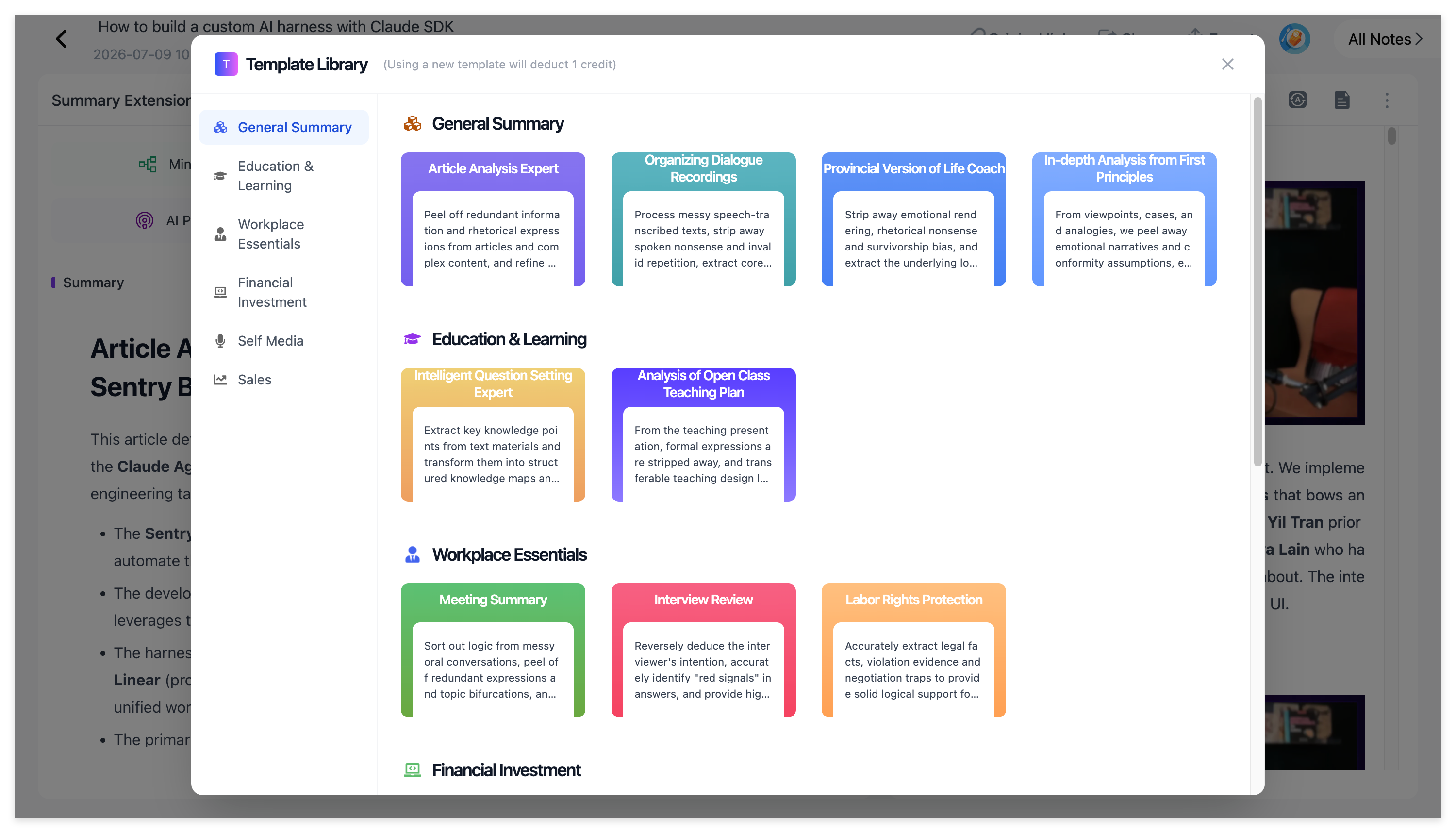
The same video can become Cornell notes, a research brief, a glossary, arguments and evidence, meeting-style notes or creator research without being transcribed again.
Generate a Mind Map — and edit it
The Mind Map is not just a static image.
You can rename branches, remove sections and reorganize the structure. With Smart Sync, clicking a node takes you back to the corresponding moment in the original video or recording.
Mind Maps can be exported as XMind, PDF, SVG, Markdown, JSON or TXT.
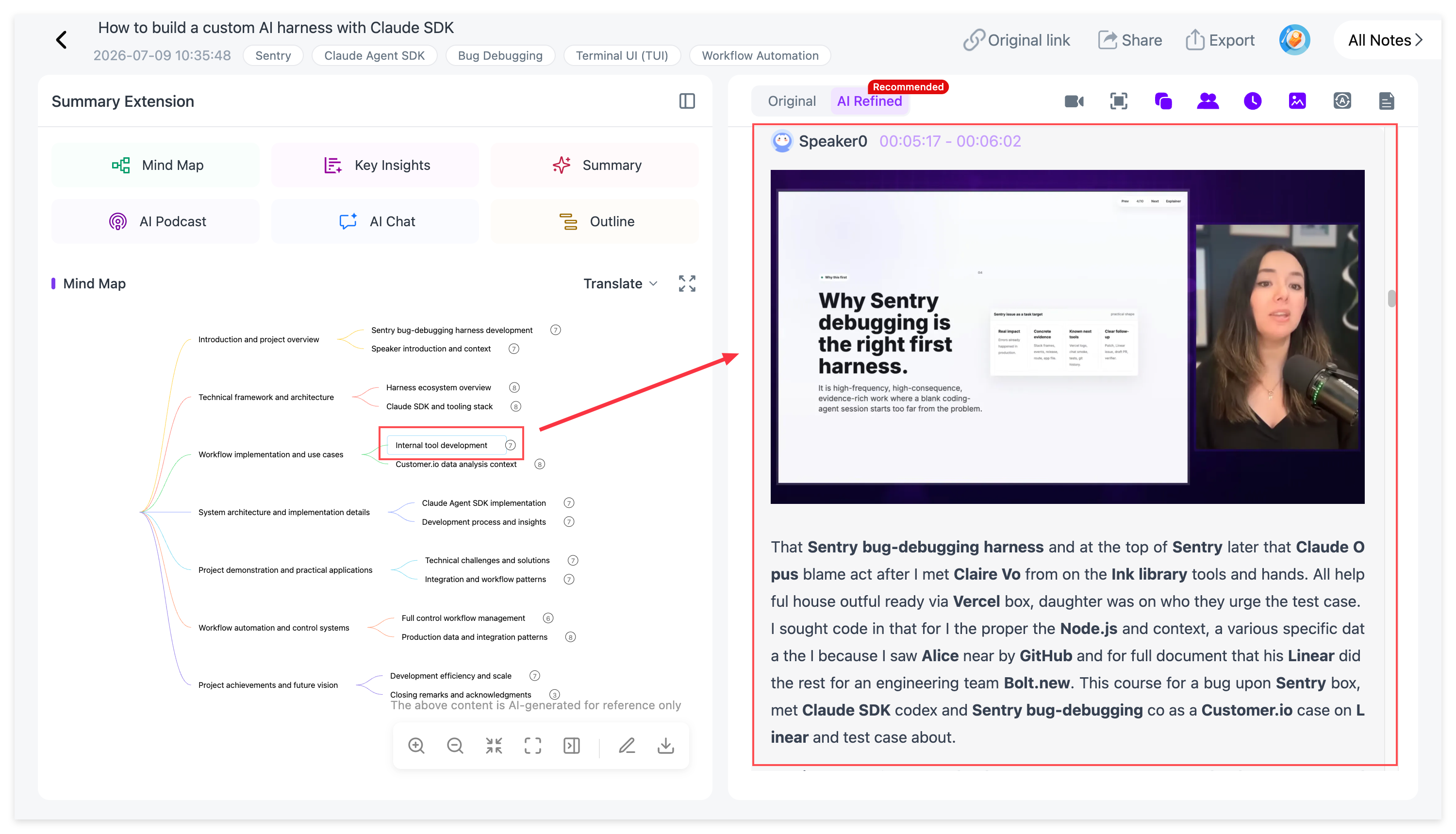
For a long lecture, you can scan the structure first and then jump straight to the section you need.
Ask Questions About the Video
AI Chat / Personal AI Tutor stays connected to the media you added.
You can ask NoteAi to explain a difficult section, compare two ideas, generate a quiz, find where a topic was discussed or point you to the part worth rewatching.
For multilingual sources, NoteAi supports translation across 22+ languages while keeping the translated text close to the original wording, which helps when names, formulas or specialist terms need checking.
A structured note can also become a two-speaker AI Podcast, with customizable speaker names and voice styles.
Export Your Notes or Keep Them Searchable
General notes can be exported as DOCX, PDF, HTML or Markdown, and useful material can continue in Notion or Obsidian.
Or keep it inside NoteAi. The knowledge base supports three-level organization, global search and batch note management.
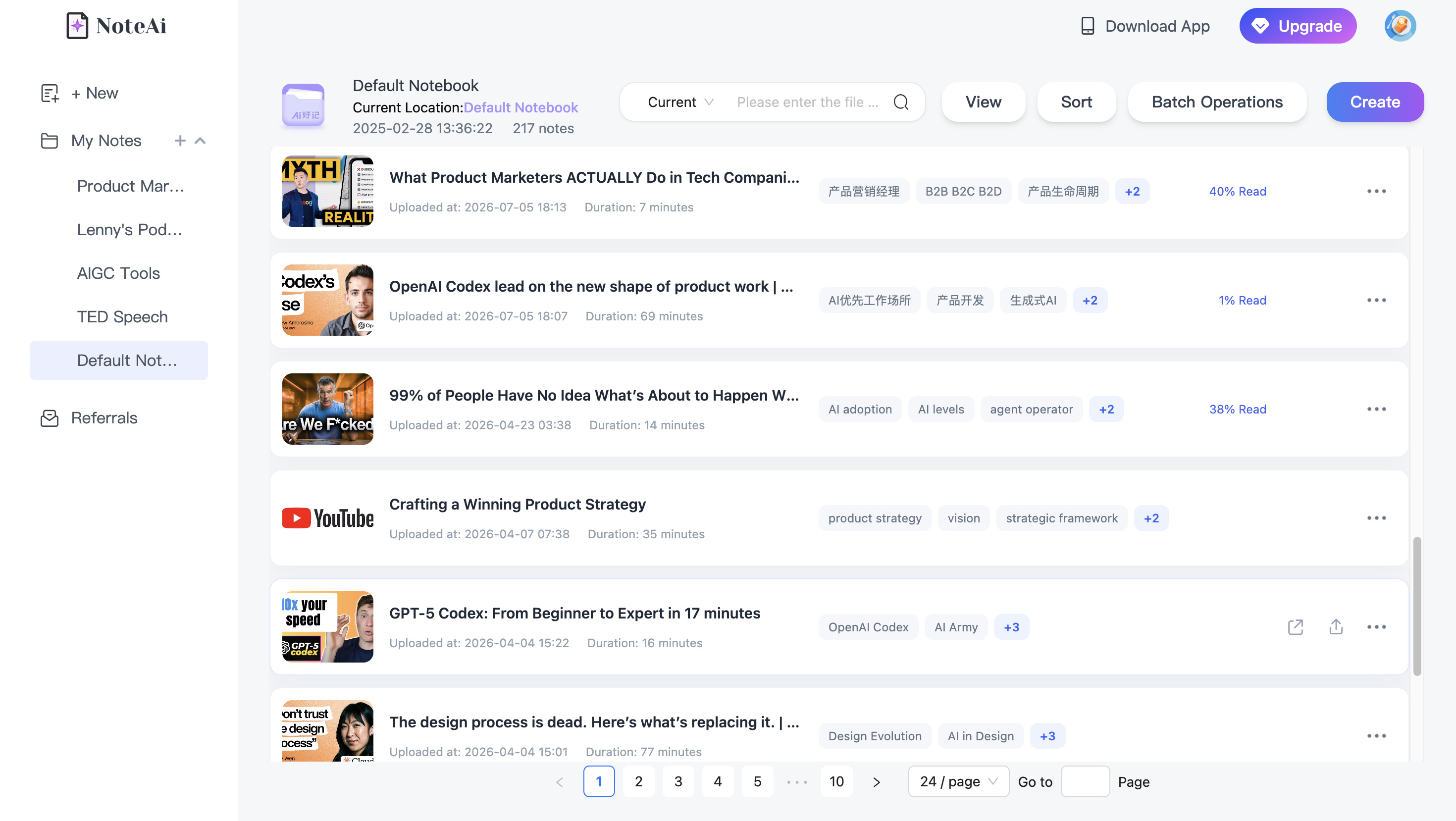
That becomes more important as the library grows. One saved video is easy to remember; fifty course recordings are not.
Which Uploaded-Video Workflow Fits You?
Choose NoteGPT when large local files and batch processing are the main priority. Choose ScreenApp when you want a fast timestamped summary with chapters, quotes and action items. Choose Descript when the transcript and summary need to stay inside a video-editing workflow. Choose Notta when recordings sit close to meeting notes and reusable summary templates. Choose VOMO when you want a straightforward upload → transcript → summary → AI follow-up workflow.
Choose NoteAi when the video itself carries information you want to preserve — slides, charts, code, formulas, software screens or other key frames — and you want those visuals to stay connected to the transcript, Mind Map and source.
Who is NoteAi a good fit for?
Students can use it for lectures and courses. Researchers can keep interviews and talks searchable. Teachers can preserve slides with the explanation. Creators can collect reference videos without manually transcribing and screenshotting them. Language learners can combine transcription, translation, AI questions and audio review.
The common thread is simple: the source is long enough, visual enough or important enough that you do not want the useful parts to disappear after one summary.
FAQ
Can NoteAi process video without existing captions?
Yes. It can create a transcript from the audio instead of relying only on a pre-existing caption track.
Can NoteAi handle local video?
Yes. Local video/audio can be up to 7 hours and 4GB.
Can NoteAi process several sources at once?
Yes. You can add up to 15 links or files in one batch.