

Sometimes you do not need a summary. You need the words.
Maybe there is one quote buried in a 40-minute interview. Maybe you would rather read a lecture than replay it. Maybe the auto-captions exist, but they are awkward enough that copying them into a document is not very helpful.
There are three practical ways to turn a YouTube video into text, and they solve slightly different problems.
Captions, transcripts and summaries do different jobs
Captions are timed text for playback. A transcript gives you the spoken content in a form you can read and search. A summary compresses the source into its main ideas.
If you need exact wording, use the transcript. If you only need orientation, start with the summary. For a course or technical video, you may want the transcript and the on-screen visuals together.
3 ways to convert a YouTube video to text
Use YouTube's built-in transcript
For videos with captions, YouTube can show the transcript next to the player, and clicking a line takes you to the corresponding moment.
Google's own instructions are here: View video transcripts — YouTube Help.
This is often enough when you only need to search a few lines or copy a quote.
Use a caption extractor
Caption extractors make an existing subtitle track easier to copy or download.
They are useful when the captions are already good. They do not create a new transcript from the audio when the caption track is missing or poor.
Transcribe the audio with AI
AI transcription creates text from the speech itself.
That route makes more sense for interviews, lectures, several speakers, bad auto-captions or videos where you want the text to become a reusable note instead of a one-off copy-paste.
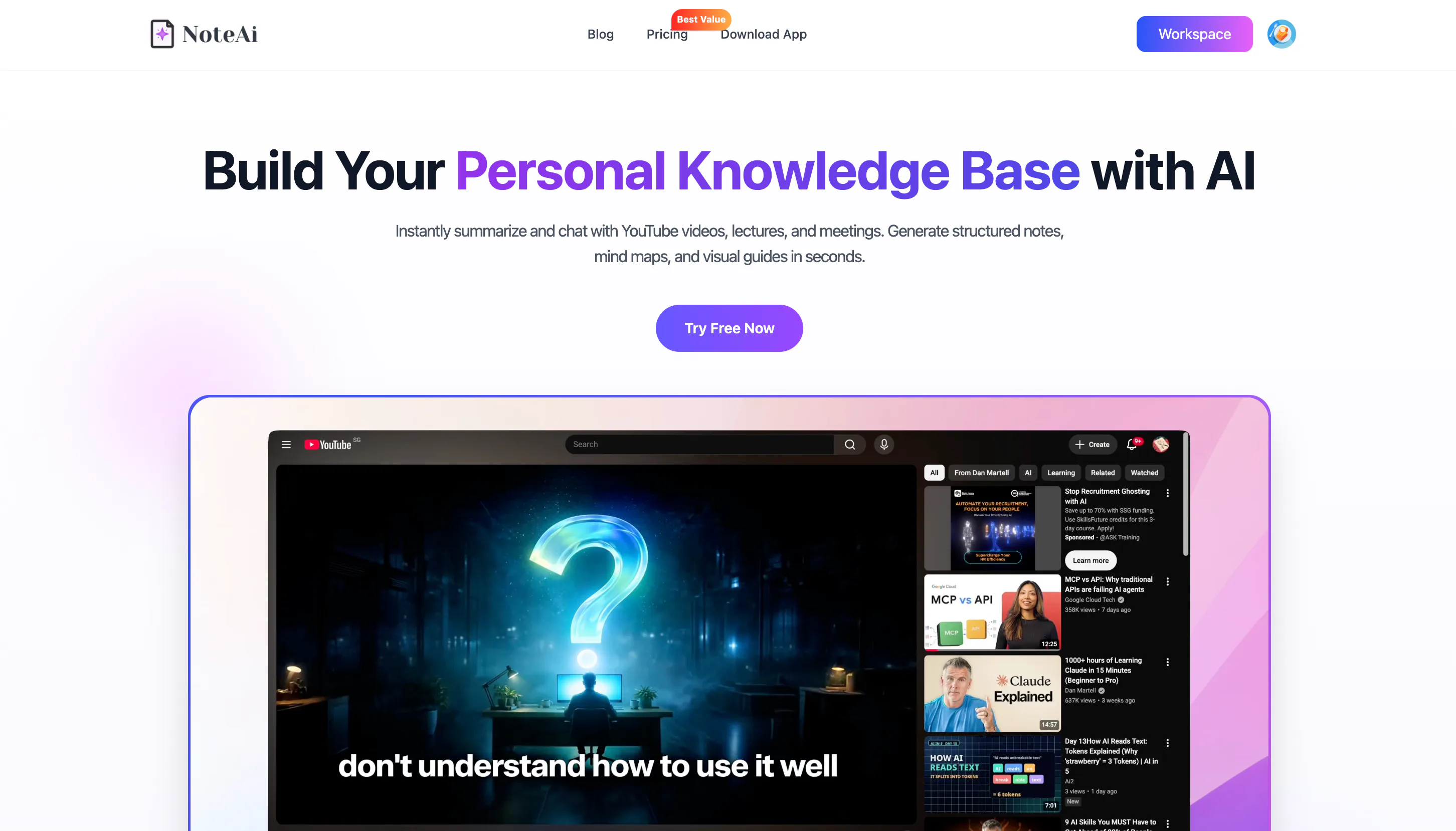
How NoteAi turns a video into clean, searchable text
Paste the source
Copy the YouTube URL into NoteAi. You do not need to download the video first.
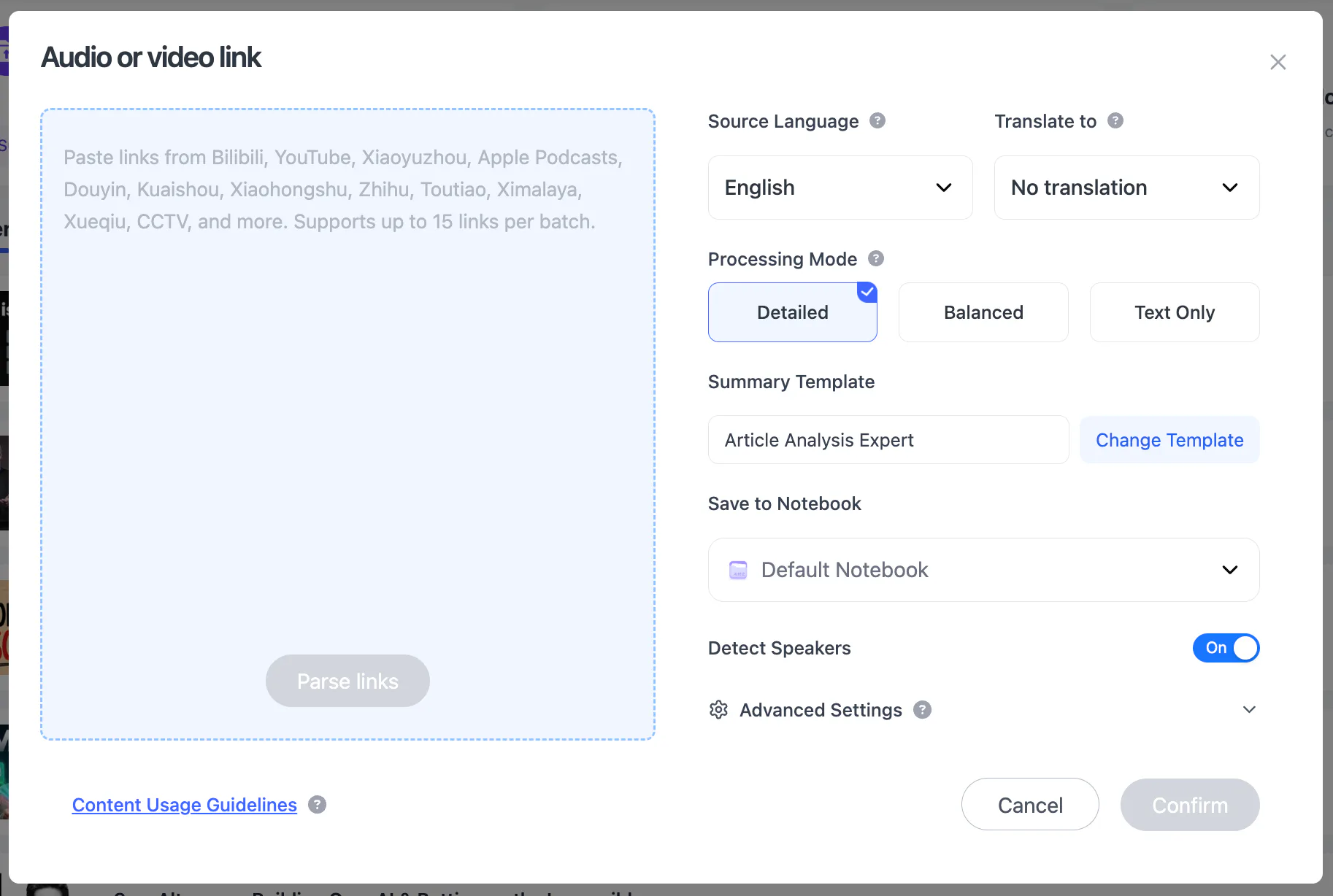
The same import flow also accepts supported links from TikTok, Bilibili and other online video platforms, local video/audio and recorded or screen-captured material. Up to 15 links or files can be added in one batch.
Keep the Original Transcript When Exact Wording Matters
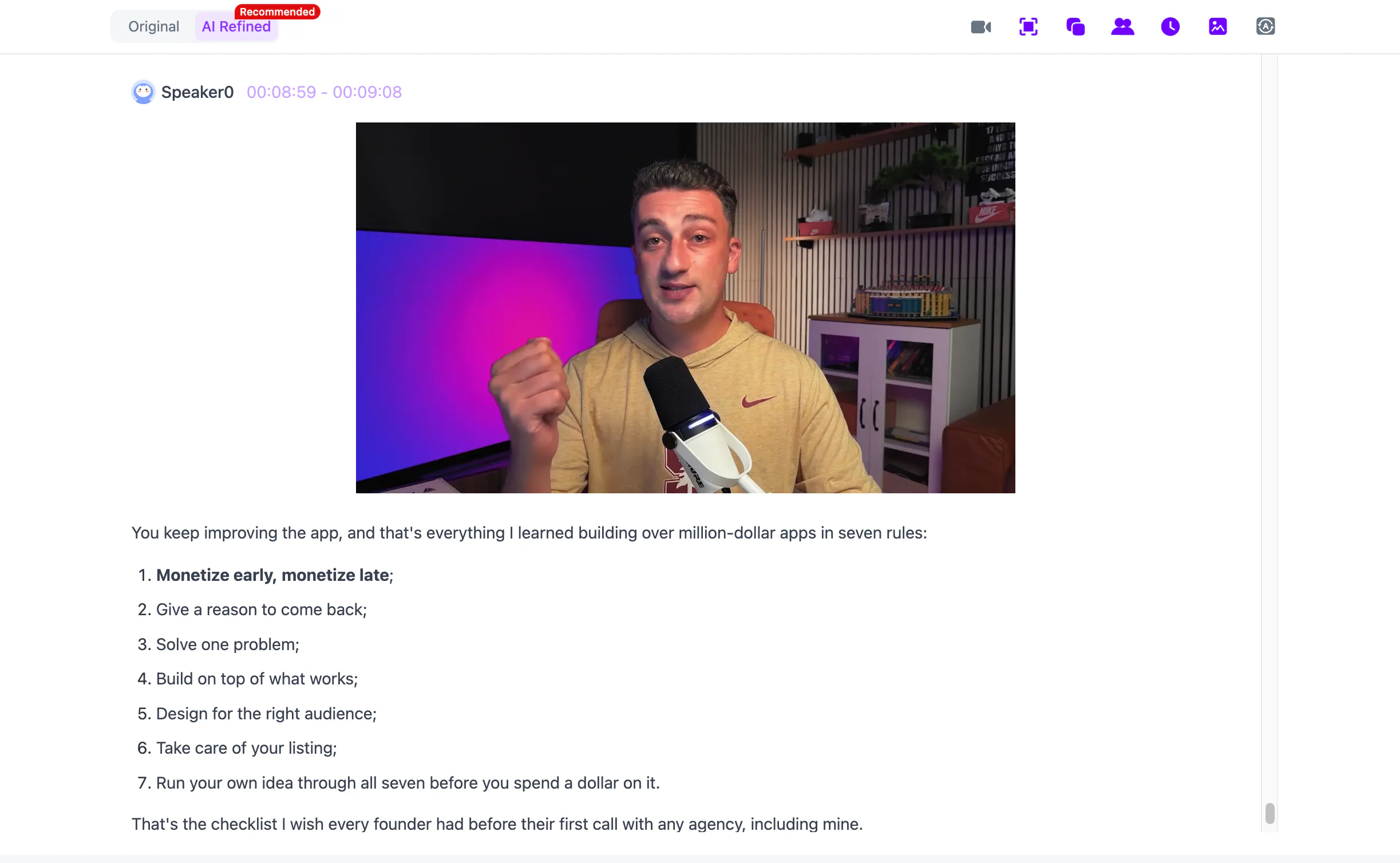
If you need a quote, a name or a technical term, stay with the original transcript. It keeps timestamps and speaker-aware text, so you can verify the wording and jump back to the right moment instead of hunting through the video.
Read the Polished Transcript for Easier Reading
Spoken language is full of repetition that sounds natural and reads badly. The AI-polished transcript in NoteAi trims filler words and repeated phrasing while leaving the original version available.
For a long lecture or interview, that usually means: read the polished text for flow, then check the original when precision matters.
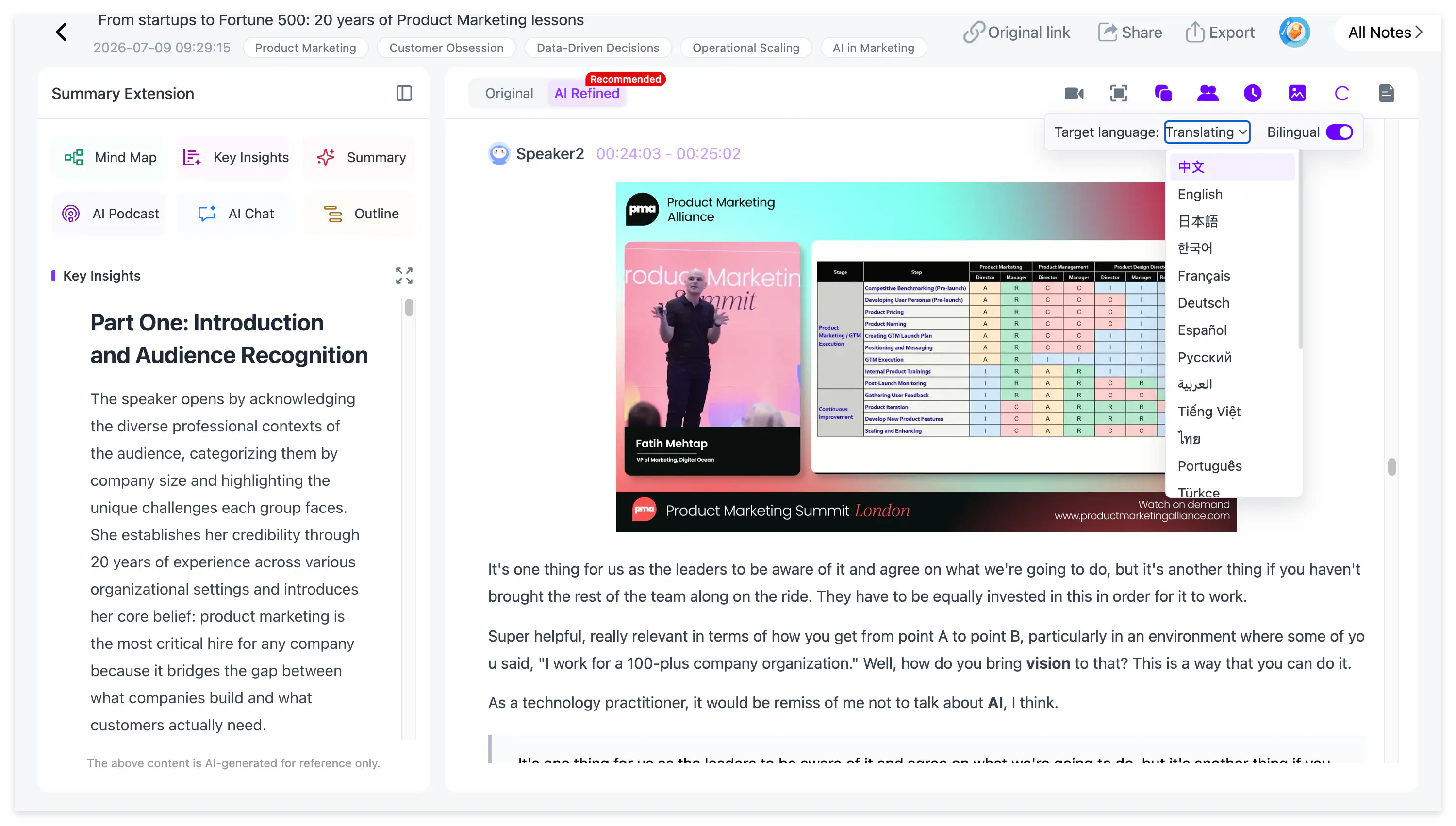
Translate the Transcript Without Separating It From the Source
Foreign-language transcripts can be translated across 22+ languages, with the source wording kept nearby for comparison.
Original and translated content can be viewed together, which is helpful when names, formulas or specialist vocabulary matter.
Use the Summary to Find the Section You Need
A full transcript can be long even when it is clean.
AI Summary / YouTube Insights gives you a faster overview of the video's structure and important sections. Use it to locate the chapter you care about, then open the transcript for the detail.
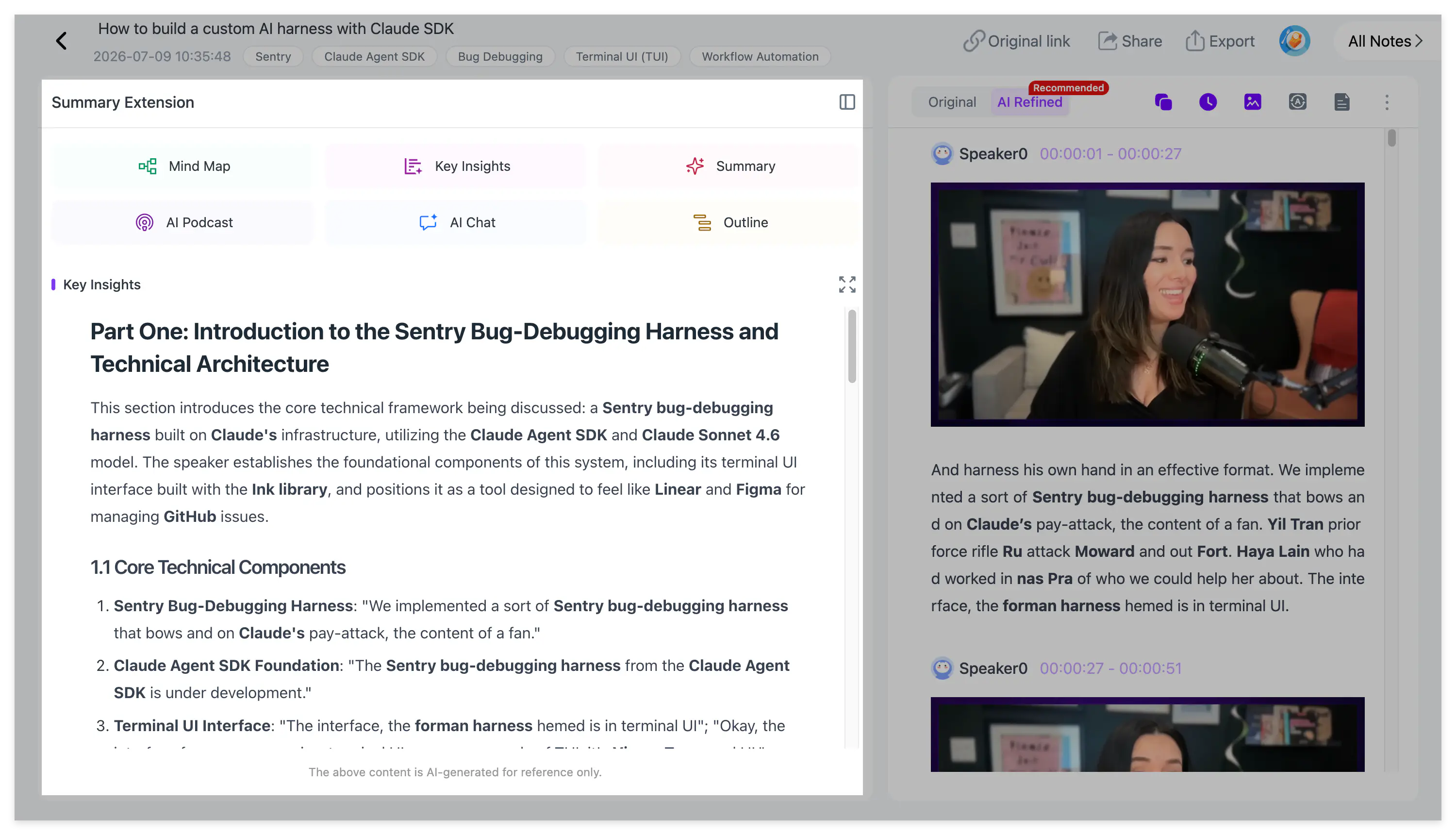
For very long sources, the 2-hour YouTube video workflow shows how to combine summary, transcript, visuals and source return without over-compressing the content.
Keep Slides and Screen Content With the Transcript
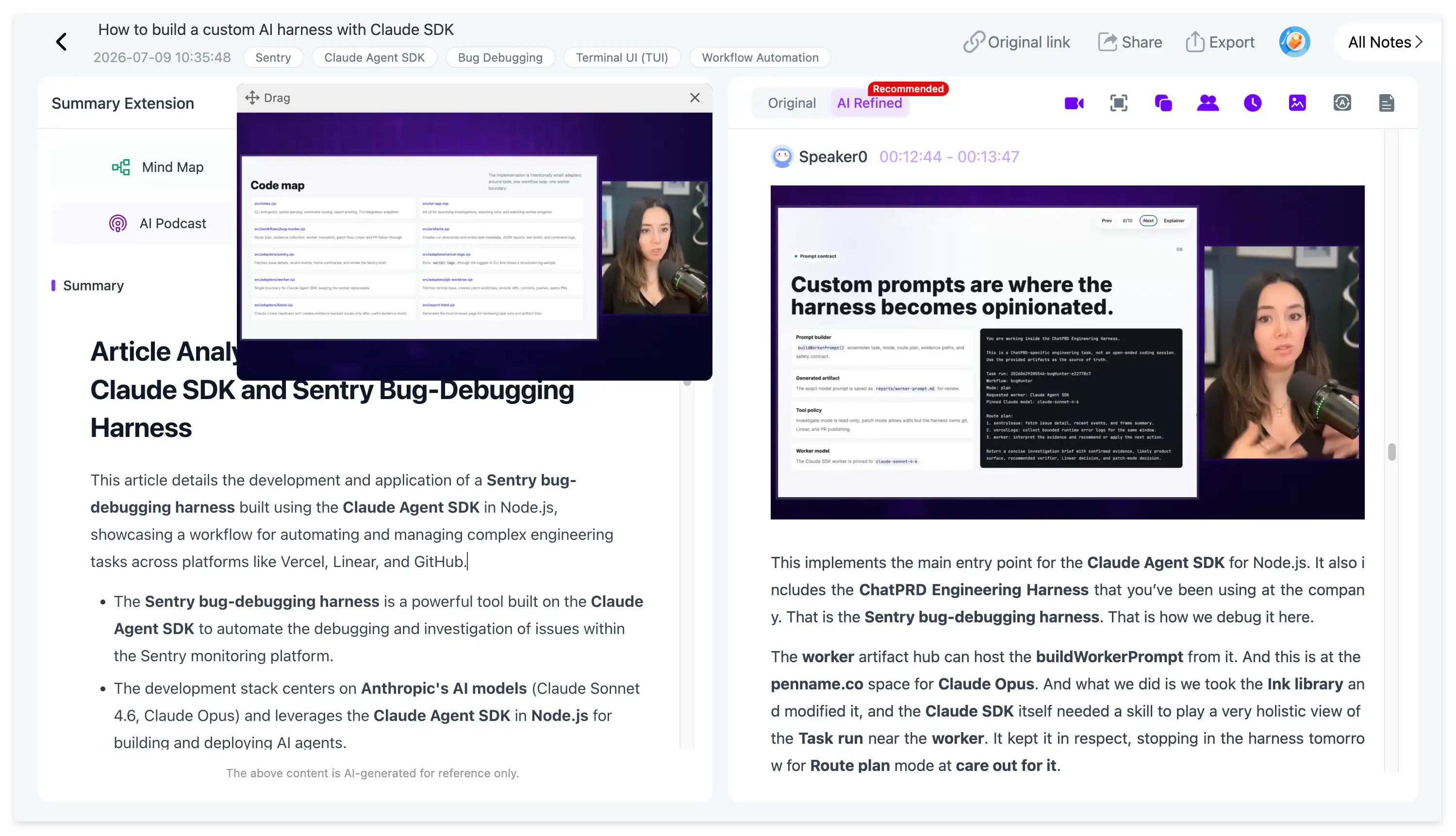
If the video contains slides, a chart, code or a software walkthrough, the transcript may only preserve half of the lesson.
NoteAi can capture useful PPT slides, diagrams, formulas, code, interface screens and key frames and place them beside the matching text.
This is especially useful for courses and tutorials where phrases such as “look at this chart” make no sense once the screen is gone.
Generate a Mind Map
The Mind Map gives you a topic-level view of the video and can be edited after it is generated.
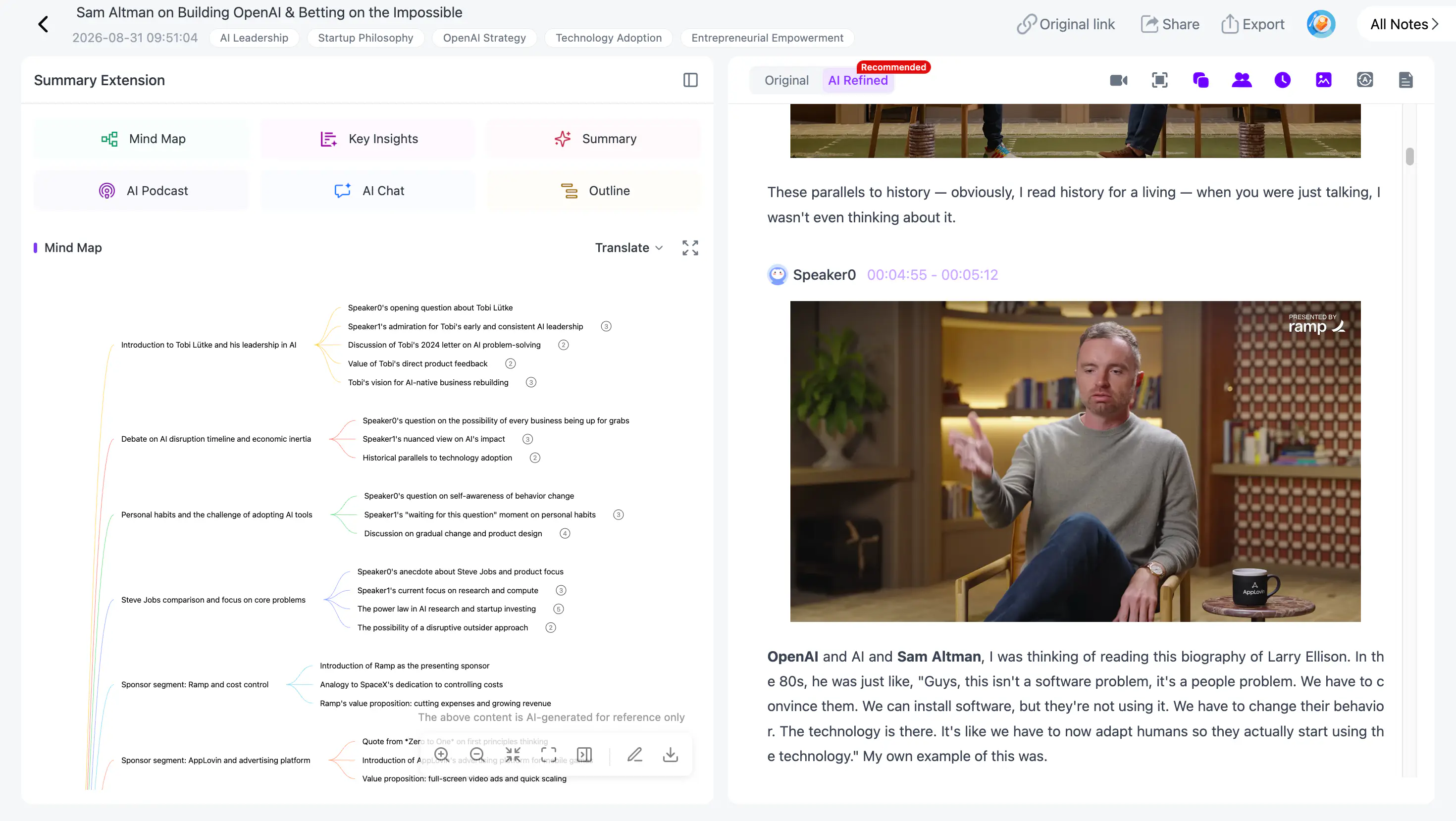
With Smart Sync, click a node to return to the corresponding moment in the original source. Export formats include XMind, PDF, SVG, Markdown, JSON and TXT.
Ask Questions About the Transcript
AI Chat / Personal AI Tutor can explain a section, compare two ideas, create review questions or find where the speaker discussed a topic.
You can also use a reusable Summary Template or custom prompt to turn the transcript into a glossary, Cornell notes, a research brief or another structure.
Export the Transcript or Keep It Searchable
Export notes as DOCX, PDF, HTML or Markdown, continue in Notion / Obsidian, or keep the material inside NoteAi's knowledge base.
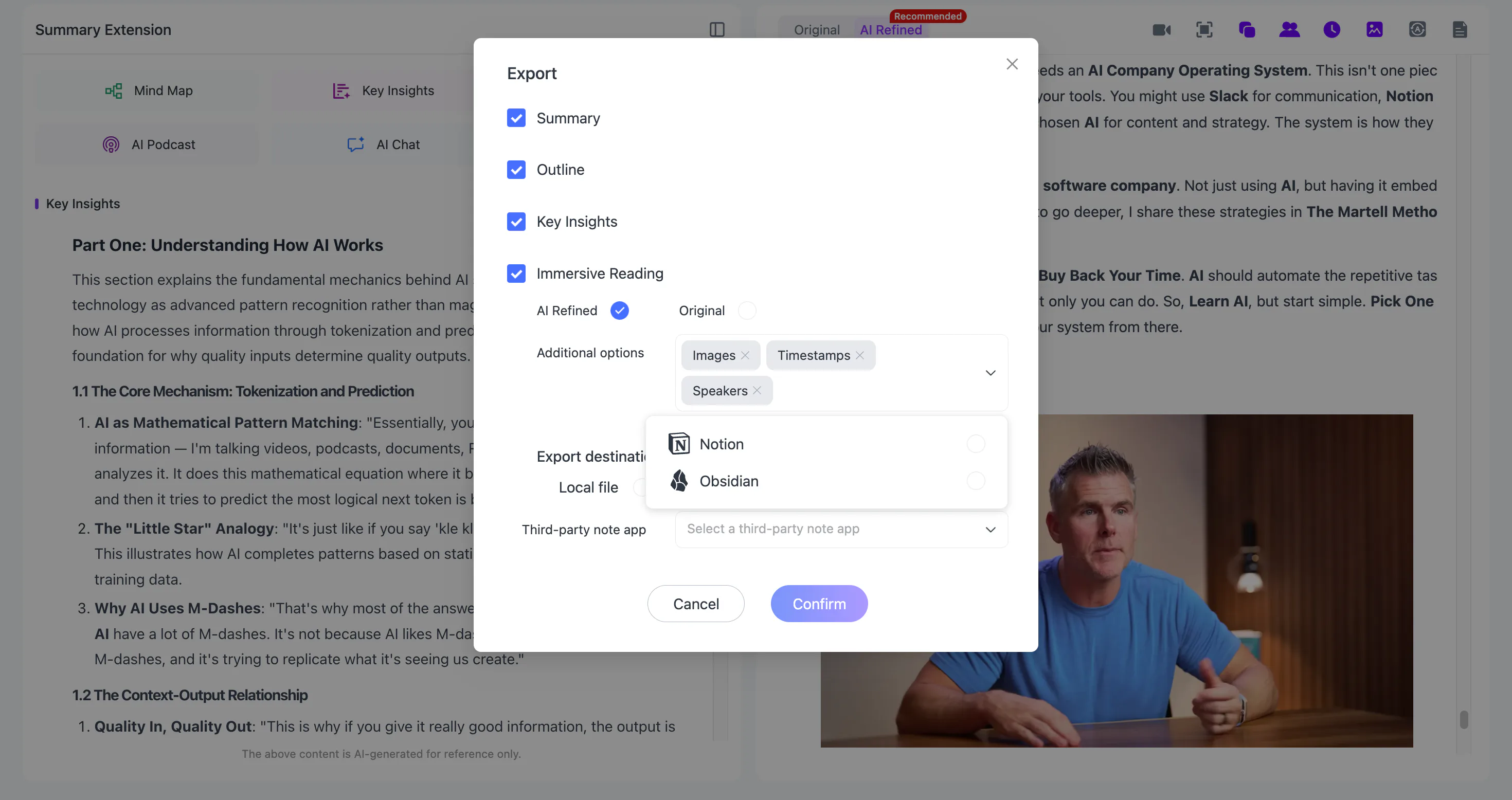
The built-in library supports three-level organization, global search and batch note management.
What can a YouTube transcript become?
Once the video is searchable text, you can use it as study notes, a source for quotations, translated learning material, a glossary, a chapter outline or creator research.
If you need the visual part as well, see how to turn video into visual notes.
FAQ
Can NoteAi convert YouTube to text without subtitles?
Yes. It can transcribe the audio directly.
Does NoteAi keep timestamps?
Yes. Timestamps stay connected to the transcript and source-linked navigation.
Can NoteAi clean up spoken text?
Yes. The original transcript remains available, while the polished version is designed for easier reading.