Paste a YouTube Link
Copy the URL of a public YouTube video and paste it into the transcript generator.

Paste a YouTube link to generate a full transcript with timestamps, then read it online and sign in when you want to copy it into your NoteAi note.
Turn a public YouTube video into readable text in three simple steps.
Copy the URL of a public YouTube video and paste it into the transcript generator.
Choose the spoken language and let NoteAi turn the video into readable text with timestamps.
Open the result in the full Transcript view, then sign in to copy it to your account.
Generate a timestamped transcript, read it in a focused result view, and continue in NoteAi when you need more tools.
Paste a public YouTube URL to turn the spoken content into text without downloading the video.
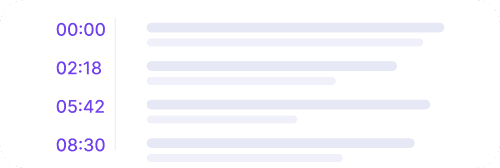
Keep the timing of the original video beside each transcript section for quick reference.
Open the generated transcript and read the available result before deciding to save it to NoteAi.
Sign in after generation to open the saved note and use its existing copy, export, and AI tools.
After you open the result, sign in to save the transcript to your NoteAi account. From the note detail page you can copy, export, summarize, outline, or ask questions about the video.
Open NoteAi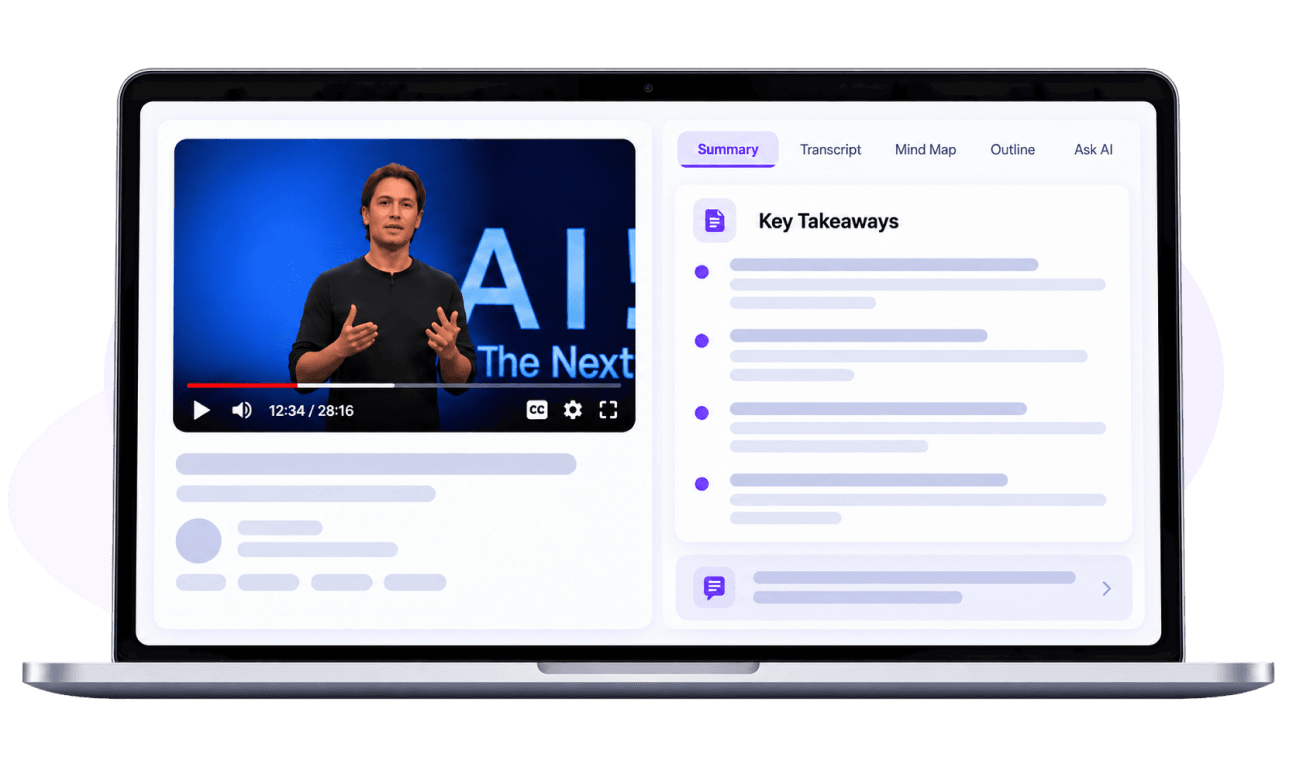
Read the spoken words with timestamps in a focused result view.
Continue in your NoteAi note when you want the main ideas alongside the source.
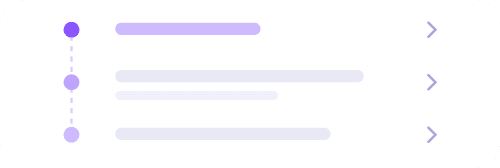
Use the saved note to organize a long transcript into sections you can scan.
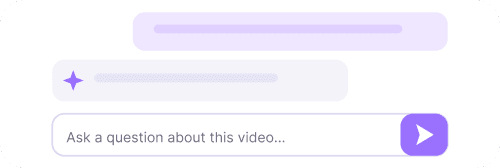
Ask about the transcript after it is saved to your NoteAi account.





Graduate Student
I use transcripts to find the exact explanation I need in a long lecture. The timestamps make it much easier to jump back to the right part of the video.
Product Manager
The transcript gives our team a searchable record of product talks before we decide which sections need a closer discussion.
Freelance Writer
I can read the full spoken content first, then save the result to NoteAi when I need to copy a quote or build a clearer outline.
Software Developer
Tutorial transcripts help me scan the steps quickly and return to the source video only when I need to see the demonstration.
Marketing Coordinator
For interviews and panels, having timestamps beside the words makes review and follow-up much faster.
Language Learner
Reading along with the video helps me follow longer talks and revisit phrases that I did not catch the first time.
Choose the plan that fits your needs. All plans include core features with different usage limits.
Join thousands of learners and pros building their knowledge base with NoteAi.
No credit card required. Cancel anytime.