

You have a 90-minute meeting recording, but all you really need is a clear summary of what happened, which decisions were made, and what needs to happen next.
Listening to the entire recording again takes time. Manually writing meeting minutes can take even longer, especially when several people contribute to the discussion.
With NoteAi, you can upload an existing meeting recording and turn it into a timestamped transcript, structured AI meeting notes, key decisions, and follow-up items. You can also identify speakers, ask questions about the discussion, and export the results.
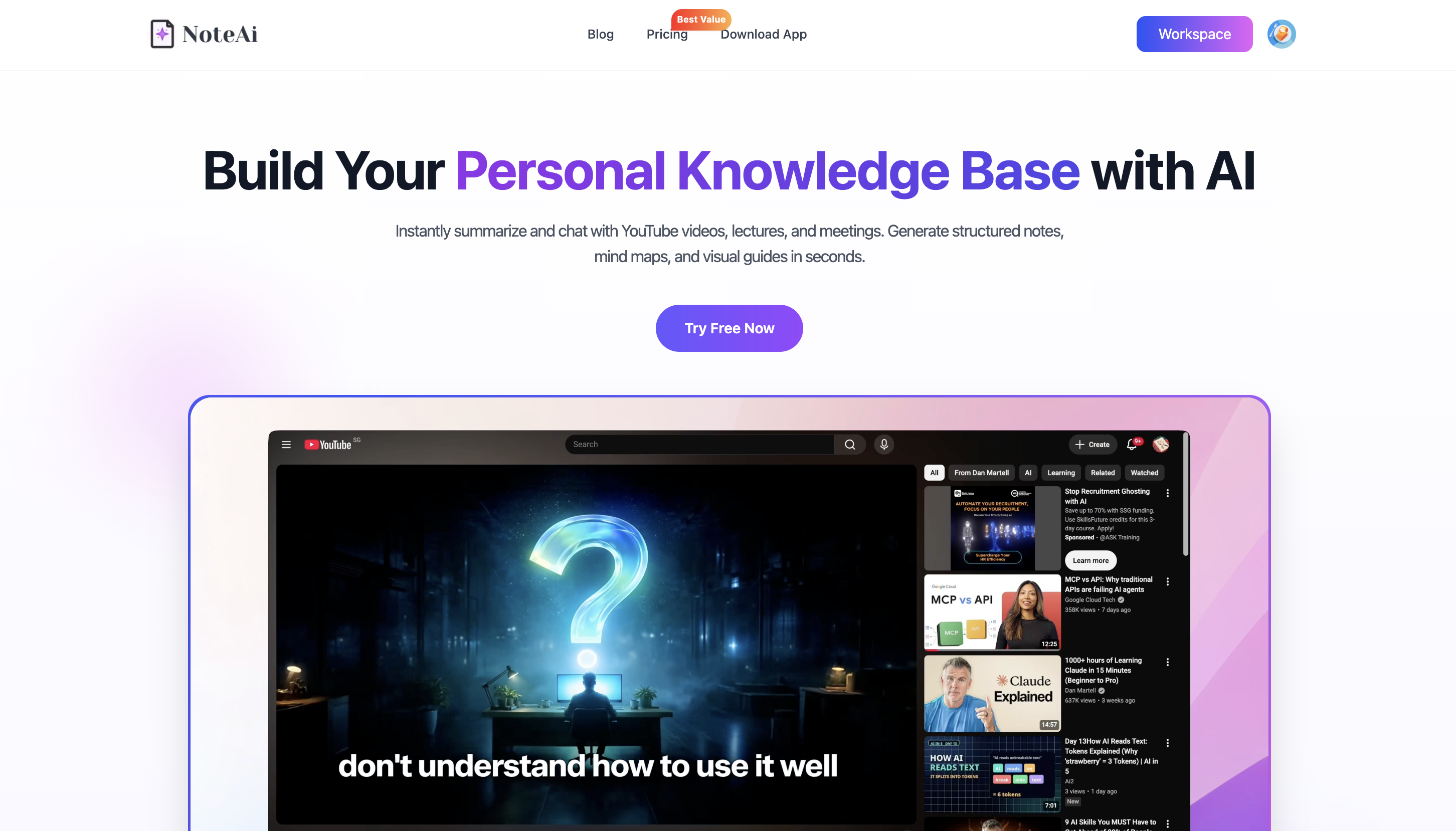
The process works with recordings you already have, including online meetings, customer interviews, project discussions, and in-person conversations. You don't need a meeting bot to join the call.
Here's how to turn a meeting recording into useful AI notes in five steps.
How to Turn a Meeting Recording Into AI Notes in 5 Steps
The workflow is straightforward:
- Upload your meeting recording to NoteAi.
- Generate a transcript with timestamps and speaker recognition.
- Create structured meeting notes with summaries, decisions, and action items.
- Review important details using AI Chat and the original recording.
- Export and organize your notes for sharing and future reference.
Each step builds on the same recording, so you don't need to copy the transcript into separate tools to continue working with the meeting content.
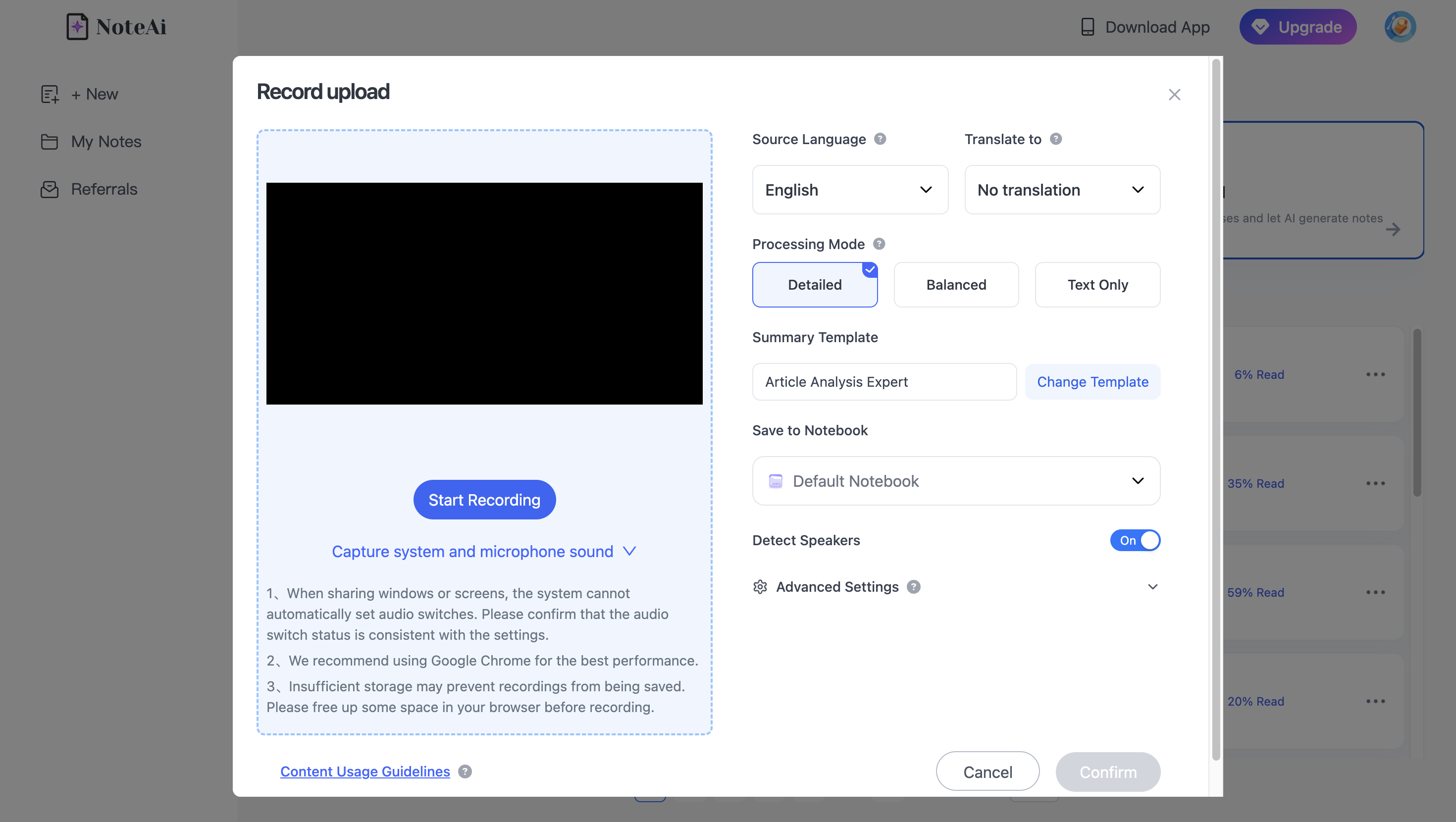
Step 1: Upload Your Meeting Recording to NoteAi
Open NoteAi and upload the meeting audio or video file from your device.
You can use recordings from:
- Project meetings and weekly team updates
- Customer interviews and sales calls
- Online workshops and training sessions
- Product reviews and brainstorming discussions
- In-person meetings recorded with a phone or another device
For example, if you've recorded a meeting in Microsoft Teams, you can download the recording when your account permissions allow it. Microsoft's official guide to meeting recordings explains how to find and download those files.
Once you have the recording, upload the local file to NoteAi.
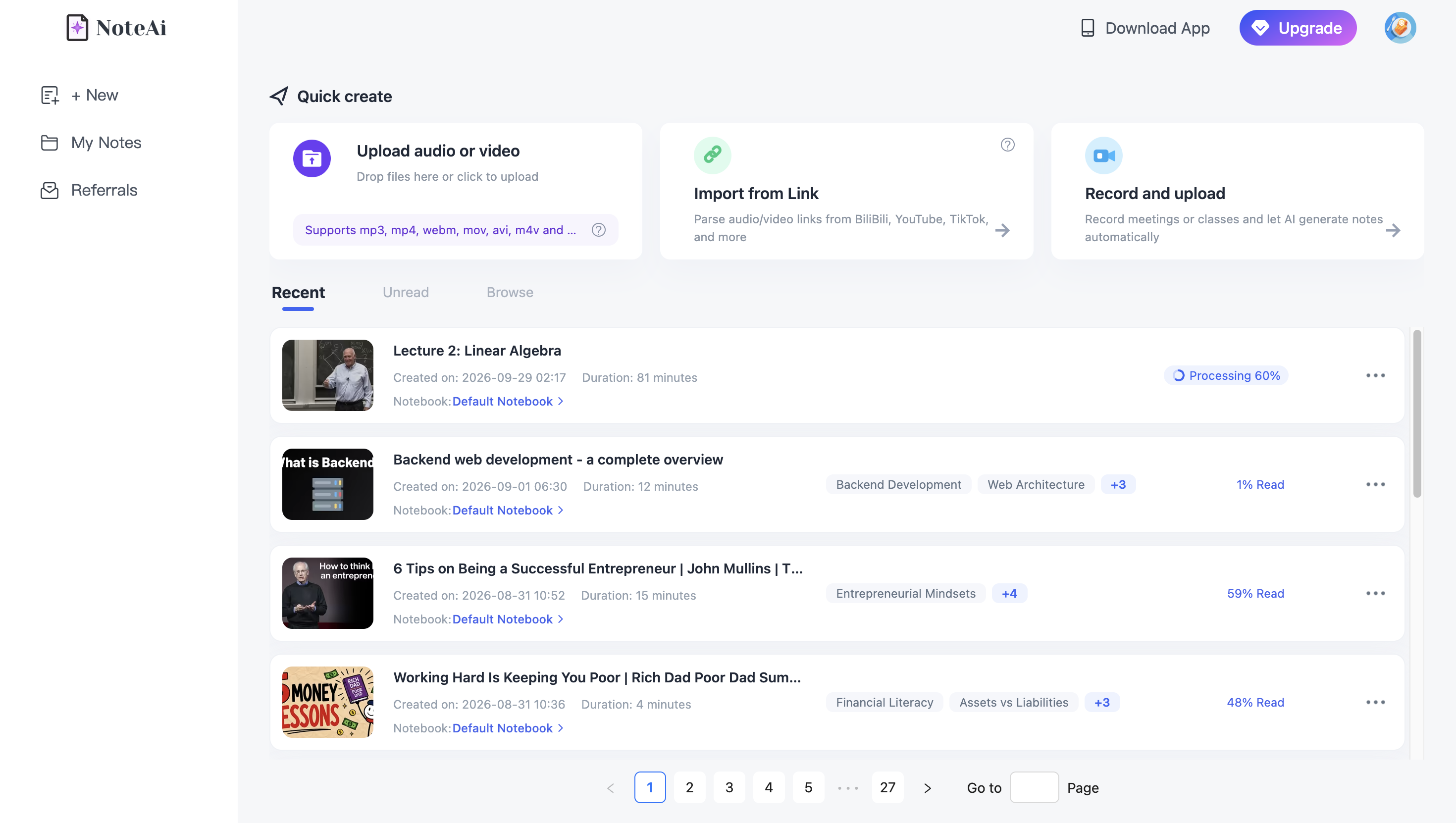
NoteAi supports individual recordings up to 7 hours and 4 GB, depending on your subscription plan and available credits. This makes it suitable for longer workshops, interviews, and extended discussions.
If you only need to convert a short recording into text, you can also start with the Audio to Text Converter or Video to Text Converter. These tools offer a free first transcript, with a visitor upload limit of 1 hour and 1 GB. Saving the result to NoteAi and using additional features requires signing in.
Tip: Clear recordings produce better transcripts. If several people are speaking, try to minimize background noise and overlapping voices. Make sure you have permission to record and upload the conversation, especially when it contains confidential information.
Step 2: Generate a Meeting Transcript With Timestamps and Speaker Recognition
After NoteAi processes your recording, open the generated transcript.
Instead of listening to the meeting from beginning to end, you now have a written version of the conversation that you can read, search, and review.
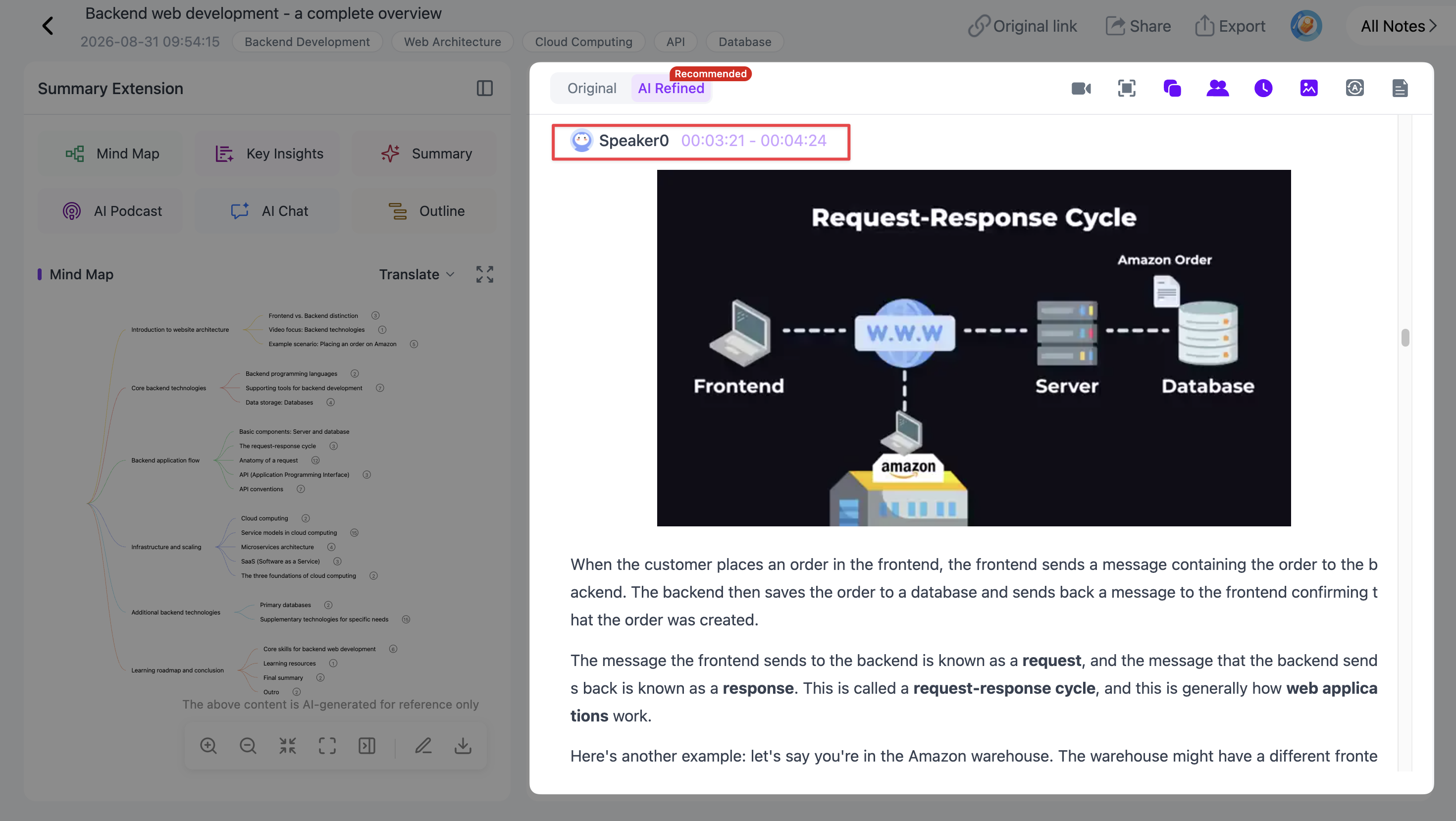
NoteAi provides an original transcript and an AI-polished version. The original helps preserve what participants said, while the polished version makes spoken content easier to read by improving fragmented sentences and reducing unnecessary repetition.
You can also review and edit the transcript when corrections are needed.
Find specific discussions with timestamps
Every meeting contains moments that become important afterward.
You might need to check when the team discussed pricing, whether a deadline was confirmed, or what a customer said about a product feature.
With a timestamped transcript, you can locate the relevant section and return to the corresponding part of the recording.
This is particularly useful when the summary doesn't include enough context.
Identify different speakers
For a multi-person recording, use NoteAi's speaker recognition feature to help distinguish different voices.
If you're starting with the free transcription tool, you can enable speaker detection when submitting the file.
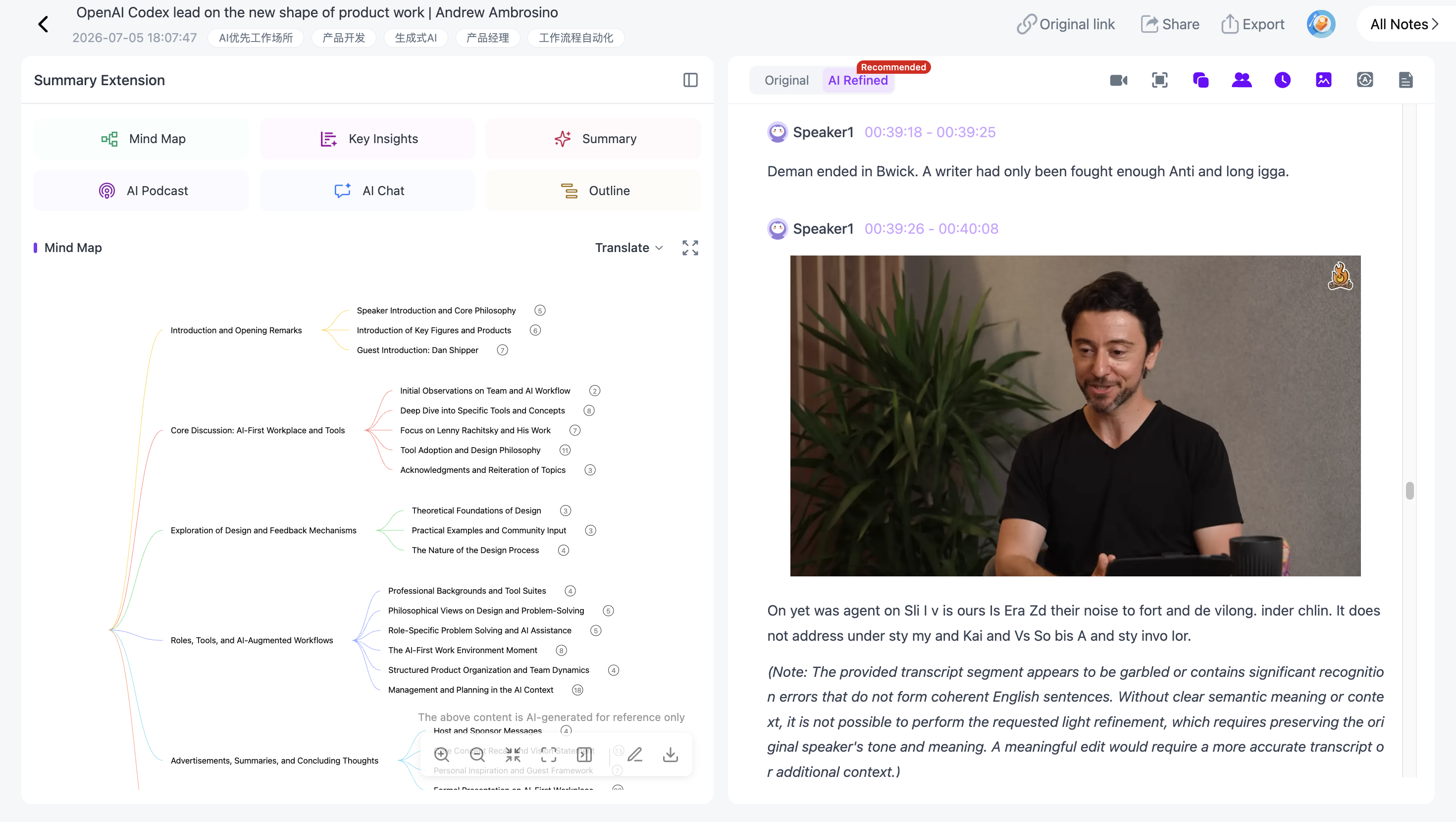
Speaker labels make customer interviews, team meetings, and project discussions easier to follow. You can see how the conversation develops without reading one long block of text.
Recognition accuracy depends on the recording quality, especially when participants interrupt one another or speak at the same time.
For more details about transcription, see Audio to Text: Transcribe Long Recordings With Timestamps, Speakers & Translation.
Step 3: Turn the Transcript Into Structured AI Meeting Notes
A complete transcript is useful, but it isn't the same as meeting minutes.
For most meetings, people want answers to a few practical questions:
- What were the main discussion topics?
- What decisions were confirmed?
- Which tasks need to be completed?
- Who is responsible for each task?
- Were any deadlines mentioned?
- Which questions remain unresolved?
NoteAi helps organize the recording into a readable summary, rather than leaving you with only a long transcript.
Start with Key Insights
After processing the recording, open Key Insights to get a quick overview of the important information.
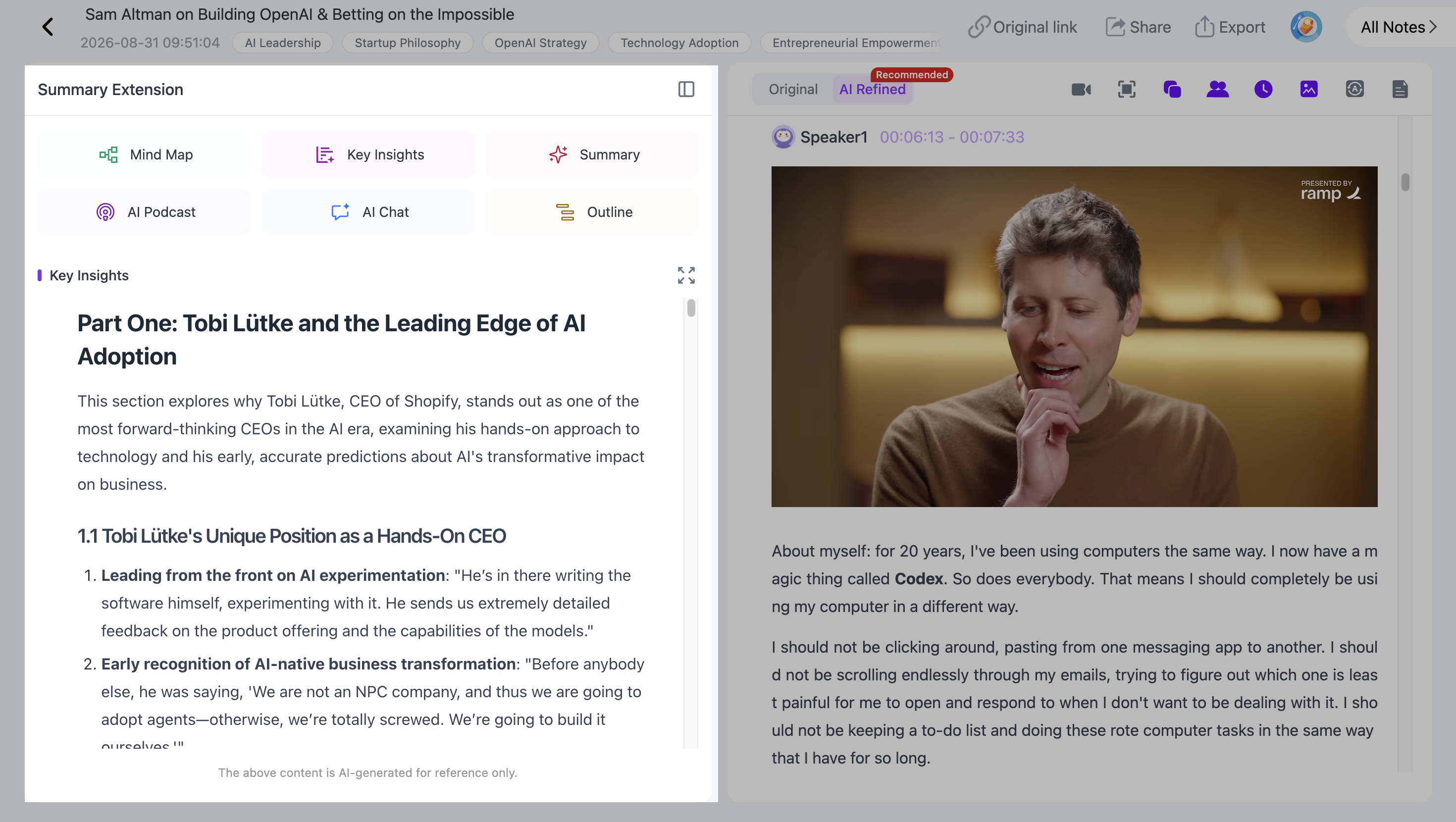
For example, a product planning meeting might cover a release schedule, testing progress, customer feedback, and outstanding technical issues.
Key Insights helps surface those subjects before you review the detailed discussion.
Choose a meeting summary template or customize the notes
Different meetings need different types of notes.
A weekly project update might focus on progress, blockers, and next steps. A customer interview should preserve customer feedback, concerns, and important answers.
NoteAi provides Summary Templates and Custom Prompts, so you can choose a suitable structure or define exactly what information to extract.
To create meeting minutes, open the summary section after processing your recording. Choose a suitable meeting-minutes template or use a Custom Prompt to organize the content into discussion topics, decisions, action items, and unresolved questions.
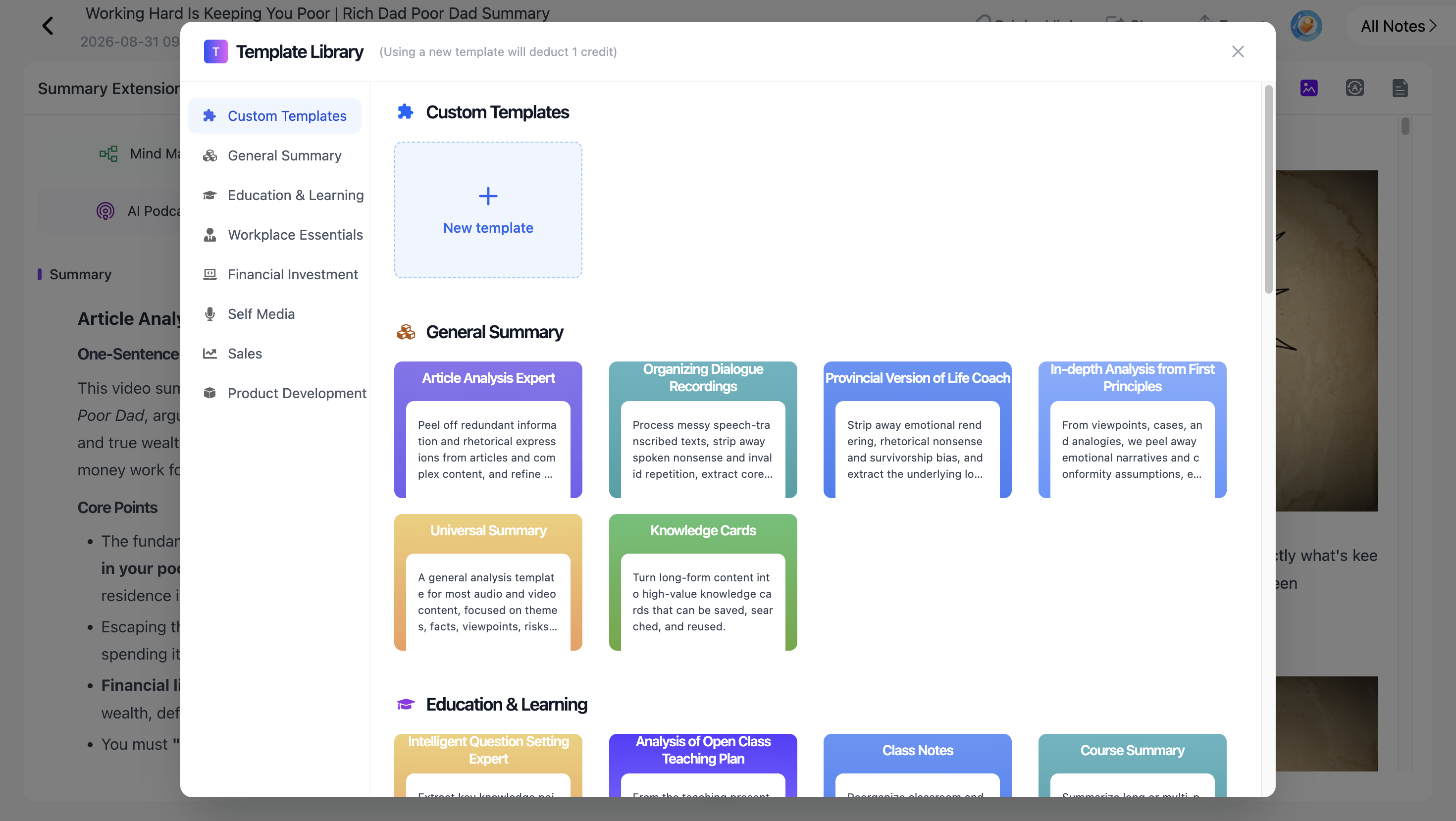
For project meetings, a useful structure usually includes:
- Discussion Summary: Main topics and important updates.
- Key Decisions: Outcomes the team explicitly agreed on.
- Action Items: Tasks that need to be completed.
- Owners and Deadlines: Responsible people and dates mentioned in the meeting.
- Open Questions: Issues that still require discussion or confirmation.
You can use the same structure for recurring meetings, making the results easier to review and compare.
As Asana's Meeting Minutes Template explains, useful meeting minutes focus on discussion points, decisions, responsibilities, and next steps—not simply a word-for-word record.
Example: What do AI meeting notes look like?
Imagine a product team has just finished a meeting about an upcoming website launch.
The recording contains discussions about testing, release timing, and customer communication.
After organizing the content into meeting minutes, the notes might look like this:
Meeting: Website Launch Planning
Meeting Summary
The team reviewed website launch readiness, discussed issues with the signup process, and agreed to delay the release until additional testing is complete.
Key Decisions
- Postpone the website launch from Tuesday to Thursday.
- Complete signup-flow testing before release.
- Update the FAQ before the new launch date.
Action Items
| Task | Owner | Deadline |
|---|---|---|
| Complete signup testing | Leo | Wednesday |
| Update the website FAQ | Maya | Wednesday |
| Confirm launch readiness | Not assigned | Not specified |
Unresolved Questions
- Has the signup issue been reproduced across all affected browsers?
- Who will give final approval for the launch?
This is an illustrative example, not an actual NoteAi-generated meeting record.
Notice that the notes separate confirmed decisions from unresolved questions. The third action item also remains unassigned because no owner or deadline was specified.
That's an important distinction: AI should organize what was actually discussed, not invent a commitment that nobody made.
For additional guidance, Atlassian's guide to meeting action items explains how clearly defined tasks and responsibilities help teams follow through after a meeting.
Step 4: Use AI Chat to Review Decisions and Check the Original Recording
Once the meeting notes are generated, you may still need more information about a particular decision.
A summary might tell you that the team delayed a product launch, but not explain every reason behind it.
With NoteAi AI Chat, you can ask questions directly about the processed recording and continue with follow-up questions.
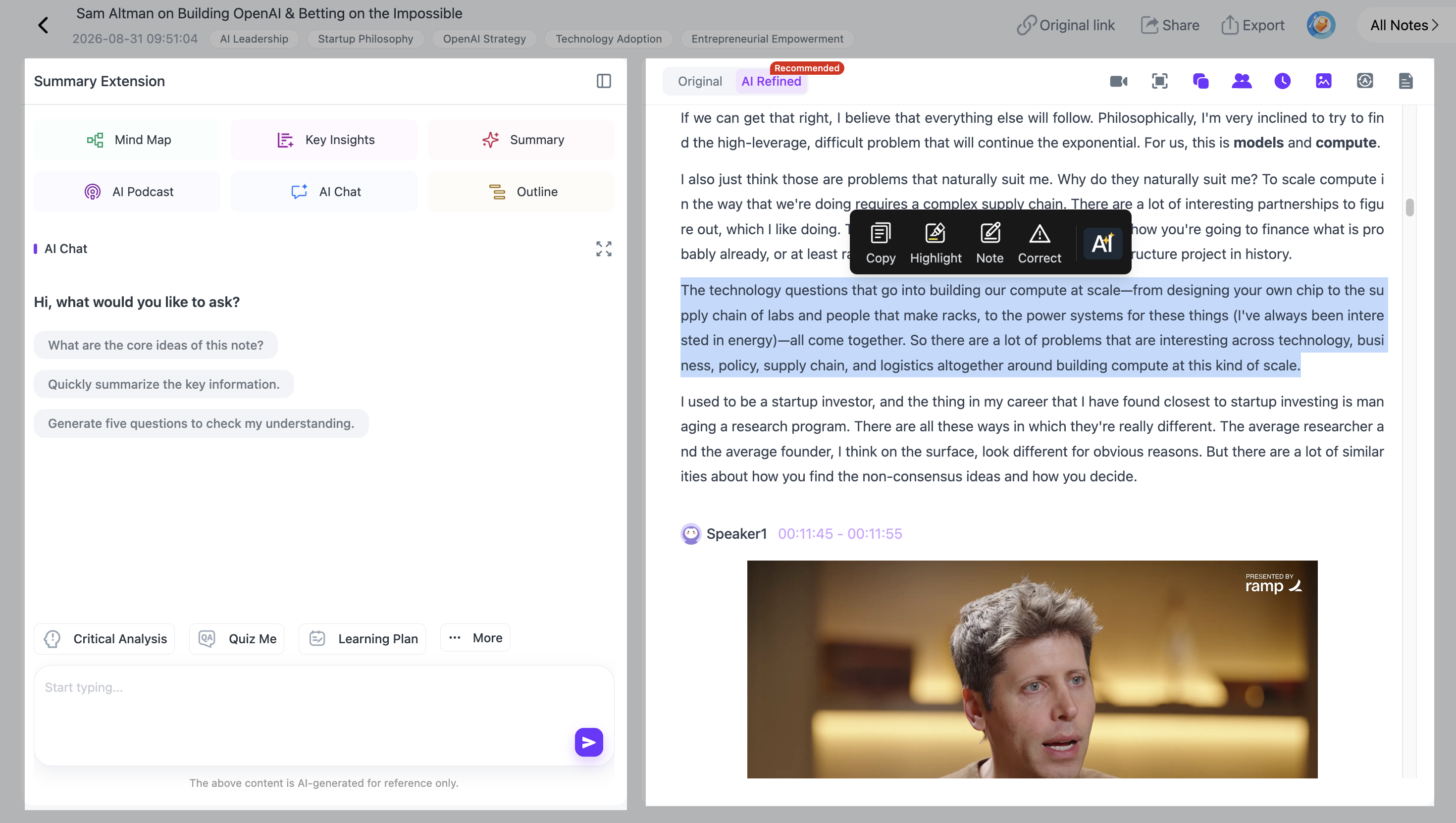
For example:
- "Why did the team decide to postpone the launch?"
- "Which action items were assigned to Leo?"
- "What concerns were raised about the signup process?"
You can then follow up on a specific answer to explore the reasoning or discussion in more detail.
Custom Prompts control how your meeting notes are organized; AI Chat helps you explore the content afterward.
Return to the recording when accuracy matters
For important decisions, financial figures, customer statements, or technical details, use the original recording to verify the AI-generated information.
NoteAi keeps the source recording accessible while you review the generated material.
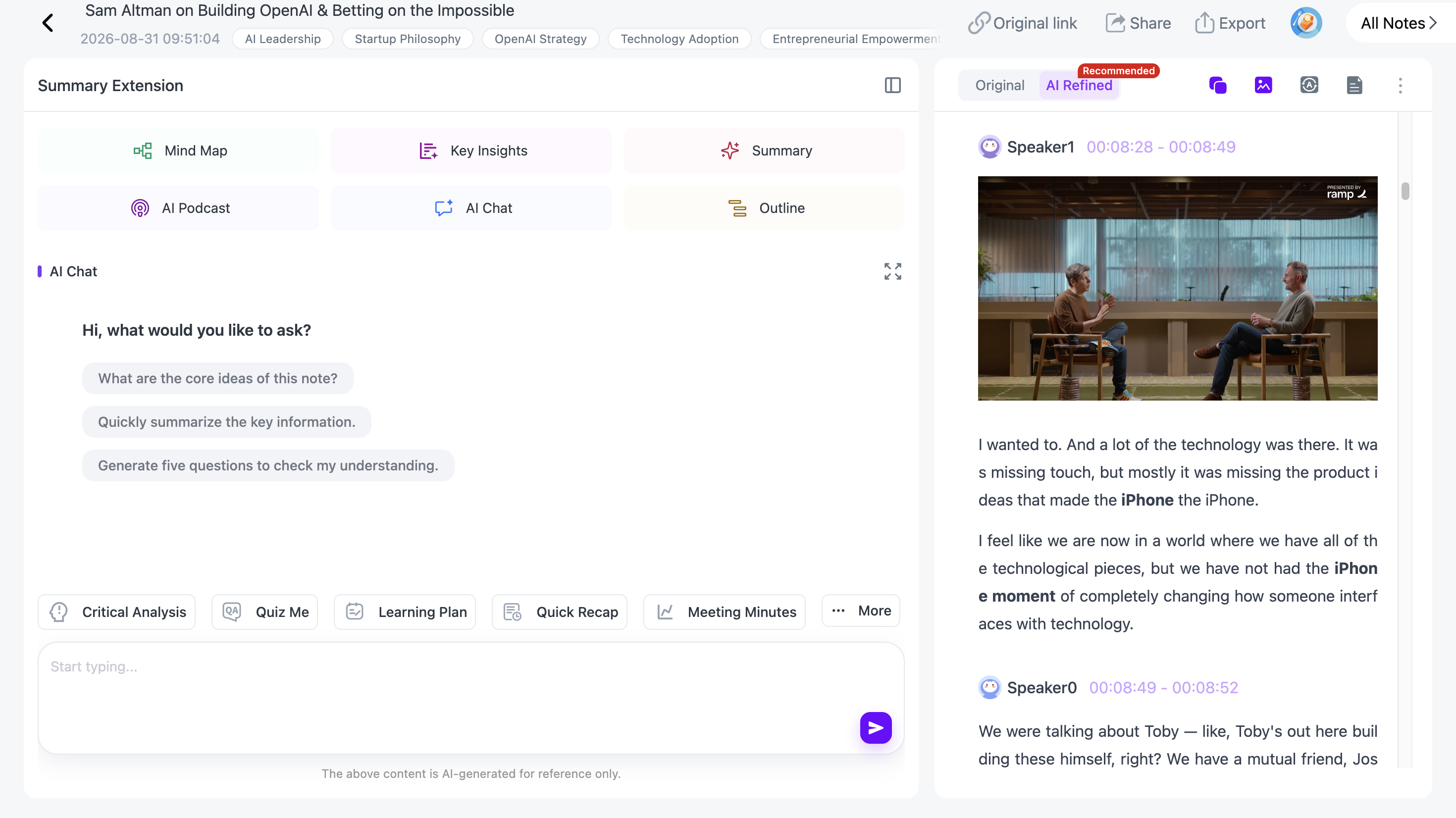
With timestamps, you can jump to the relevant discussion and listen to the surrounding context instead of replaying the whole meeting.
This is especially useful when you need to distinguish between a suggestion, a concern, and a final decision.
Step 5: Export, Share, and Organize Your Meeting Notes
After reviewing the notes, you can export them for colleagues or save them for future reference.
NoteAi supports several export formats:
| Format | Best Use |
|---|---|
| Word | Edit or refine formal meeting minutes |
| Share a consistent, readable document | |
| Markdown | Save notes in text-based knowledge systems |
| HTML | Reuse content in web-based workflows |
| XMind | Export a meeting mind map for visual review |
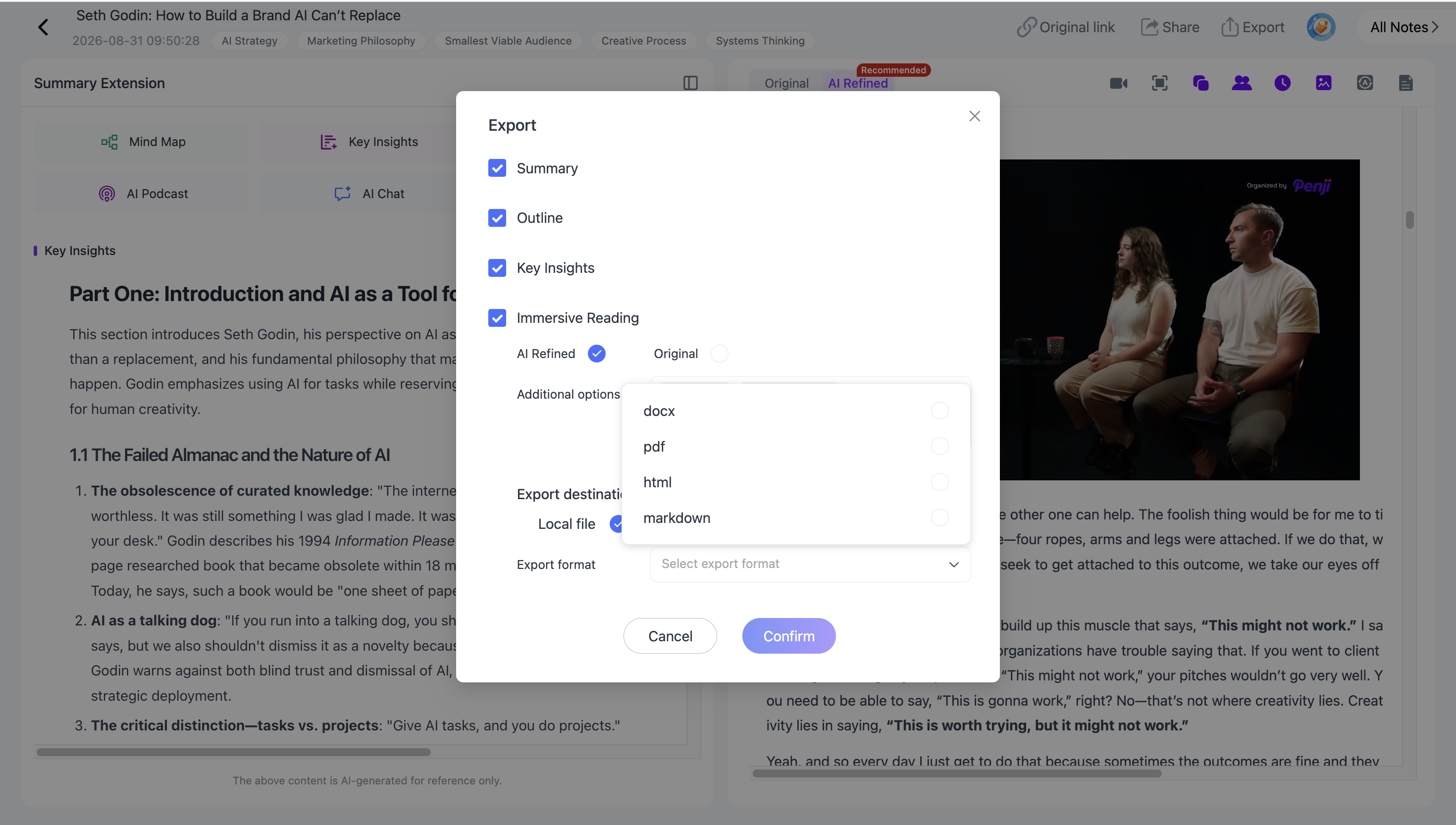
Word and PDF are convenient for distributing reviewed meeting minutes. Markdown works well with knowledge-management tools such as Notion and Obsidian.
Keep previous meetings searchable
Instead of saving every meeting recording in a separate folder, you can keep the processed recordings and notes in NoteAi's personal knowledge base.
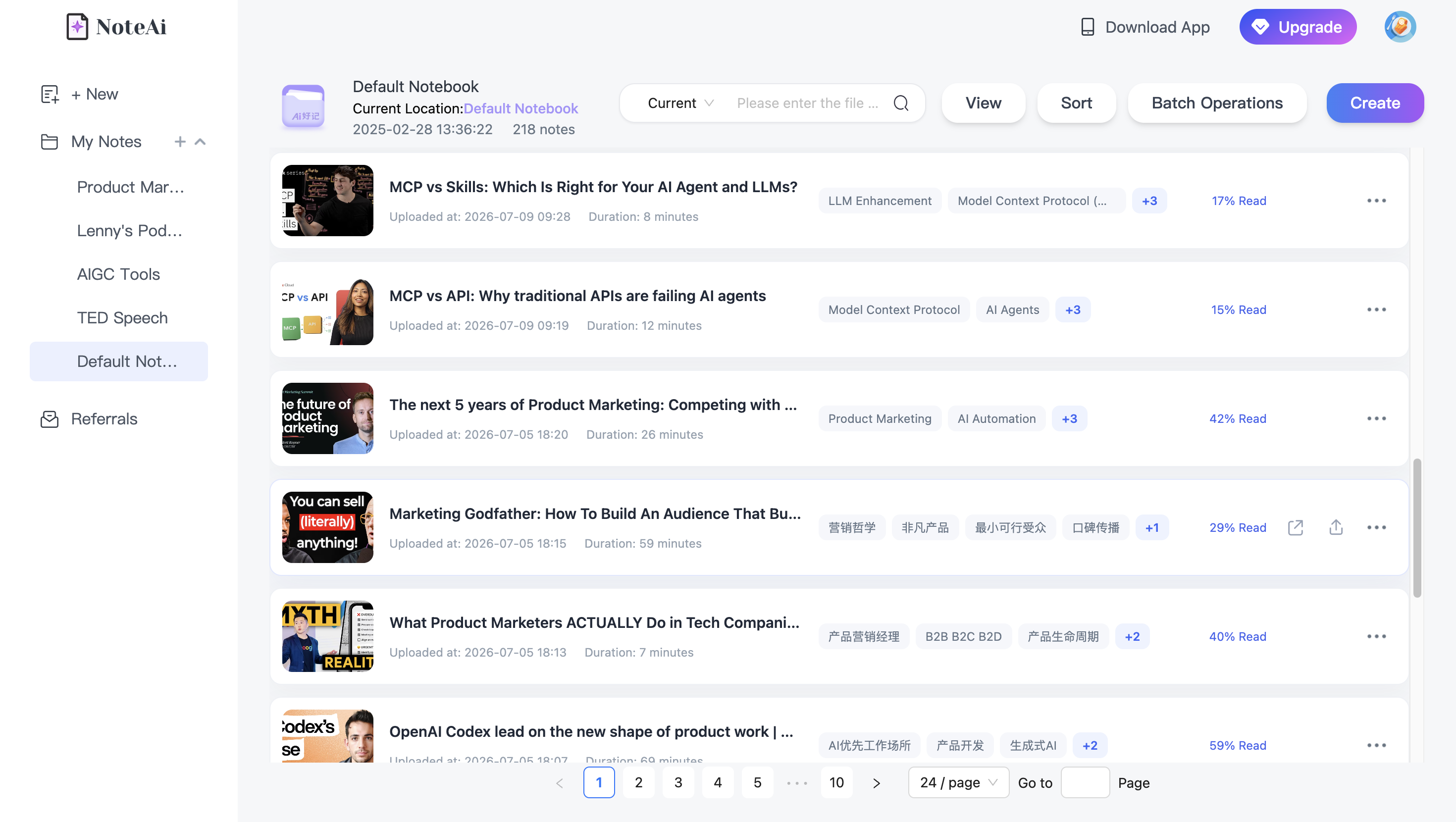
You can organize notes by project or topic, use global search to locate previous discussions, and return to the original source when needed.
NoteAi also supports cross-note AI questions.
For example, after processing several weekly project meetings, you could ask what changed in the launch plan across those meetings or which issues came up repeatedly.
This makes saved meeting notes useful beyond the day they were created.
For a broader overview of these capabilities, see What Is NoteAi and Who Should Use This AI Note Taker?.
More Ways to Review Complex or Multilingual Meetings
The five steps above cover the main meeting-to-notes workflow. Depending on the recording, a few additional NoteAi features can also help.
Preserve slides and important video frames
If your meeting recording includes slides, screen sharing, or a product demonstration, a transcript alone may not capture everything important.
NoteAi can extract PPT slides and key video frames to create visual notes alongside the spoken content.
This is useful for product reviews, workshops, and training presentations where the information on screen matters as much as the conversation.
An audio-only recording, however, cannot provide visual frames.
Use a mind map for complex discussions
Some meetings cover several connected projects, problems, and decisions.
NoteAi can turn the discussion into an editable, multi-level mind map, helping you see how different topics relate to each other.
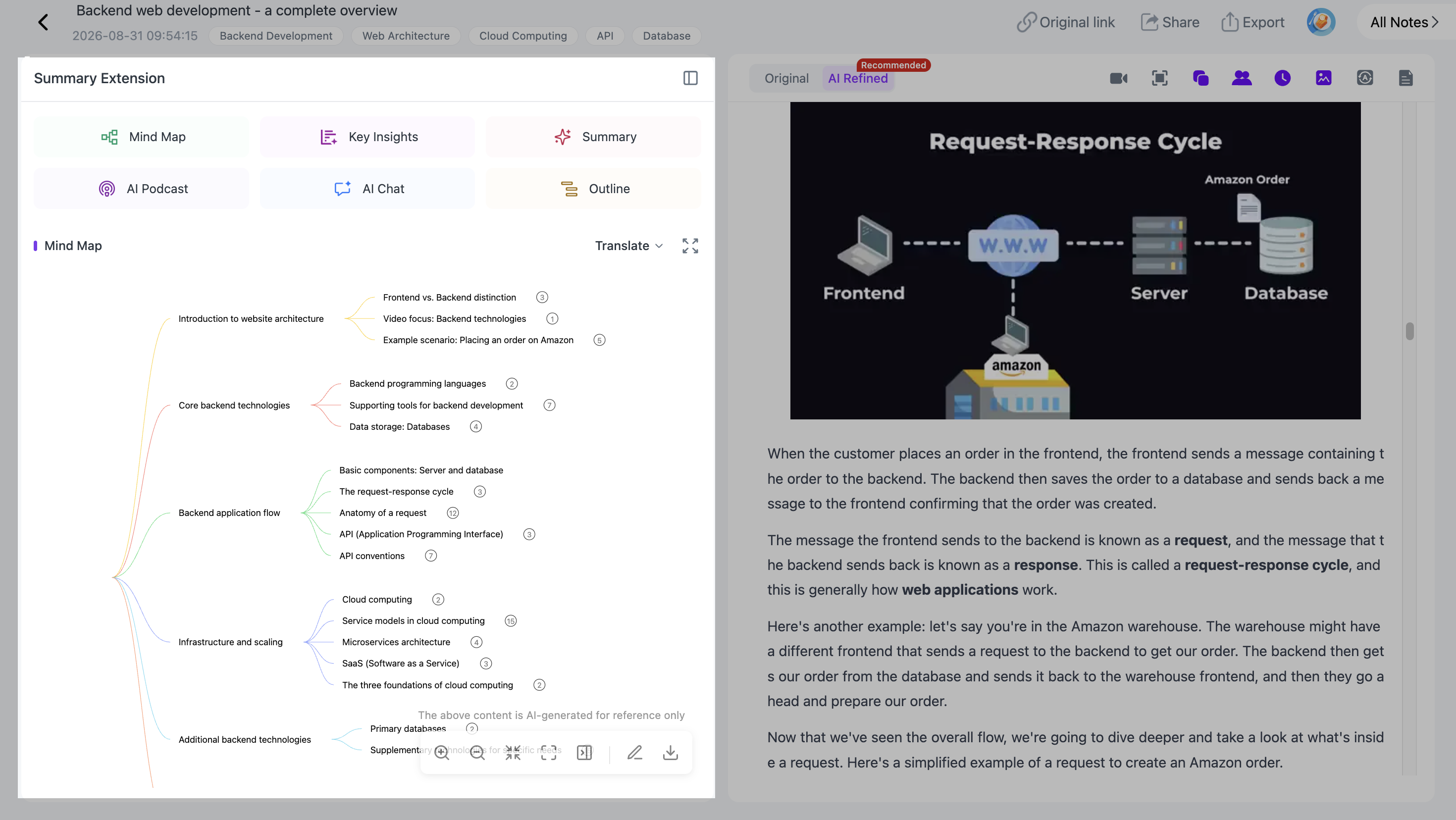
You can navigate from source-linked nodes to the relevant content and export the map to XMind when you want to continue organizing the discussion visually.
Translate international meeting recordings
For meetings conducted in another language, NoteAi supports translation across 22 languages and bilingual viewing.
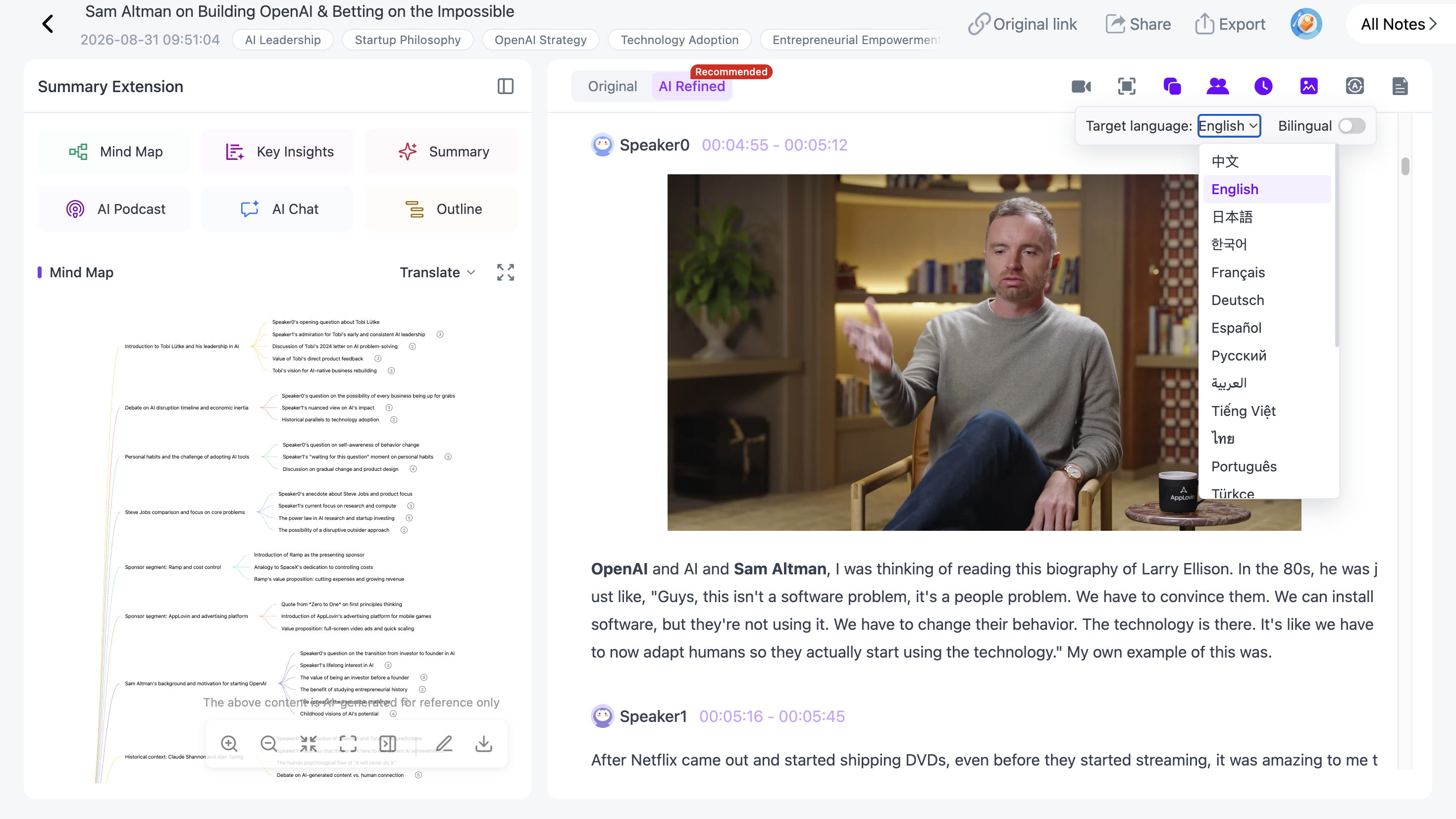
This can help when reviewing international team meetings or overseas customer interviews. The bilingual view also makes it easier to compare important statements and technical terms with the original wording.
Do You Need a Meeting Bot to Generate AI Meeting Notes?
No. You can create AI meeting notes from an existing recording without installing a meeting bot.
Some AI meeting assistants automatically join Zoom, Microsoft Teams, or Google Meet calls to capture conversations.
NoteAi uses a different workflow: you upload an existing audio or video recording, and the tool processes it afterward.
This makes it useful for:
- Meetings that have already finished
- Recorded customer interviews
- In-person discussions
- Archived training sessions and workshops
- Online meetings recorded through another platform
If you need automatic meeting attendance and recording, a dedicated meeting bot may be more suitable.
If you already have the recording and want to turn it into structured, searchable meeting notes, NoteAi provides a straightforward alternative.
Frequently Asked Questions
How do I turn a meeting recording into notes?
Upload an existing meeting audio or video file to NoteAi. The tool generates a timestamped transcript, Key Insights, and structured AI notes. You can then customize the summary, review decisions and action items, and export the results.
Can AI automatically generate meeting minutes and action items?
Yes. AI can help identify discussion topics, confirmed decisions, follow-up tasks, and deadlines from a recording. NoteAi's Summary Templates and Custom Prompts let you organize this information into a meeting-minutes format.
Can NoteAi identify different speakers in a recorded meeting?
Yes. NoteAi supports speaker recognition to help distinguish participants in multi-person recordings. Speaker detection can be enabled in the free transcription tools. Accuracy depends on audio quality and overlapping speech.
What is the maximum meeting recording length?
NoteAi supports individual recordings up to 7 hours and 4 GB on eligible plans. Actual processing limits depend on your subscription and available credits. The free Audio to Text and Video to Text tools have a visitor upload limit of 1 hour and 1 GB.
Can I upload an existing Zoom or Microsoft Teams recording?
Yes, provided you have an authorized local audio or video file in a supported format. Download the recording through the meeting platform, then upload it to NoteAi. NoteAi does not automatically join those meetings.
Can NoteAi summarize meetings in different languages?
Yes. NoteAi supports translation across 22 languages and bilingual viewing, making it useful for international meetings and foreign-language interviews.
Can I export AI meeting notes to Notion or Obsidian?
NoteAi supports Markdown export and workflows involving Notion and Obsidian. It also supports Word, PDF, HTML, and XMind exports for different uses.
Are AI-generated meeting notes always accurate?
No. Transcription and summarization errors are possible, particularly with poor audio quality or overlapping speech. Review important decisions, speaker attributions, dates, and action items before sharing the final meeting notes.
Turn Your Next Meeting Recording Into Useful AI Notes
A meeting recording preserves the conversation, but a transcript and structured notes make that information easier to use.
With NoteAi, you can turn existing recordings into searchable transcripts, organized meeting summaries, clear action items, and exportable notes—all within one workflow.
And when you need to revisit a decision or compare information from previous meetings, your saved notes and original recordings remain available for reference.
Whether you're reviewing a weekly team meeting, customer interview, or project workshop, the goal is simple: turn recorded conversations into useful information you can find and reuse.