

You already have the meeting recording. Now you need to find out what actually happened without sitting through the entire call again.
That may mean locating a decision, checking what someone said about a project, finding an unresolved question, or turning a long discussion into notes that other people can review.
With NoteAi, you can upload an existing meeting recording and turn it into a timestamped transcript with speaker recognition, Key Insights, structured AI notes, and other searchable material.
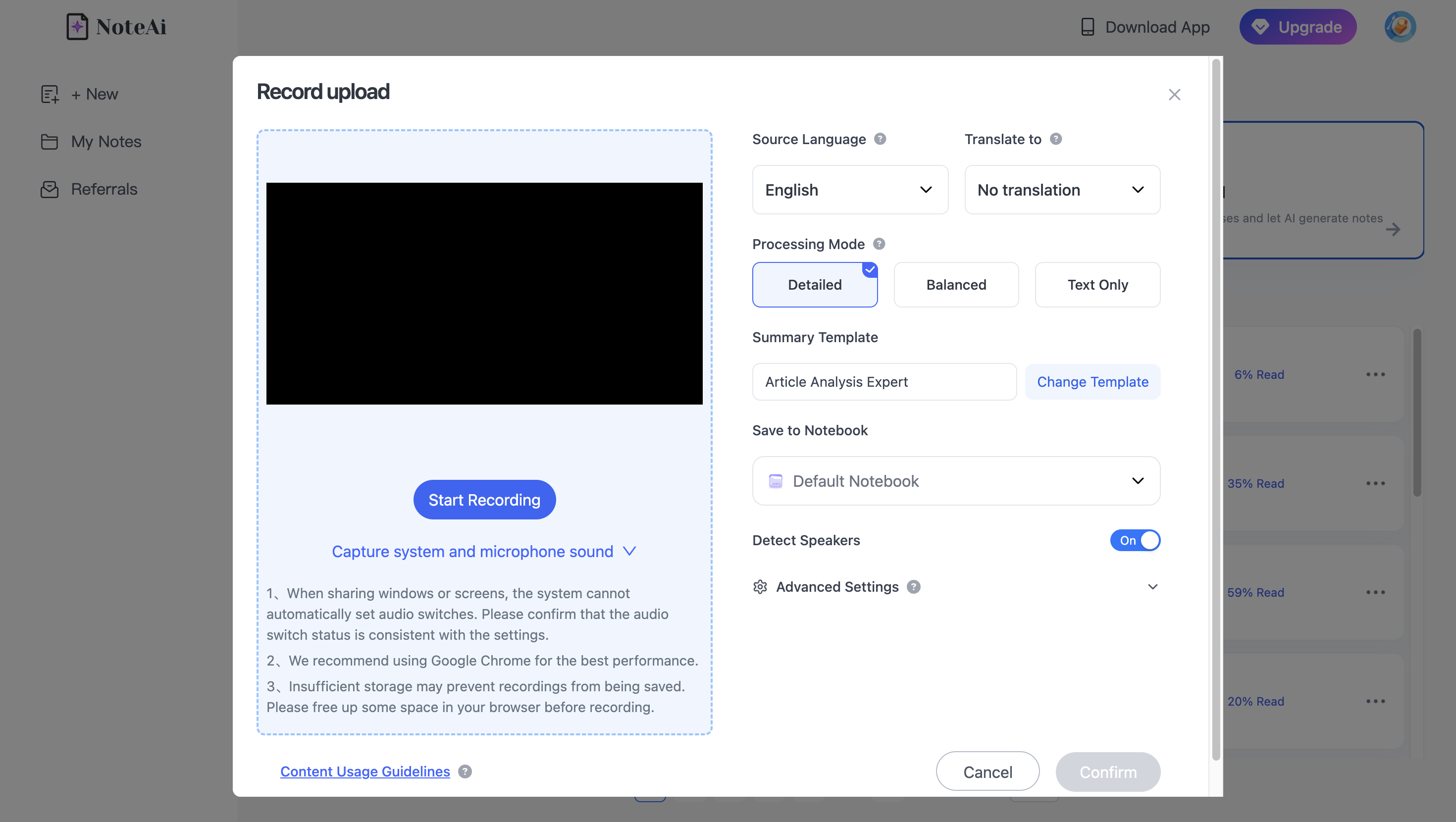
You can then customize how the meeting is summarized, return to the original recording when context matters, ask questions through AI Chat, and export the results.
This workflow is for recordings you already have. It does not require a meeting bot to join the call.
How Do You Turn a Meeting Recording Into AI Notes?
A practical workflow is:
- Upload the existing meeting recording.
- Generate the full timestamped transcript.
- Identify different speakers.
- Scan Key Insights.
- Choose a meeting summary structure.
- Return to the original recording when context matters.
- Organize a complex discussion visually if needed.
- Ask questions about the meeting with AI Chat.
- Translate multilingual meetings.
- Export and save the results.
The transcript remains the detailed record. AI notes make that record faster to review.
Step 1: Upload the Existing Meeting Recording
Start by uploading your recorded meeting to NoteAi.
This can be a project meeting, customer interview, internal discussion, retrospective, workshop, research call, or another recorded conversation.
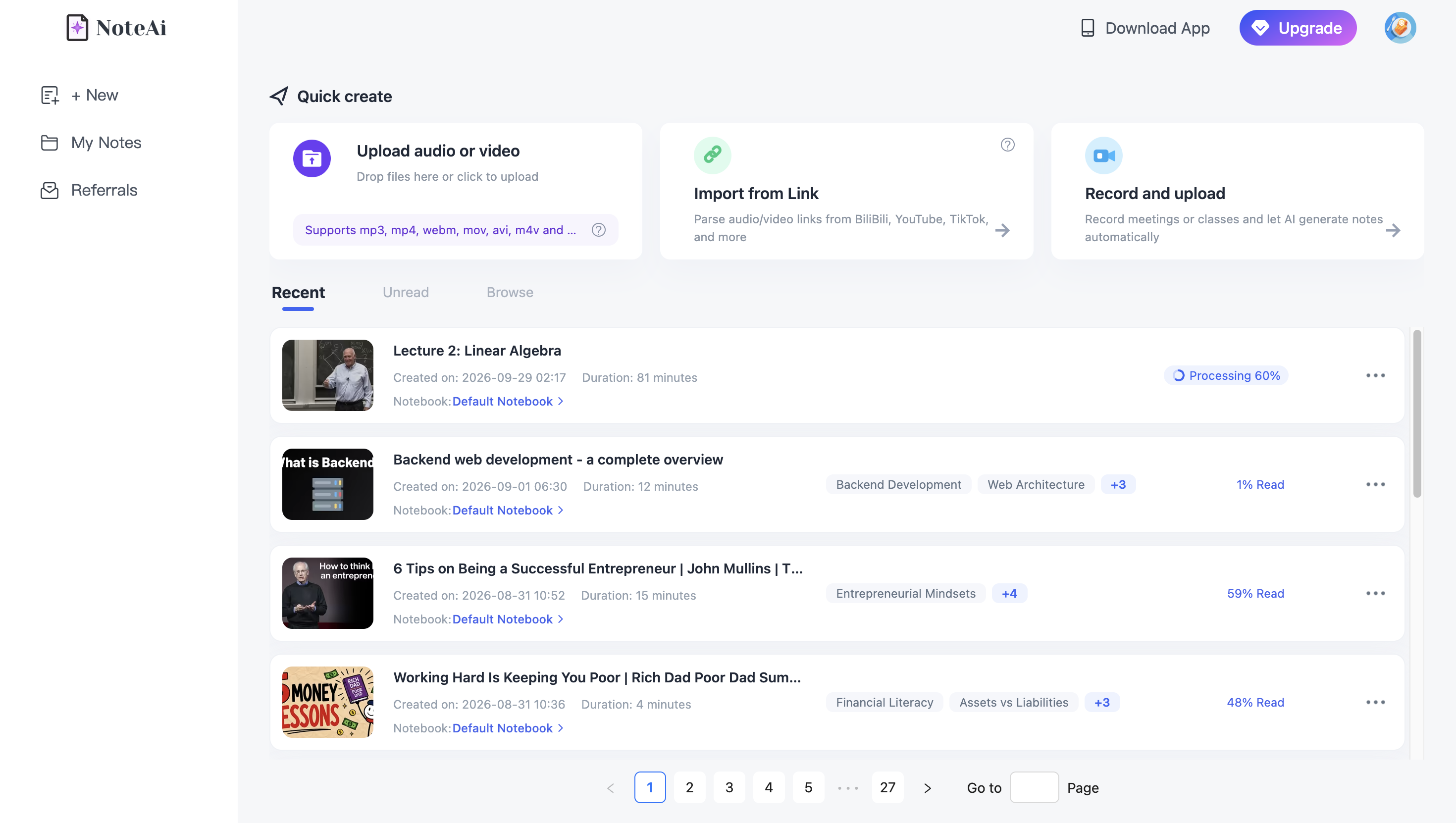
For long meetings, NoteAi supports an individual item up to 7 hours and 4 GB.
You do not need to invite a bot into the original meeting if you already have the recording.
Step 2: Generate a Timestamped Meeting Transcript
Once the recording has been processed, NoteAi creates a full transcript with timestamps.
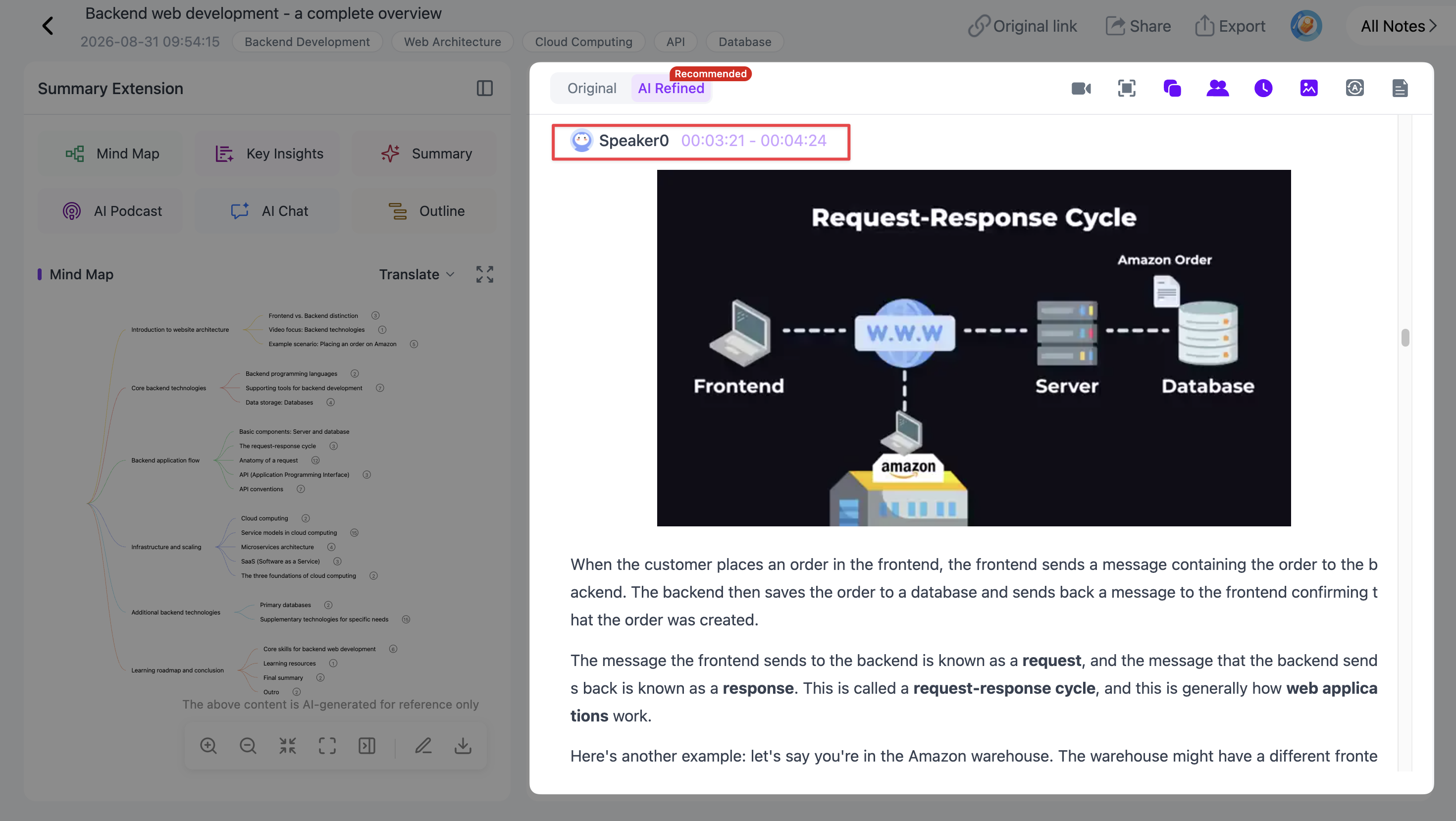
The transcript is useful when you need to answer questions such as:
- When was pricing discussed?
- What did the team say about the launch date?
- Where did the conversation about onboarding begin?
- What wording was used around a particular decision?
Instead of replaying the full meeting, search or scan the transcript and return to the relevant section.
Step 3: Identify Different Speakers
Meeting transcripts become much easier to follow when different voices can be separated.
NoteAi supports speaker recognition, helping organize a multi-person recording into a more readable conversation.
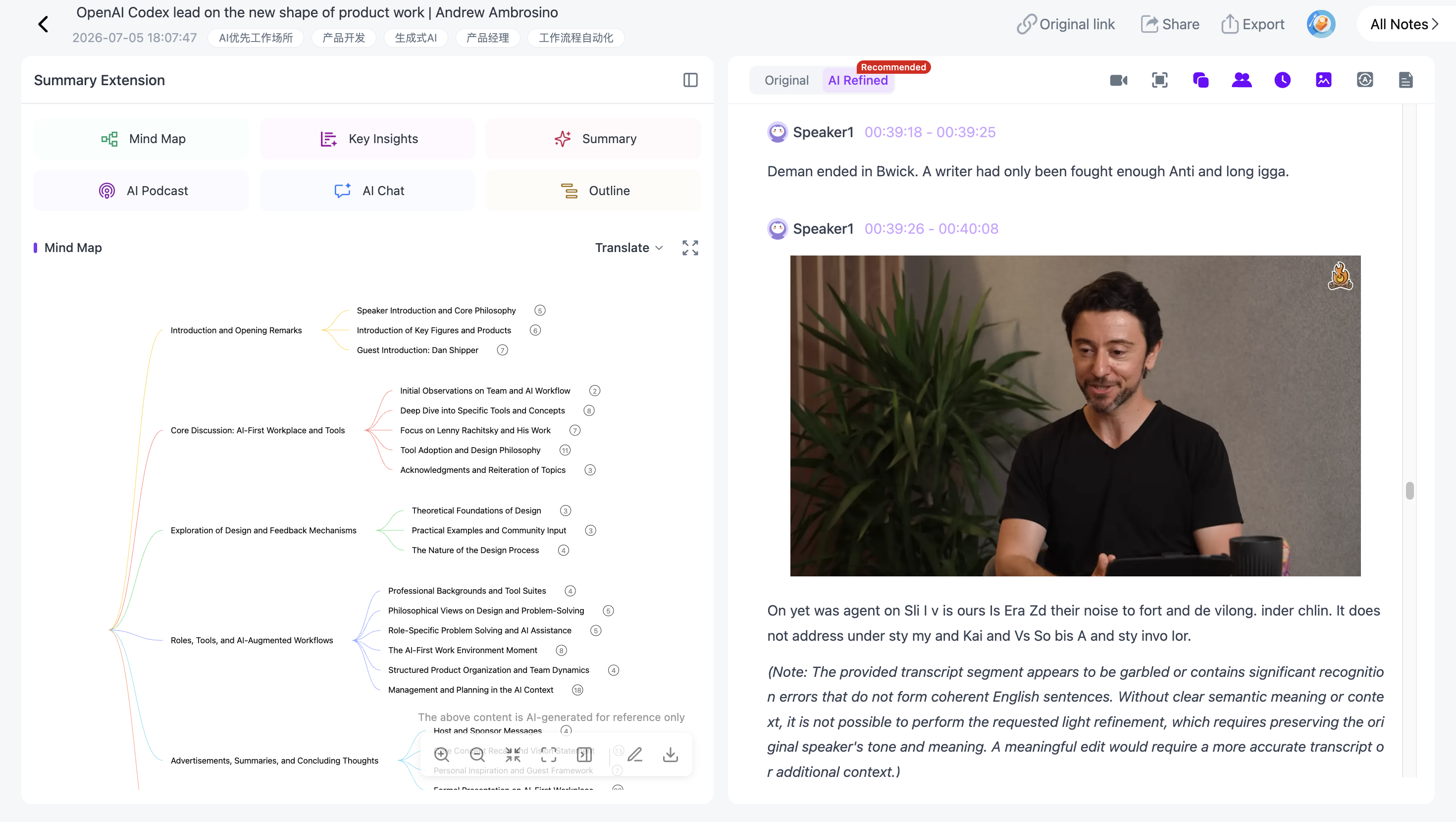
This is particularly helpful for interviews, team meetings, workshops, and discussions where several people contribute to the same topic.
Speaker recognition can help you follow the conversation, but important statements should still be checked against the original recording when exact attribution matters.
Step 4: Scan Key Insights
A 90-minute meeting can generate a very long transcript.
If you first need an overview, Key Insights highlights important information across the full recording.
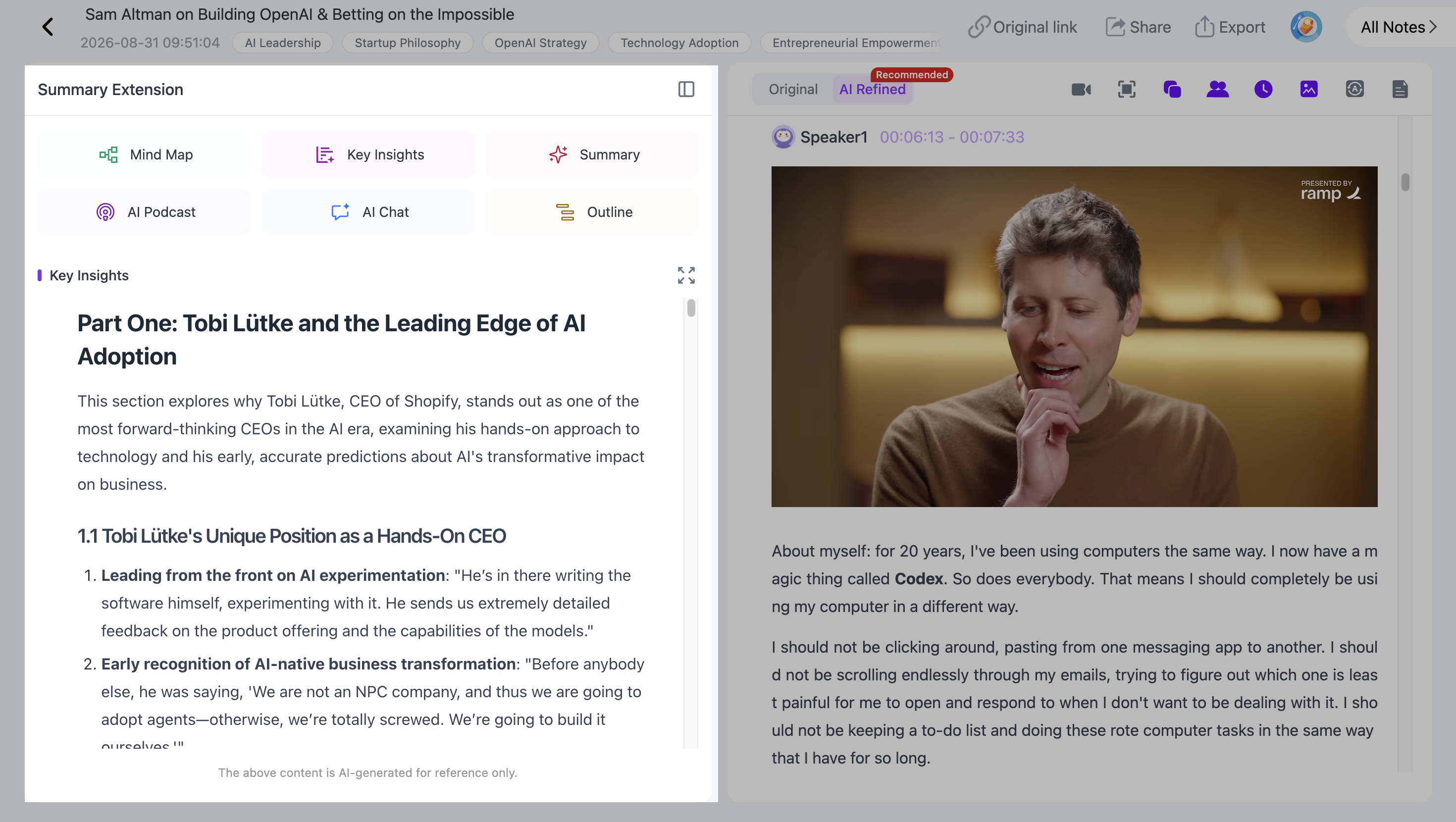
This is useful before reading the full transcript because it gives you a faster sense of what the meeting covered.
The transcript remains available for exact wording, detail, and context.
Step 5: Choose How the Meeting Should Be Summarized
Different meetings need different notes.
A weekly team sync should not necessarily be organized like a customer interview or project retrospective.
NoteAi includes Summary Templates, while Custom Prompts let you define what the AI should focus on and how the meeting notes should be structured.
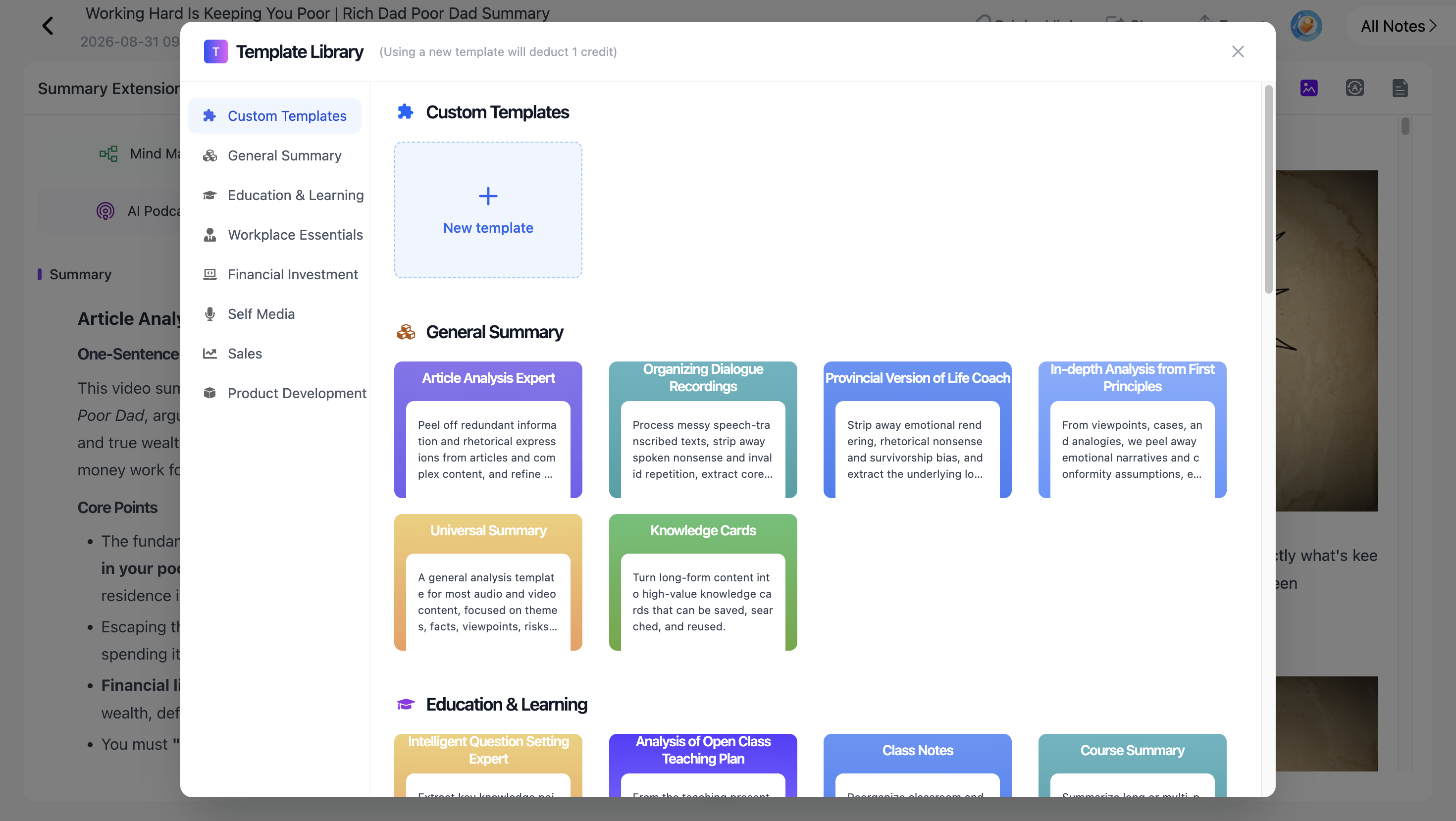
For example:
"Organize this meeting into main discussion topics, confirmed decisions, unresolved questions, and follow-up items. Include owners and deadlines only when they are explicitly mentioned in the recording."
That last instruction matters.
AI should organize information that exists in the meeting, not invent an owner, deadline, or decision that nobody actually stated.
Step 6: Return to the Recording When Context Matters
A summary may say that the team decided to delay a launch.
But sometimes you also need to know why.
With NoteAi, the original recording can remain available while you review the generated material.
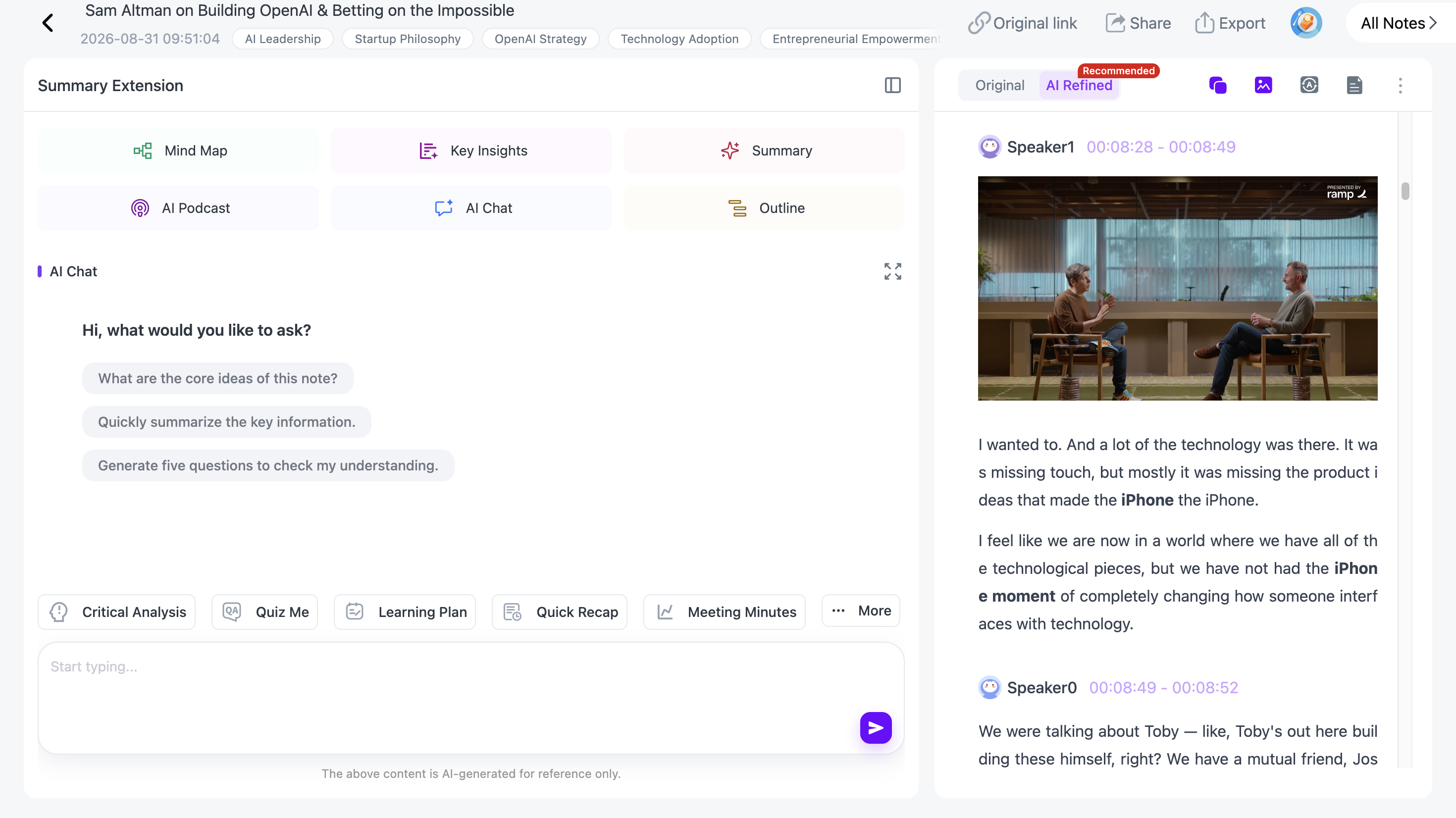
If a summary feels too compressed, return to the corresponding discussion and listen to the surrounding context.
This is useful for decisions, disagreements, customer feedback, technical discussions, and other situations where a one-line summary may not capture the full reasoning.
Step 7: Map a Complex Meeting Visually
Some meetings cover several connected projects, problems, decisions, and dependencies.
For those discussions, NoteAi can generate a multi-level mind map.
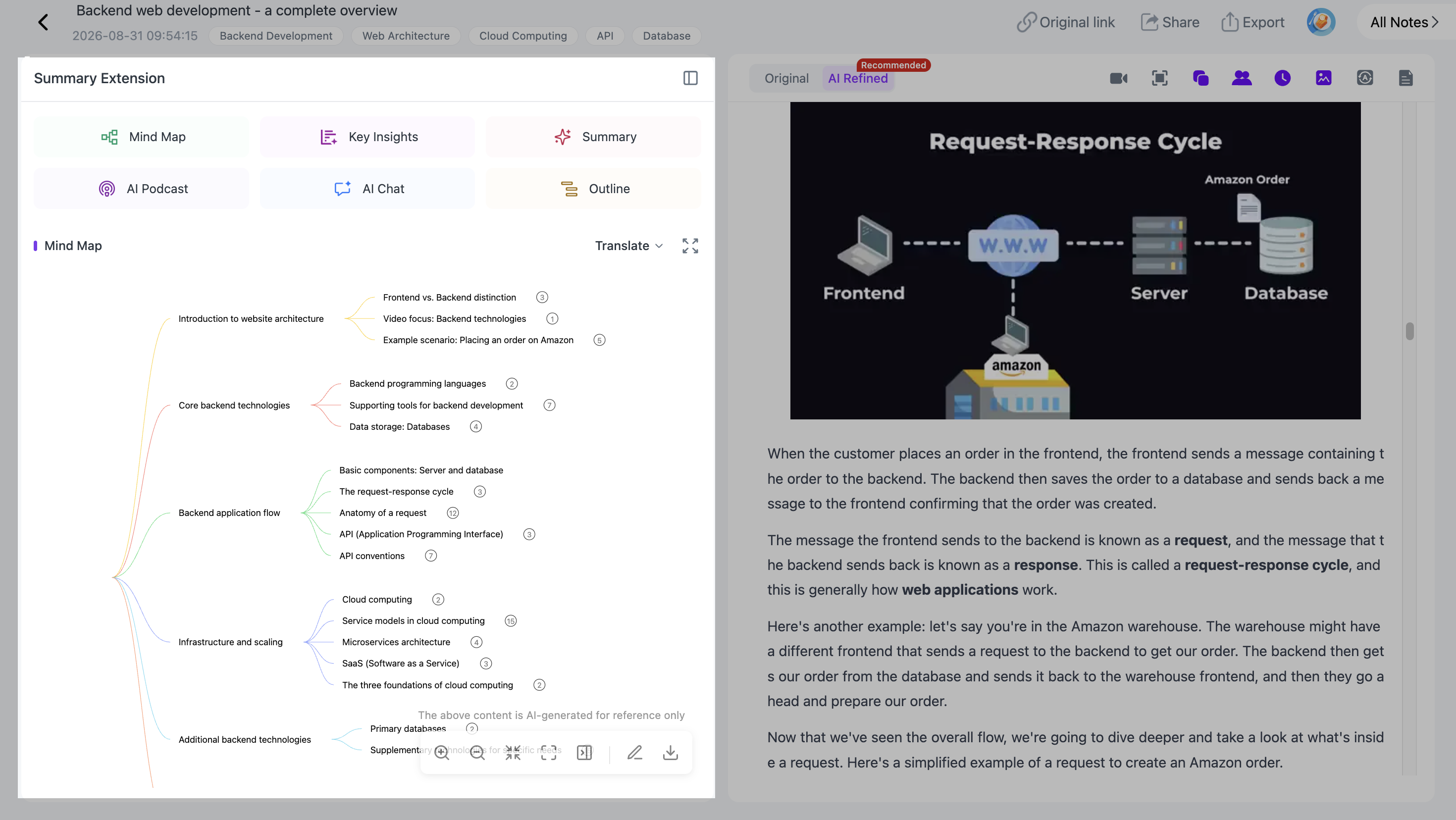
The map is editable after generation, and nodes can take you back to corresponding source content.
This is useful when you want to see the structure of a complex discussion rather than read it only as a chronological transcript.
The finished mind map can also be exported to XMind.
Step 8: Ask Questions About the Meeting With AI Chat
After the recording has been processed, AI Chat lets you freely ask questions about the meeting and continue the conversation with follow-up questions.
With NoteAi, you might ask:
"What reasons were given for delaying the launch?"
"What did the team say about pricing?"
"Which questions were left unresolved?"
"What feedback did participants give about the new onboarding flow?"
Then continue:
"Can you explain the pricing discussion in more detail?"
"What arguments were made for and against that decision?"
"Where was this discussed in the meeting?"
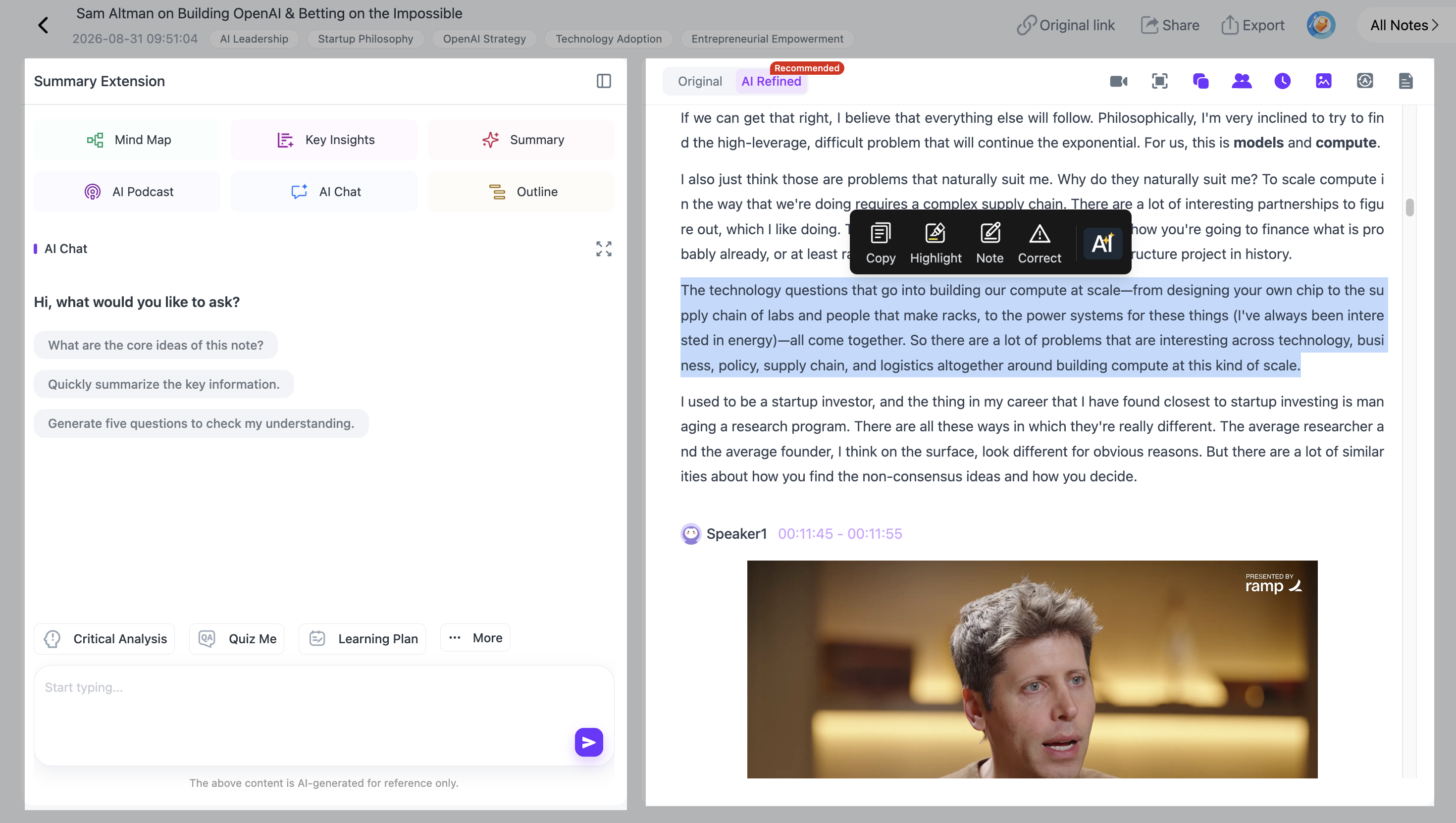
A Custom Prompt and AI Chat serve different purposes.
A Custom Prompt controls how the meeting is summarized and organized.
AI Chat is the conversational layer for freely asking questions, getting answers, and continuing with follow-up questions about the meeting content.
Step 9: Translate a Multilingual Meeting
For meetings involving different languages, NoteAi supports translation across 22 languages and bilingual viewing.
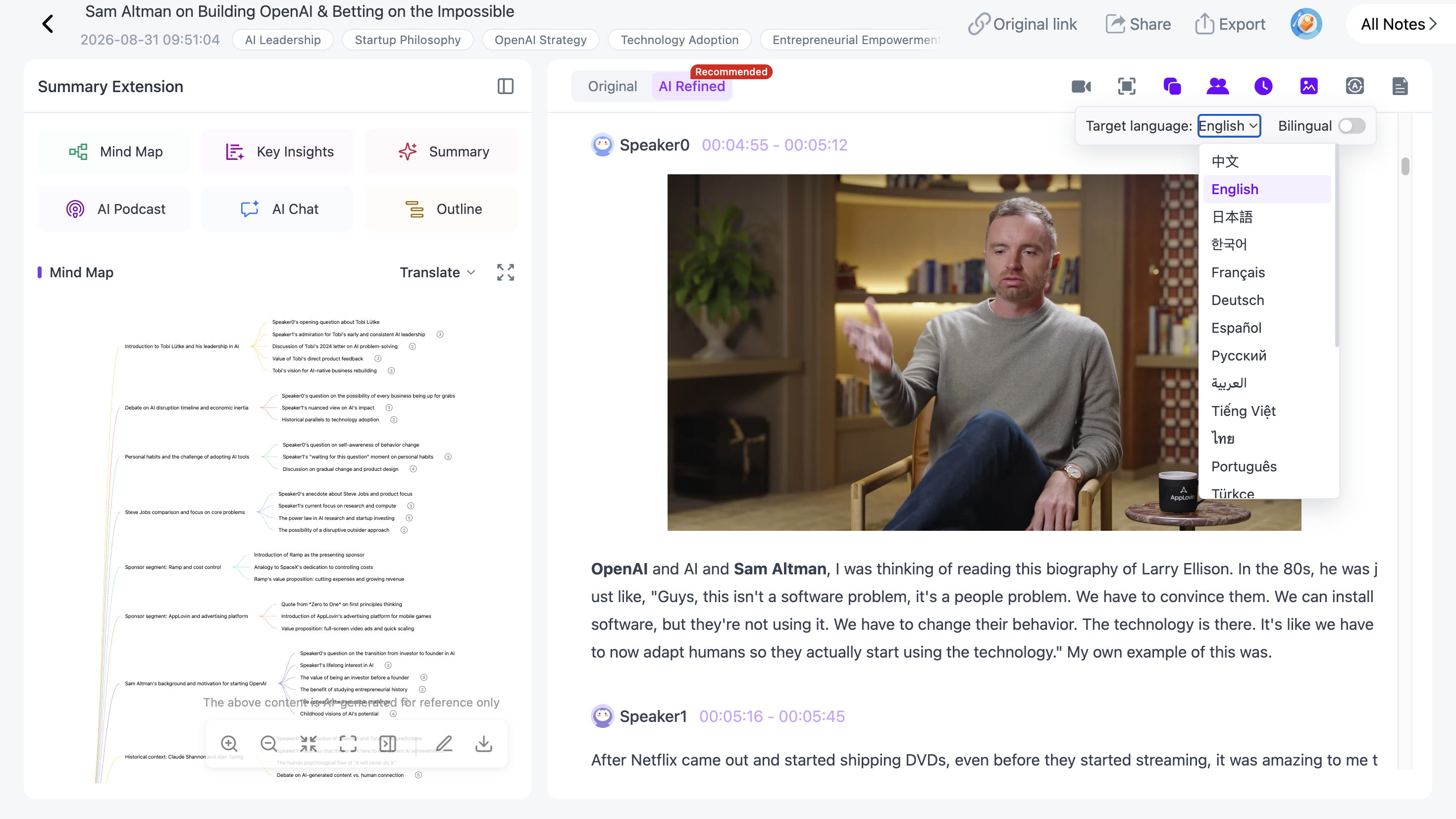
This can help with international team meetings, overseas customer interviews, multilingual research, and recorded discussions involving foreign-language content.
Keeping the original and translated text visible together also makes it easier to compare the translation with the source.
Step 10: Export and Reuse the Meeting Notes
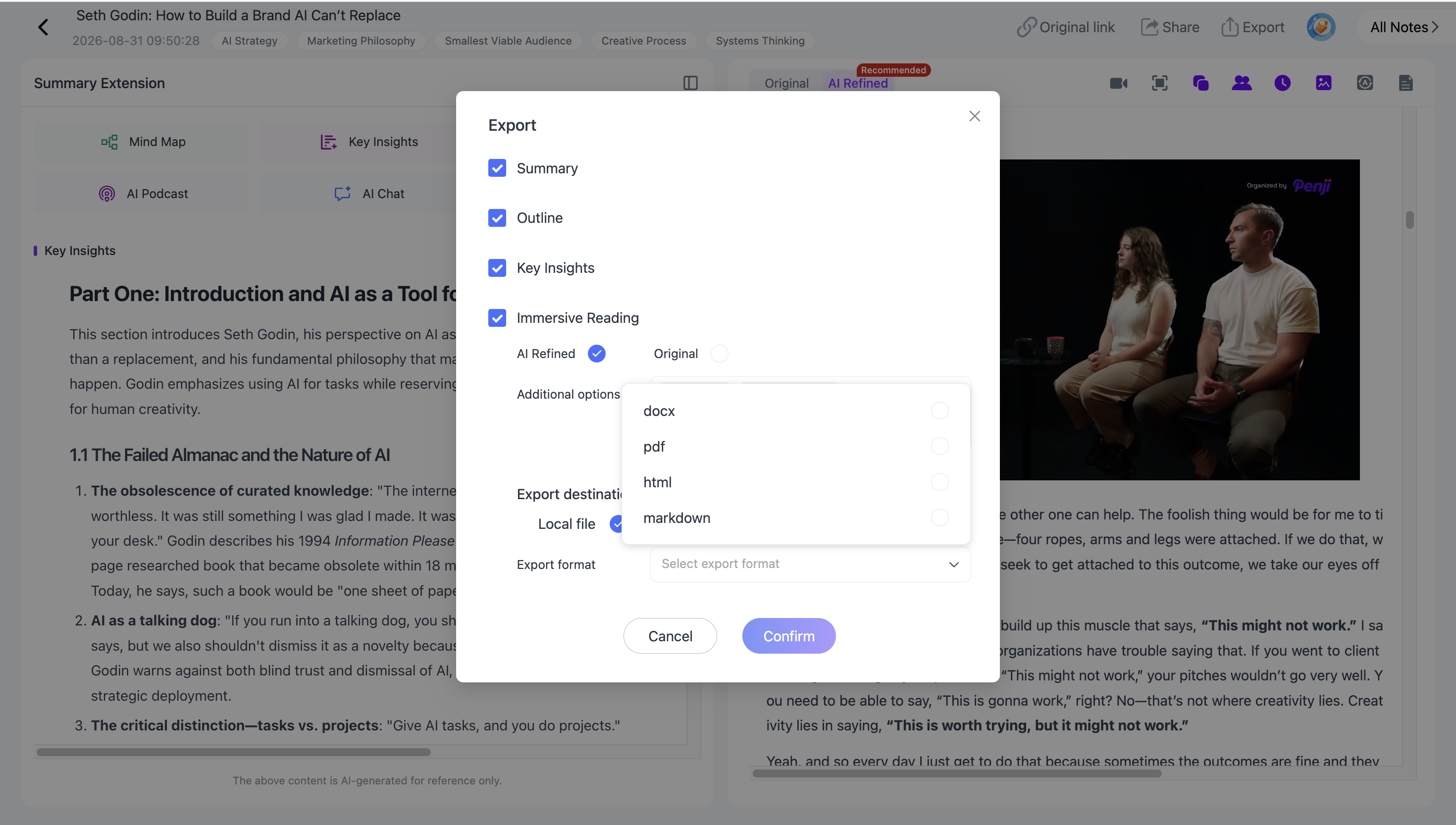
Once the meeting has been reviewed, NoteAi supports exports including:
- Word
- Markdown
- XMind
- HTML
It can also fit into workflows involving Notion and Obsidian.
Instead of leaving old recordings buried in folders, you can keep the useful information in a searchable form.
What Should AI Meeting Notes Include?
For an existing recording, useful meeting notes often include:
- main discussion topics;
- confirmed decisions;
- unresolved questions;
- important context;
- follow-up items explicitly mentioned in the meeting;
- owners or deadlines when they were actually stated.
The transcript is still important because it gives you a way to verify what was said.
| Meeting Output | Best For |
|---|---|
| Transcript | Finding exactly what was said |
| Speaker Recognition | Following who contributed to the discussion |
| Key Insights | Getting a quick overview |
| Structured Notes | Reading the meeting in a cleaner format |
| Mind Map | Understanding complex relationships |
| AI Chat | Asking specific questions about the meeting |
| Original Recording | Checking context and exact wording |
Do You Need a Meeting Bot to Generate AI Meeting Notes?
No.
Meeting bots are useful for workflows that need a tool to join and capture a live meeting automatically. But that is not the only way to create AI meeting notes.
If you already have the recording, you can upload it afterward and process it directly.
That makes NoteAi useful for existing recordings such as archived meetings, customer interviews, workshops, research calls, and conversations recorded outside a meeting-bot workflow.
Turn Old Meeting Recordings Into Searchable Knowledge
A recording becomes much more useful once the spoken content is searchable.
Instead of remembering that “someone mentioned this in a meeting a few weeks ago,” you can search the transcript, review the structured notes, or ask questions about the processed content.
Over time, meeting recordings can become part of a broader searchable knowledge collection rather than a folder of files nobody wants to replay.
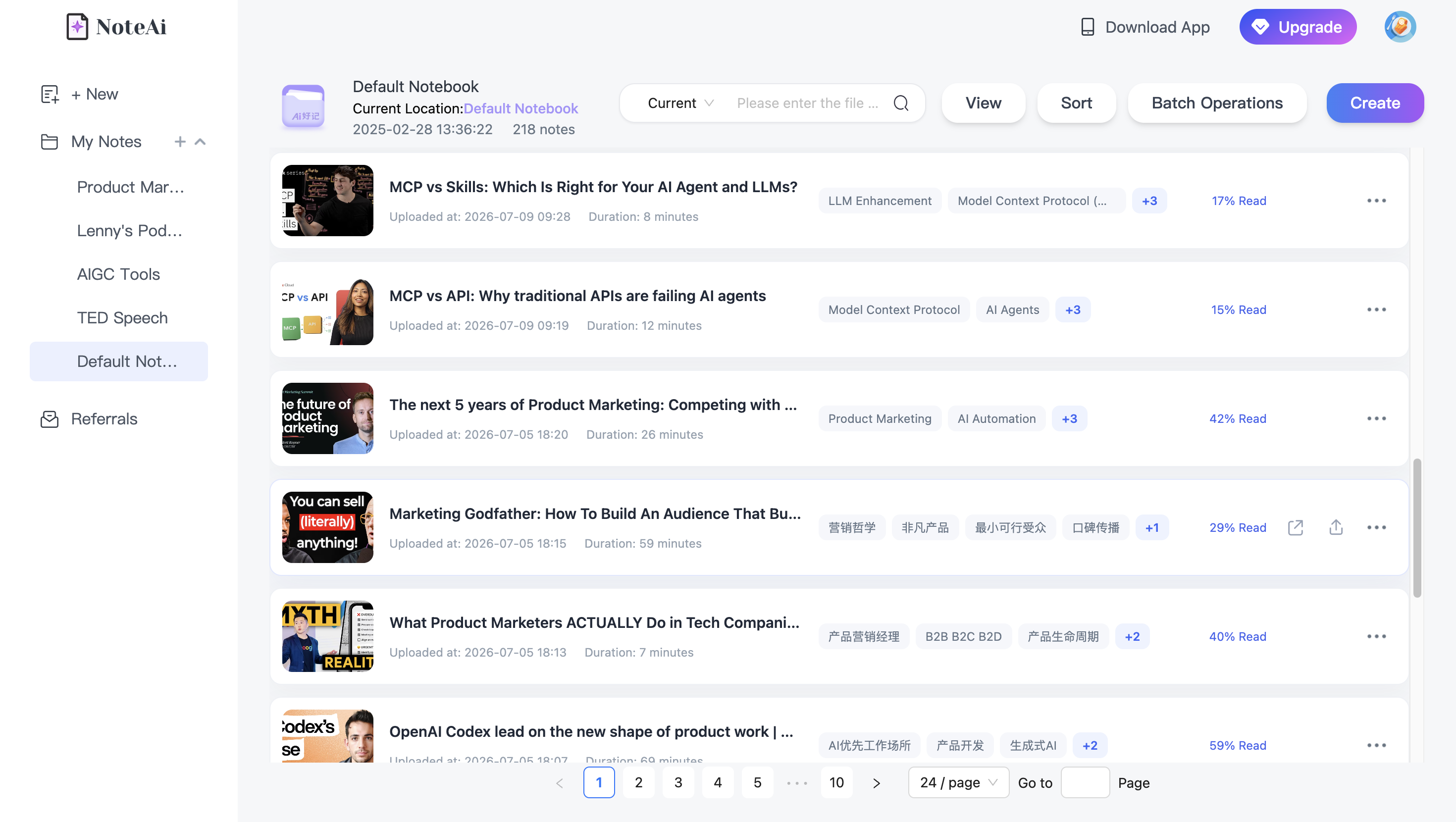
For a broader knowledge-management workflow, see how to build a personal AI knowledge base from videos and podcasts.
Frequently Asked Questions
How do I turn a meeting recording into notes?
Upload the existing recording to an AI transcription and note-taking tool. NoteAi can generate a timestamped transcript, identify speakers, create structured notes, and keep the source available for later review.
Can AI summarize a recorded meeting?
Yes. AI can process an existing meeting recording and turn the transcript into a shorter structured summary. The original transcript and recording should still be available when exact wording or context matters.
Can AI transcribe a meeting and identify different speakers?
Some AI transcription tools support speaker recognition. NoteAi can separate different speakers in a processed recording, making multi-person meeting transcripts easier to follow.
Can I upload an existing meeting recording for AI notes?
Yes. You do not necessarily need a meeting bot. If you already have a meeting recording, you can upload it to NoteAi and generate the transcript and AI notes afterward.
Can AI pull action items from a meeting recording?
AI can organize follow-up items that were explicitly discussed in the meeting. With a Custom Prompt, you can ask NoteAi to structure confirmed decisions, unresolved questions, follow-up items, and any owners or deadlines that were actually mentioned. It should not be treated as a source for owners or deadlines that were never stated.
How do I find something that was said in a long meeting?
A timestamped transcript is usually the fastest starting point. Search or scan the transcript for the topic, then return to the corresponding part of the recording if you need the full context.
Can AI meeting notes work with different languages?
Yes, depending on the tool. NoteAi supports translation across 22 languages and bilingual viewing for processed content.
Do I need a meeting bot to generate AI meeting notes?
No. A meeting bot is useful for automatically joining live calls, but existing recordings can also be uploaded and processed afterward.