

Taking notes from YouTube usually means constantly switching between watching, pausing, typing, rewinding, and trying to decide what is worth saving.
AI can handle the first pass.
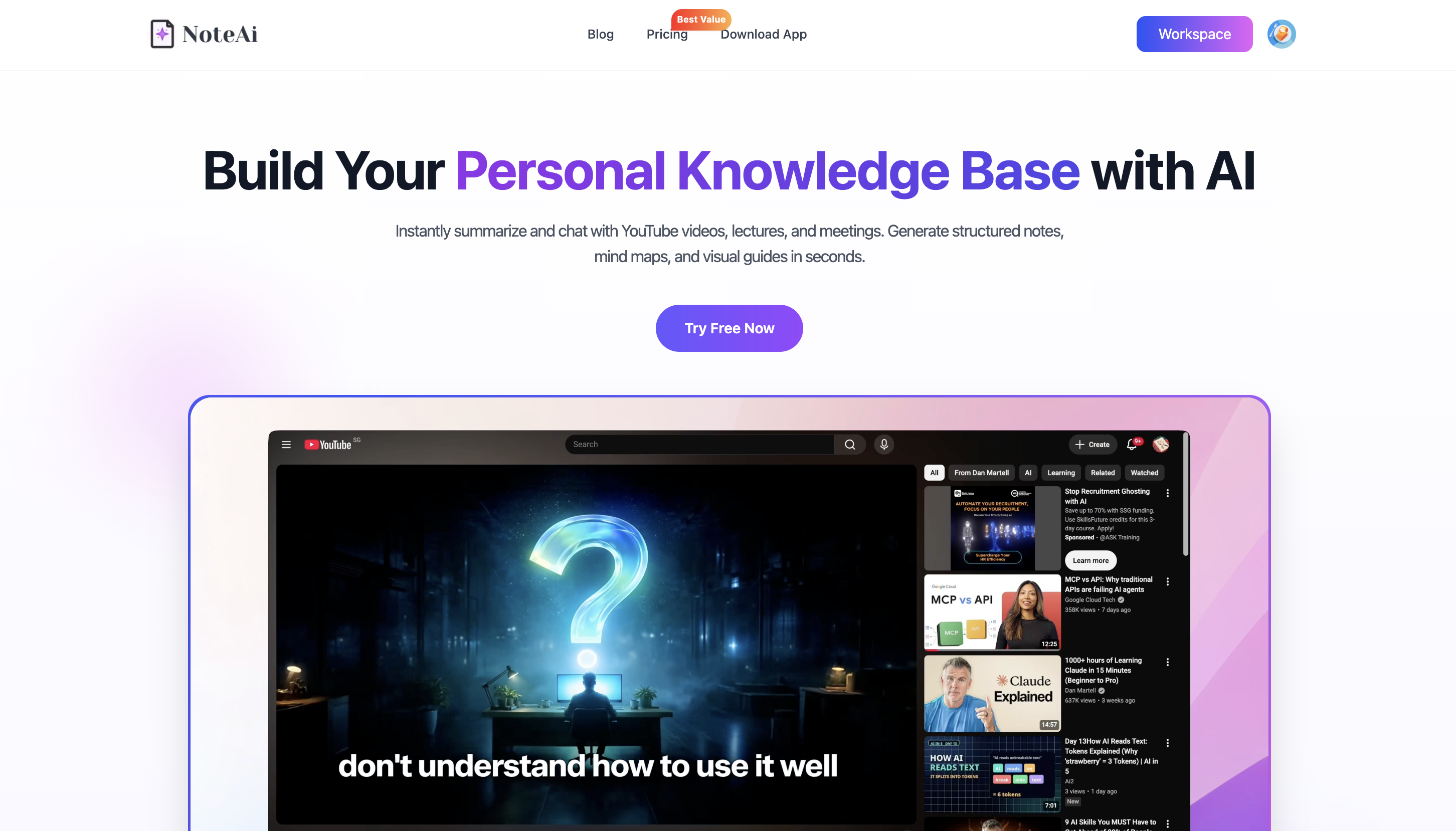
With NoteAi, you can add a YouTube video and generate a timestamped transcript, Key Insights, structured AI Notes, Visual Notes, an Outline, and an editable mind map.
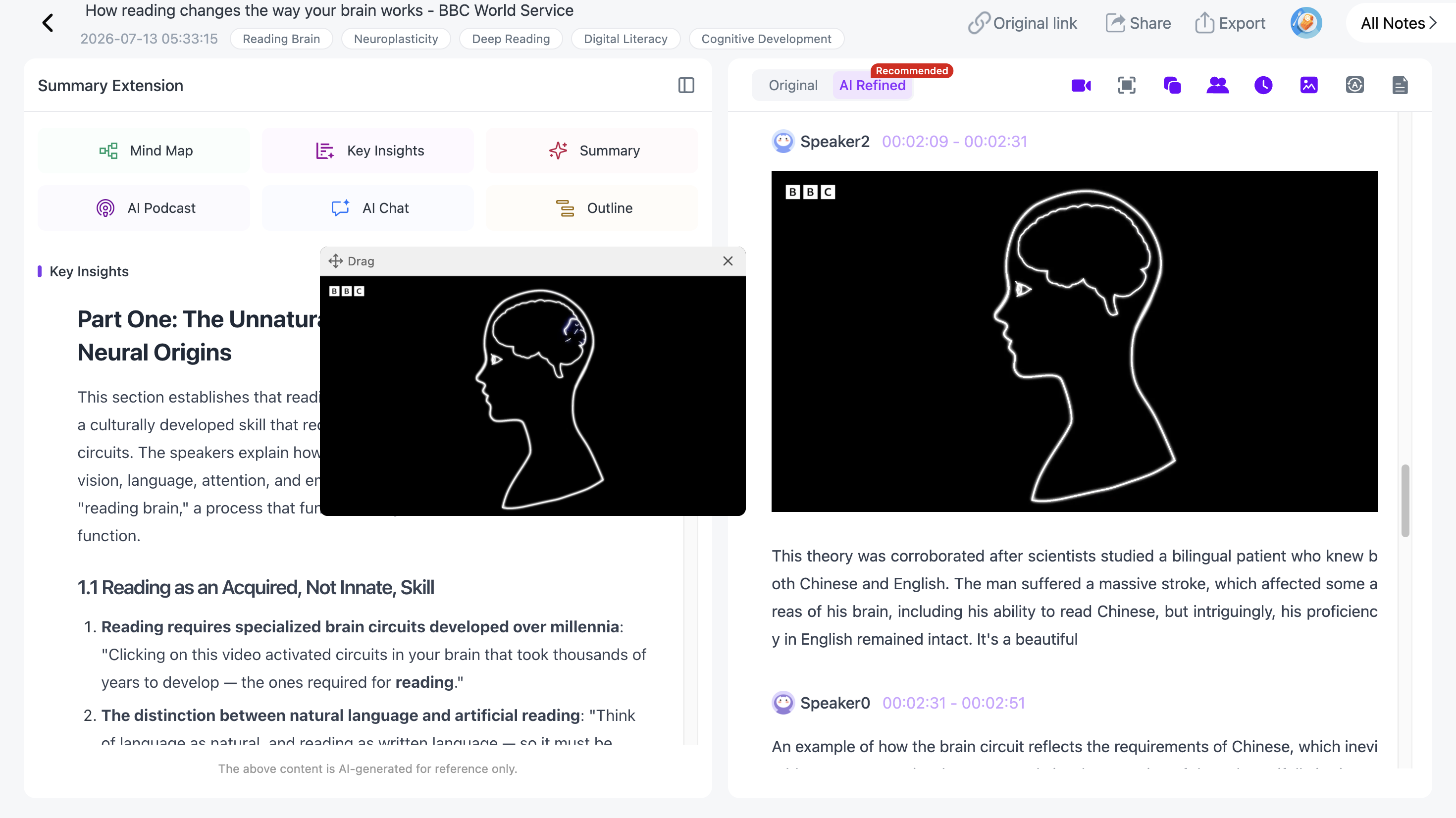
You can then keep the original video available while reviewing the notes, add your own annotations, and use AI Chat to ask questions about the processed content.
The goal is not to replace watching every useful video. It is to make long videos easier to understand, review, search, and reuse.
How Do You Turn a YouTube Video Into Notes?
A practical YouTube-to-notes workflow looks like this:
- Add the YouTube video.
- Scan the Key Insights.
- Choose how you want the source summarized.
- Review the timestamped transcript.
- Preserve useful slides and visual information.
- Keep the video playing while adding your own notes.
- Organize the source with a mind map.
- Ask questions with AI Chat.
- Translate the notes if needed.
- Export the material for later use.
Each view serves a different purpose, so you do not have to force the entire video into one generic summary.
Step 1: Add the YouTube Video
Copy the URL of the video and add it to NoteAi.
This works for lectures, tutorials, interviews, educational videos, conference talks, explainers, and other long-form YouTube content.
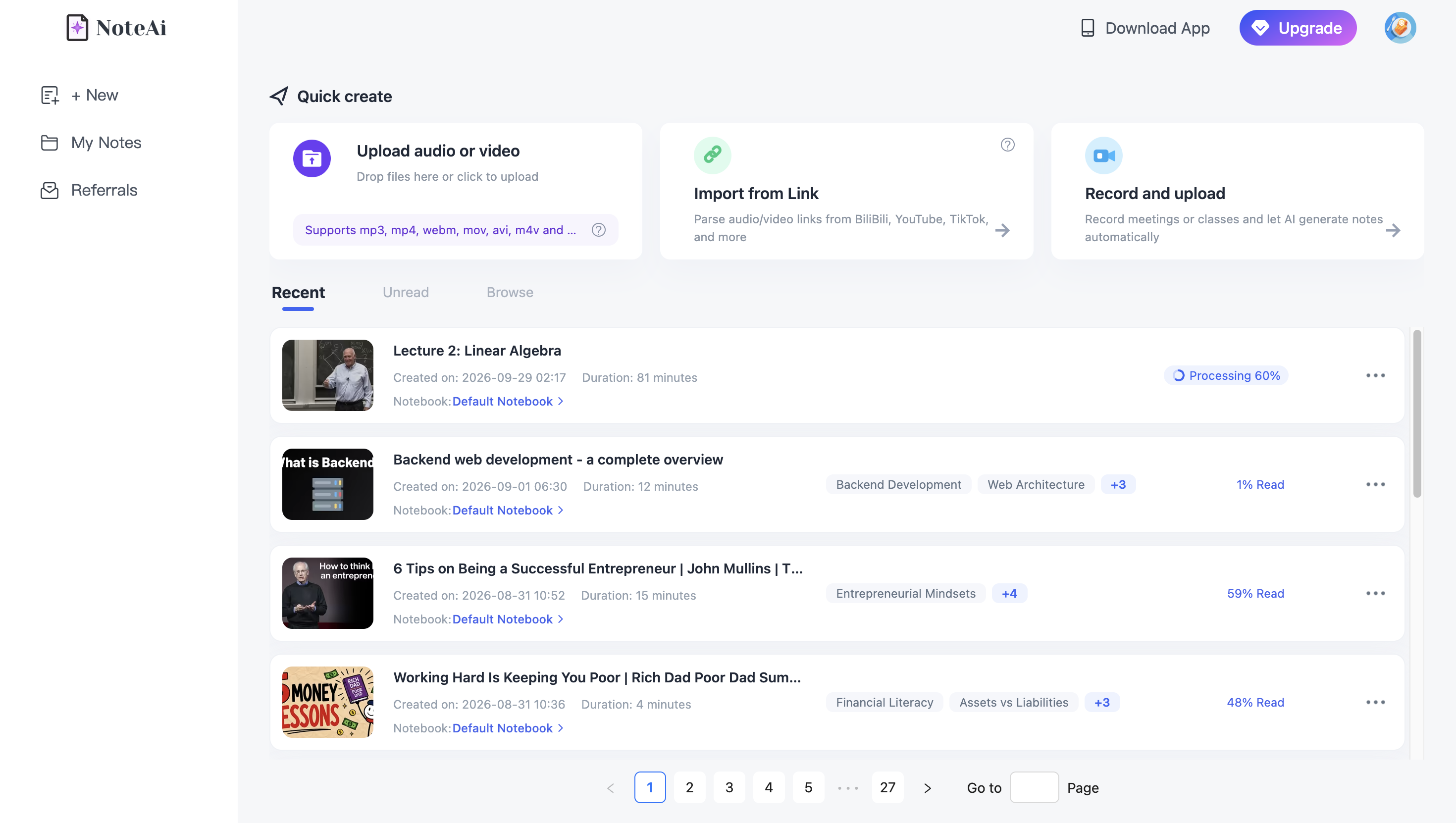
For long-form content, NoteAi supports an individual item up to 7 hours and 4 GB.
If you regularly work with very long videos, our comparison of the best YouTube summarizers for long videos covers the broader tool landscape.
Step 2: Start With Key Insights
You do not always need to read the full transcript first.
Key Insights gives you a quick view of the most important information across the entire video.
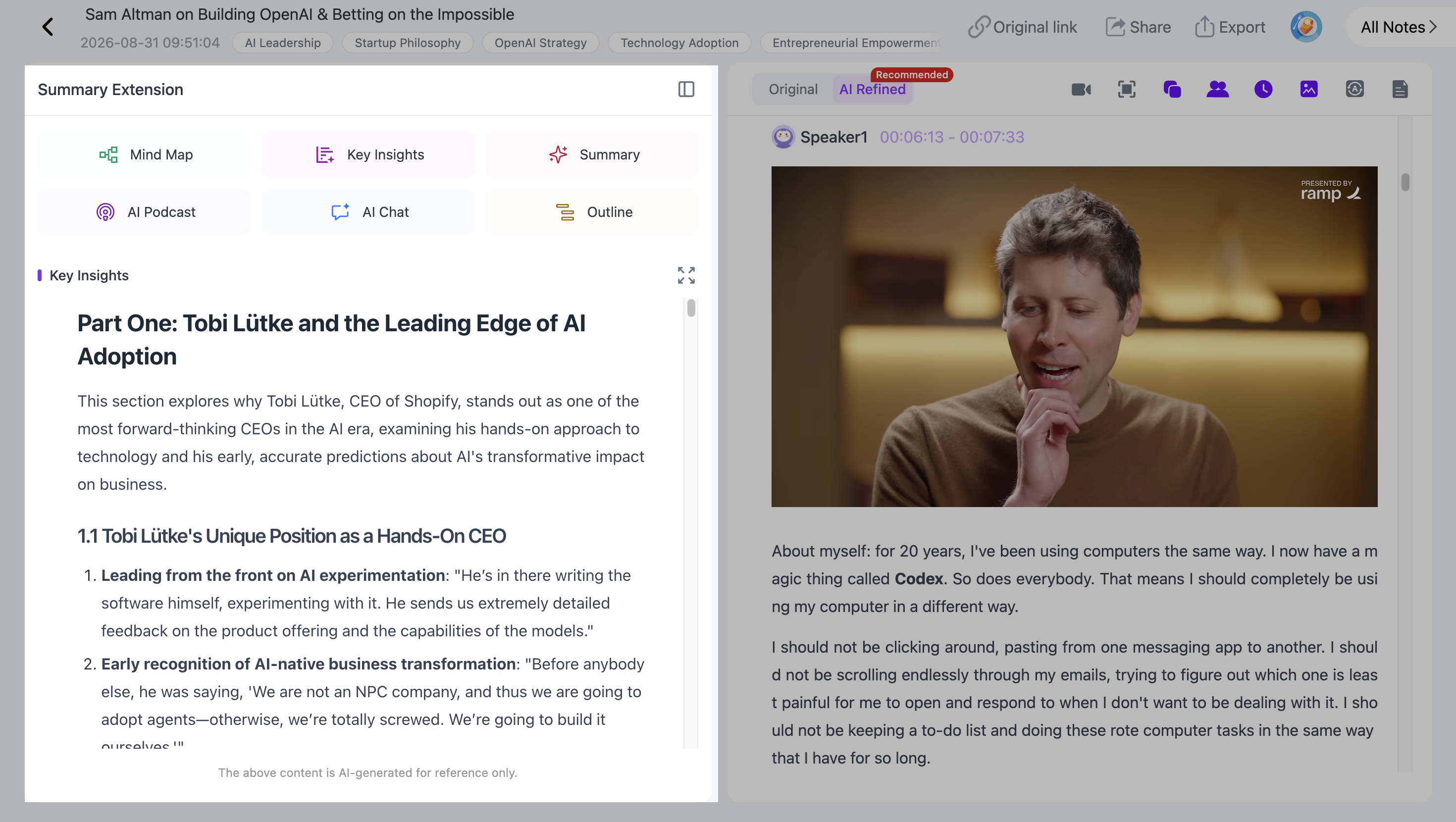
Use it as a first scan:
- Is this video relevant?
- Which ideas deserve more attention?
- Which sections should you return to?
- What are the major takeaways?
Key Insights does not replace the transcript. It gives you a faster entry point into a long source.
Step 3: Decide How You Want the Video Organized
A tutorial, interview, lecture, and product review should not necessarily produce the same type of notes.
NoteAi includes multiple Summary Templates for different ways of organizing a source.
If the built-in templates do not match what you need, you can use a Custom Prompt.
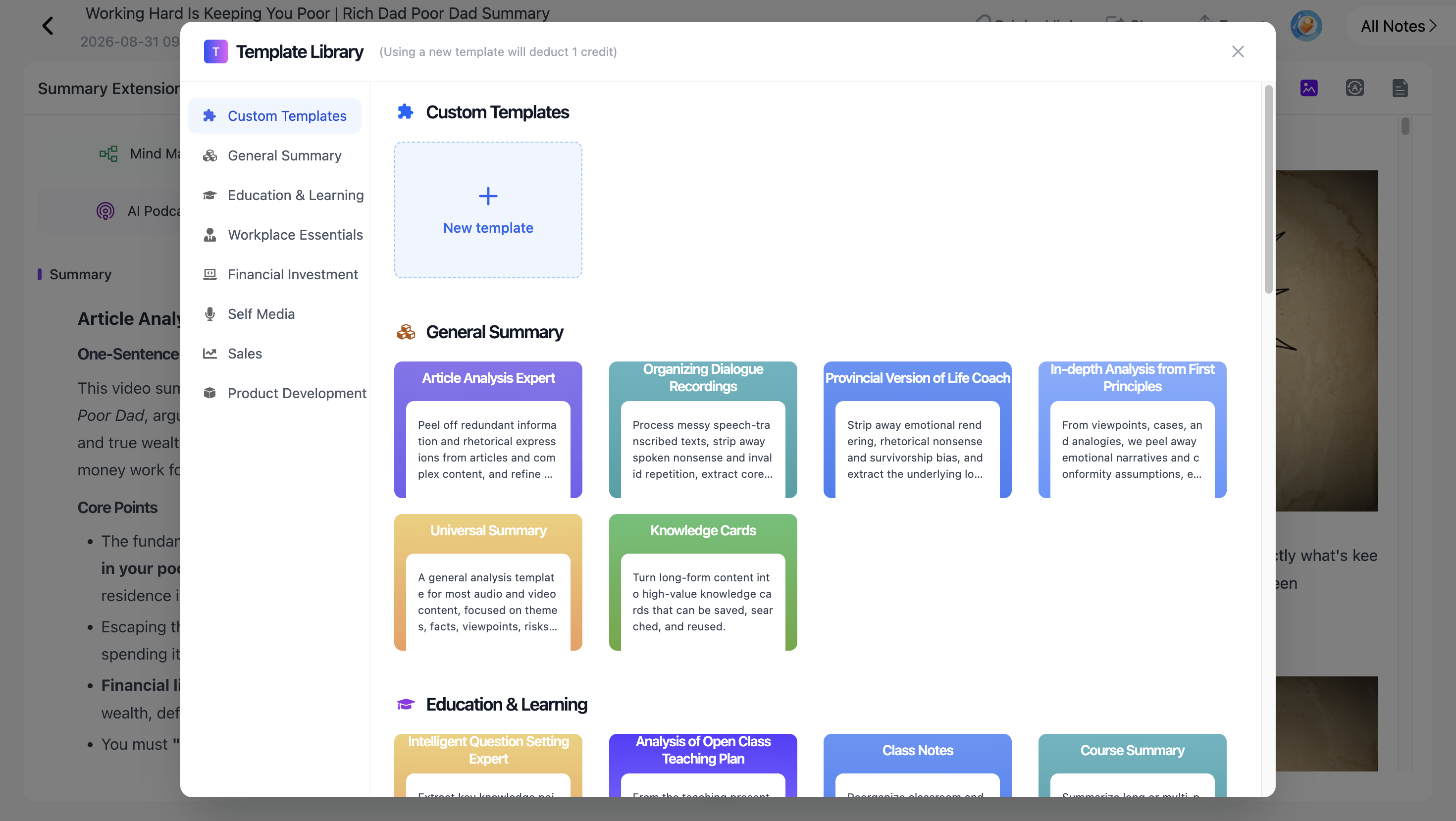
For a lecture, you might write:
"Organize this video into core concepts, definitions, examples, and relationships between ideas."
For an interview:
"Organize the discussion by the guest's main arguments, examples, disagreements, and conclusions."
A Custom Prompt tells NoteAi how you want the source summarized or organized. Later, AI Chat serves a different purpose: it lets you freely ask questions about the processed content.
Step 4: Use the Full Timestamped Transcript
Notes are useful for compression. A transcript is useful when you need detail.
NoteAi generates the full transcript with timestamps, making it easier to search the spoken content and return to specific moments.
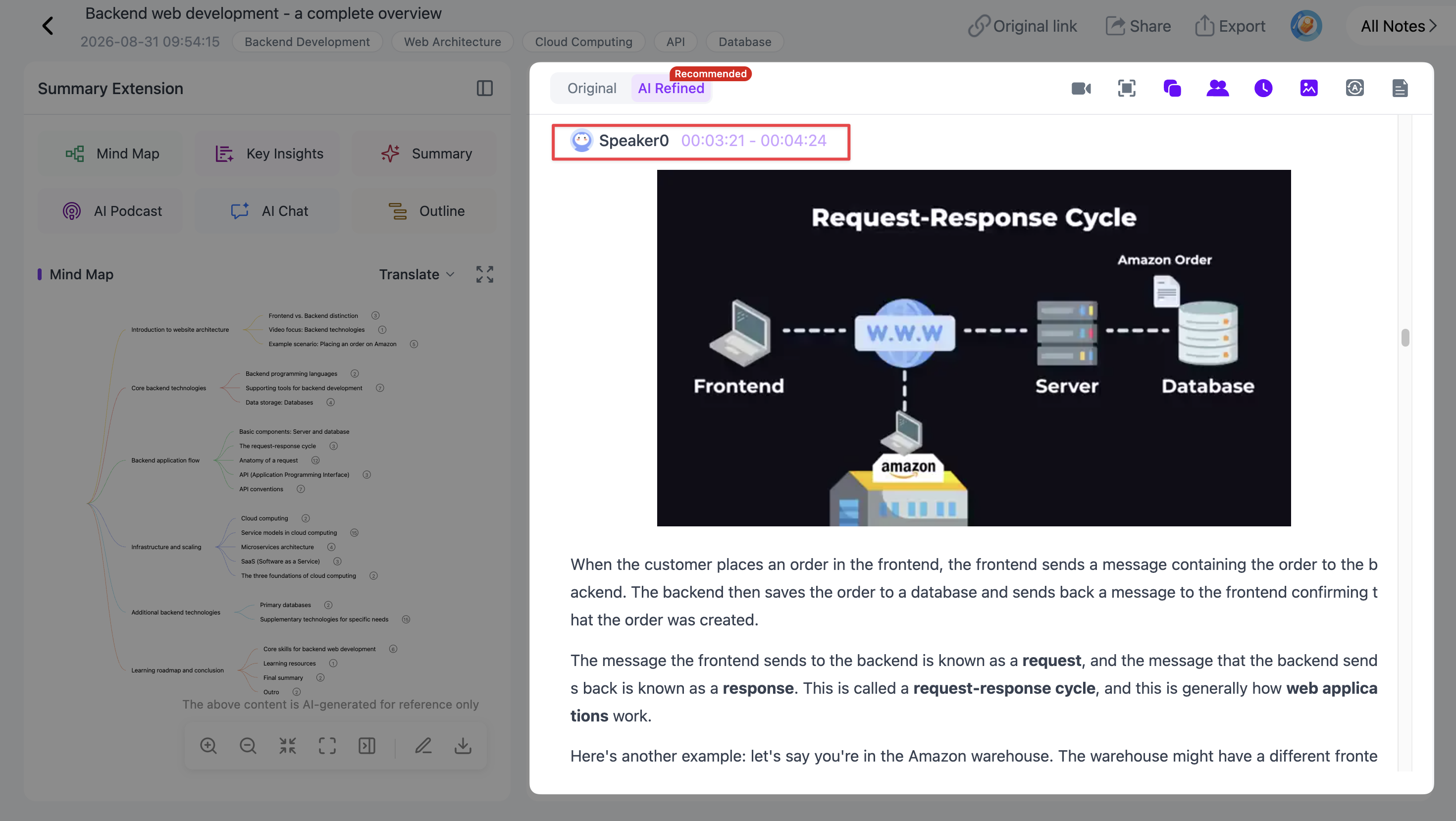
For example, if the notes mention a concept but the explanation feels too short, search the transcript for that concept and return to the relevant timestamp.
For videos with multiple speakers, speaker recognition can also make the transcript easier to follow.
Step 5: Keep Slides and Visual Information With the Notes
Many YouTube videos communicate important information visually.
A lecture may show a diagram. A tutorial may demonstrate an interface. A presentation may contain charts or slides that cannot be reconstructed from the transcript alone.
Visual Notes preserve useful frames alongside the written content.
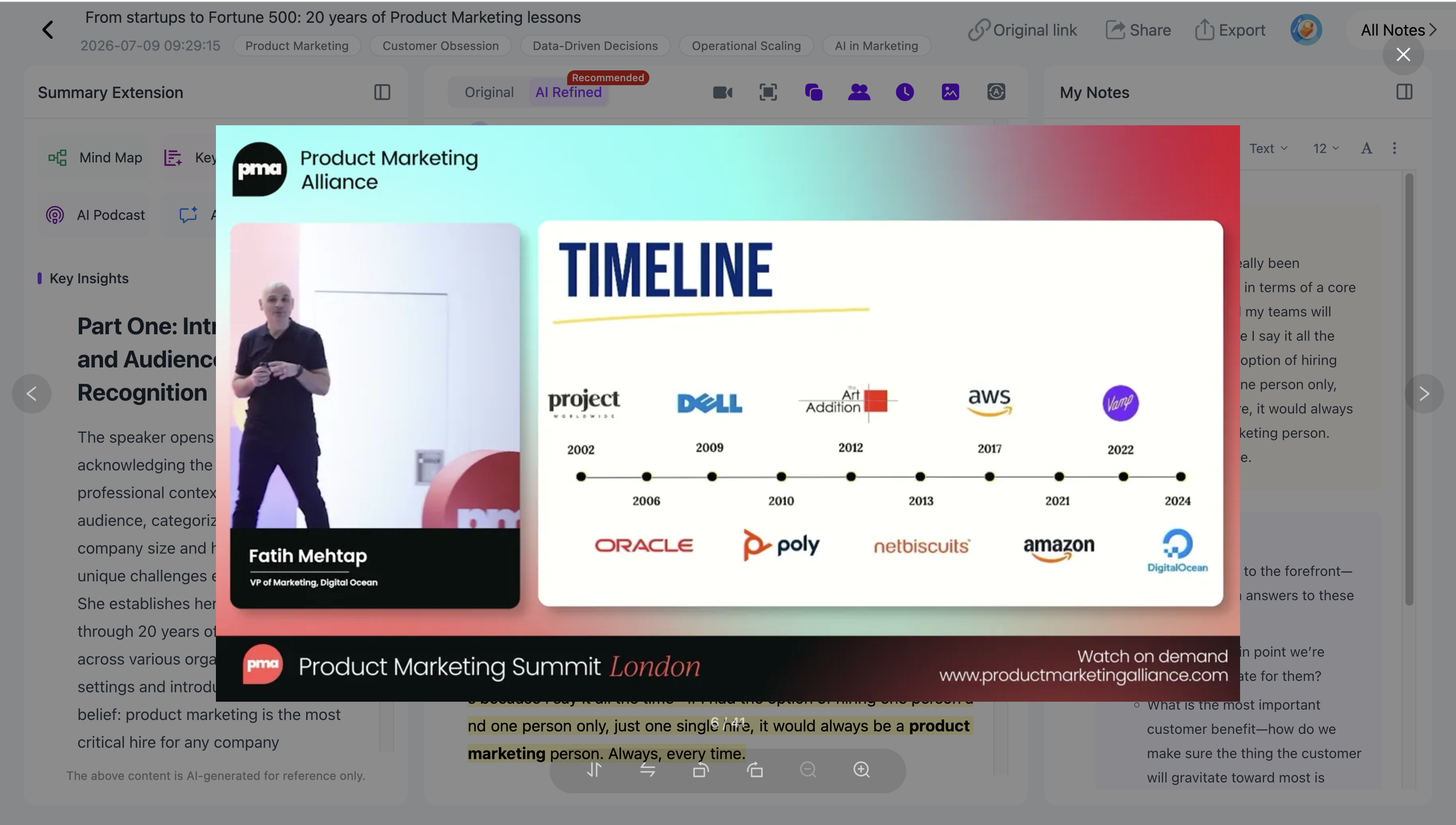
This is especially useful for lecture videos, presentations, tutorials, and other sources where the screen matters as much as the speaker.
For a dedicated workflow, see how to extract slides from YouTube videos with AI.
Step 6: Keep Watching While Adding Your Own Notes
AI-generated notes do not have to replace your own note-taking.
NoteAi can keep the original video available in a mini player while you review the transcript, notes, and other generated material.
You can continue watching and add your own notes or annotations.
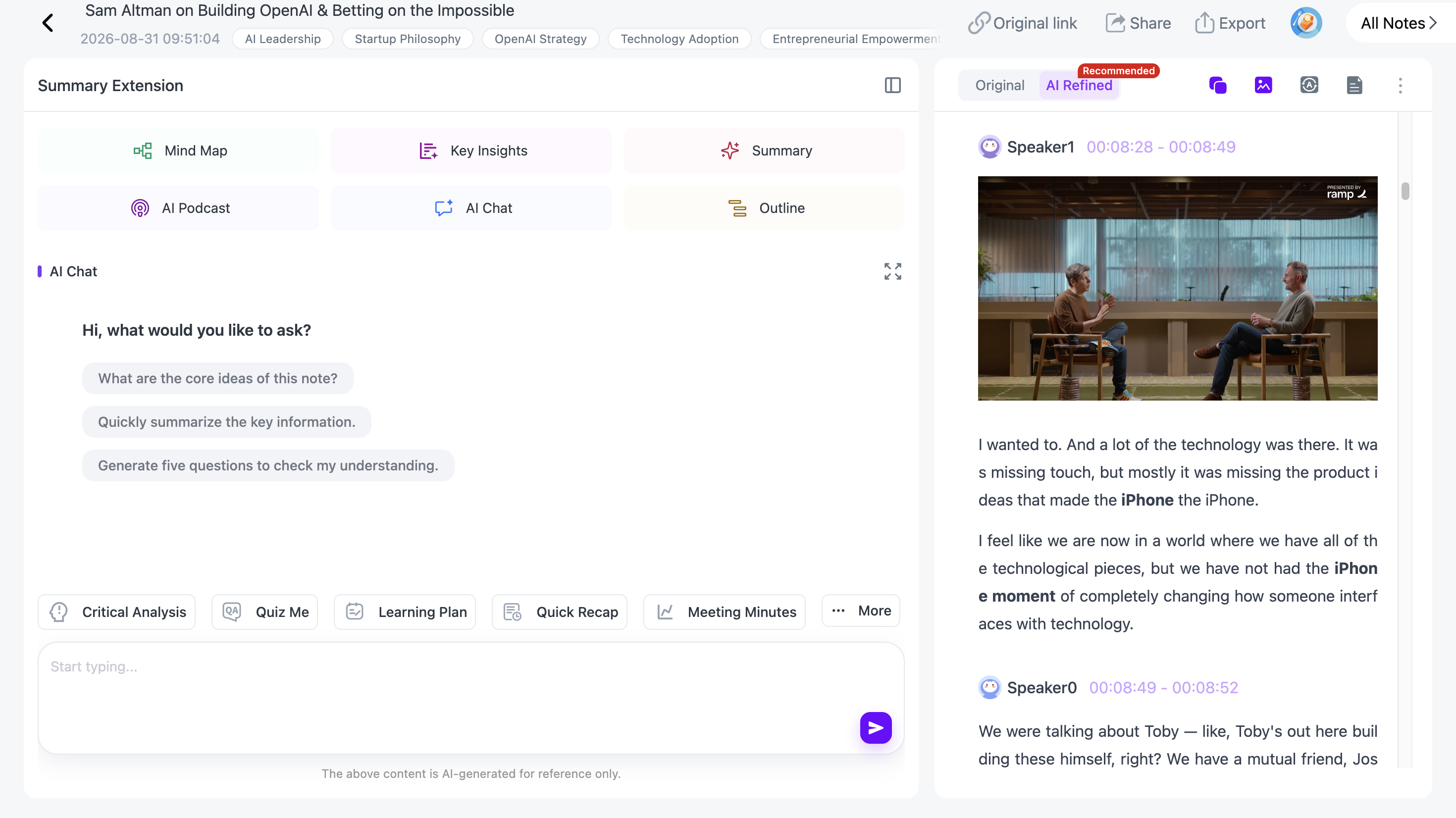
This makes the workflow more useful for active learning. Let AI create the first structure, then add the observations, questions, examples, and connections that matter to you.
Step 7: Turn the Video Into an Editable Mind Map
For videos with several connected ideas, a linear note may still be difficult to review.
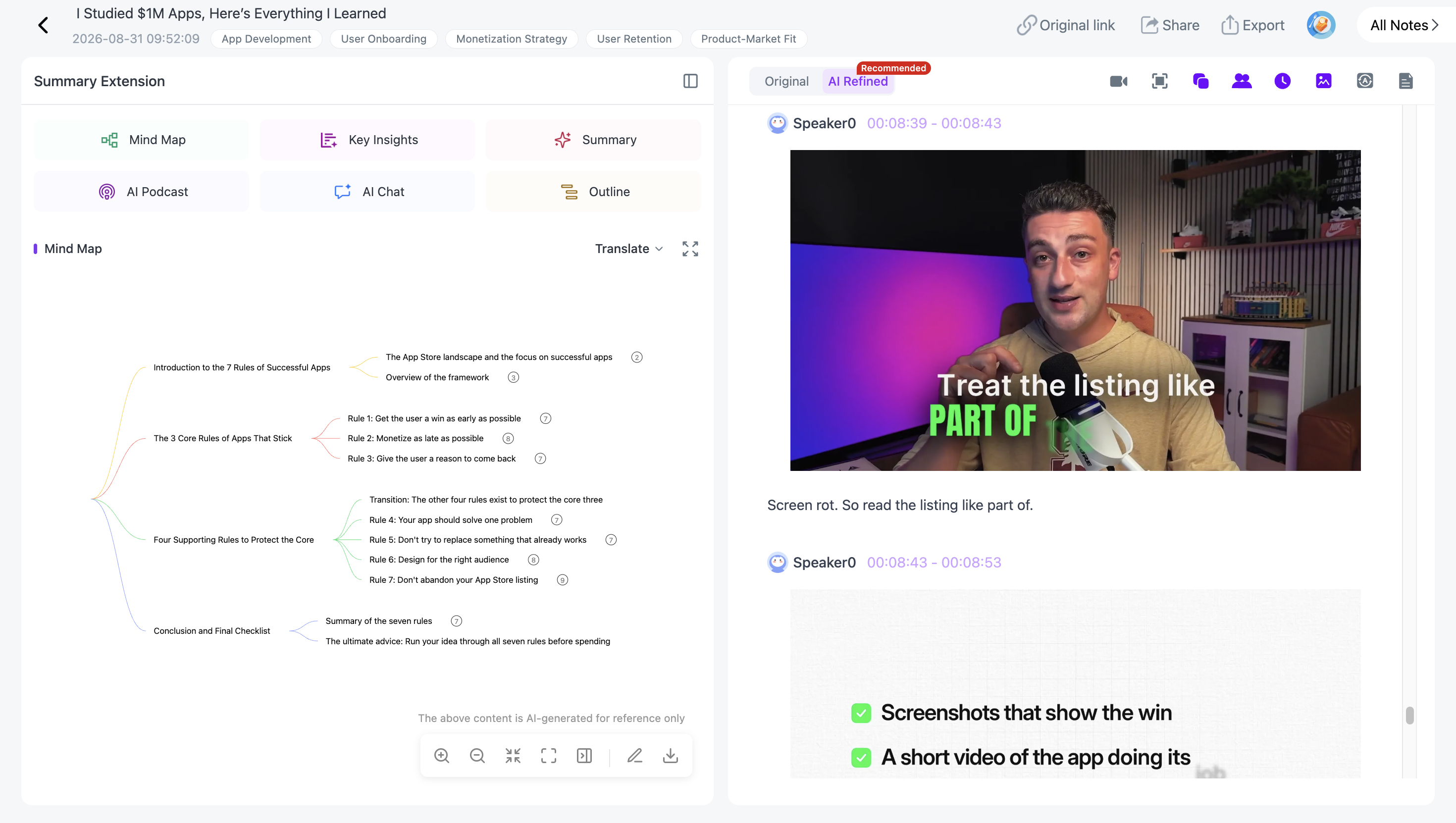
NoteAi can generate a multi-level mind map that organizes the source into topics and subtopics.
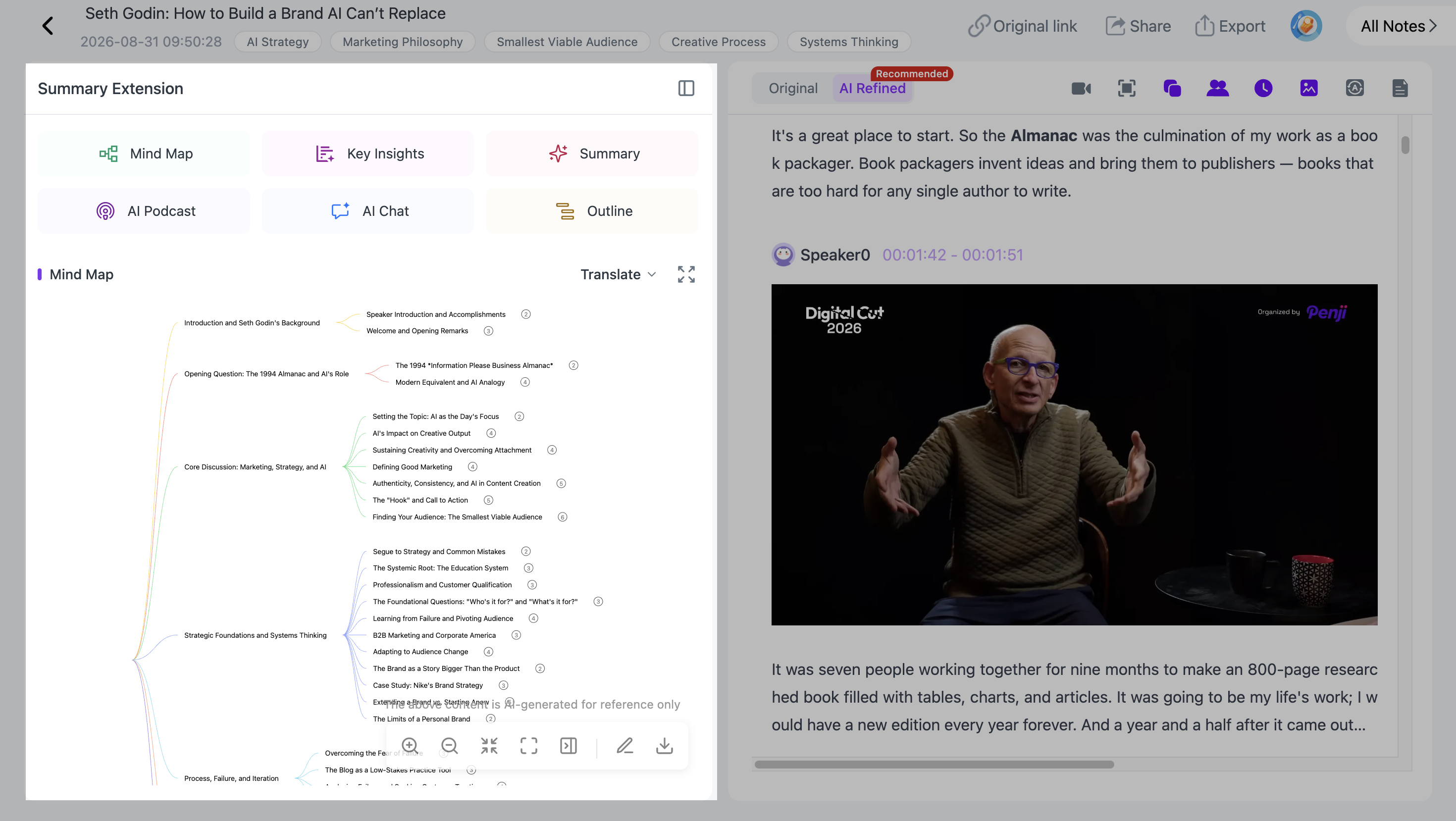
The map is freely editable, so you can reorganize the branches after generation.
You can also click a node to return to the corresponding source content. This is useful when a short branch represents an idea you want to hear explained again.
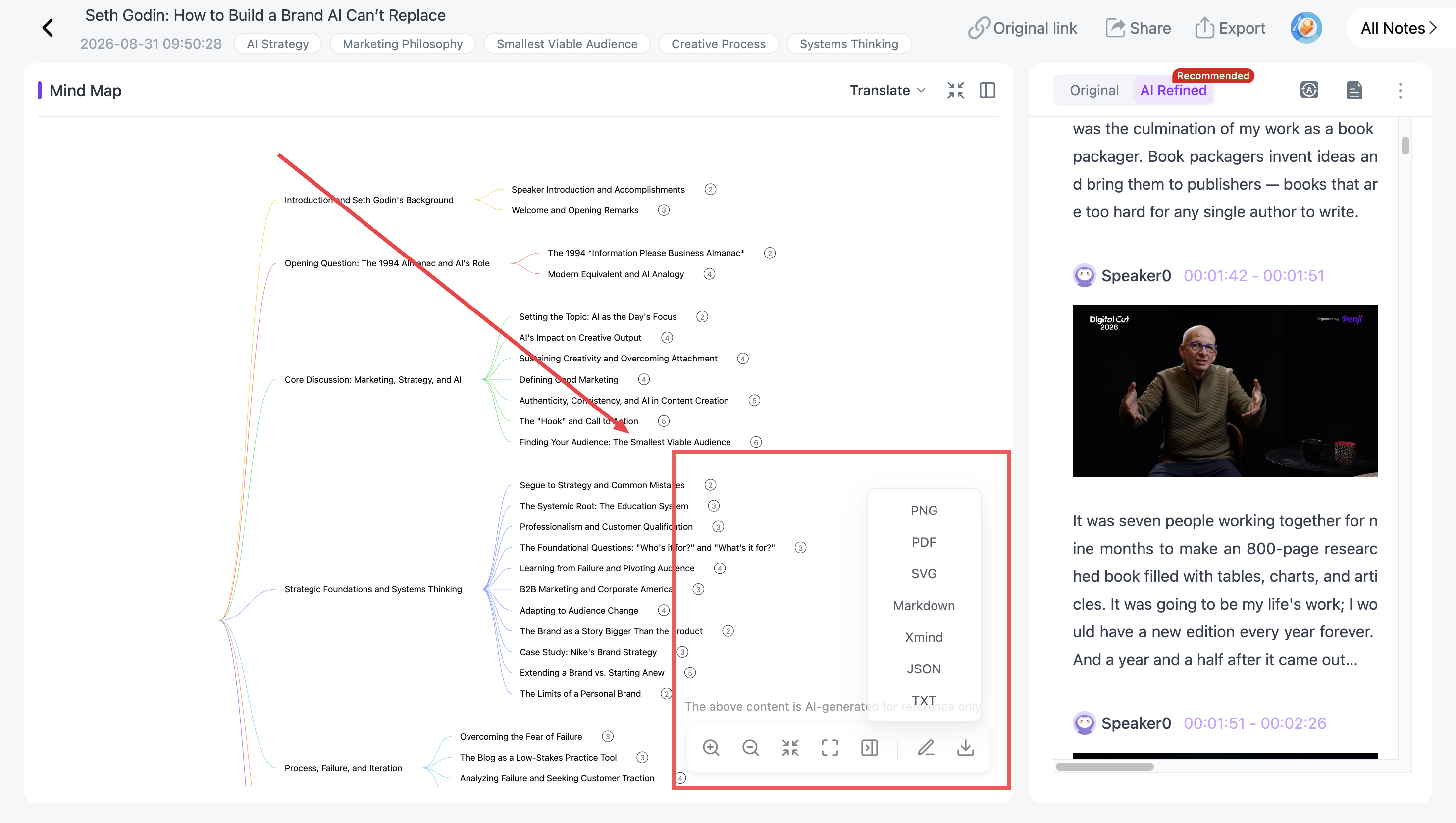
Mind maps can also be exported to XMind.
If this is your main use case, see the full YouTube-to-mind-map workflow after that article is published.
Step 8: Ask Anything About the Video With AI Chat
Once the video has been processed, AI Chat lets you freely ask questions about the content and continue the conversation with follow-up questions.
You are not limited to a fixed list of questions.
With NoteAi, you can ask:
"What does the speaker mean by this concept?"
"Can you explain it in simpler terms?"
"What example does the speaker use to support this point?"
"How is this method different from the one discussed earlier?"
"Where in the video is this topic explained?"
Then you can keep asking follow-up questions based on the answers.
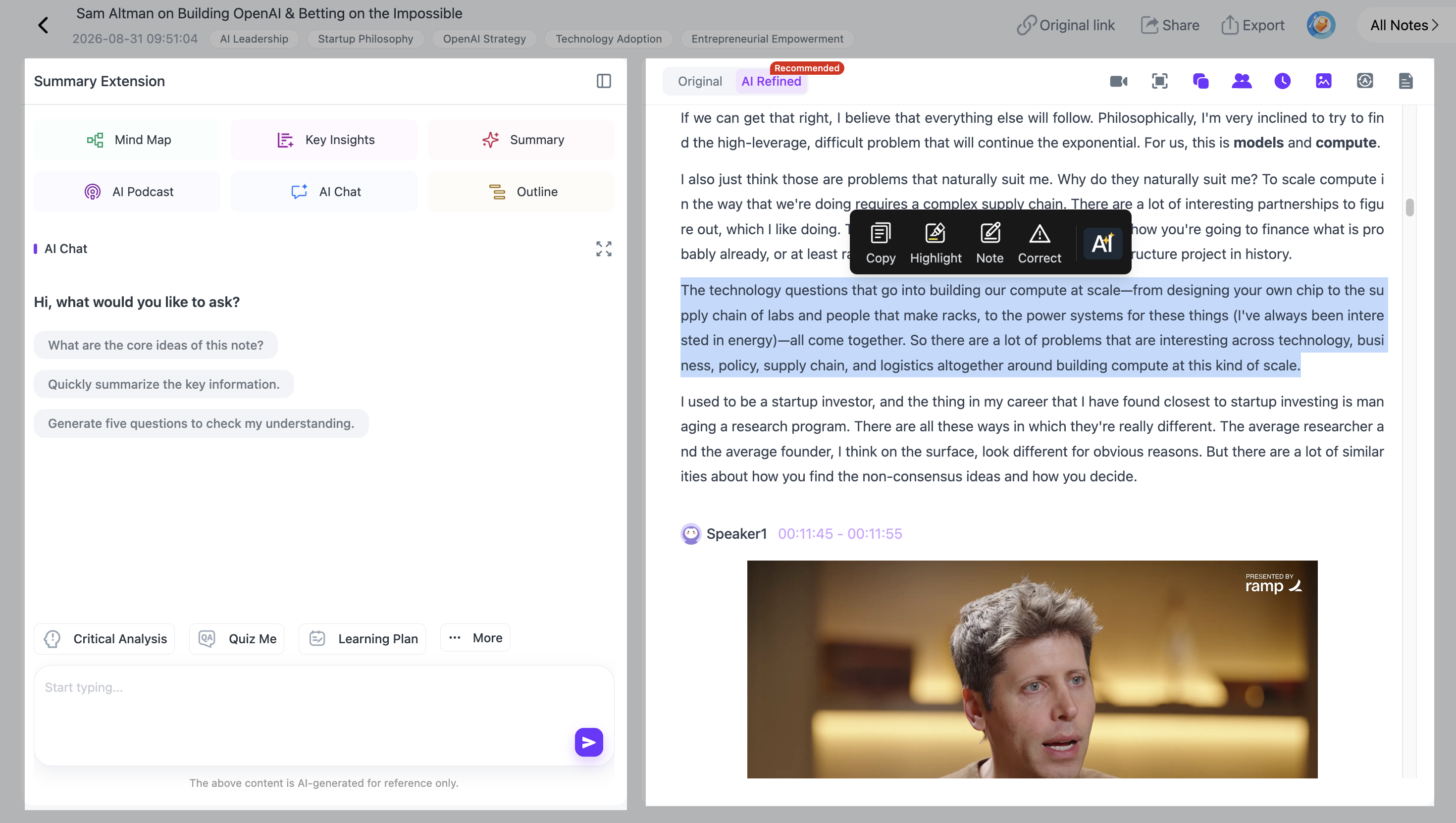
Custom Prompts and AI Chat serve different purposes.
A Custom Prompt tells NoteAi how you want the source summarized or organized.
AI Chat is the conversational layer: you freely ask questions about the processed content, get answers, and continue with multi-turn follow-up questions.
Step 9: Translate YouTube Notes Into Another Language
For foreign-language videos, NoteAi supports translation across 22 languages and can display bilingual content side by side.
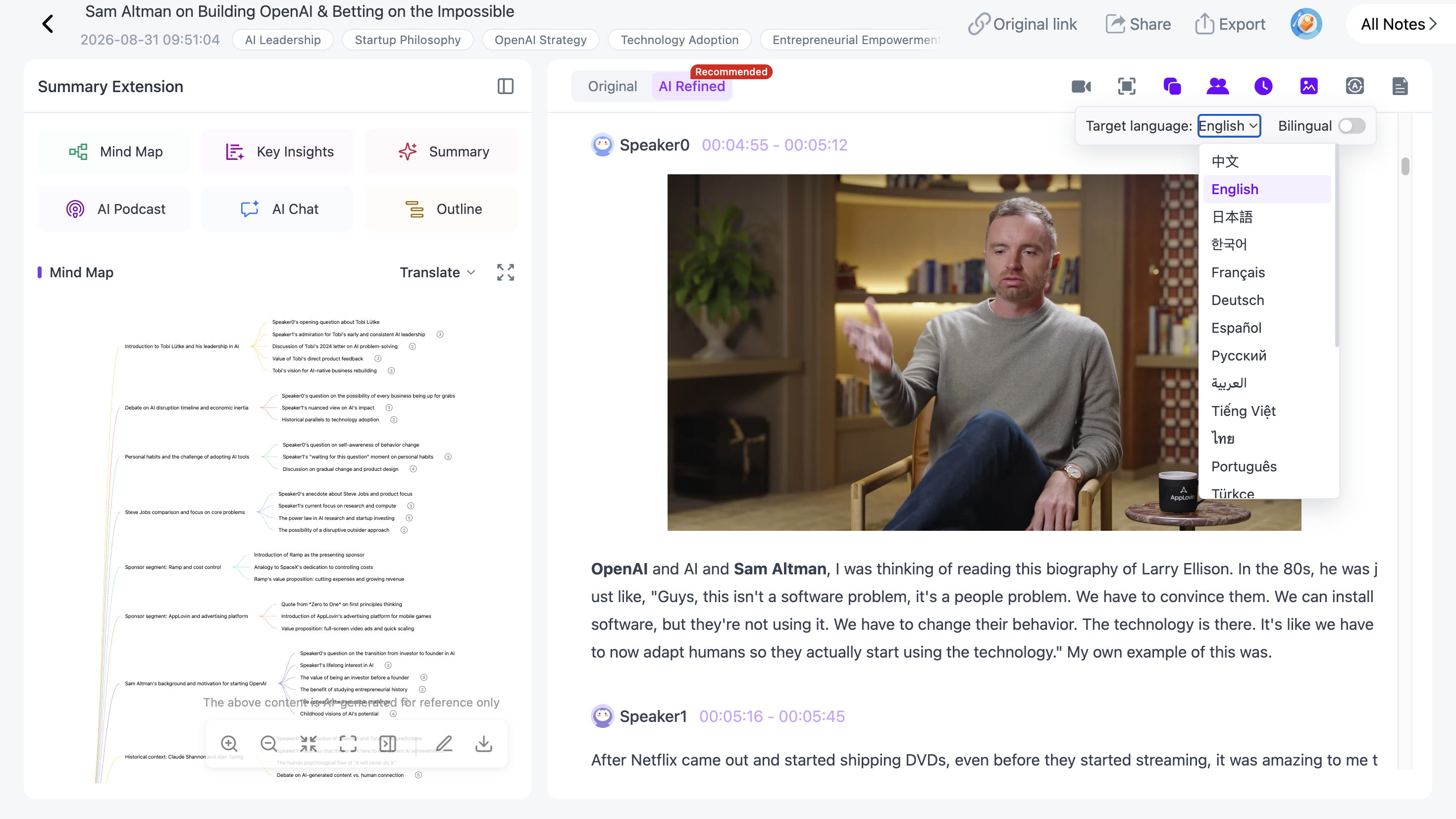
This is useful for international lectures, language learning, foreign interviews, and research sources that would otherwise take much longer to process manually.
Step 10: Export and Reuse the Notes
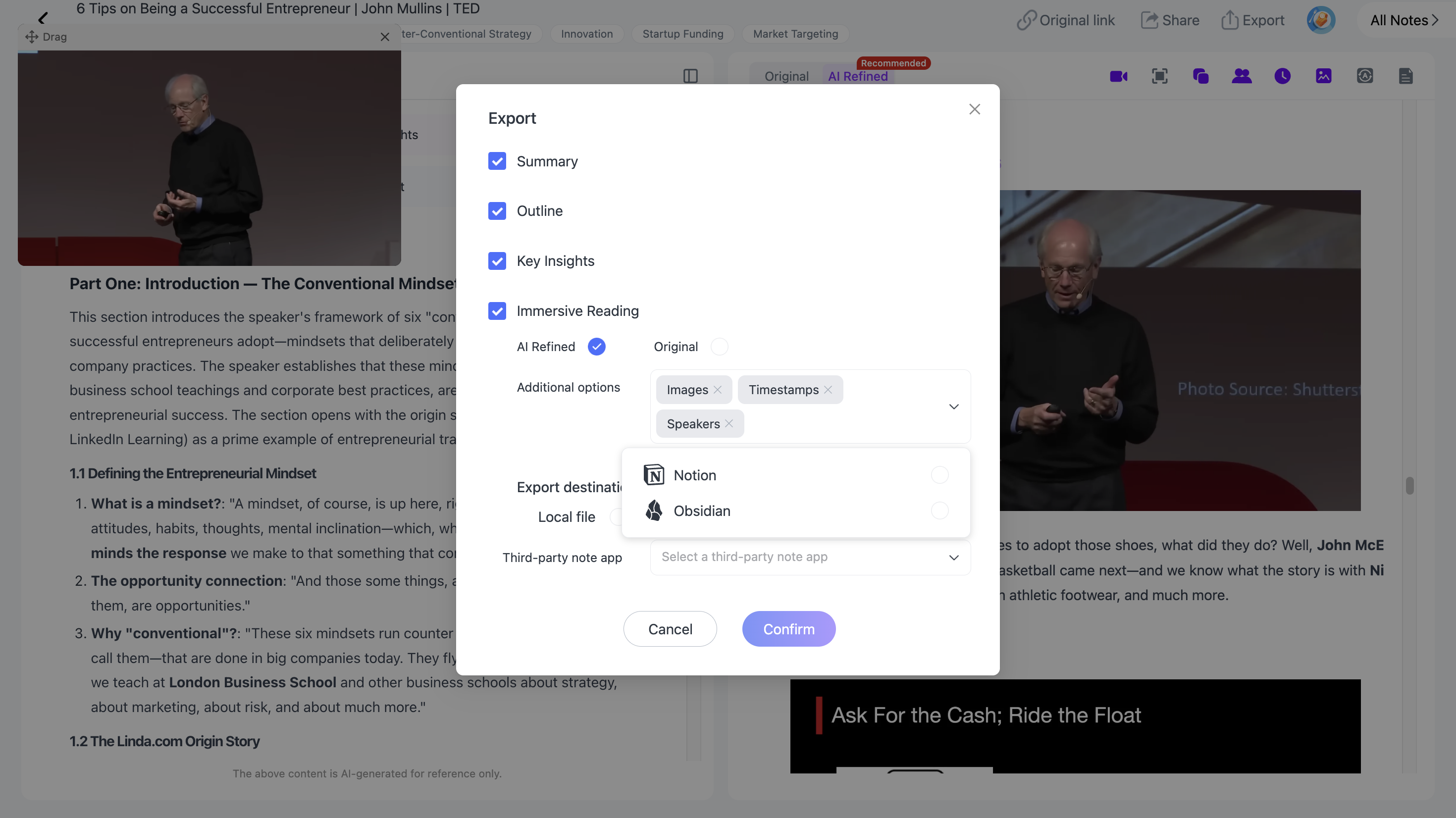
After the video has been processed and reviewed, NoteAi supports exports including:
- Word
- Markdown
- XMind
- HTML
You can also continue the workflow in Notion or Obsidian.
If you use Obsidian for long-term knowledge management, see our guide to turning YouTube videos into Obsidian notes with AI.
What Should You Use: Key Insights, Notes, Transcript, or Mind Map?
You do not need to choose only one.
| View | Best For |
|---|---|
| Key Insights | Quickly scanning the most important information |
| AI Notes | Reading an organized version of the source |
| Transcript | Finding exact explanations and timestamps |
| Visual Notes | Preserving slides, diagrams, and key frames |
| Mind Map | Seeing relationships between topics and subtopics |
| AI Chat | Asking questions and exploring the source conversationally |
The useful combination depends on what you are trying to do with the video.
A student may spend more time with the mind map and AI Chat. A researcher may rely more heavily on the transcript and timestamps. Someone reviewing a presentation may care most about Visual Notes.
Build a Reusable YouTube Note-Taking Workflow
The finished workflow does not have to end when you close the video.
With NoteAi, the source can move through:
YouTube Video → Key Insights → Structured Notes → Transcript / Visual Notes → Personal Notes → Mind Map → AI Chat → Export
When you repeat that process across lectures, tutorials, interviews, and other sources, the notes can become part of a broader knowledge collection rather than isolated video summaries.
For a longer-term workflow, see how to build a personal AI knowledge base from videos and podcasts.
Frequently Asked Questions
How do I turn a YouTube video into notes?
Add the YouTube URL to an AI note-taking tool that can process video content. NoteAi can generate Key Insights, structured notes, a timestamped transcript, Visual Notes, an editable mind map, and other study or research material from the source.
Can AI take notes from a YouTube video?
Yes. AI can transcribe the spoken content and organize it into summaries or structured notes. Some tools can also preserve visual information, generate mind maps, and keep the notes connected to the original video.
Can AI take notes from a YouTube video while I watch it?
Yes. NoteAi can keep the original video available in a mini player while you review AI-generated material and add your own notes, allowing AI-assisted and manual note-taking to happen in the same workflow.
How do I take notes from a long YouTube lecture?
Start by using Key Insights or a summary to understand the lecture's overall structure. Then use the timestamped transcript for detail, Visual Notes for slides, and a mind map to organize relationships between concepts. Add your own notes while revisiting the sections that matter most.
Can I get a transcript and notes from the same YouTube video?
Yes. NoteAi generates both a full timestamped transcript and organized AI notes from the same processed source, so you can switch between detailed and condensed views.
Can I turn YouTube videos into study notes?
Yes. Lectures, tutorials, and educational videos can be converted into transcripts, structured notes, Visual Notes, and mind maps for later review.
Can I export YouTube notes to Notion or Obsidian?
Yes. NoteAi supports workflows with Notion and Obsidian, along with exports including Word, PDF, Markdown, XMind, and HTML.