

If a lecture depends on slides, a transcript alone is incomplete. You may know what the speaker said but still miss the equation, chart, diagram or interface they were describing.
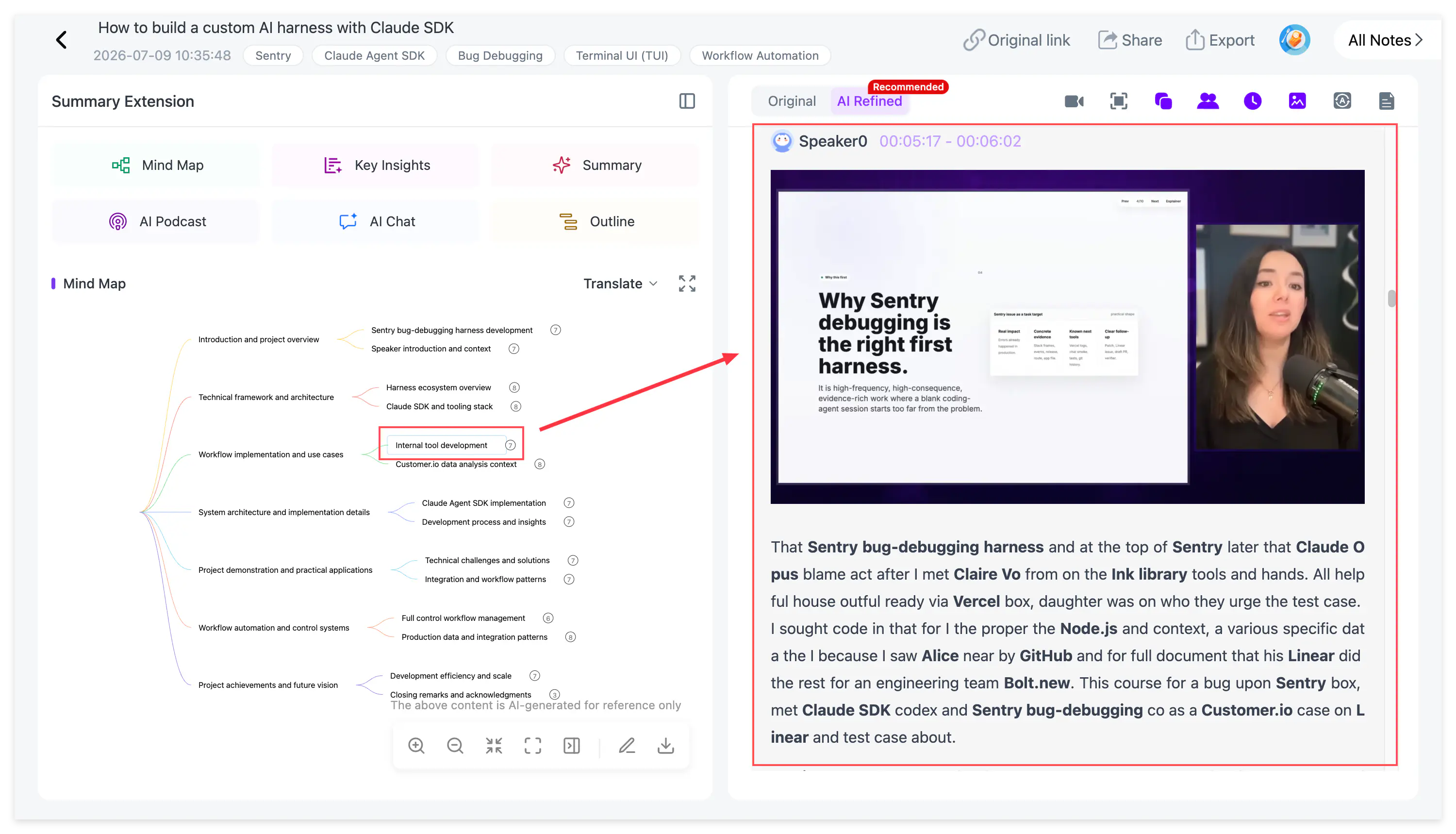
NoteAi can identify important PPT pages and key video frames, then place each image beside the corresponding spoken explanation. The output is a visual note that remains searchable and traceable to the source—not a folder of disconnected screenshots.
What “extract slides from a video” should mean
There are three different outcomes that are often described with the same phrase:
- Taking screenshots at fixed intervals.
- Identifying meaningful slide or scene changes.
- Reconstructing the creator's original editable presentation.
NoteAi is designed for the second outcome. It extracts useful visual frames and combines them with the transcript. It does not recover the original editable PPTX, animations, speaker notes or design layers, and it does not promise perfect OCR of every word on screen.
Step 1: add the YouTube video
Paste the YouTube URL into NoteAi. You can also process TikTok or Bilibili links, or upload a local recording when the lecture is not online.
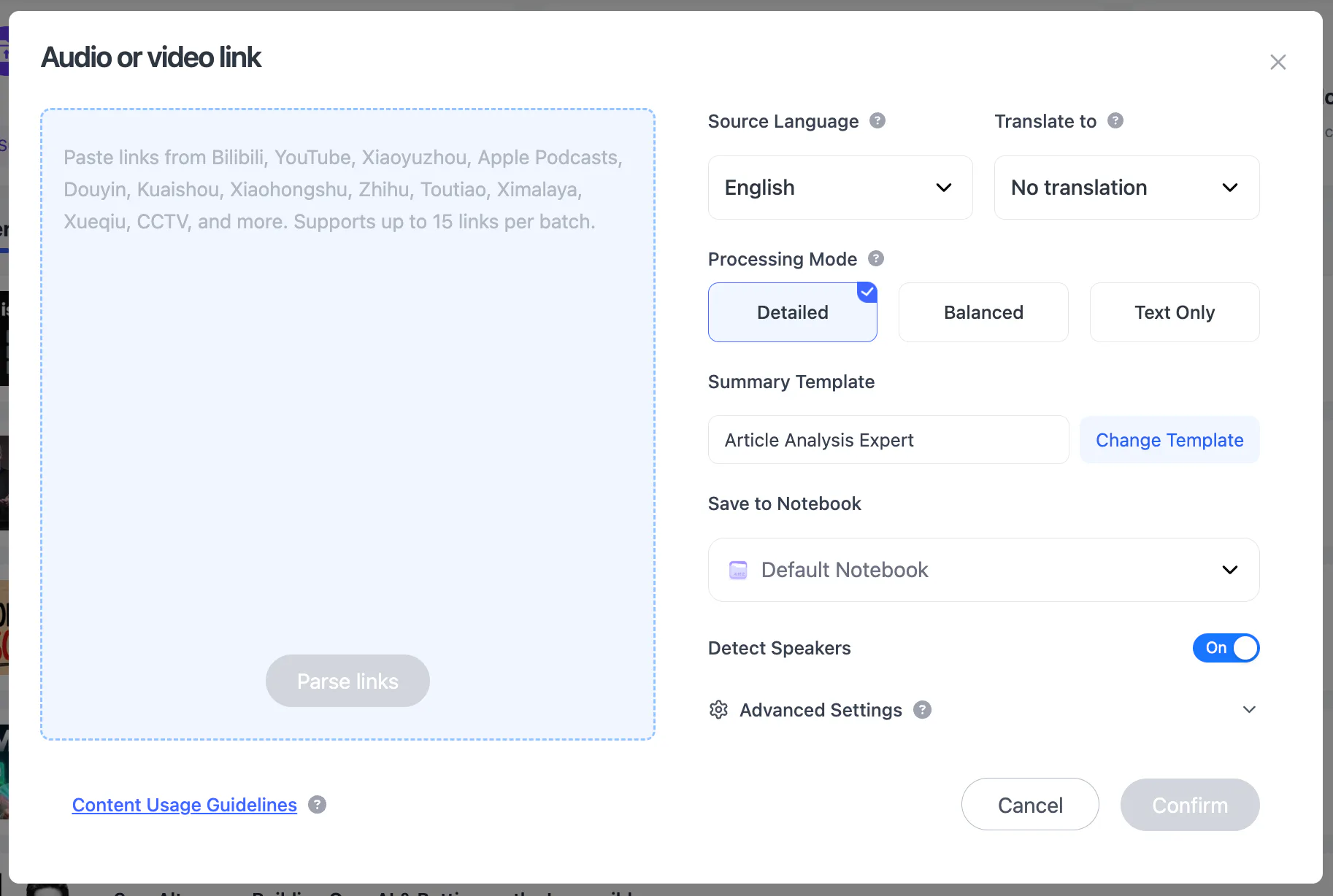
For a set of lessons, up to 15 supported items can be submitted in one batch. Local media can be up to 7 hours or 4 GB.
Step 2: let the transcript establish the timing
The platform recognizes the spoken audio with ASR and generates timestamped original and polished transcripts. These timestamps provide the timeline needed to connect each explanation with the screen content shown at that moment.
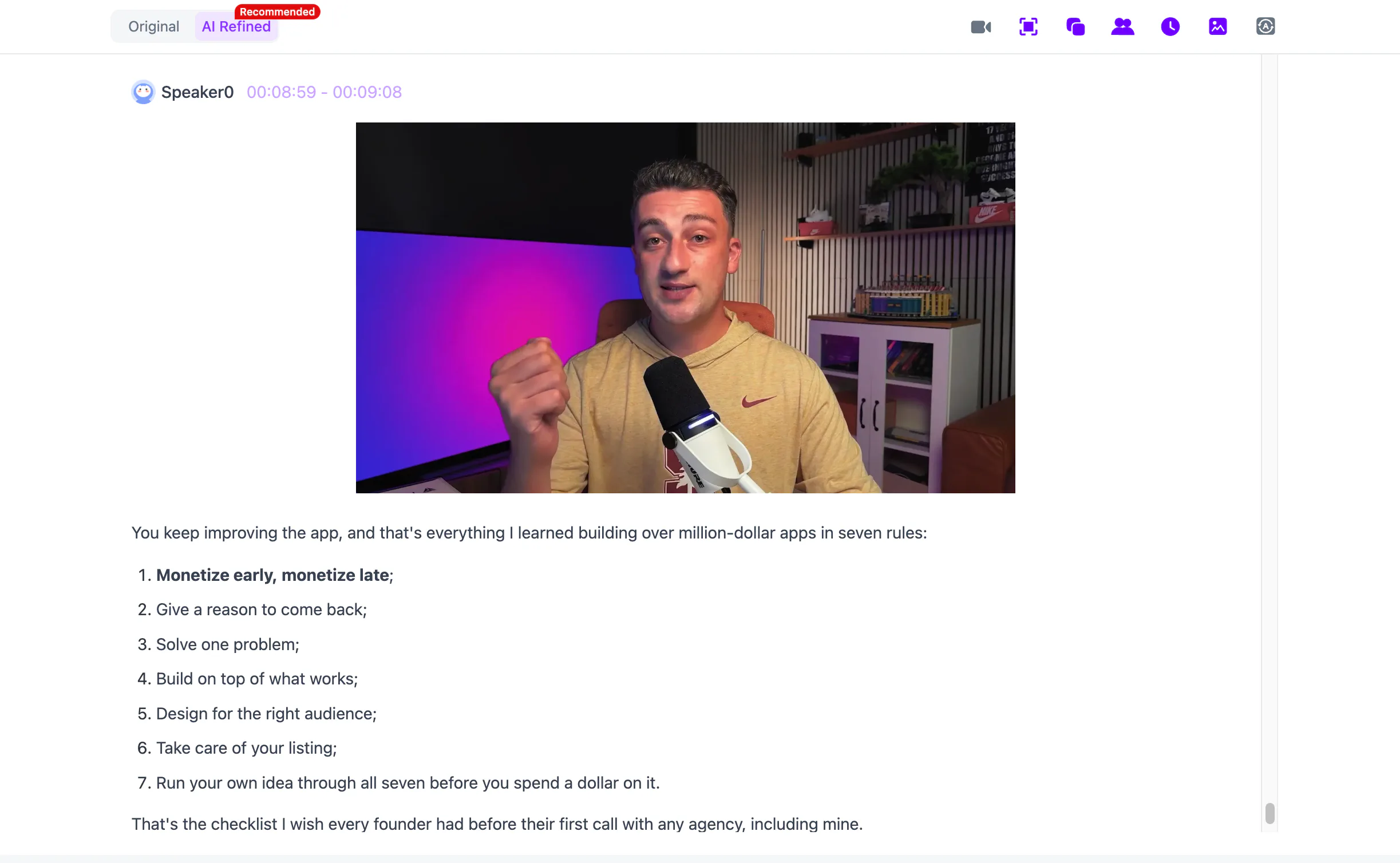
This matters because a slide shown for three minutes may be explained through several transcript paragraphs. A useful note keeps those elements together so the screenshot and speech do not become unrelated files.
Step 3: review the visual notes without reviewing every frame
NoteAi selects important PPT pages and key frames, then combines them with the related explanation. Picture-in-picture playback lets you watch the source while reading the note.
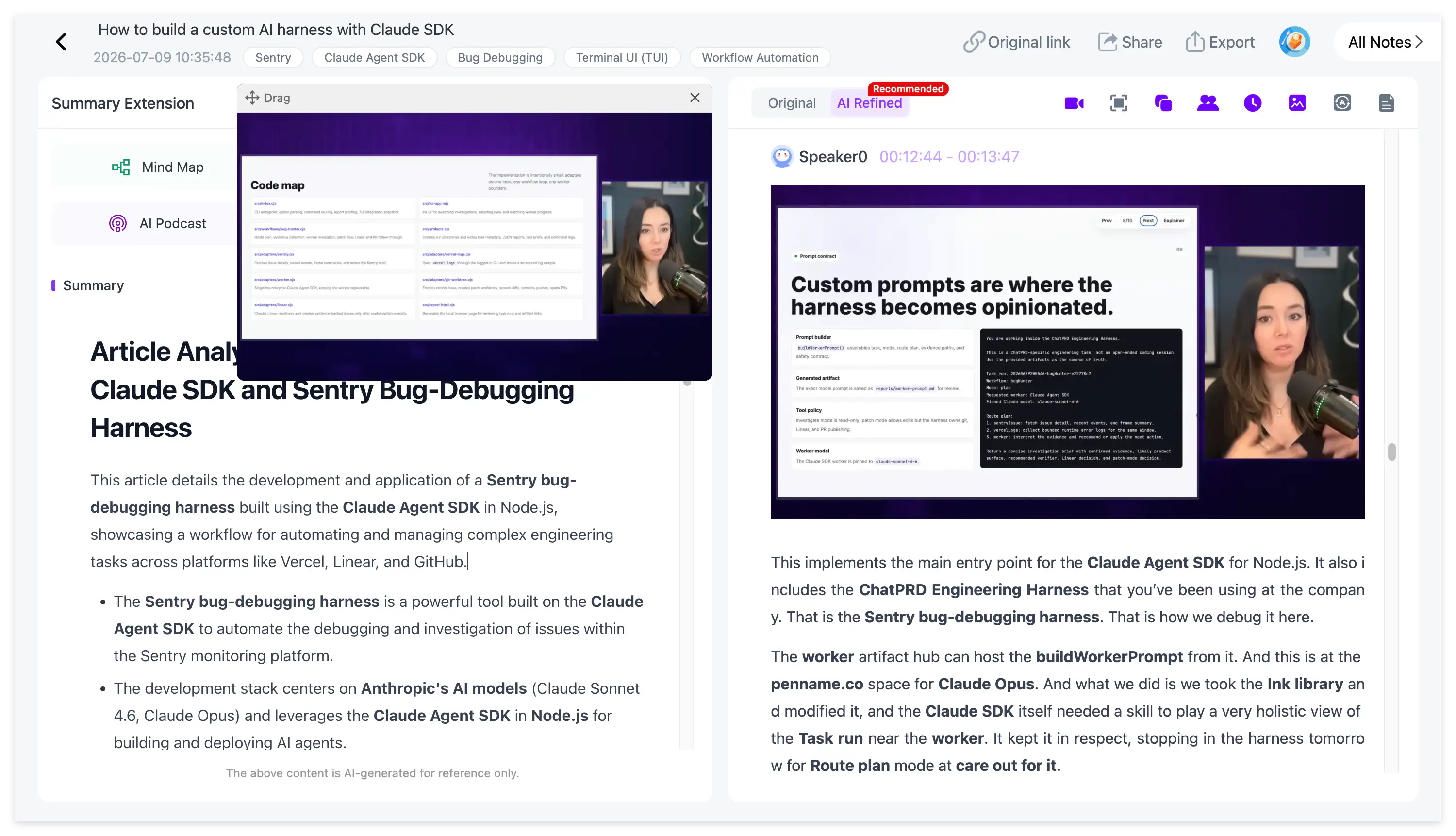
The result is useful for three common cases:
- A lecture in which the slide contains the definition and the instructor supplies the explanation.
- A coding tutorial in which the visible code matters as much as the narration.
- A software demonstration in which the speaker refers to buttons or menus without naming them.
Step 4: turn visual material into a study structure
Read the Key Insights first, then open the frames attached to sections you need to understand. Highlight the speaker's explanation, add an annotation beside the frame and ask AI Chat about the relationship between the visual and the transcript.
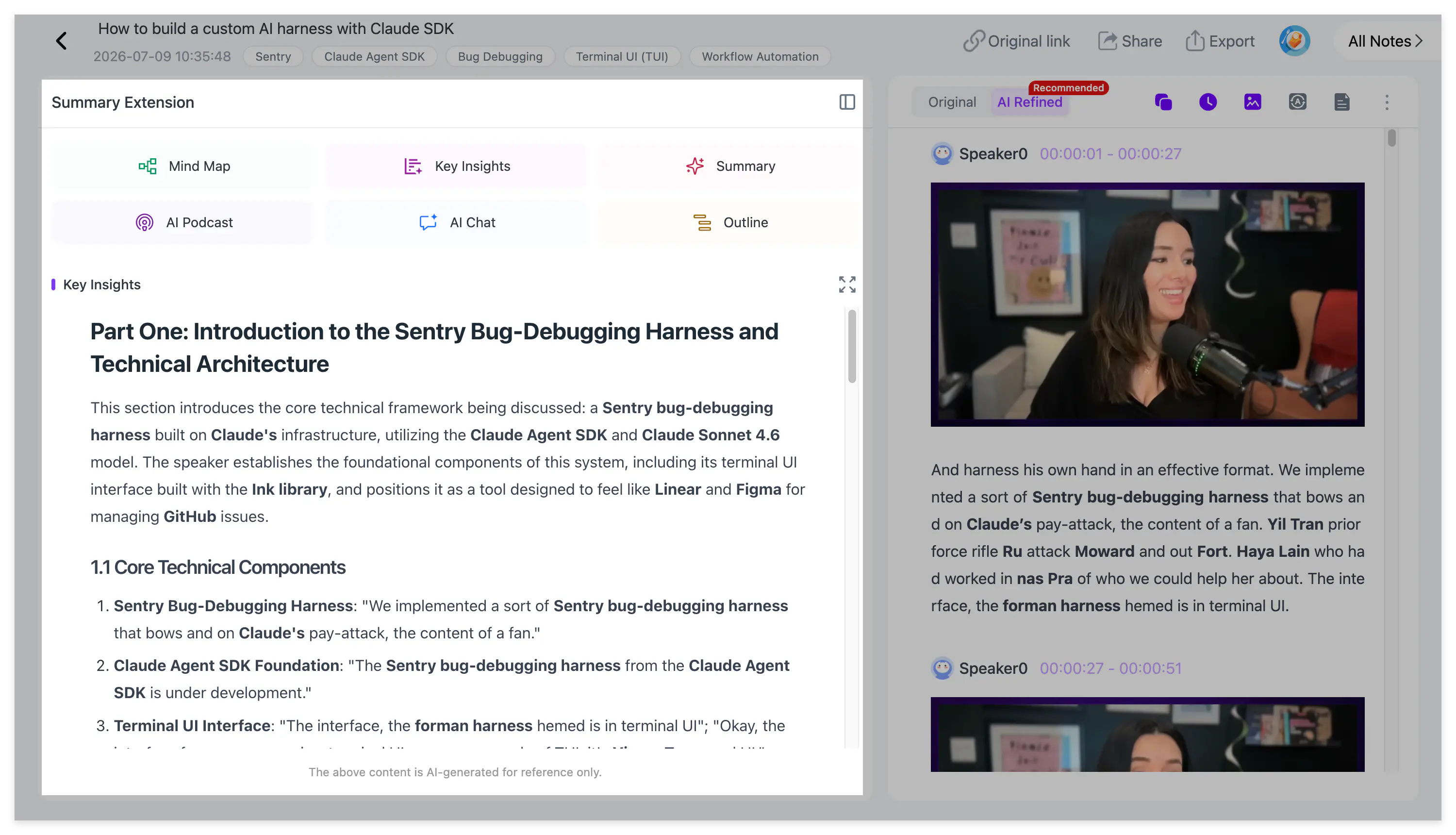
An editable mind map can then reorganize the lecture by concept by concept, independent of playback order. With Smart Sync, selecting a node returns you to the matching source section.
Step 5: export the note in a reusable format
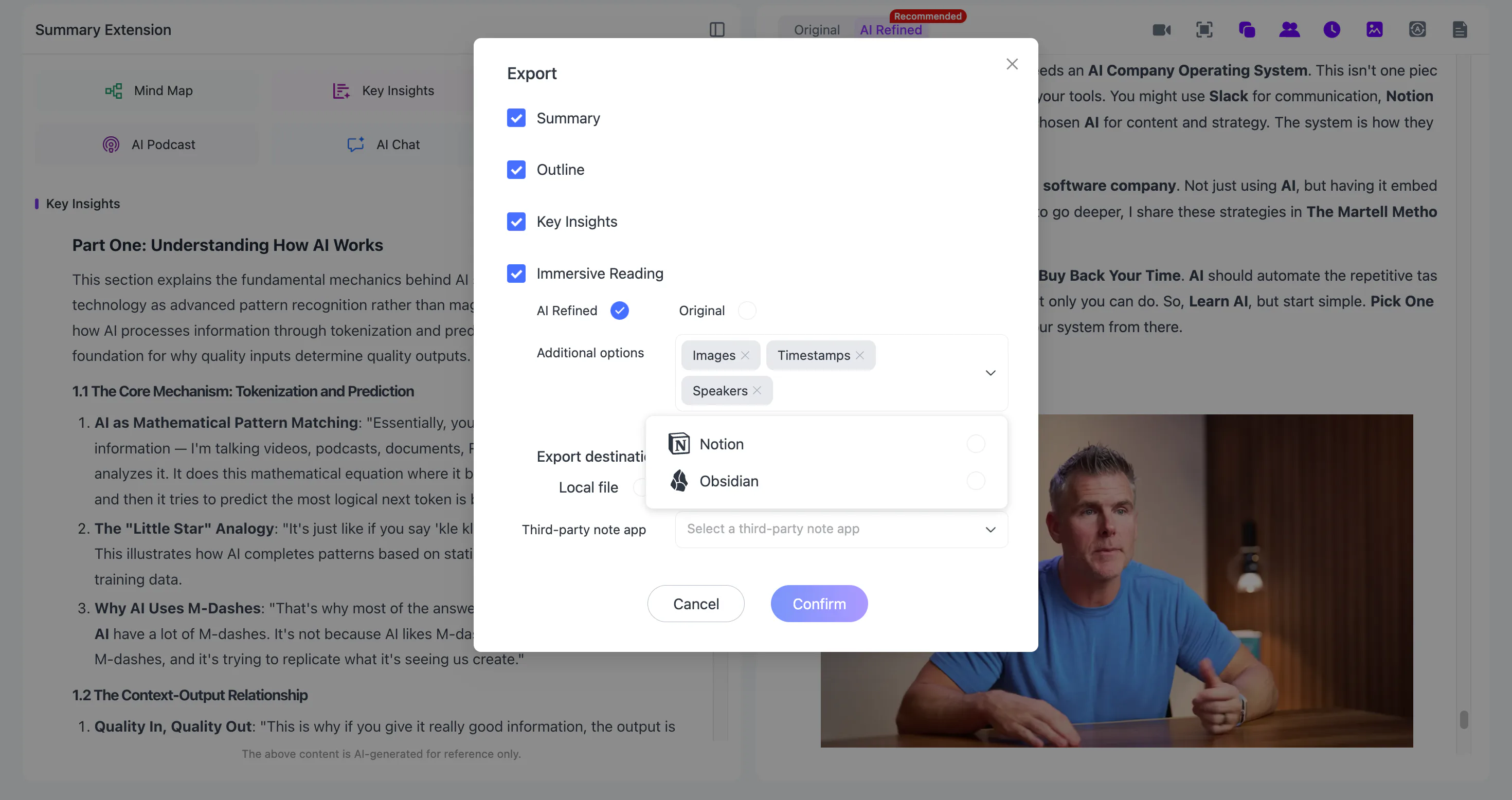
Finished notes export as Word, PDF, Markdown or HTML. Markdown works well when the visual-note workflow will continue in Notion or Obsidian; mind maps export as XMind, PDF, SVG, Markdown, JSON or TXT.
For the broader visual workflow, read Video to Notes: Turn Videos Into Visual Notes With AI. If the next step is a larger video library, continue with How to Build a Personal AI Knowledge Base From YouTube Videos and Podcasts.
YouTube slide-extraction questions
Can AI download the original PowerPoint from a YouTube video?
Not unless the creator separately provides it. NoteAi extracts useful slide images and key frames; it does not reconstruct the original editable PPTX.
Are all frames captured?
The goal is to preserve useful visual context rather than generate thousands of near-identical screenshots. Always return to playback if a small visual detail matters.
Does this work when the video has no subtitles?
Yes. NoteAi uses ASR on the spoken audio instead of relying only on a caption file.
Can the extracted slides be searched?
The associated transcript, summary, annotations and note structure are searchable. The system does not guarantee complete OCR of every word inside every frame.
Keep the explanation, not just the screenshot
A slide becomes useful when you know what the speaker was explaining at that moment. Try NoteAi to turn a YouTube lecture into visual notes that keep frames, transcript, timestamps and source playback together.