

If you already have an MP4 file and need the spoken content in written form, you do not need to extract the audio or manually type out the recording first.
An AI transcription tool can process the video directly and turn the speech into searchable text.
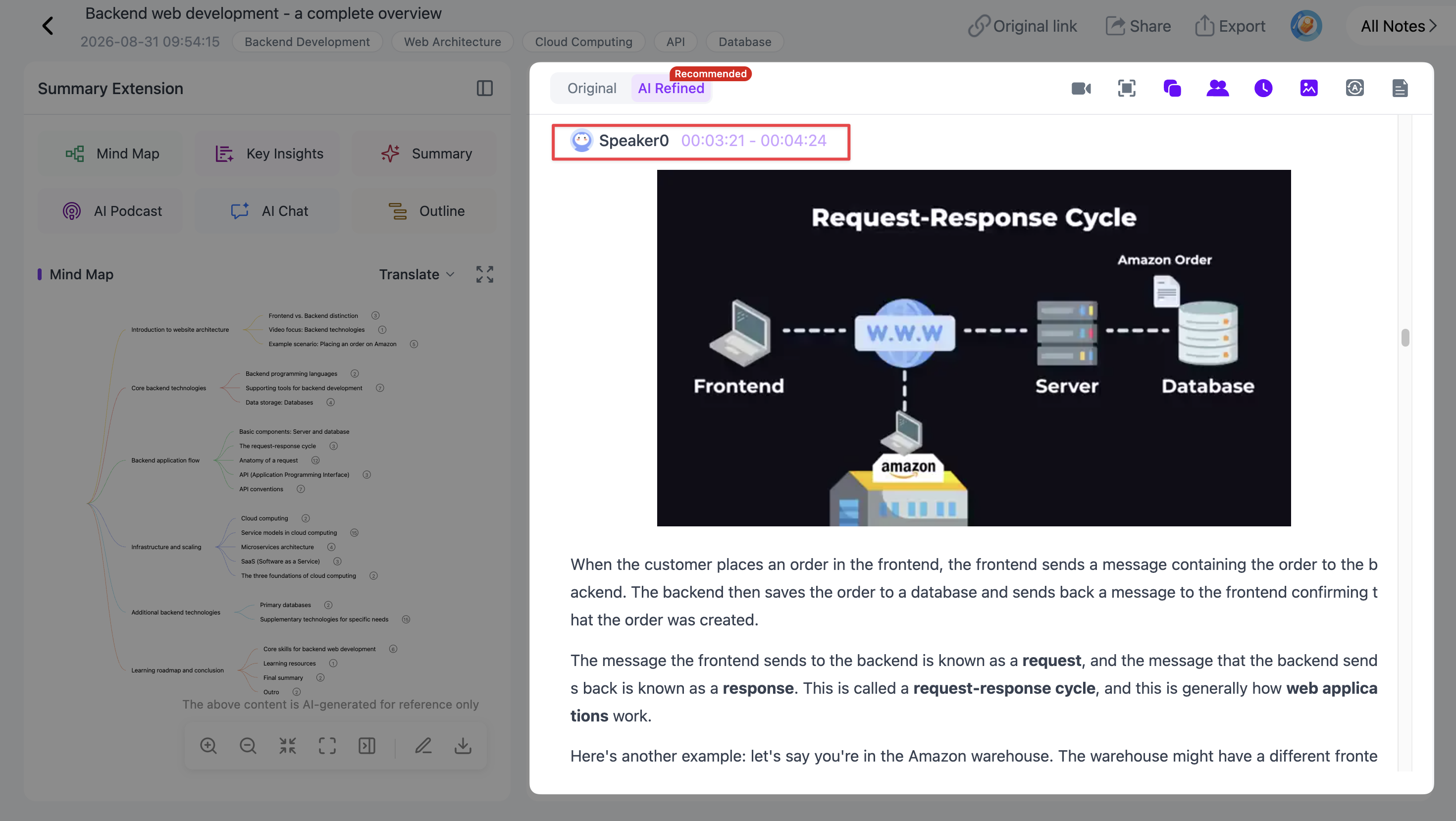
With NoteAi, you can upload a local MP4 video and generate a full transcript with timestamps and speaker recognition. The original video remains available for review, and the transcript can then be translated, summarized, or exported for later use.
How Do You Convert an MP4 File to Text?
The basic workflow is:
- Upload the MP4 file.
- Let AI transcribe the spoken content.
- Review the timestamped transcript.
- Check speaker labels if several people are talking.
- Compare unclear passages with the original video.
- Translate the transcript if needed.
- Export the finished text.
You do not need to convert the MP4 file to MP3 before starting.
Step 1: Upload the MP4 File
Start by uploading your local video to NoteAi.
This can be a lecture recording, interview, webinar, meeting recording, tutorial, class video, or another MP4 containing spoken content.
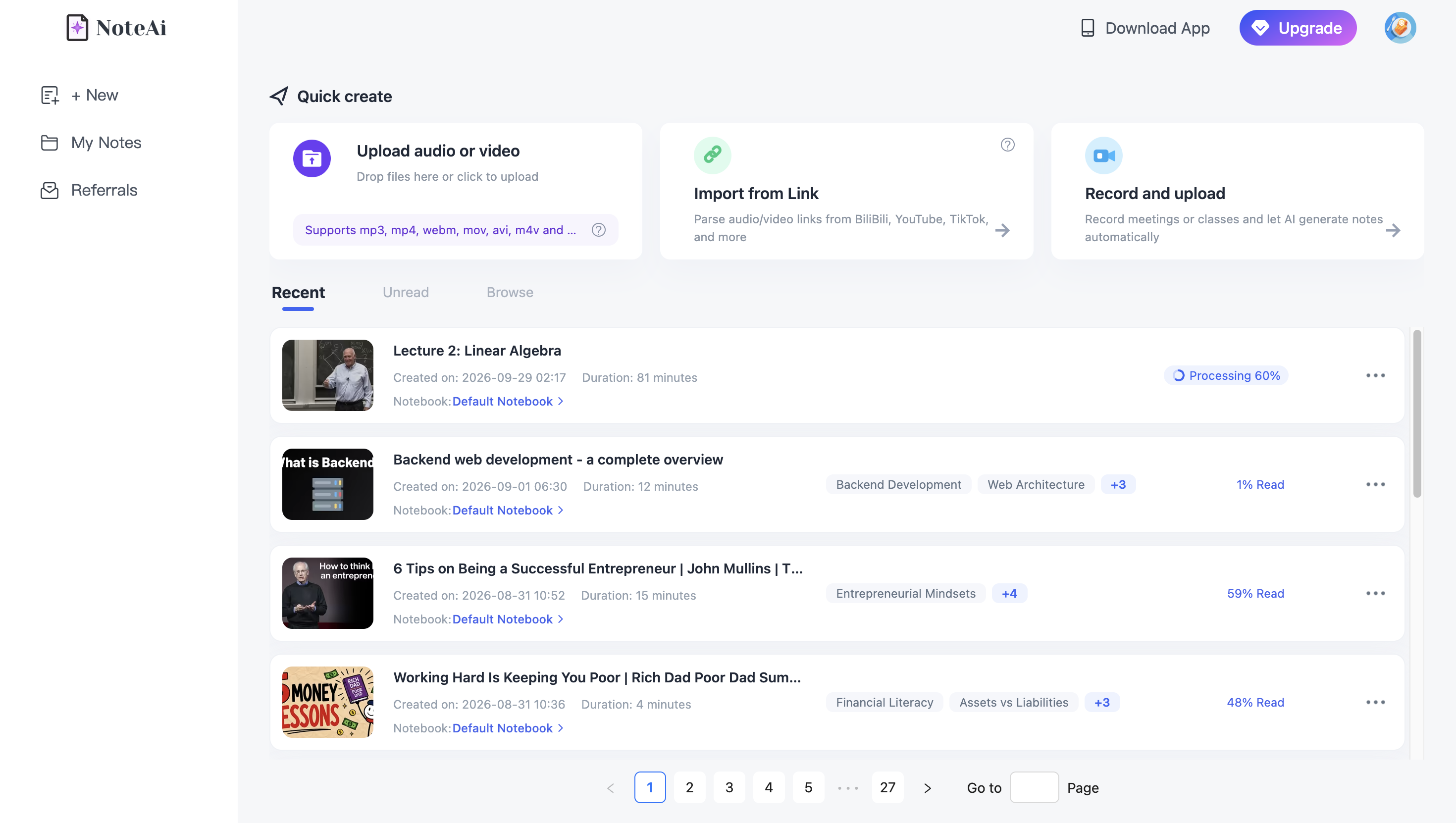
For longer recordings, NoteAi supports a single item up to 7 hours and 4 GB, so you do not have to divide many long videos into several short clips before transcription.
Step 2: Generate the Full Transcript
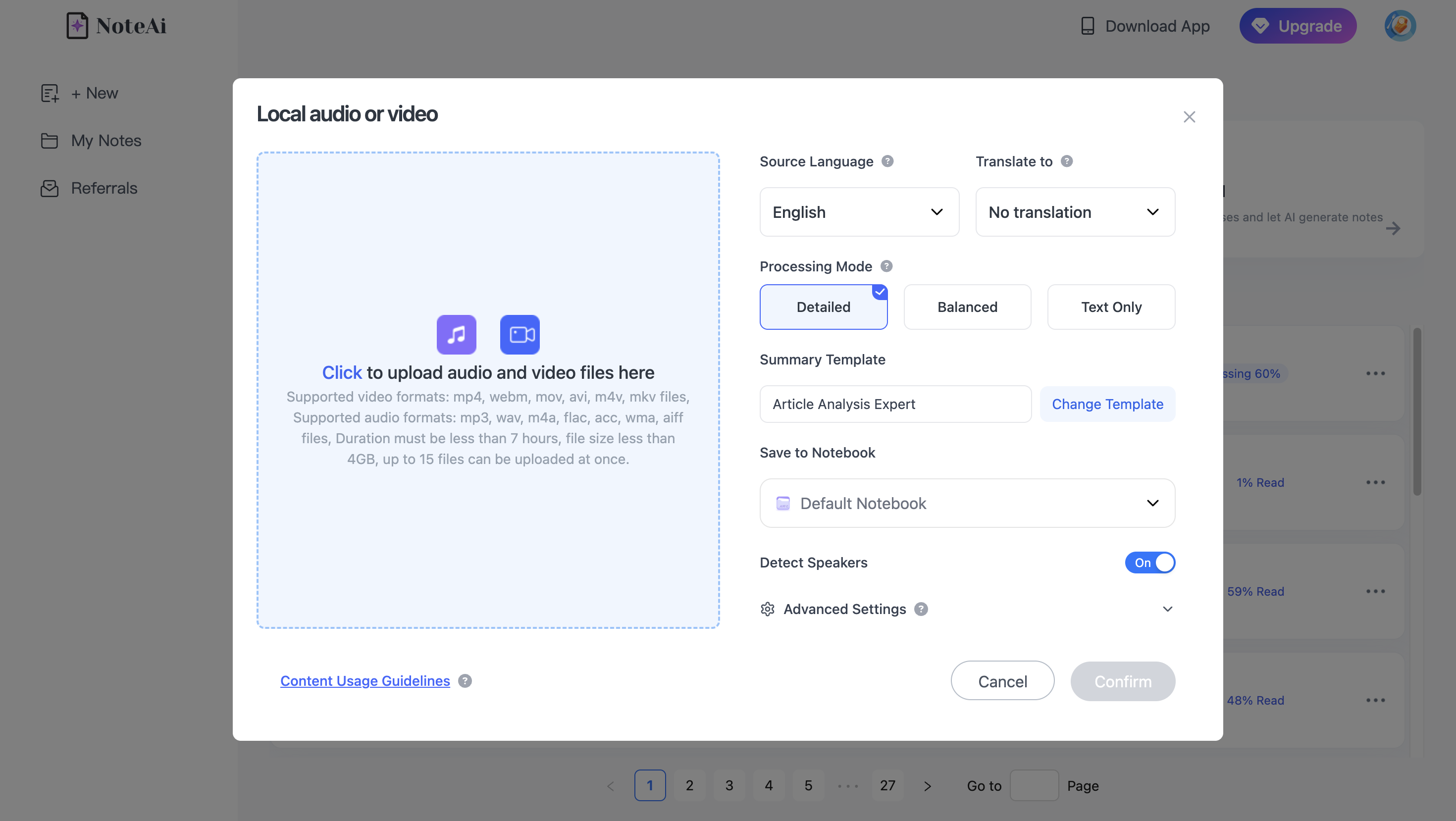
Once the MP4 has been processed, NoteAi generates a full text transcript of the spoken content.
Instead of treating the output as one large block of text, timestamps keep the transcript connected to the timeline of the original video.
This is useful when you need to:
- search for a specific topic;
- quote part of an interview;
- review one section of a lecture;
- locate a discussion inside a long recording;
- check the original context behind a sentence.
For a two-hour video, that is much faster than scrubbing through the entire recording manually.
Step 3: Identify Different Speakers
If several people appear in the recording, a plain transcript can quickly become difficult to follow.
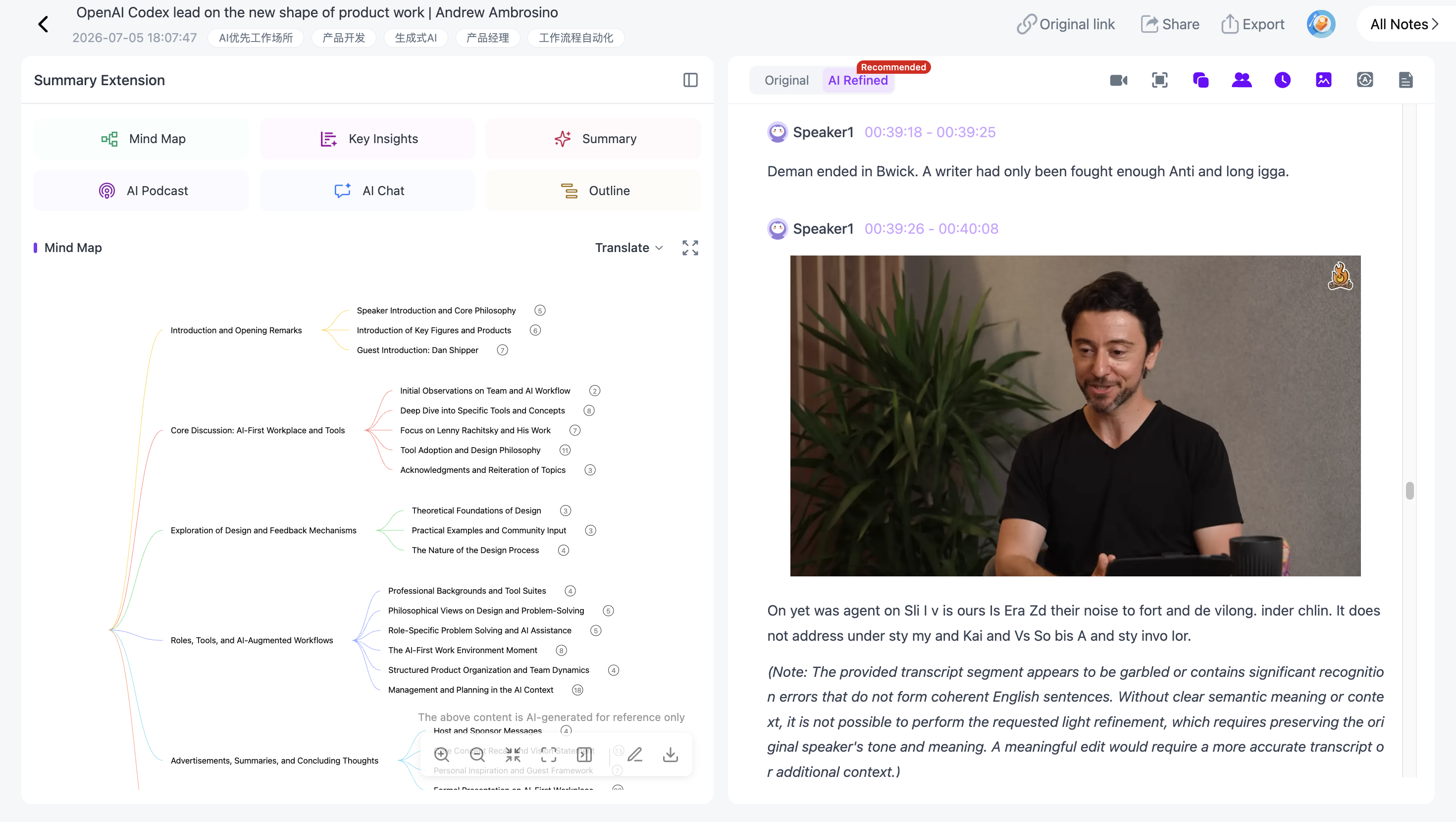
NoteAi supports speaker recognition, helping separate different voices in the transcript.
This is especially useful for:
- interviews;
- panel discussions;
- meeting recordings;
- classroom discussions;
- podcasts recorded as video;
- multi-speaker webinars.
Instead of reading one uninterrupted transcript, you can more easily follow who said what.
Step 4: Use Timestamps to Return to the Original Video
Transcription is rarely perfect, especially when a recording contains background noise, overlapping speech, unusual names, technical terminology, or unclear audio.
That is why the original source still matters.
With NoteAi, timestamps help you move from the written transcript back to the relevant point in the video.
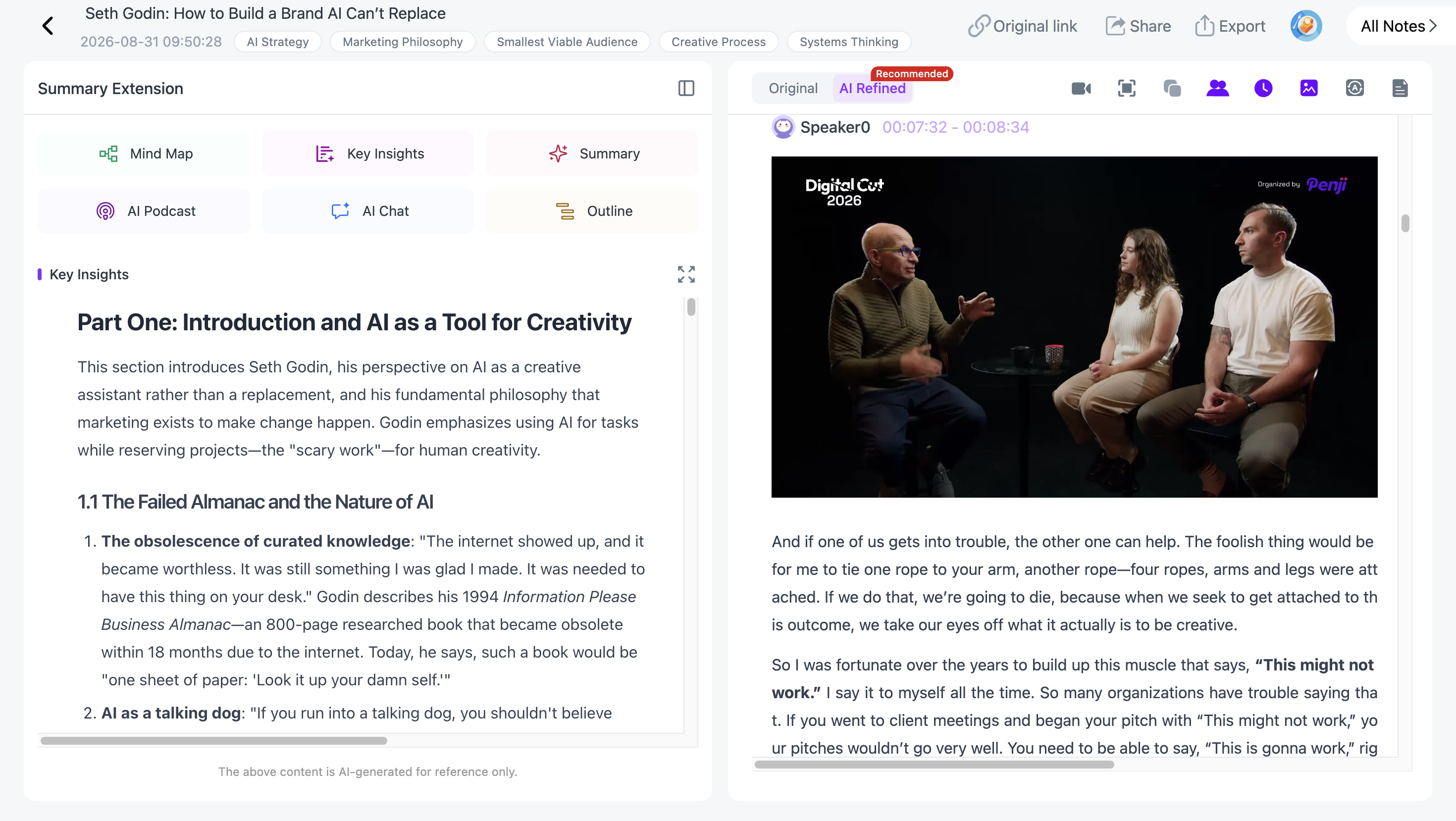
If a sentence looks wrong or needs more context, check the source instead of guessing what the speaker meant.
Step 5: Review the Transcript While the Video Plays
NoteAi can keep the original video available in a mini player while you work with the generated content.
This makes proofreading easier. You can listen to the original sentence, compare it with the transcript, and continue reviewing without opening the MP4 in a separate application.
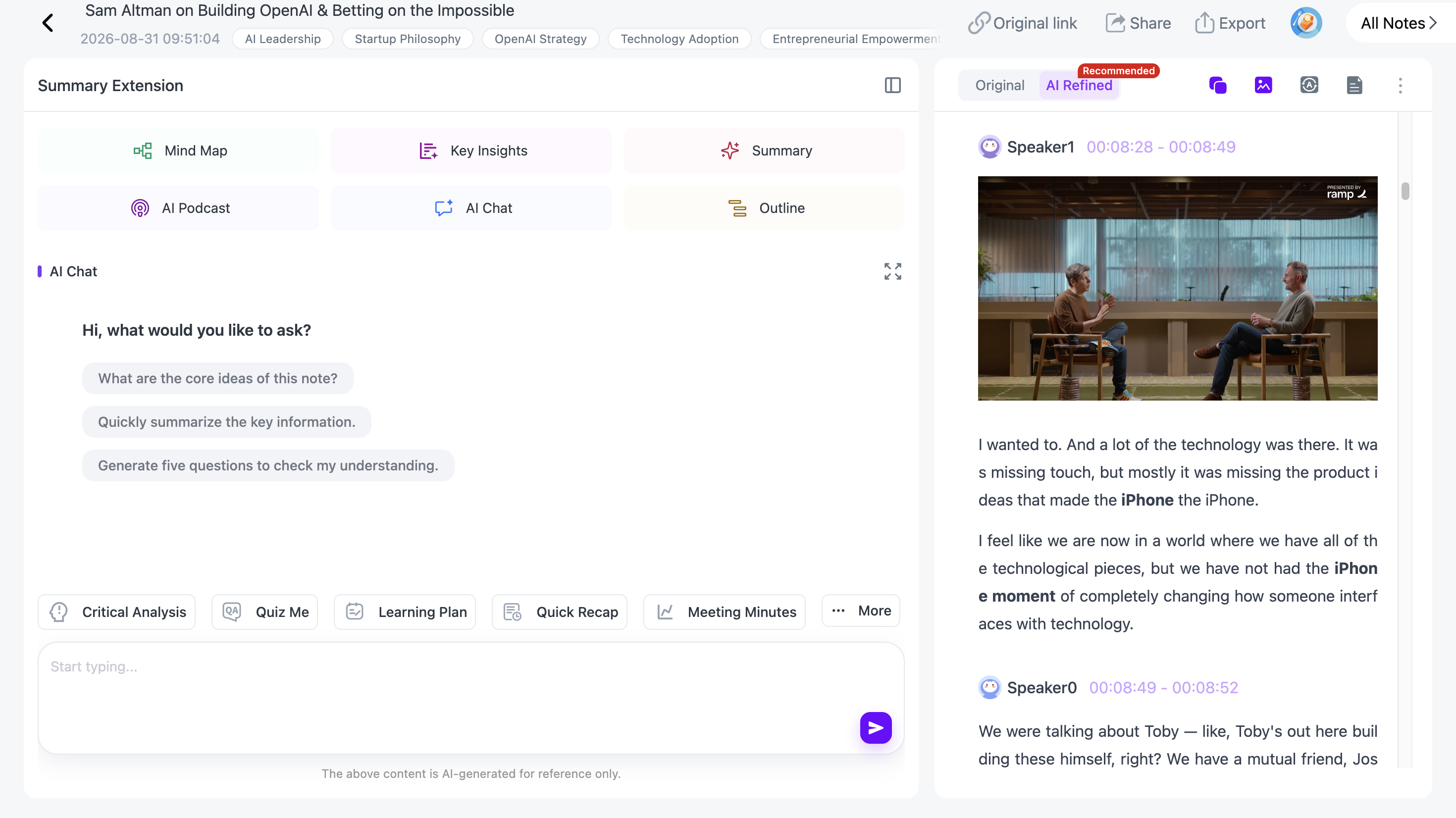
For important interviews, research recordings, or professional material, this source-checking step is worth keeping in the workflow.
Step 6: Get a Quick Overview of a Long MP4
Sometimes you need the complete transcript. Other times you first need to know whether a long recording contains anything relevant.
Key Insights gives you a quick view of important information across the source without replacing the full transcript.
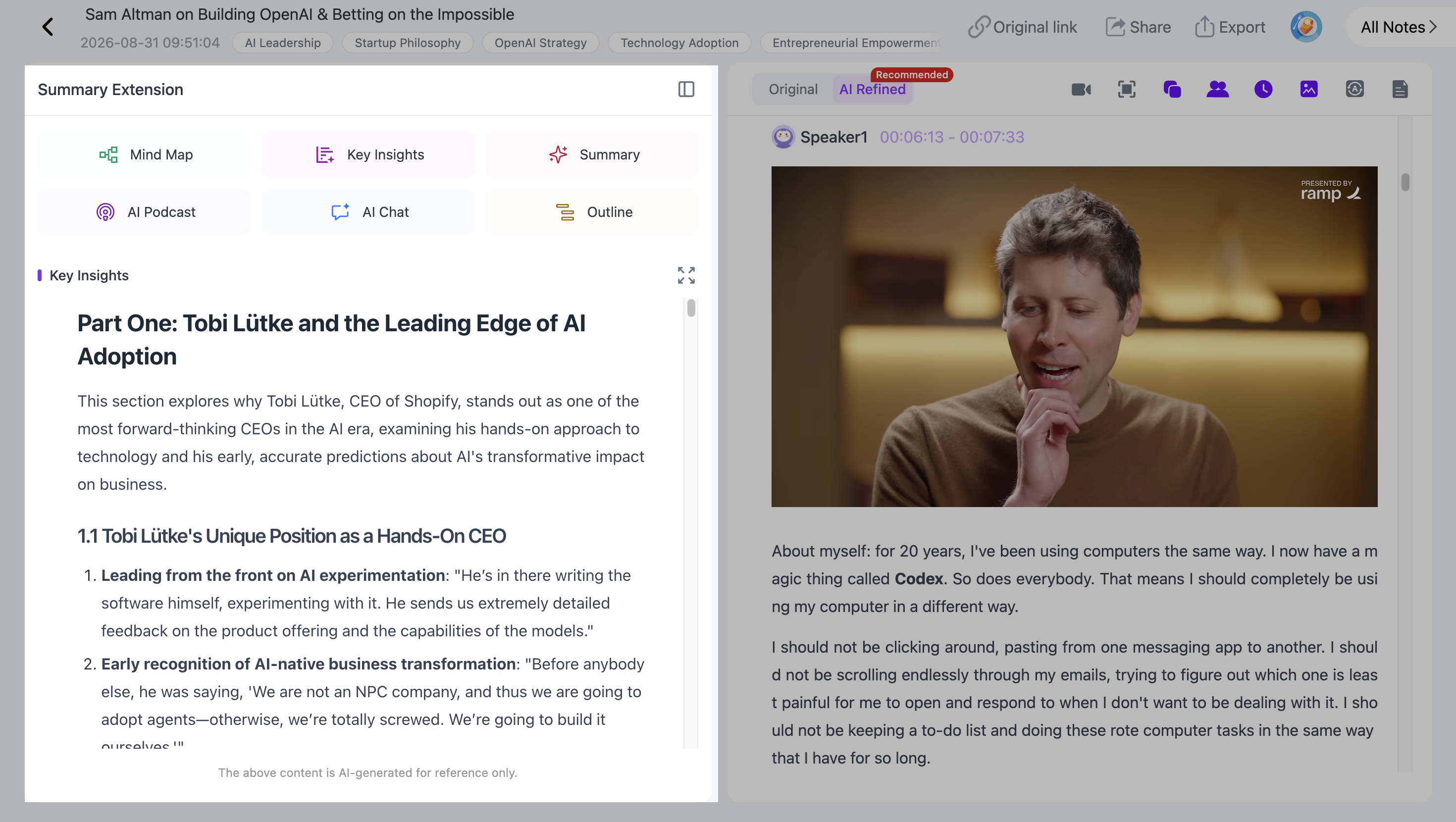
You can scan the overview first, then move into the timestamped transcript when you need the exact wording or surrounding context.
Step 7: Translate the MP4 Transcript
If the video is in another language, NoteAi supports translation across 22 languages, including bilingual viewing.
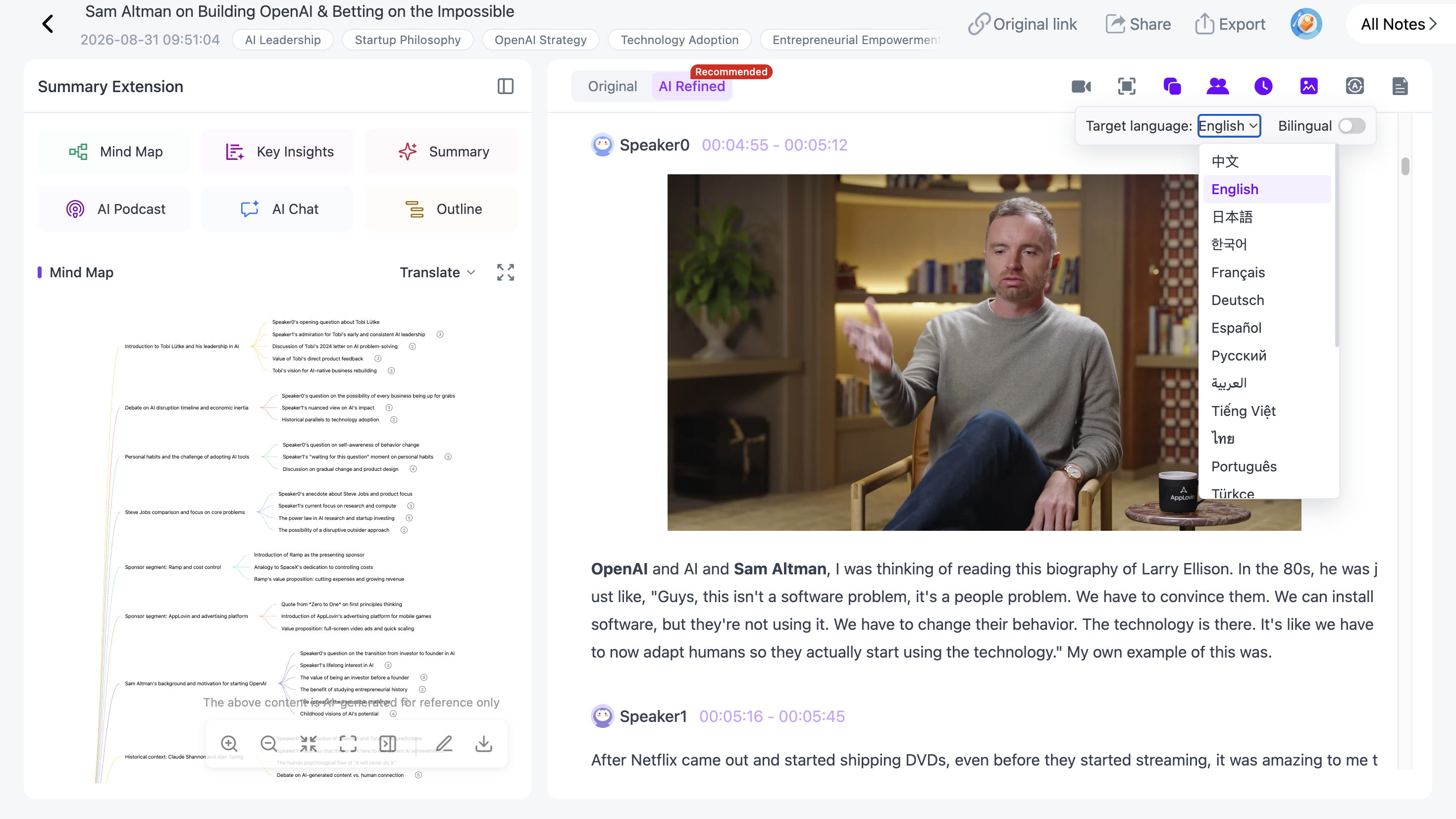
A bilingual view is useful when you want the translated text without losing the original transcript for comparison.
This can help with foreign-language lectures, interviews, training videos, international research, and language-learning material.
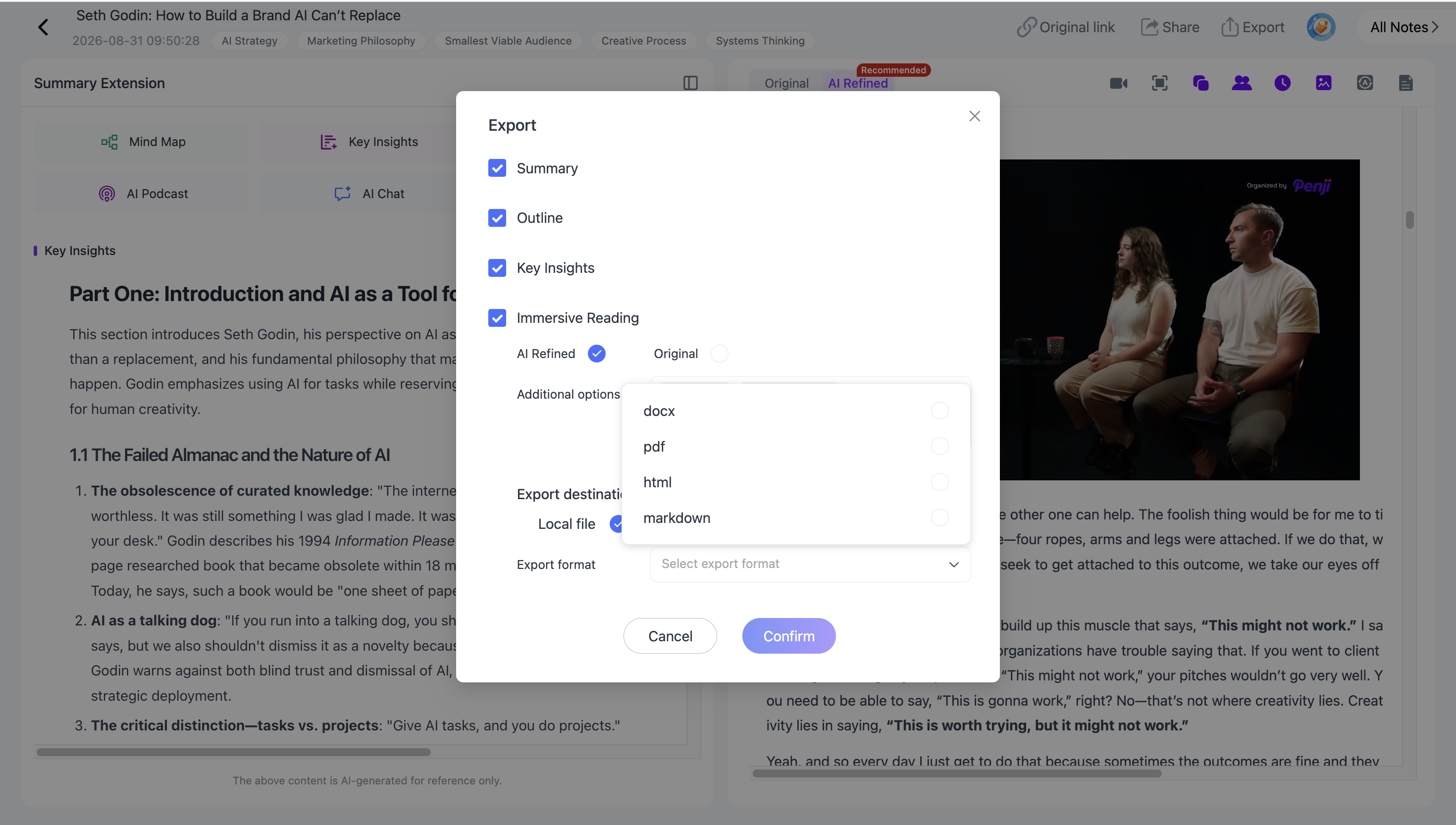
Step 8: Export the Transcript
After reviewing the transcript, you can export the resulting material from NoteAi in formats including:
- Word
- Markdown
- HTML
NoteAi also supports broader workflows with Notion and Obsidian.
If you are building a larger archive from videos and recordings, see our guide to building a personal AI knowledge base from videos and podcasts.
MP4 to Text vs. MP4 to Subtitles
These two searches often sound similar, but they do not always lead to the same output.
| If You Need... | Output |
|---|---|
| A readable written record of the video | Transcript |
| Searchable spoken content | Transcript with timestamps |
| Separation between different voices | Transcript with speaker recognition |
| Text translated into another language | Translated / bilingual transcript |
| Captions to import into a video editor or player | Subtitle file such as SRT or VTT |
NoteAi is designed for transcription, AI notes, and knowledge workflows. It does not currently export SRT or VTT subtitle files.
If your goal is specifically to create subtitle files for a video editor or media player, use a tool that supports SRT or VTT export.
Do You Need to Convert MP4 to MP3 First?
No.
If the transcription tool accepts MP4 directly, extracting the audio into a separate MP3 file only adds another step.
Uploading the original MP4 also gives you an important advantage: you can return to the video itself when you need to check visual context or verify a section of the transcript.
What Can You Do After Converting MP4 to Text?
Once the spoken content is searchable, the transcript can become much easier to reuse.
For example, you can use it to:
- review a lecture without replaying the full video;
- search an interview for a specific answer;
- turn a webinar into reference notes;
- locate a topic inside a meeting recording;
- translate foreign-language material;
- save useful recordings into a searchable knowledge library.
If the MP4 contains a lecture or presentation and you need more than transcription, our guide to the best AI video summarizers in 2026 covers tools that can turn videos into broader summaries and notes.
Frequently Asked Questions
How do I convert an MP4 file to text?
Upload the MP4 directly to an AI transcription tool. NoteAi can process local video files and generate a timestamped transcript with speaker recognition, allowing you to review and export the spoken content as text.
Do I need to convert MP4 to MP3 before transcribing it?
No. If your transcription tool supports MP4 files directly, you can upload the video without extracting the audio first.
Can AI transcribe a long MP4 video?
Yes, although file and duration limits depend on the tool. NoteAi supports individual content up to 7 hours and 4 GB.
Can an MP4 transcript include timestamps?
Yes. Timestamped transcription links sections of the written transcript to positions in the original recording, making it easier to find and verify specific moments.
Can AI identify different speakers in a video?
Some AI transcription tools support speaker recognition or speaker diarization. NoteAi can identify different speakers in processed recordings, which is useful for interviews, meetings, and panel discussions.
How do I convert MP4 to subtitles?
To create subtitles, use a transcription tool that exports subtitle formats such as SRT or VTT. NoteAi currently exports transcript and note formats rather than SRT or VTT, so it is better suited to transcription, review, and knowledge organization than subtitle-file creation.