

A long YouTube video can contain dozens of ideas, examples, and explanations. The problem is that video is linear: even when you understand the content while watching, it can be difficult to see how the ideas fit together afterward.
A mind map changes that structure. Instead of reviewing a video from beginning to end, you can organize its main topic, subtopics, and supporting details into a visual hierarchy.
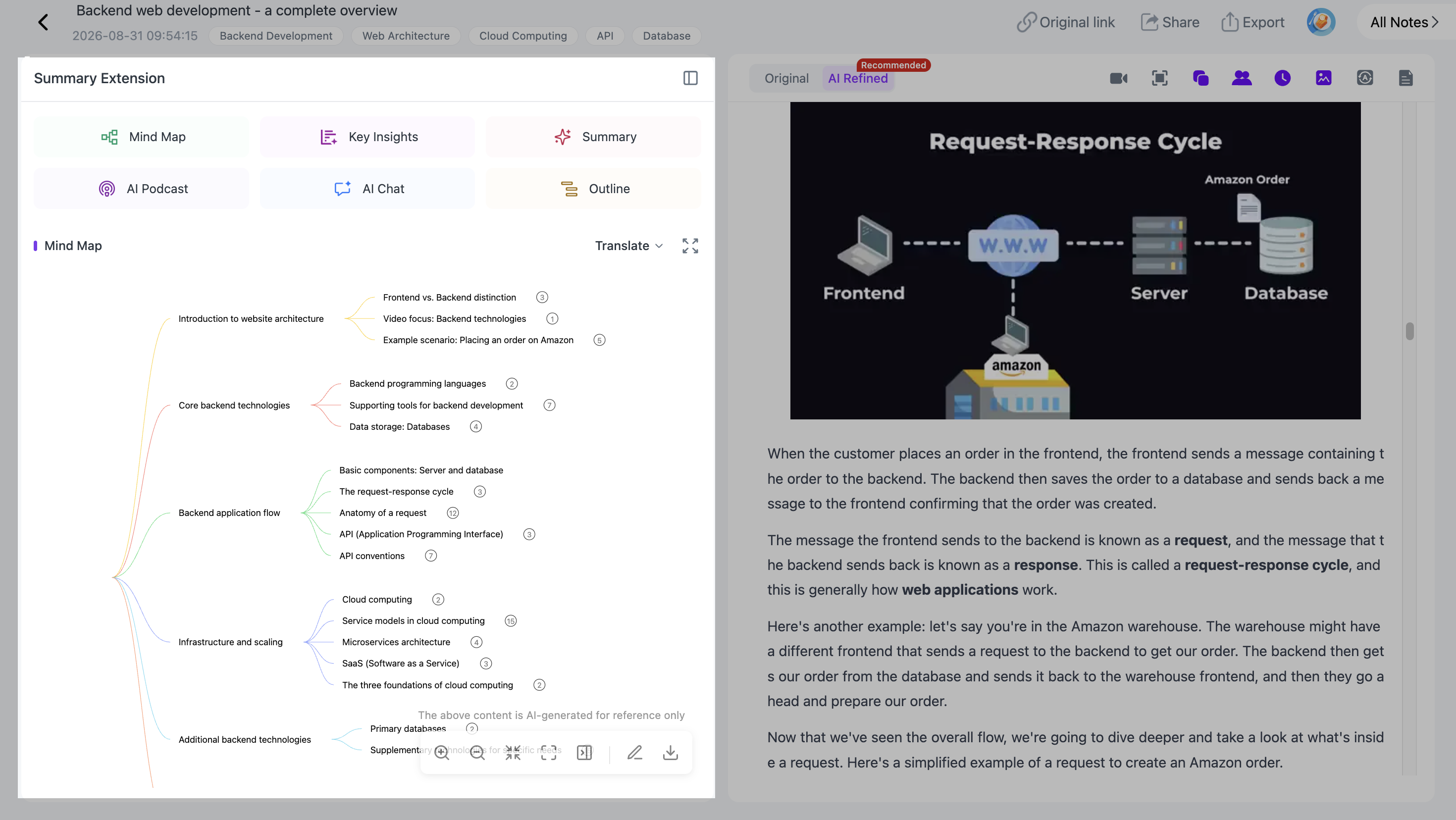
With NoteAi, you can add a YouTube video and turn it into an editable, multi-level mind map while keeping the map connected to the original source.
You can edit branches, click nodes to return to corresponding content, keep the video available while reviewing, and export the finished map to XMind.
How Do You Turn a YouTube Video Into a Mind Map?
The basic process is simple:
- Add the YouTube video to NoteAi.
- Let AI process the video's content.
- Review the Key Insights and Outline.
- Generate a multi-level mind map.
- Edit the branches and structure.
- Click nodes to revisit the corresponding source content.
- Keep the original video available while reviewing the map.
- Export the finished mind map to XMind if needed.
The useful part is not simply getting a diagram at the end. The mind map remains part of the video-review workflow rather than becoming disconnected from the source.
Step 1: Add the YouTube Video to NoteAi
Start by copying the URL of the YouTube video you want to organize and adding it to NoteAi.
This works especially well for content where the relationships between ideas matter: lectures, tutorials, interviews, educational videos, conference talks, and other long-form material.
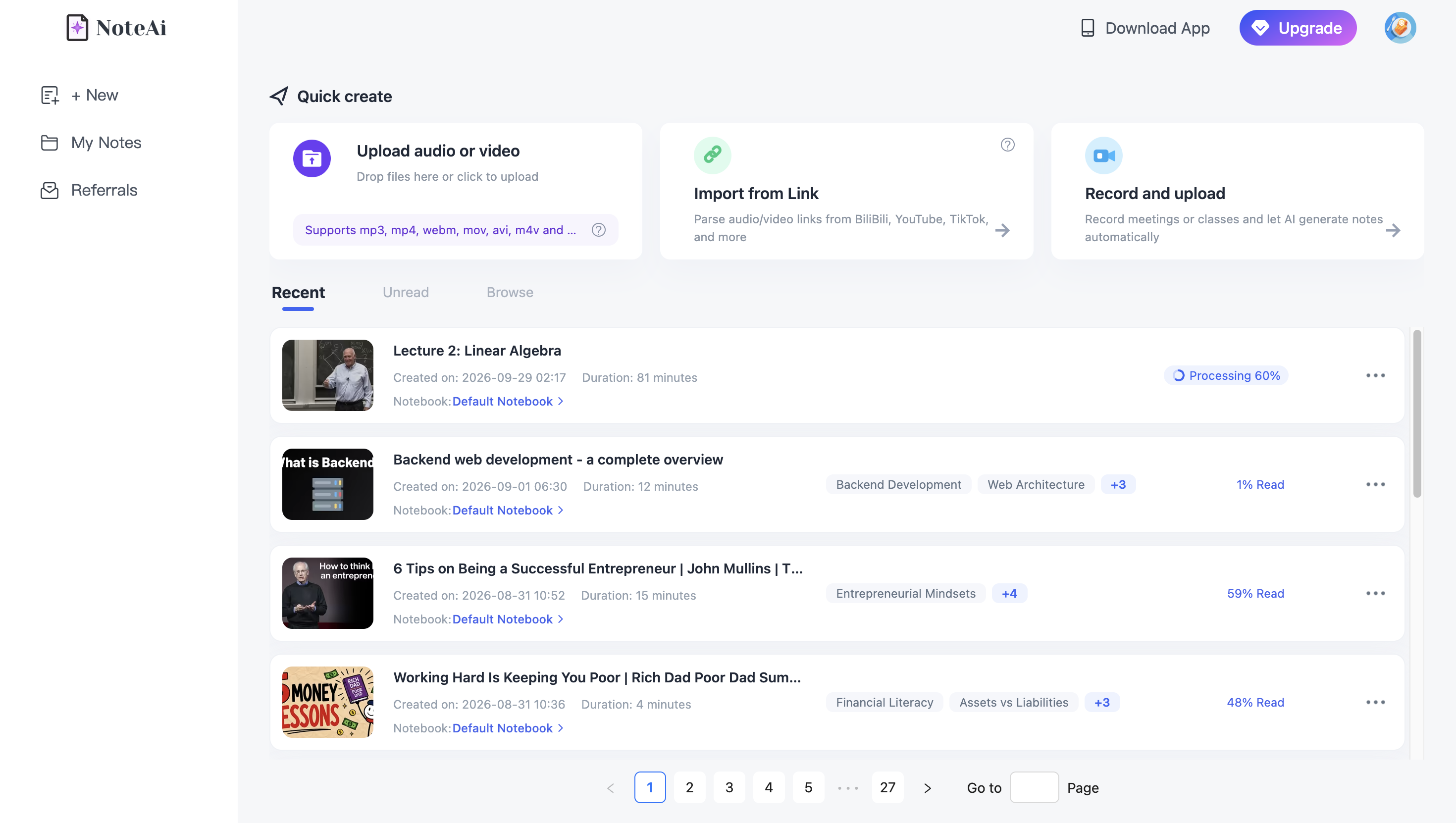
For long videos, you do not need to manually break the source into separate sections before processing it. NoteAi supports individual content up to 7 hours and 4 GB.
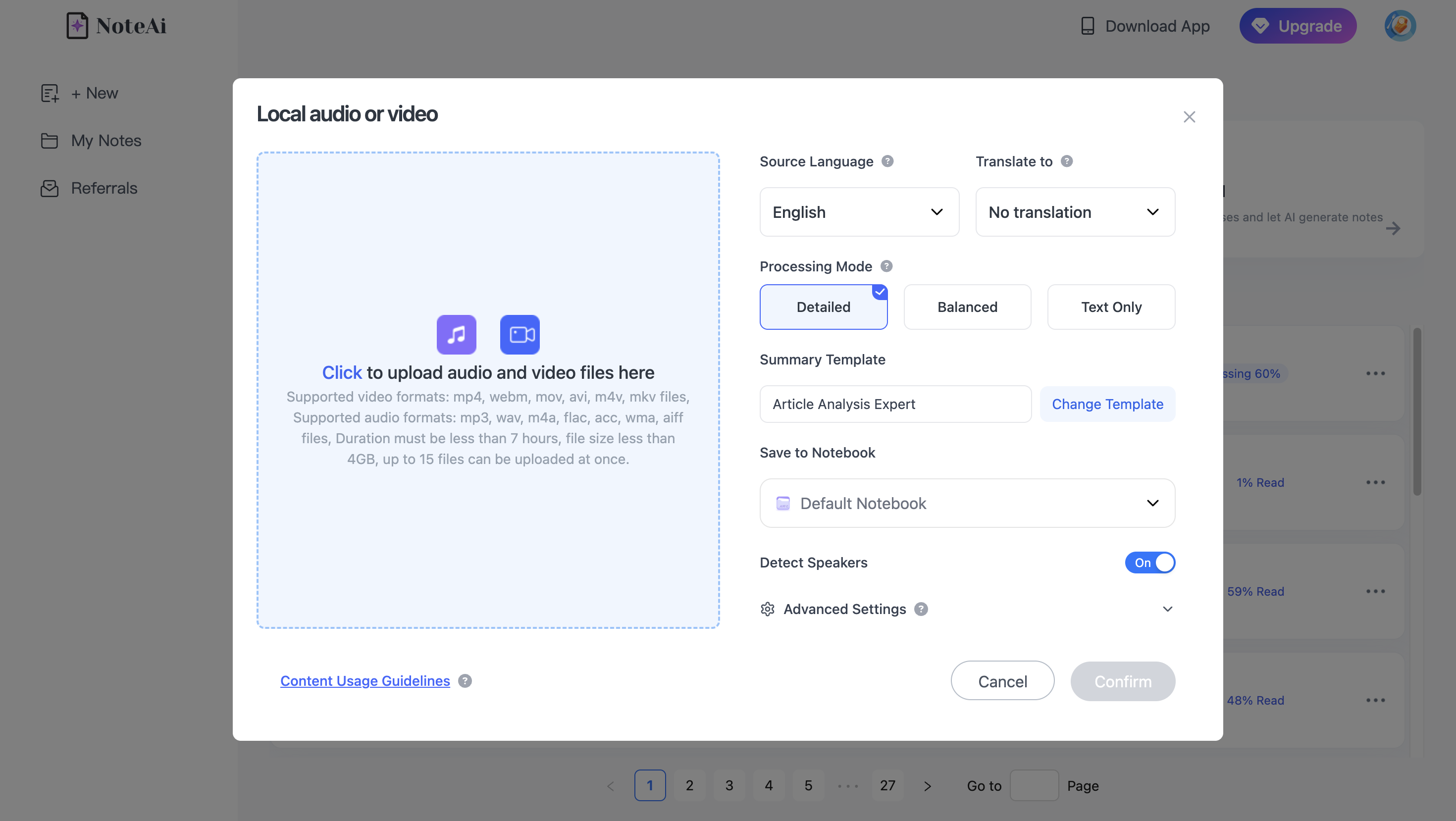
Step 2: Understand the Video Before Building the Map
Before opening the mind map, it helps to get a quick sense of the video's overall structure.
Key Insights gives you a compact view of the most important information across the source, while the Outline shows how the material is organized.
They are useful when a video is too long to understand at a glance.
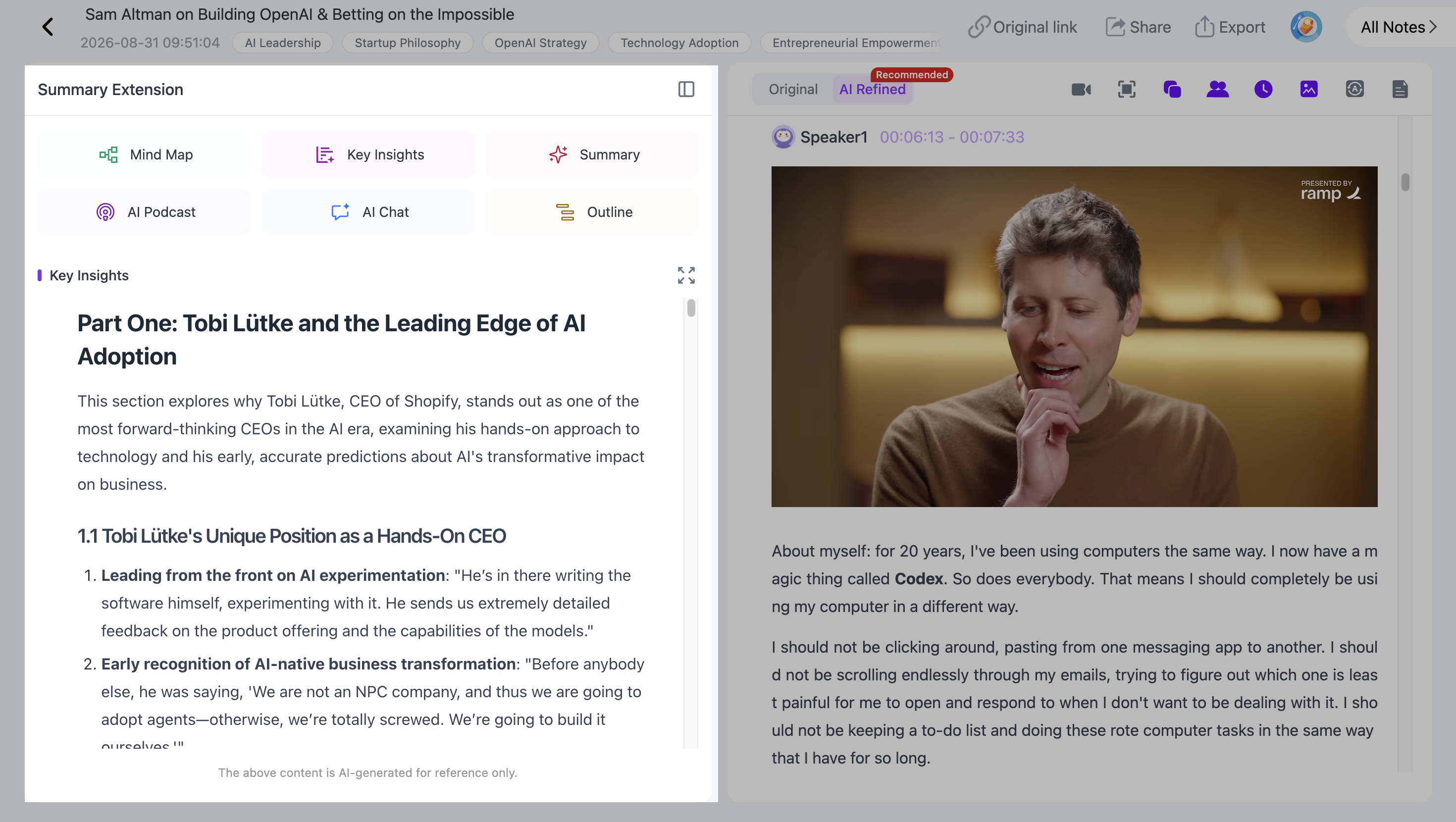
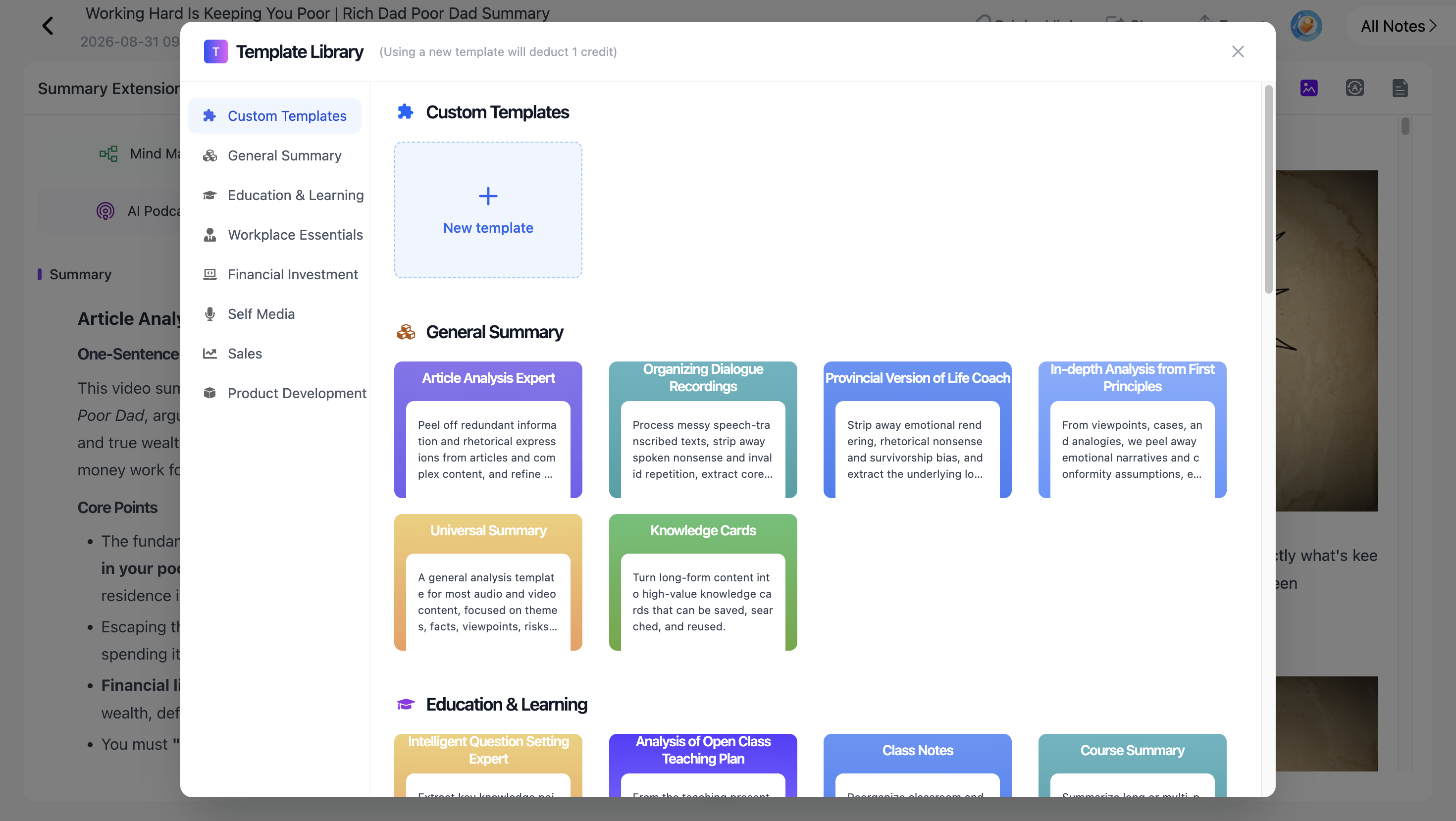
If you need the source organized around a particular purpose, you can also choose a Summary Template or write a Custom Prompt.
For example:
"Organize this lecture around the main concept, supporting concepts, examples, and relationships between them."
This can help you understand what deserves to become a major branch before you start editing the visual structure.
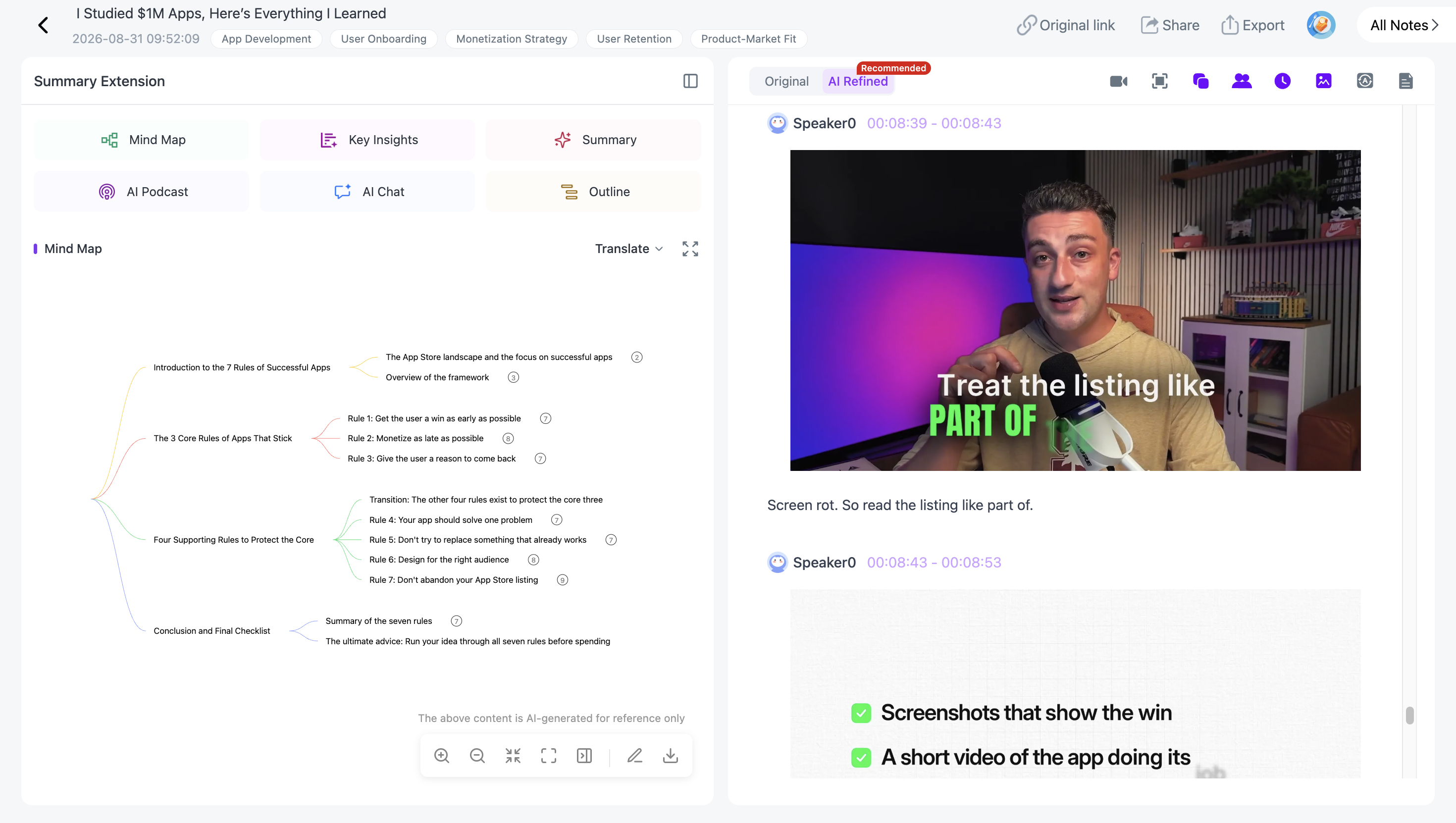
Step 3: Generate a Multi-Level Mind Map
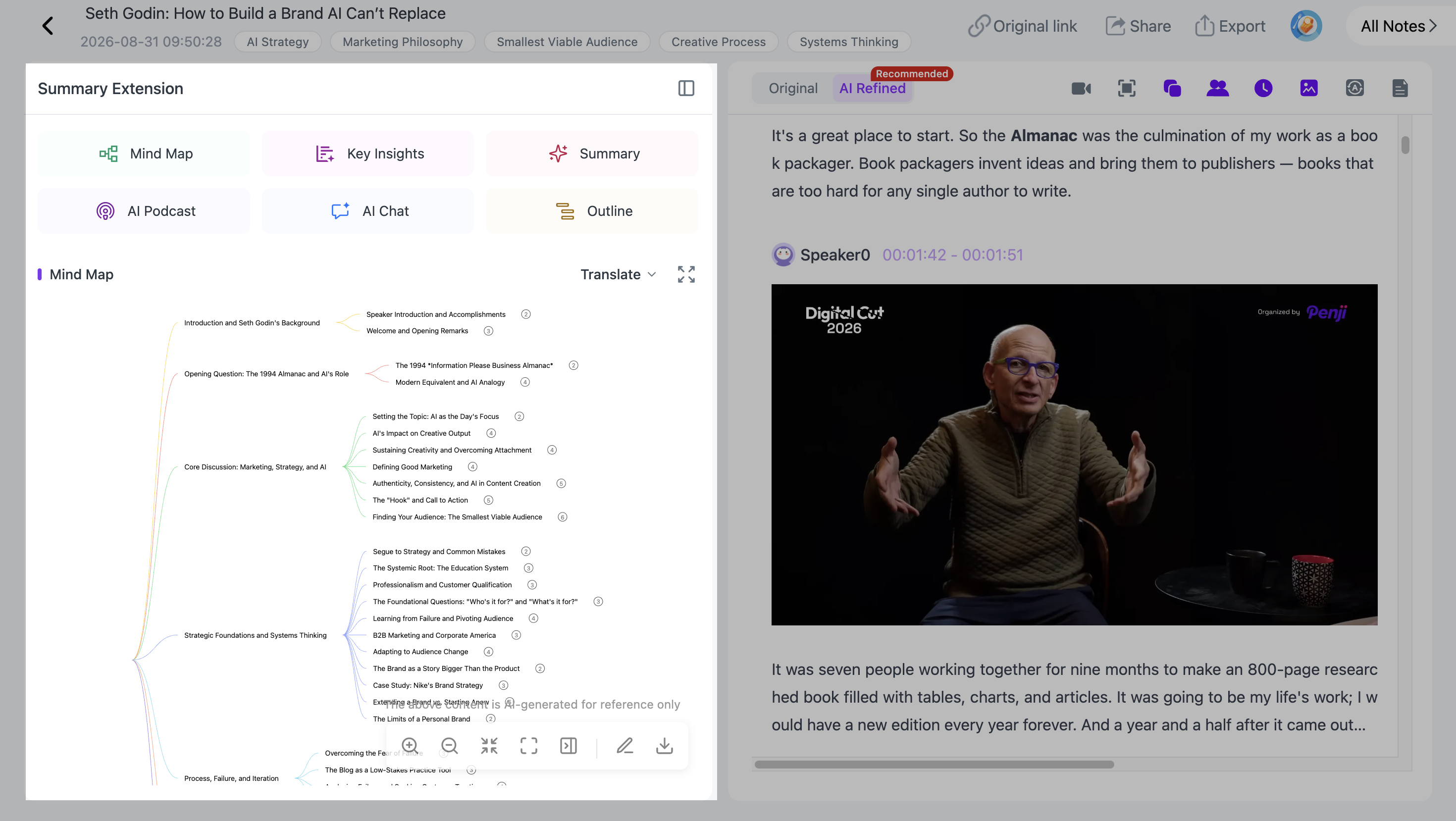
Once the video has been processed, NoteAi can turn its structure into a multi-level mind map.
Instead of a flat list of bullet points, the map organizes information hierarchically:
- Main topic
- Major section
- Supporting concept
- Example
- Detail
- Major section
- Supporting concept
- Explanation
- Major section
This is particularly useful for long lectures and tutorials because relationships that are spread across different moments in the video become easier to see on one screen.
If your main goal is broader video summarization rather than specifically creating a mind map, see our guide to the best AI video summarizers for YouTube, uploads, and lectures.
Step 4: Edit the AI-Generated Mind Map
An AI-generated structure does not have to be the final structure.
NoteAi mind maps are freely editable after generation. You can reorganize branches, change the hierarchy, and refine the map around the way you understand the topic.
For example, a lecture might introduce Concept A early, return to it 30 minutes later, and finally connect it to Concept B near the end. The original video follows the speaker's sequence. Your mind map can instead organize those related ideas together.
This is one of the reasons a mind map is different from a normal video summary: you are not limited to the original chronological order.
Step 5: Click a Mind-Map Node to Return to the Source
A common problem with AI-generated summaries is losing the connection between a short summary and the original explanation.
NoteAi keeps that connection available in the mind map.
When you click a node, you can jump back to the corresponding source content. If a branch feels too brief, unclear, or important enough to verify, you can return to the original explanation instead of searching through the entire video manually.
This is especially useful with technical lectures, educational videos, and tutorials where a short node may represent several minutes of explanation.
Step 6: Review the Map While Keeping the Video Available
Sometimes you need more than a jump back to one point.
NoteAi can keep the original video available in a mini player while you review the generated material. You can move between the mind map, transcript, notes, and source without treating them as separate pieces of content.
You can also add your own notes while reviewing.
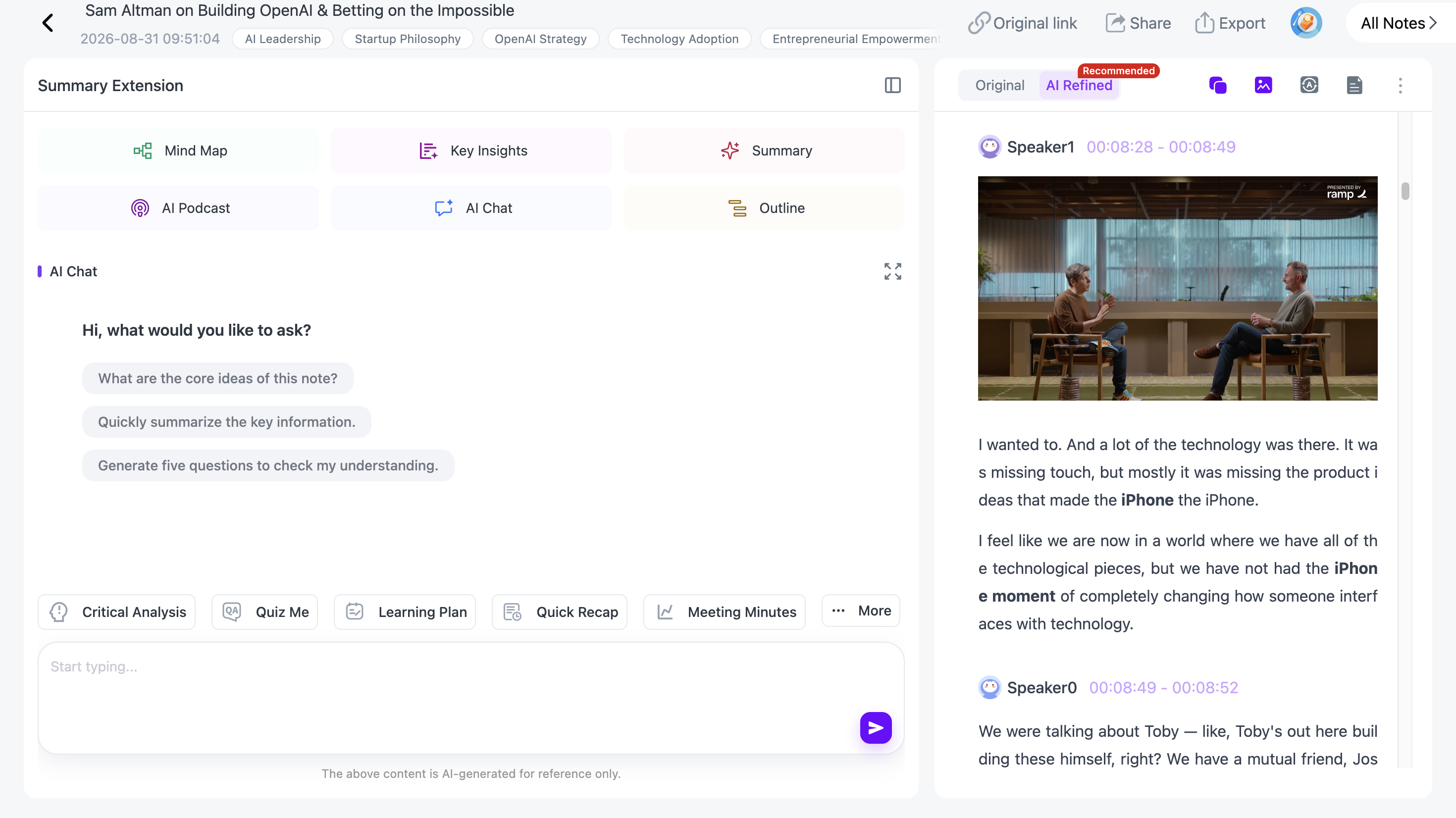
This works well when you want to refine the AI-generated structure yourself. Watch the relevant explanation, update a branch, add your own note, and continue through the map.
Step 7: Use the Transcript When You Need More Detail
A mind map is designed for structure, not for preserving every sentence.
When you need exact wording or a more detailed explanation, the full timestamped transcript remains available.
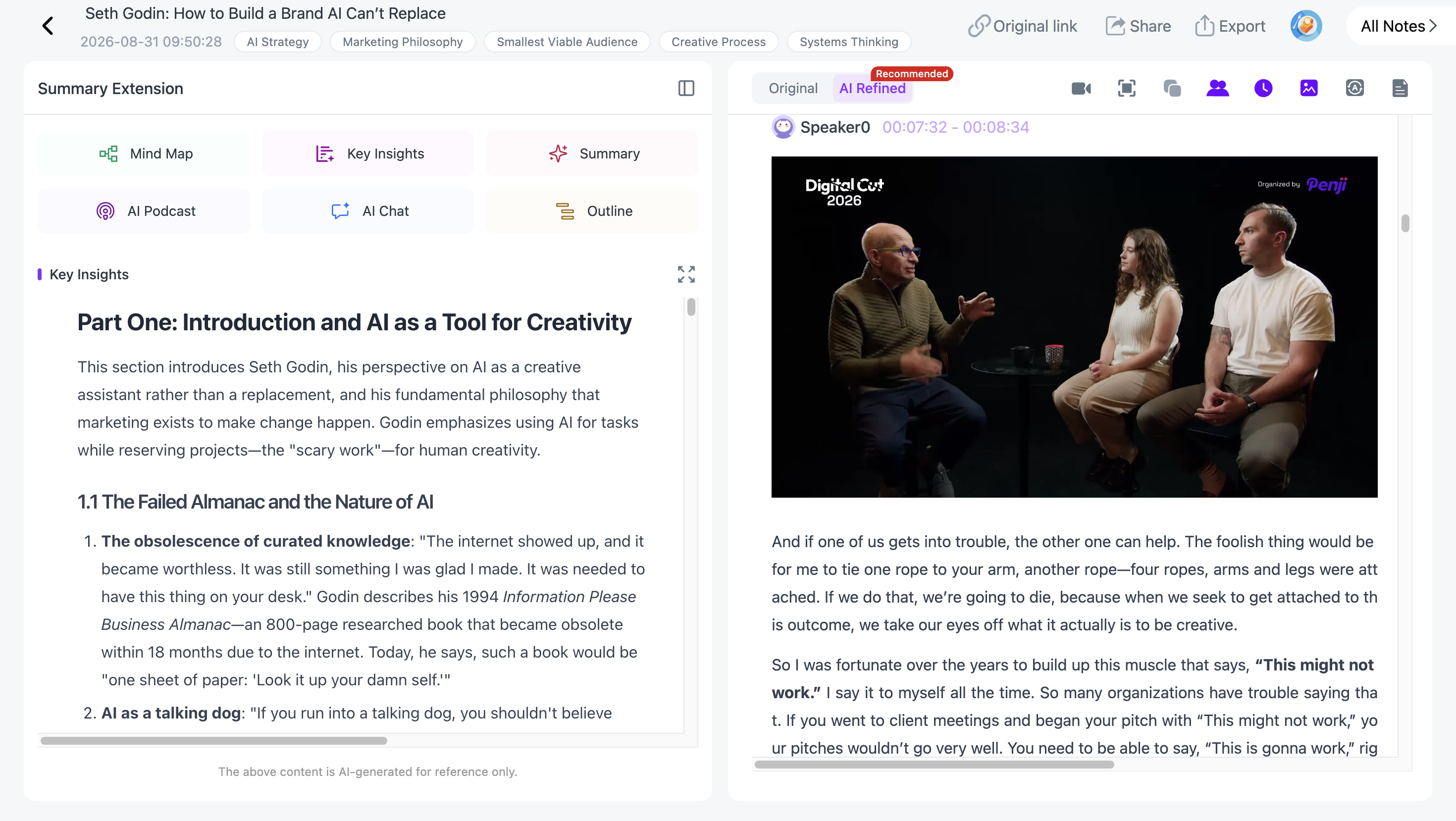
This gives you two different views of the same source:
| View | Best Used For |
|---|---|
| Mind Map | Seeing topics, hierarchy, and relationships |
| Transcript | Finding exact explanations, wording, and source context |
You do not have to choose between them. The map gives you the structure; the transcript gives you the detail.
Step 8: Preserve Slides and Visual Information
If the YouTube video contains presentation slides, diagrams, charts, or other important visual material, a text-only mind map may not preserve everything you need.
Visual Notes capture useful frames from the source alongside the written material.
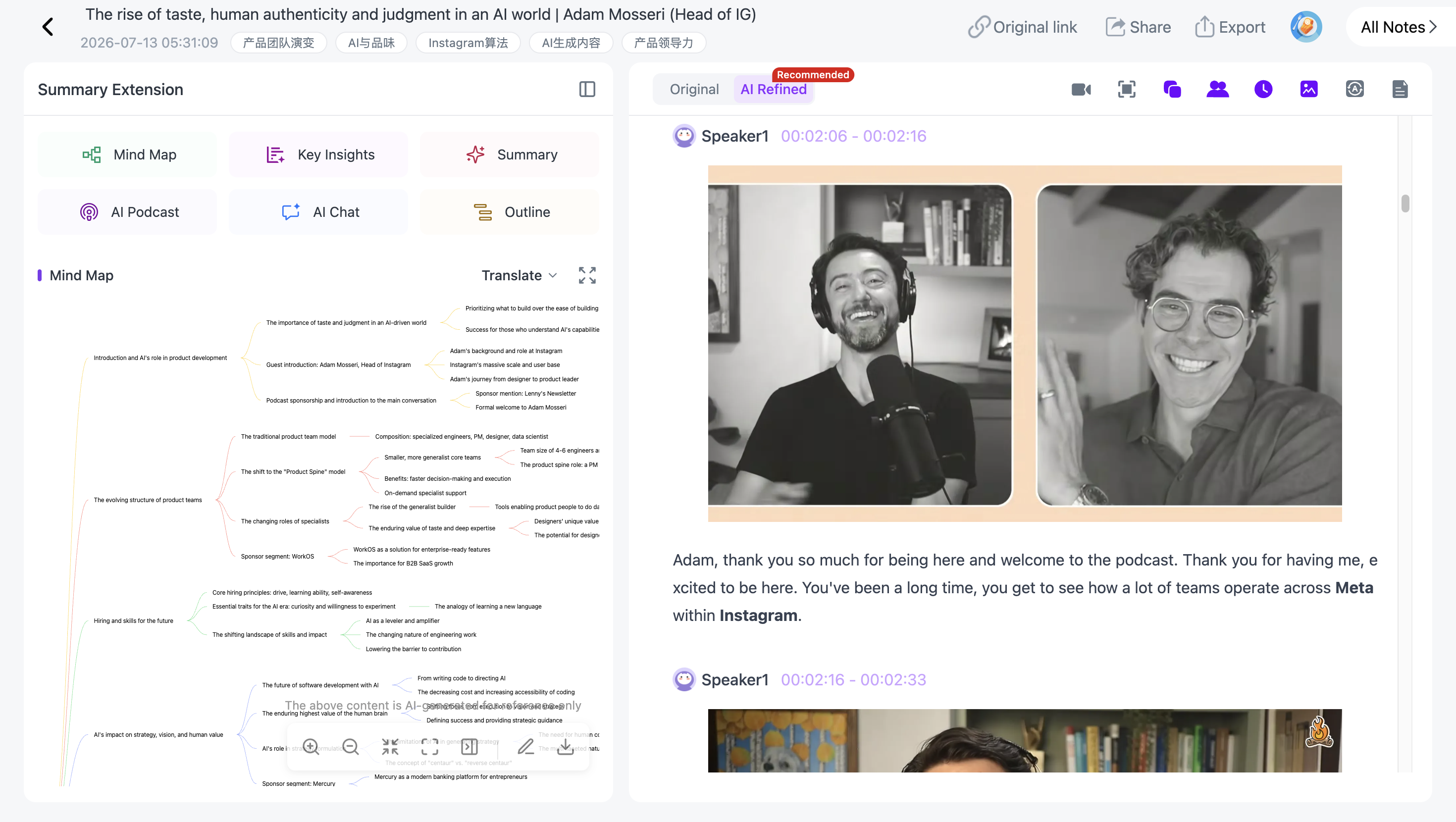
For slide-heavy lectures and presentations, you can also follow our workflow for extracting slides from YouTube videos with AI.
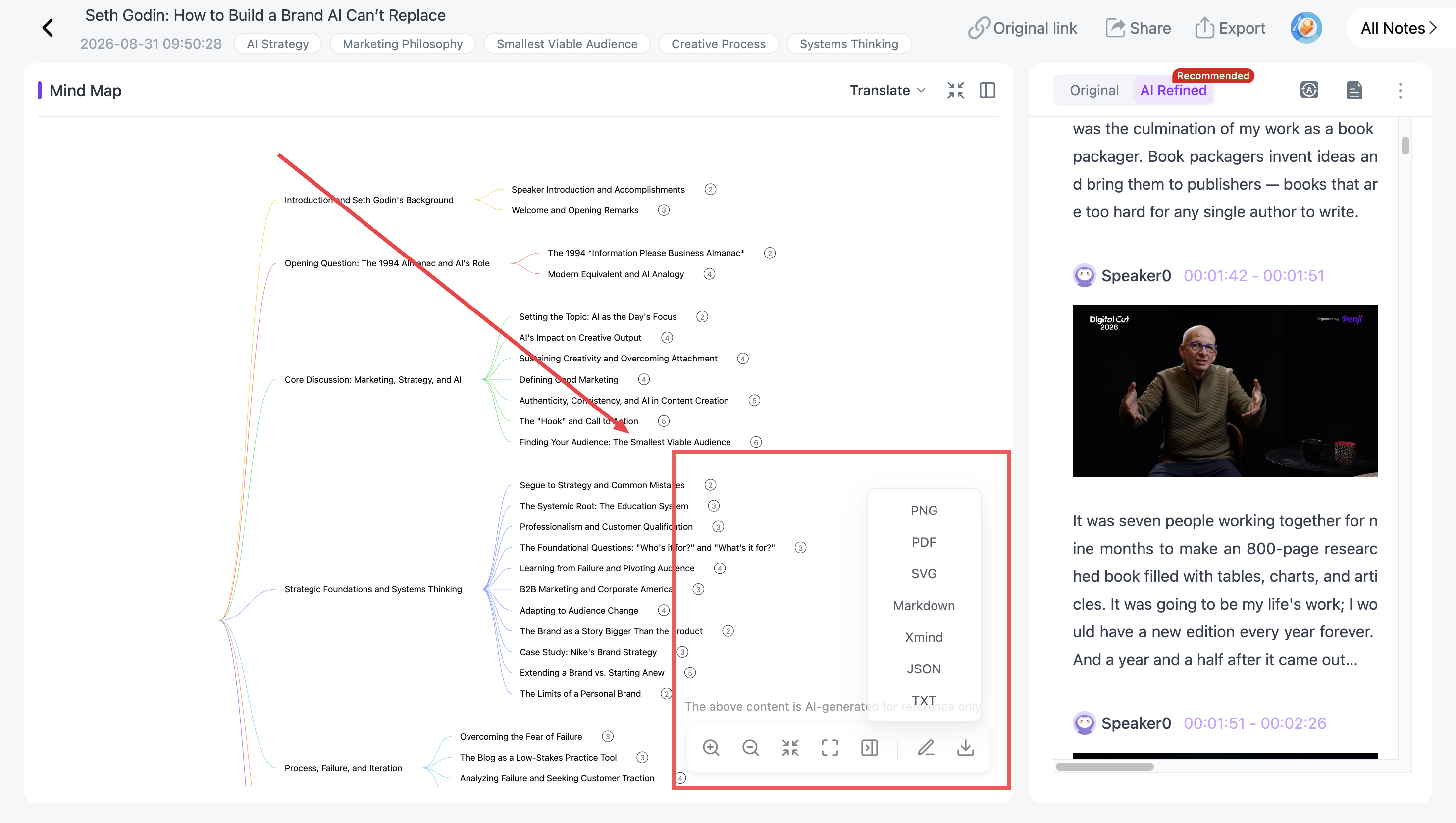
Step 9: Export the Mind Map to XMind
Once you have edited the map into a structure that works for you, NoteAi lets you export it to XMind.
This is useful if you want to continue editing the map in a dedicated mind-mapping application, combine it with an existing map, or keep the visual structure outside NoteAi.
Other NoteAi content can also be exported in formats including Word, PDF, Markdown, and HTML, or moved into workflows involving Notion and Obsidian.
Mind Map vs. Video Summary: Which One Should You Use?
A normal video summary is useful when you mainly want to know what the video says.
A mind map is more useful when you want to see how the ideas relate to one another.
| If You Need To... | Use |
|---|---|
| Quickly understand the main takeaways | Key Insights / Summary |
| See the hierarchy of a topic | Mind Map |
| Find an exact explanation | Timestamped Transcript |
| Preserve slides and diagrams | Visual Notes |
| Reorganize concepts yourself | Editable Mind Map |
| Return to the original explanation | Source-linked Mind Map |
For many long educational videos, these views work better together than separately.
A Practical YouTube-to-Mind-Map Workflow
A useful workflow with NoteAi looks like this:
YouTube Video → Key Insights / Outline → Multi-Level Mind Map → Edit Branches → Return to Source → Add Personal Notes → Export to XMind
If you prefer a more traditional note-taking structure instead of a visual map, you can also explore our AI Cornell Notes workflow for YouTube lectures. Cornell Notes is a different note-taking workflow; it is not a built-in NoteAi mind-map format.
Frequently Asked Questions
How do I turn a YouTube video into a mind map?
Add the YouTube video to an AI tool that can analyze the source and generate a visual hierarchy. With NoteAi, you can process a YouTube video, generate a multi-level mind map, edit the branches, return from nodes to the corresponding source content, and export the finished map to XMind.
Can AI create a mind map from a YouTube video?
Yes. AI can analyze the content of a YouTube video and organize its main topic, subtopics, and supporting ideas into a mind map. The usefulness of the result depends on whether you can edit the generated structure and return to the source when more context is needed.
Can I make a mind map from a long YouTube video?
Yes. Long lectures, tutorials, interviews, and educational videos are particularly suitable for mind mapping because they often contain several related topics and subtopics. NoteAi supports individual content up to 7 hours and 4 GB.
Can I edit an AI-generated mind map?
It depends on the tool. NoteAi allows its generated mind maps to be edited, so you can reorganize branches and refine the hierarchy after the initial map has been created.
Can I export an AI-generated mind map to XMind?
Yes. NoteAi supports exporting generated mind maps to XMind, allowing you to continue editing or organizing the map in XMind afterward.
Is a mind map better than a video summary for studying?
They serve different purposes. A summary is better for quickly reading the main ideas, while a mind map is better for seeing hierarchy and relationships between concepts. For long lectures, using the summary, transcript, and mind map together can provide both overview and detail.