

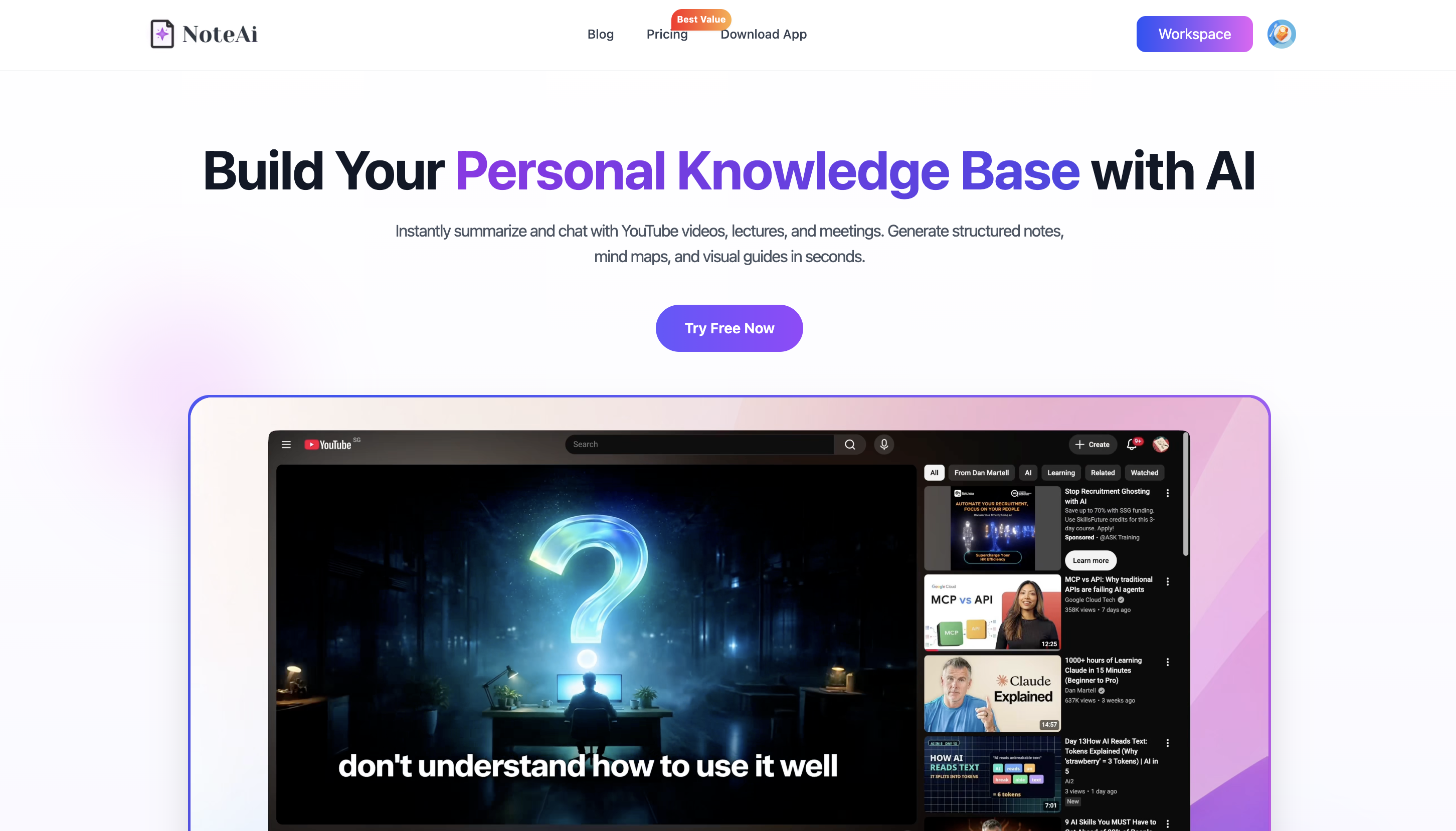
One YouTube summary tells you what one video says. Research usually starts when you need to compare several videos without forgetting which speaker made each claim.
The practical workflow is:
- Select videos that answer the same question.
- Process the individual links in one batch.
- Review each transcript, summary and important visual.
- Organize the notes under one research topic.
- Ask questions across the selected notes.
- Return to the relevant timestamp before using a claim.
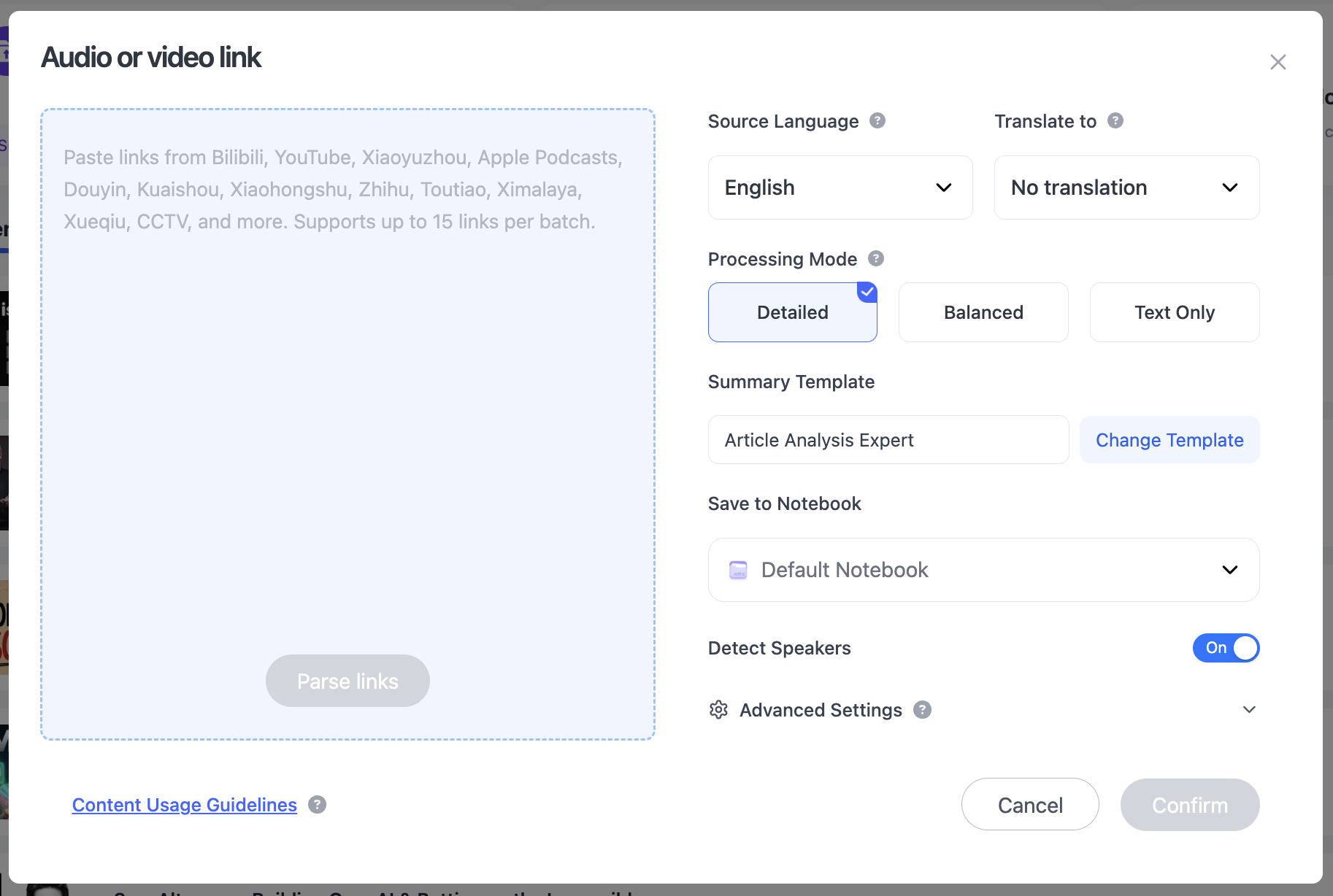
NoteAi supports up to 15 supported links or files in one submission. Each video remains a separate, source-linked note, so a later comparison does not erase its transcript, timestamps or visual context.
Why Multiple Video Summaries Are Hard to Compare
Five separate summaries often become five isolated documents. They tell you what each video covers, but they do not automatically show where the speakers agree, use different definitions or rely on different evidence.
A useful comparison needs four layers:
| Layer | Question |
|---|---|
| Source | Which video and speaker does this idea come from? |
| Evidence | What example, data or reasoning supports it? |
| Location | Where can the original wording or visual be checked? |
| Interpretation | What does it add to the research question? |
AI can help with interpretation. The first three layers make that interpretation verifiable.
Prepare the Comparison Before Importing Videos
Start with one research question
Avoid prompts such as “Tell me everything in these videos.” Use a question that creates clear comparison criteria.
For example:
What do experienced teachers say makes an online course effective?
The comparison criteria might be lesson structure, practice, feedback, assessment and learner motivation.
Choose sources that add different perspectives
A balanced set may include:
- an introductory explanation;
- a practitioner or case study;
- a research-focused talk;
- a critical or opposing view;
- a recent update.
Record the creator, publication date and source type. Several videos repeating the same claim do not make that claim reliable if they all rely on the same weak source.
Remove videos that do not help answer the question
Do not process an entire playlist simply because it exists. Select the individual videos that belong in the comparison.
This keeps the project focused and prevents repeated or irrelevant material from dominating later answers.
How to Summarize and Compare Multiple YouTube Videos With NoteAi
Step 1: Add the individual YouTube links
Open NoteAi and paste the YouTube URLs selected for the project. Up to 15 supported items can be submitted together.
Use individual video links rather than assuming a playlist URL will automatically import every useful item. Source selection should follow the research question.
Give the resulting notes consistent names:
Topic — Speaker or Channel — Main Angle
Example:
- Online Learning — Lecturer — Course Structure
- Online Learning — Designer — Practice and Feedback
- Online Learning — Researcher — Learner Motivation
Step 2: Screen every source with Key Insights
Open Key Insights before reading each transcript from beginning to end.
Check whether the video:
- answers the main question;
- introduces a new argument;
- supplies useful evidence;
- mostly repeats another source.

Remove weak or irrelevant sources from the active comparison. Batch processing saves setup time; it does not mean every processed video deserves equal weight.
For one especially long source, use the workflow in How to Summarize a Long YouTube Video Without Losing Slides or Context.
Step 3: Check the transcript, not only the summary
NoteAi can transcribe the video audio even when a usable caption track is unavailable.
Use the two transcript views for different jobs:
- Original transcript: check wording, names, numbers and quotations.
- AI-polished transcript: read the argument with fewer filler words and repeated phrases.
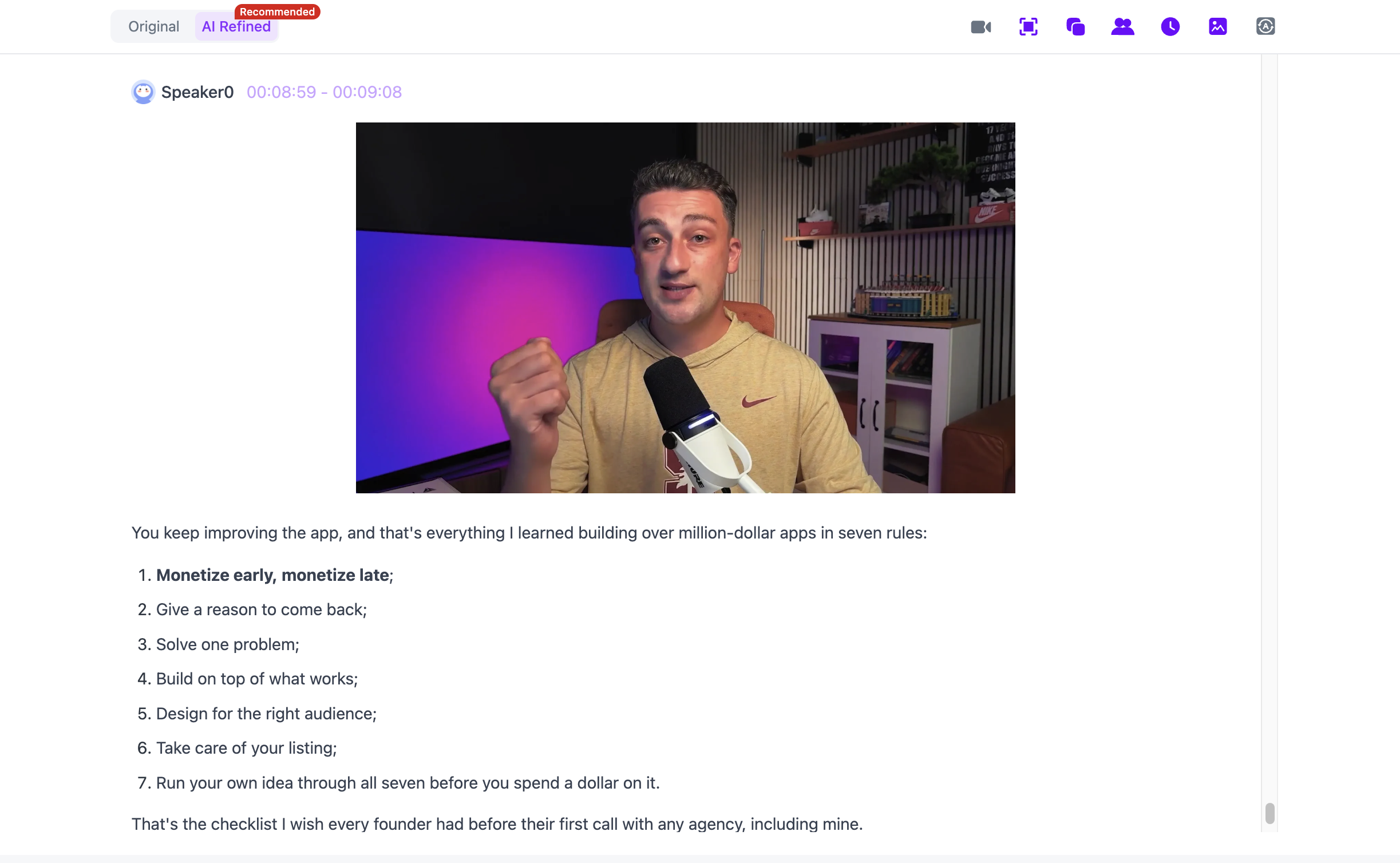
Accents, overlapping speech, poor audio and specialist terms can still cause errors. Review any passage that will affect the final conclusion.
Step 4: Keep slides and key frames with the explanation
A transcript can miss information shown in charts, slides, code or software demonstrations.
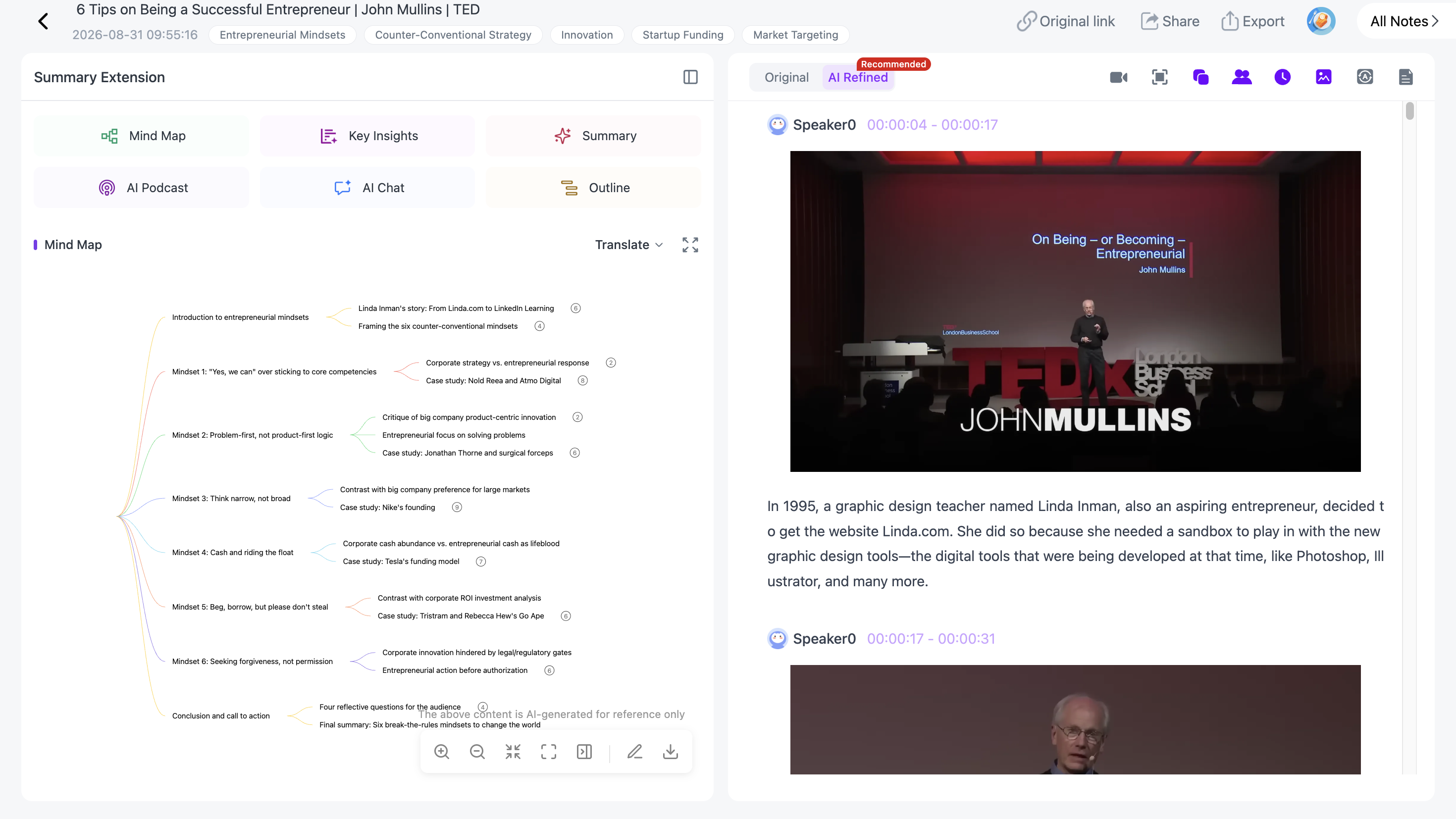
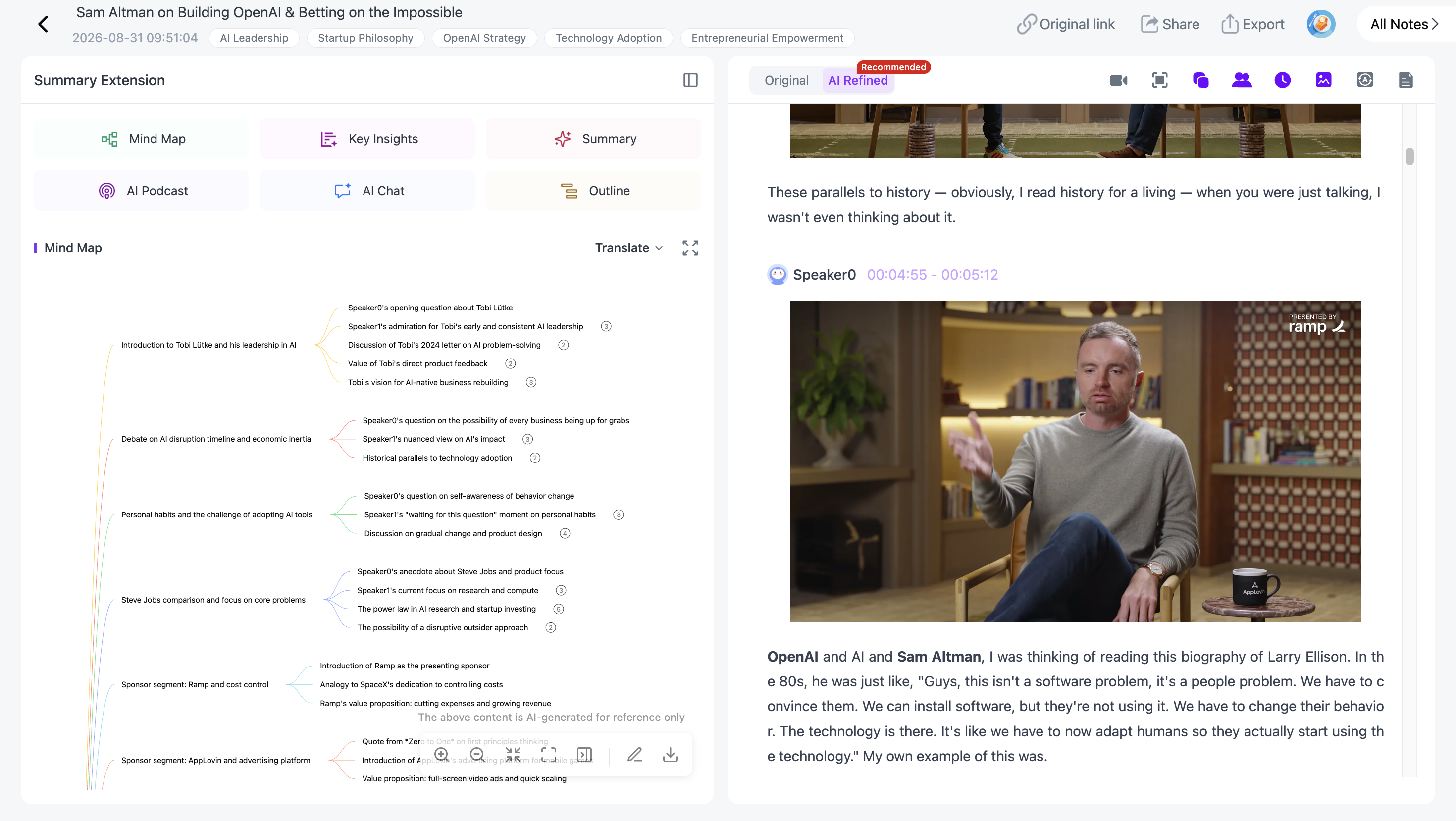
Visual Notes place useful PPT pages and key frames beside the relevant spoken content. This makes it easier to compare not only what two speakers say, but also the evidence they show.

Visual Notes do not reconstruct an editable PPTX or capture every frame. They preserve useful visual context for reading and source checking.
See Video to Notes: Turn Videos Into Visual Notes With AI for the full visual-note workflow.
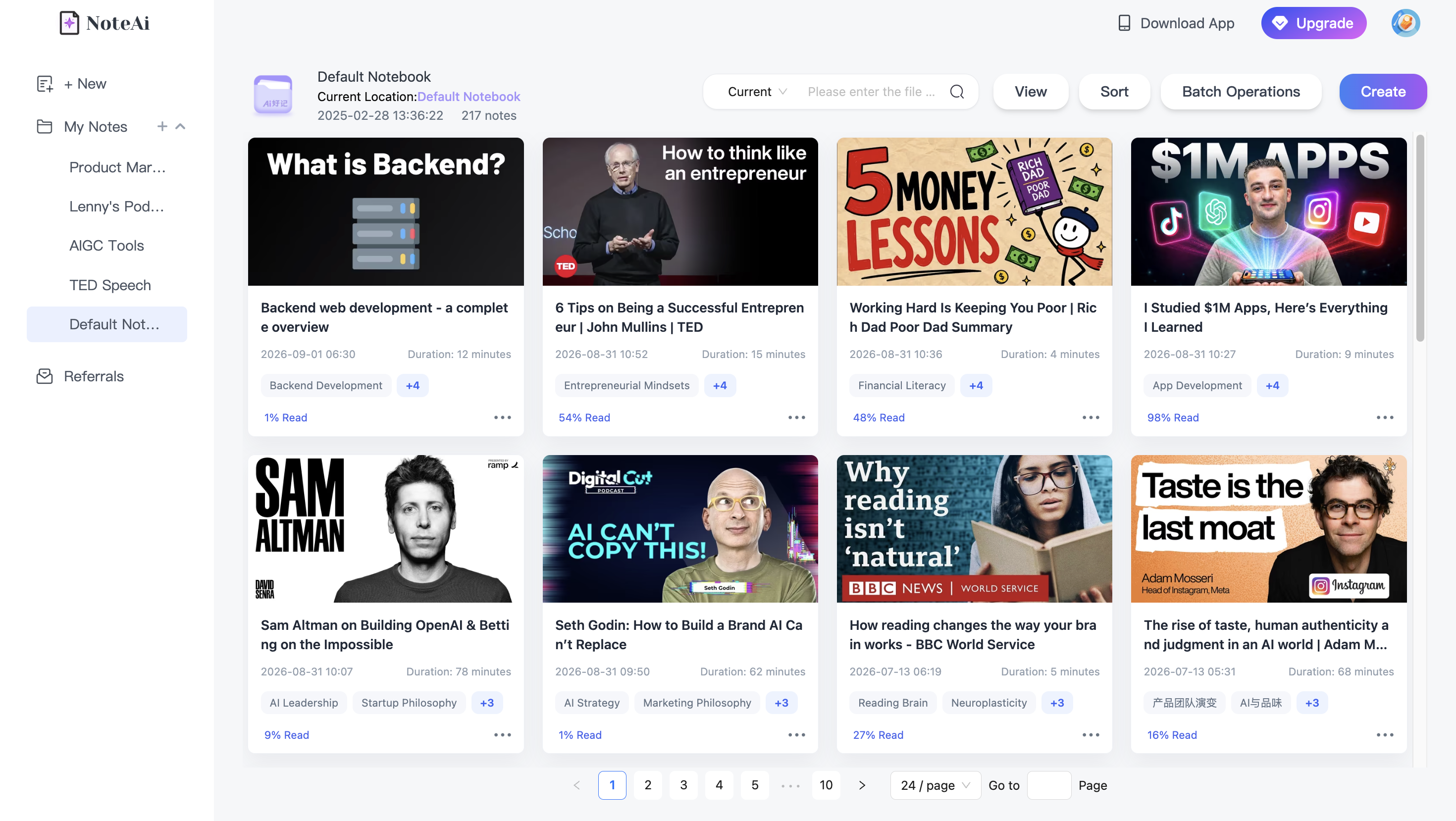
Step 5: Organize the sources under one topic
Place the selected notes in the same category or research area. Use a structure you will still understand later.
Examples:
Semester → Course → AssignmentIndustry → Topic → Research RoundContent Pillar → Video Idea → Sources
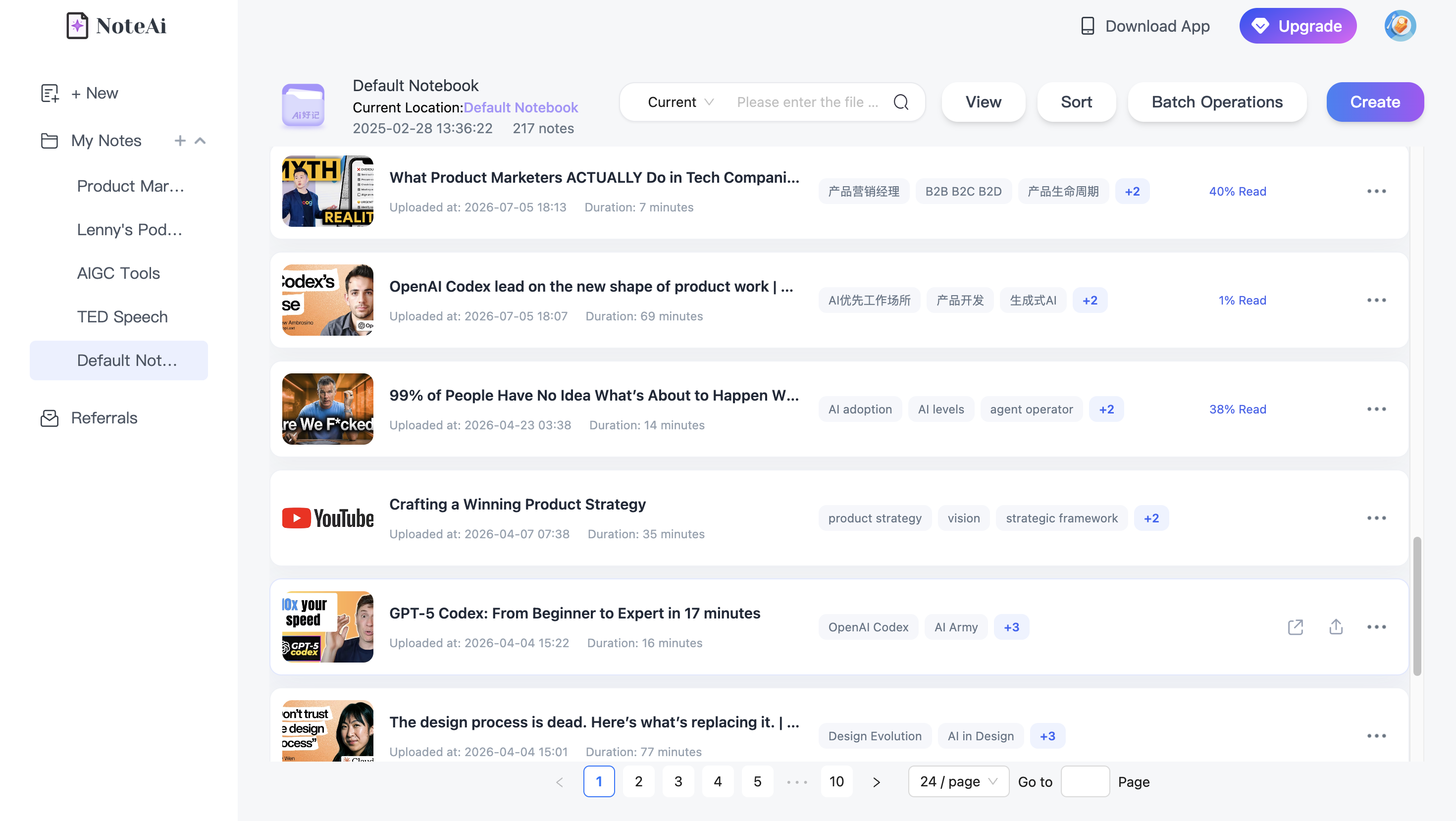
Categories provide stable structure. Global search is better for names, terms and smaller details.
The broader system is explained in How to Build a Personal AI Knowledge Base From Videos and Podcasts.
Step 6: Ask cross-note questions
Use AI Chat for one processed video. Use cross-note Q&A when the question needs information from several saved notes.
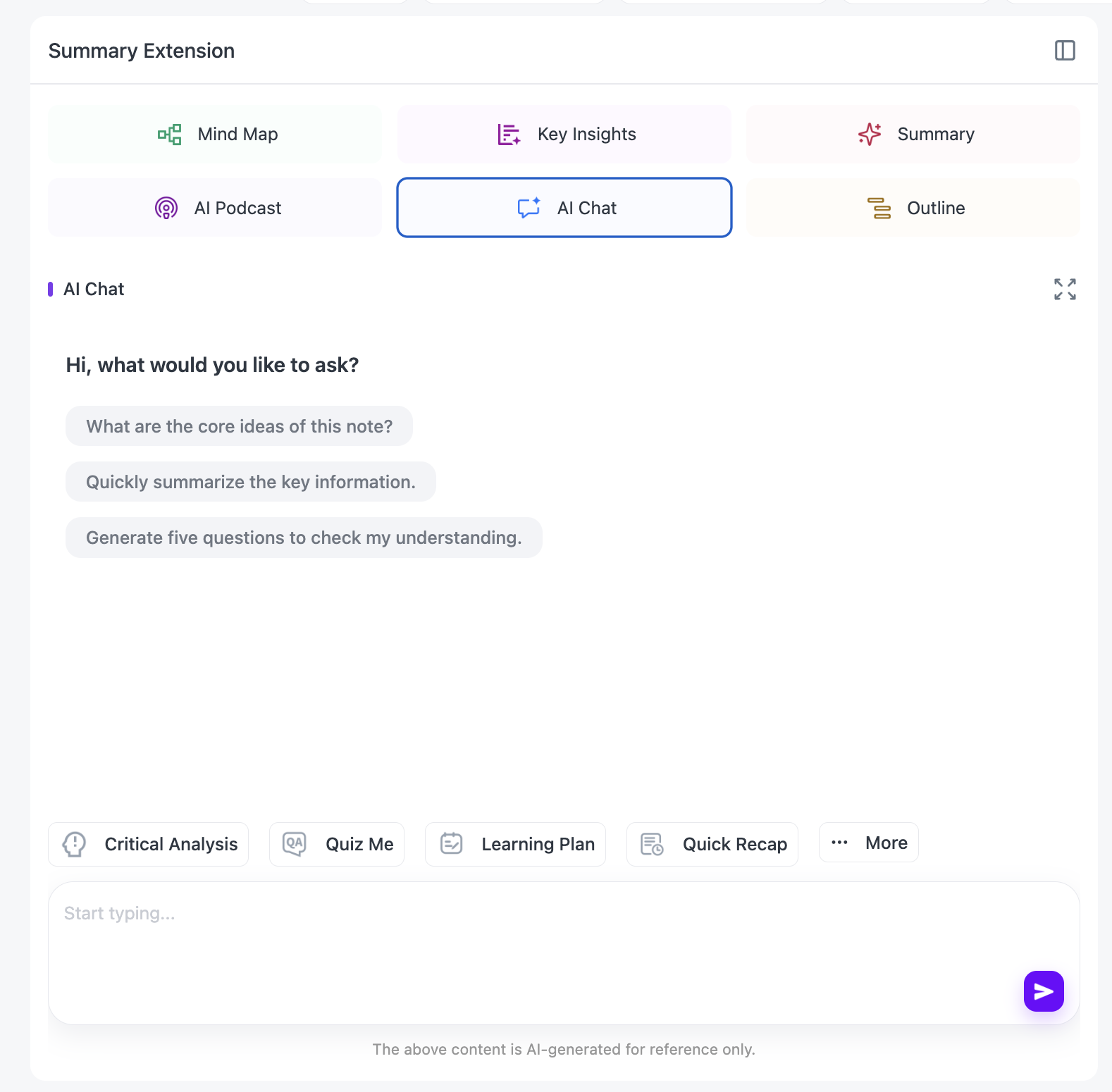
Useful prompts include:
List the claims that appear in at least two notes. Name the relevant source notes and explain whether the speakers use the same reasoning.
Where do the sources disagree? Separate differences in evidence, definitions and target audience.
Create a table with claim, supporting evidence, source note and item that still needs verification.
Which important questions are not answered by the current source set?
The last question prevents the AI from presenting incomplete material as a finished answer.
Step 7: Return to the source before using a claim
Treat the cross-note answer as a route into the library.
For an important claim:
- Open the relevant note.
- Find the transcript passage.
- Follow the timestamp back to the video.
- Check the surrounding explanation and visual.
- Confirm whether the speaker states a fact, opinion or example.

The Mind Map helps inspect the structure of an individual source. Smart Sync can return from a node to the corresponding place in that source. It should not be confused with an automatically merged Mind Map of every video in the project.
Step 8: Save a clean comparison note
Do not leave the useful result inside a chat thread. Save it in a blank note or working document with a consistent structure:
- research question;
- short answer;
- shared findings;
- disagreements;
- evidence to verify;
- missing information;
- personal conclusion.
Add highlights and annotations while reviewing the source notes.

Step 9: Export only what you will continue using
NoteAi notes can be exported as Word, PDF, Markdown or HTML.

Markdown is useful when the research will continue in Obsidian or another text-based system. Word and PDF are better for review, printing or fixed delivery.
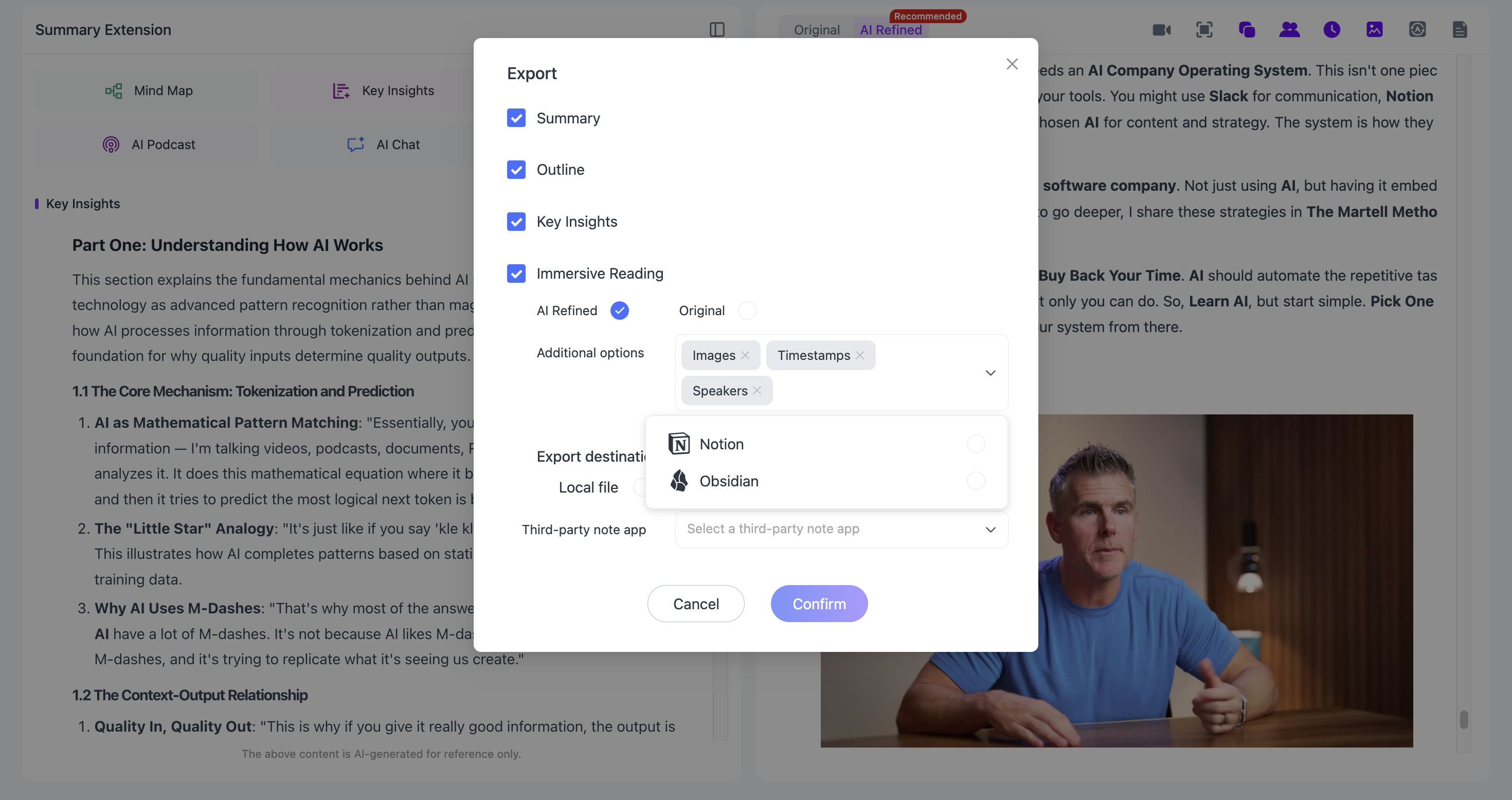
For the Markdown workflow, continue with How to Turn YouTube Videos Into Obsidian Notes With AI.
Worked Example: Compare Three Videos About Online Learning
Suppose the question is:
What makes an online course effective for adult learners?
The source set contains:
| Video | Perspective | Main contribution |
|---|---|---|
| A | University lecturer | Course structure and assessment |
| B | Instructional designer | Practice and feedback |
| C | Learning researcher | Motivation and cognitive load |
Use the same five criteria for every note: objectives, structure, practice, feedback and assessment.
Then ask:
Compare the three sources using the five criteria. Distinguish explicit recommendations from inferred similarities. Name the source note for every major point and flag anything that needs transcript review.
A shallow answer might say all three speakers value feedback. A better comparison explains that one means instructor comments, another means immediate practice feedback and the third means self-testing.
That difference is the reason to compare the source notes instead of merging their summaries too early.
Batch Video Summarizer vs Playlist Summarizer
| Workflow | Input | Best use |
|---|---|---|
| Batch summarization | Selected individual links or files | Processing several chosen sources efficiently |
| Playlist summarization | A full playlist or playlist URL | Reviewing a predefined series |
| Cross-video comparison | Several processed notes plus one research question | Finding agreements, differences and gaps |
This workflow uses selected video links. NoteAi supports up to 15 supported items in one submission, but the user still decides which sources belong in the comparison.
Common Mistakes to Avoid
Asking a question that is too broad
Ask about a decision, method, claim or disagreement—not everything the videos contain.
Treating repeated claims as proof
Several creators may repeat the same unsupported statement. Check the original evidence and source type.
Reading only the polished transcript
Use the polished version for readability and the original version for quotations and detailed checking.
Mixing single-note chat with cross-note analysis
A question asked inside one note does not automatically compare the entire project.
Importing more videos than necessary
A focused set of four strong sources is often more useful than fifteen loosely related videos.
Questions About Summarizing Multiple YouTube Videos
Can NoteAi summarize several YouTube videos at once?
Yes. Up to 15 supported links or files can be submitted together. Each video is processed as its own note.
Can I paste a YouTube playlist link?
This guide does not rely on playlist-level import. Add the individual supported video links you actually want to compare.
Can NoteAi compare information across videos?
Yes. Cross-note Q&A can compare several processed and saved notes. Check important conclusions against the relevant note and timestamp.
What if a video has no subtitles?
NoteAi can create a transcript from the audio. Poor sound, accents, overlapping speakers and specialist terms may still require manual review.
Can YouTube videos and local recordings be compared together?
Yes. NoteAi also accepts supported local audio and video, screen recordings and voice recordings. A local file can be up to 7 hours or 4 GB.
Can the result be exported?
Yes. Notes can be exported as Word, PDF, Markdown or HTML.
Keep Every Conclusion Connected to Its Source
The best multi-video workflow does not combine everything immediately.
Select the sources carefully, process them efficiently, compare their notes and then return to the original timestamps before using the result.
That leaves you with more than a pile of summaries. It creates a searchable research set in which every important conclusion can still be traced back to the video that supports it.
Start a multi-video research project with NoteAi.