

Saving a transcript to Obsidian is easy.
Building a video note you will actually use six months later is harder.
A two-hour lecture can produce thousands of words. If you export all of them into a .md file and stop there, you have technically moved the video into Obsidian — but you have not necessarily turned it into useful knowledge.
A better workflow is:
video → transcript + visuals → summary and structure → your own notes → Markdown → Obsidian links and properties
The AI should handle the mechanical work. Obsidian should become the place where the material connects to the rest of what you know.
Why a Raw Transcript Is Usually a Bad Obsidian Note
A transcript is valuable as source material because it preserves wording, timestamps and details.
It is not automatically a good permanent note.
If every saved video becomes 15,000 words of transcript, your vault gets searchable but noisy. You still have to figure out:
- what the video was really about;
- which ideas matter to you;
- which screenshots or slides are important;
- where a claim came from;
- what should connect to an existing note;
- whether the source belongs to a project, topic or course.
That is why the most useful video-to-Obsidian workflow separates capture, processing and connection.
A recent Obsidian-focused video workflow from HoverNotes uses a similar three-stage idea — capture the source, process the note and then link it into the vault — which is a useful way to think about the problem even if you use a different capture tool: A Complete Workflow for Obsidian YouTube Notes.
Step 1: Capture the Video Before You Open Obsidian
If you are already inside Obsidian and want to take timestamped notes manually while watching, plugins such as Media Notes and Smart Media Notes are designed for that style of workflow.
The NoteAi workflow starts one step earlier: let AI process the source first, then send the useful material into Obsidian.
Paste a supported YouTube link into NoteAi, or add local video/audio and recorded content. Up to 15 links or files can be added in one batch, and local media can be up to 7 hours and 4GB.

This works especially well when you have:
- several lectures to process;
- long interviews or podcasts;
- slide-heavy courses;
- technical tutorials;
- research videos you may not watch linearly.
The goal at this stage is not to decide what belongs in your permanent vault. It is to create a good source note first.
Step 2: Keep the Source-Faithful Transcript, but Do Not Make It the Whole Note
NoteAi keeps an original transcript with timestamps and speaker-aware text. It can also create an AI-polished transcript that removes filler words and repeated spoken phrasing while leaving the original available for checking.
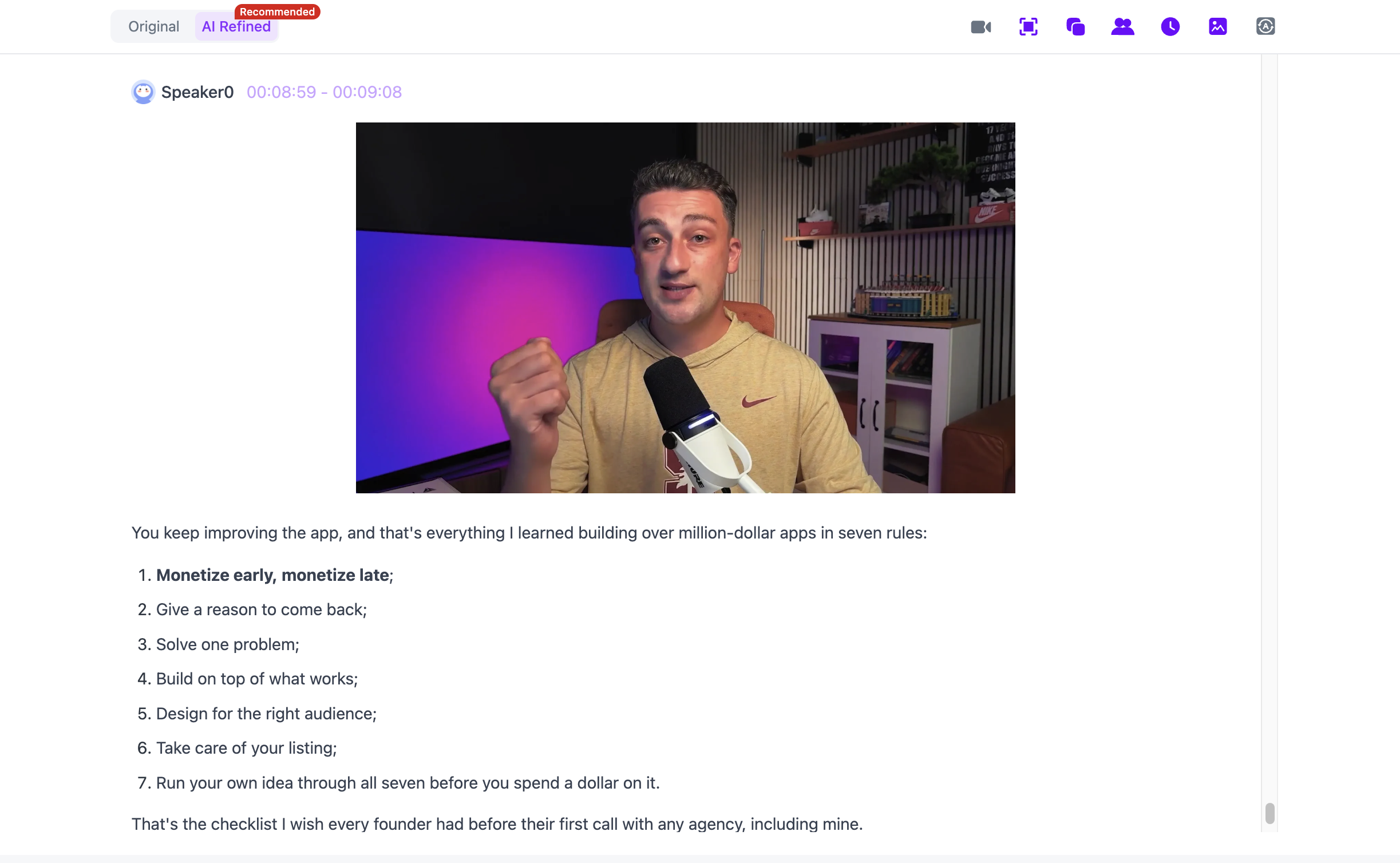
These two versions serve different purposes.
Use the original transcript when:
- you need a quotation;
- a technical term must be checked;
- names or numbers matter;
- you want to return to the exact source wording.
Use the polished transcript when:
- you are reading a long lecture;
- repeated speech makes the transcript hard to scan;
- you want to extract ideas before writing your own note.
This is a useful distinction for Obsidian because the permanent note does not need to carry every spoken word at the top level. The transcript can stay as source material while your summary and own interpretation remain easier to navigate.
For a transcript-first workflow, see YouTube to Text: 3 Ways to Get a Transcript With Timestamps.
Step 3: Keep the Visual Information a Transcript Misses
Video is not just audio with a picture.
In lectures, coding tutorials and software walkthroughs, part of the meaning may be inside:
- PPT slides;
- charts;
- diagrams;
- formulas;
- code;
- software interfaces;
- other key frames.
NoteAi can capture useful visual frames and place them beside the related transcript or summary content.
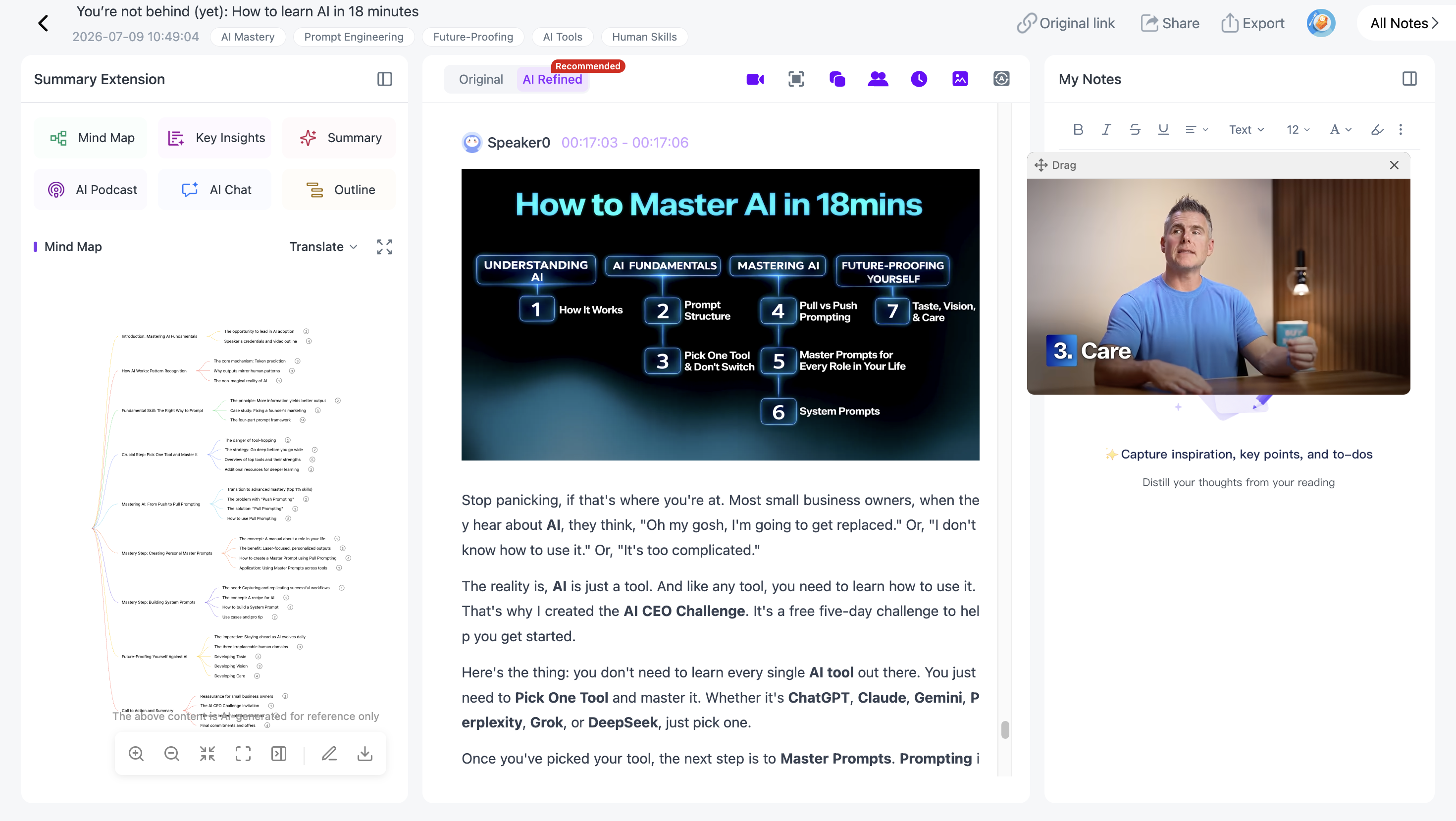
This matters because a line such as “the red curve is the important one” becomes almost useless when the chart disappears.
If the screen matters, preserve the visual context before you reduce the source into a permanent Obsidian note.
For a deeper visual workflow, see Video to Notes: Turn Videos Into Visual Notes With AI.
Step 4: Use the Summary and Mind Map as a Processing Layer
Before exporting anything, decide what the video is worth keeping for.
AI Summary / Insights gives you a quick view of the source. The editable Mind Map gives you another way to see the hierarchy of topics.
With Smart Sync, a Mind Map or outline node can return to the matching part of the original source.

This is a good place to ask:
- Which three ideas are new to me?
- Which idea connects to an existing Obsidian note?
- Which parts are only examples?
- Is this a source note, a project note or something that should become a permanent concept note?
- Which claims should I verify before saving?
AI Chat / Personal AI Tutor can help explain, compare or locate material in the same processed source.
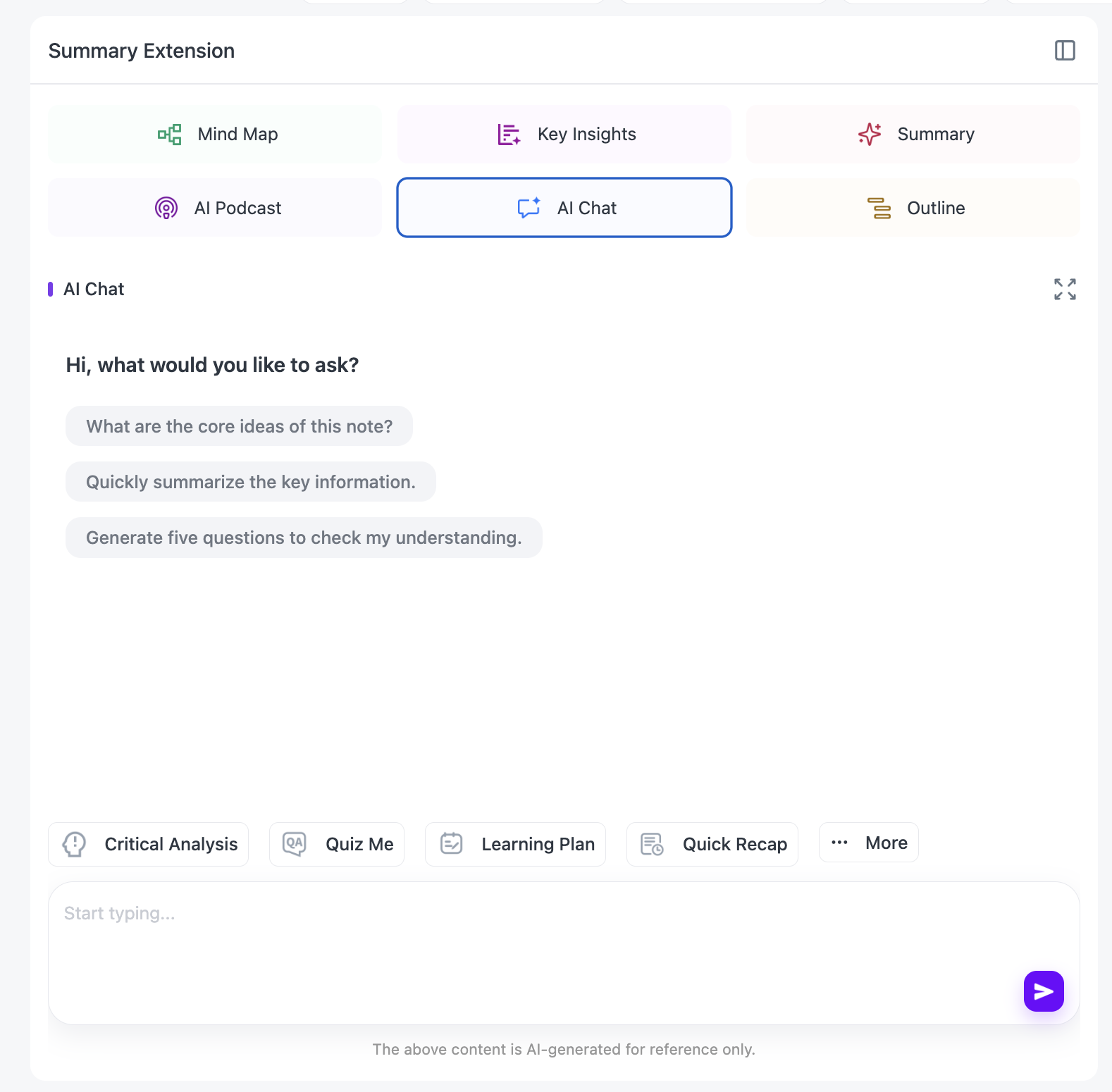
The important part is that AI helps you process the source before it enters the vault. It should not decide your entire vault structure for you.
Step 5: Export the Useful Material as Markdown
Obsidian uses Markdown .md files as its primary note format, and its official documentation supports importing Markdown files directly into a vault.
NoteAi can export general notes as Markdown, as well as DOCX, PDF and HTML, and supports continuing the workflow in Obsidian.
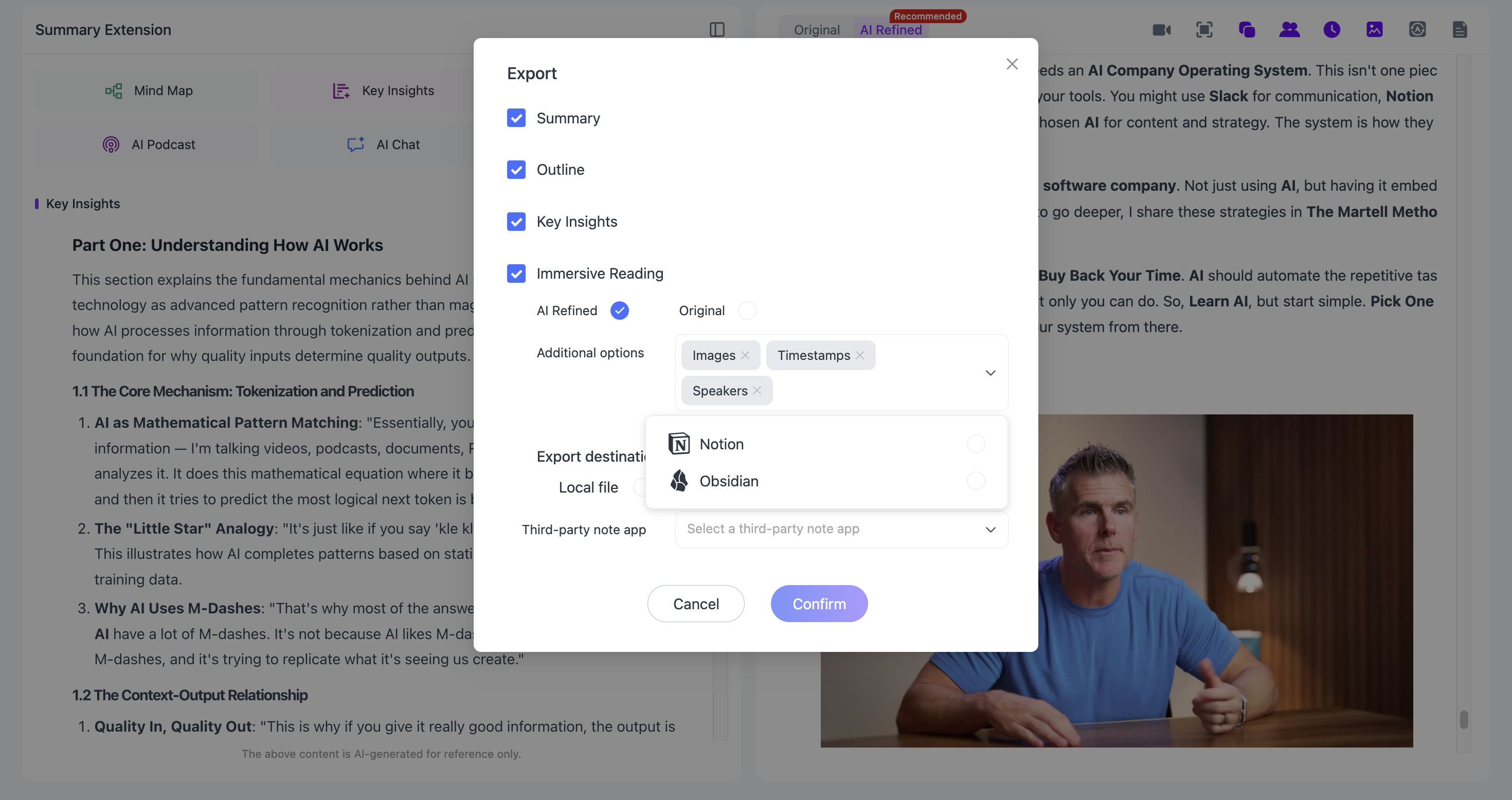
For a normal source note, Markdown is usually the most useful handoff because the content stays readable and editable outside any one app.
Obsidian's official guide explains that Markdown files can be dragged into the File Explorer or moved directly into the vault folder. Its Importer can also handle Markdown files, folders or ZIP archives when you want more control over the import: Import Markdown files — Obsidian Help.
Step 6: Add Obsidian Properties After Import
Once the source note is inside the vault, give it enough metadata to find and reuse it later.
Obsidian stores Properties as structured data at the top of a note and supports text, lists, dates, checkboxes, numbers and tags: Properties — Obsidian Help.
A simple video-source note might start like this:
---
type: video-source
platform: YouTube
status: processed
topics:
  - AI
  - knowledge-management
source_url:
created: 2026-09-10
---
Do not over-design this.
The purpose of Properties is to make the source easier to filter and understand, not to create another database-maintenance job.
Useful fields might include:
typeplatformsource_urlauthorcourseprojecttopicsstatuscreated
For a lecture vault, course and module may matter more than author.
For creator research, topic, format and project may be more useful.
Step 7: Turn the Source Note Into Connections
This is where Obsidian becomes more valuable than a folder full of AI summaries.
Obsidian supports internal links in both Wikilink and Markdown formats. A Wikilink such as [[Retrieval-Augmented Generation]] connects the current note to another note in the vault, and Obsidian can update those internal links when files are renamed: Internal links — Obsidian Help.
Instead of leaving a video note isolated, connect the useful ideas:
## Key Ideas

- Retrieval quality depends on chunking strategy. See [[RAG Chunking]].
- The speaker's evaluation framework connects to [[AI Benchmark Design]].
- This example may be useful for [[Q4 Content Plan]].
Now the video is not just “a video you watched.”
It becomes evidence, context or input inside topics and projects you already care about.
That is the real reason to use Obsidian after AI summarization.
A Practical Folder Structure
You do not need a complicated hierarchy.
One workable structure is:
00 Inbox/
10 Sources/
   Videos/
20 Concepts/
30 Projects/
40 Courses/
90 Archive/
The workflow can be:
NoteAi → Markdown → 00 Inbox → review → 10 Sources/Videos → link into Concepts/Projects/Courses
The folder gives the source a home.
The links give it meaning.
A Simple Obsidian Video Note Template
A source note does not need to preserve every output NoteAi created.
A compact version is often more useful:
# {title}

## Why I Saved This
One or two sentences in my own words.

## Summary
Short source summary.

## Key Ideas
- Idea 1
- Idea 2
- Idea 3

## Visual Notes
Important slide, chart, formula or screenshot references.

## My Notes
What I agree with, question or want to use.

## Connections
- [[Existing Concept]]
- [[Related Project]]
- [[Course Topic]]

## Source
YouTube URL + timestamped references.
You can keep the fuller transcript separately if you need it.
The key is to distinguish:
what the source said from what you think about it.
That makes the note much more useful later.
When a Direct-to-Obsidian Tool Makes More Sense
NoteAi is not the only sensible video-to-Obsidian workflow.
If you want to watch the video yourself and take notes directly inside the vault, tools built specifically for Obsidian may fit better.
HoverNotes
HoverNotes is designed to write structured Markdown video notes directly into an Obsidian vault and can capture timestamped screenshots of code, equations and diagrams.
That is a strong fit when direct-to-vault capture is the priority.
Media Notes / Smart Media Notes
Obsidian community plugins such as Media Notes and Smart Media Notes focus more on watching media inside or alongside Obsidian, inserting timestamps and manually building notes as you go.
That is useful when active manual note-taking while watching is the priority.
NoteAi
The NoteAi workflow makes more sense when AI preprocessing comes first:
- transcribe a long source;
- clean the transcript;
- capture visual context;
- generate a summary and Mind Map;
- ask questions;
- decide what matters;
- then move the processed note into Obsidian.
The choice is less about which tool is “better” and more about where you want the thinking to happen.
What Should Stay in NoteAi, and What Should Move to Obsidian?
You do not have to move everything.
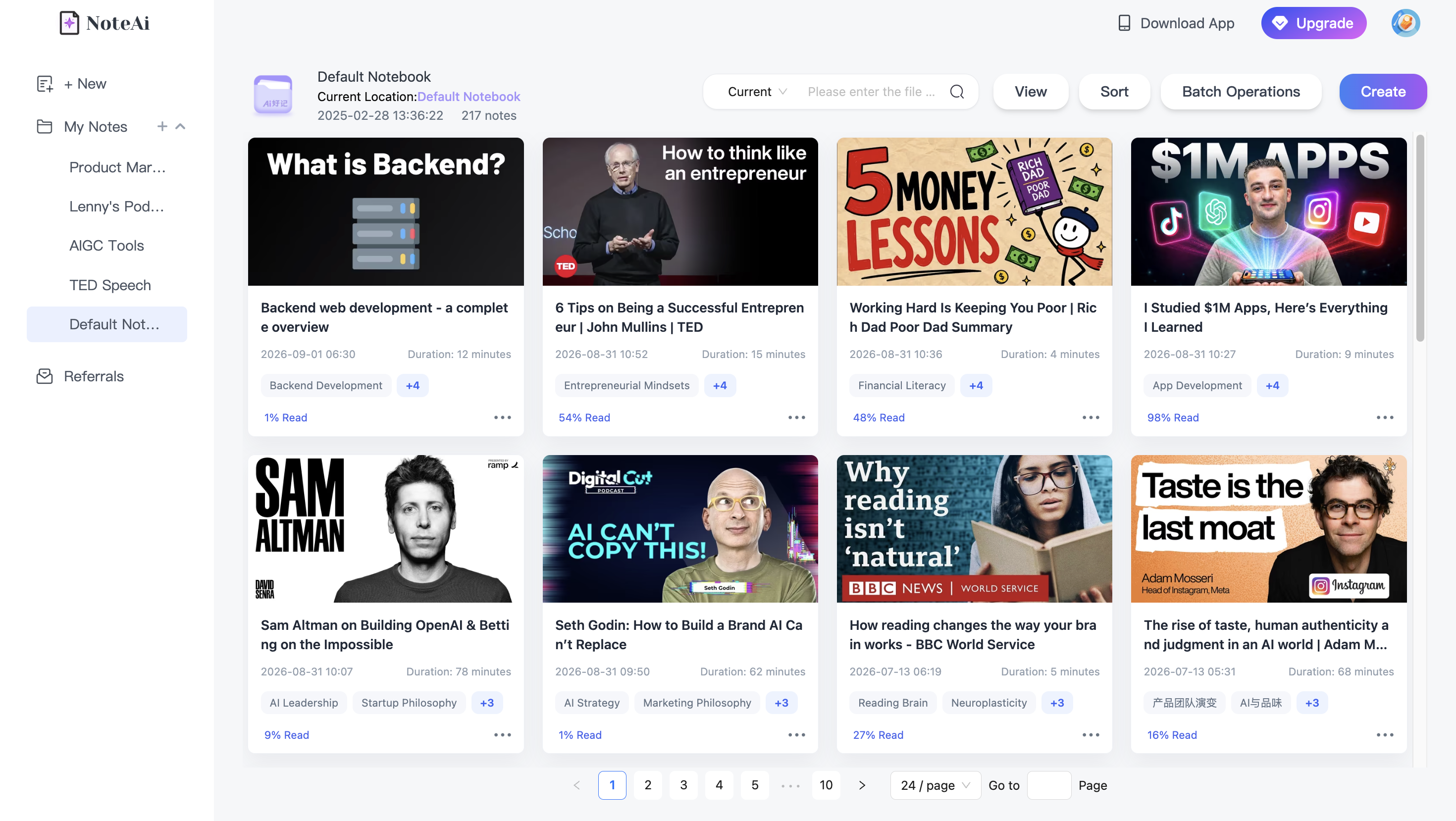
Keep material in NoteAi when you still need the video-native workflow:
- source-linked transcript;
- Visual Notes;
- Smart Sync;
- AI Q&A;
- batch media processing;
- translation;
- video-specific review.
Move material into Obsidian when you want it to connect with:
- your own ideas;
- permanent concept notes;
- project notes;
- course notes;
- research questions;
- writing drafts;
- long-term PKM.
A useful rule is:
Keep the rich source in the video tool; move the distilled knowledge into the vault.
That avoids turning Obsidian into a warehouse of raw transcripts while still preserving access to the detailed source when you need it.
A 10-Minute Video-to-Obsidian Workflow
For a repeatable weekly routine:
- Add the video to NoteAi.
- Scan the summary and Mind Map before watching the whole source.
- Read the polished transcript for important sections.
- Check the original transcript or source when exact wording matters.
- Keep the Visual Notes if the video depends on slides, charts or code.
- Ask AI questions until you understand the parts worth keeping.
- Export the useful note as Markdown.
- Move it into your Obsidian Inbox.
- Add Properties and your own notes.
- Create two or three meaningful internal links.
The final step is what turns an AI summary into part of your knowledge system.
FAQ
Can NoteAi export notes to Obsidian?
Yes. NoteAi supports Markdown export and an Obsidian continuation workflow, alongside DOCX, PDF and HTML exports.
Should I put the full YouTube transcript in Obsidian?
Only if you expect to search or verify it later. For many users, a better permanent note contains the summary, key ideas, personal notes and links, while the full transcript stays as source material.
Does Obsidian support normal Markdown files?
Yes. Obsidian uses Markdown .md files as its primary note format and supports importing Markdown files into a vault.
Should I use folders or links for video notes?
Use both for different jobs. Folders can separate source types or workflows; internal links connect the ideas in a video to concepts, projects and other notes.
Can Obsidian store structured metadata for video notes?
Yes. Obsidian Properties support structured fields such as text, lists, dates, checkboxes, numbers and tags.
What is the difference between using HoverNotes and NoteAi with Obsidian?
HoverNotes is built around direct video-note capture into the Obsidian vault. NoteAi is better framed as an AI preprocessing workflow: transcribe, summarize, capture visuals, build a Mind Map, ask questions and then move the useful result into Obsidian.
Can this workflow work with local videos too?
Yes. NoteAi supports local video/audio in addition to supported online sources. Local media can be up to 7 hours and 4GB.