

Screen recording is an easy way to explain a process. Open the software, complete each action and describe what you are doing.
The difficult part comes afterward. If the recording needs to become a help article, training document or standard operating procedure, someone still has to replay the video, transcribe the explanation, capture the correct screens and rewrite everything as clear instructions.
NoteAi shortens that process by working with both sides of the recording: what the presenter said and what appeared on screen. It turns the video into a timestamped transcript, extracts useful interface screens and organizes the content into editable notes.
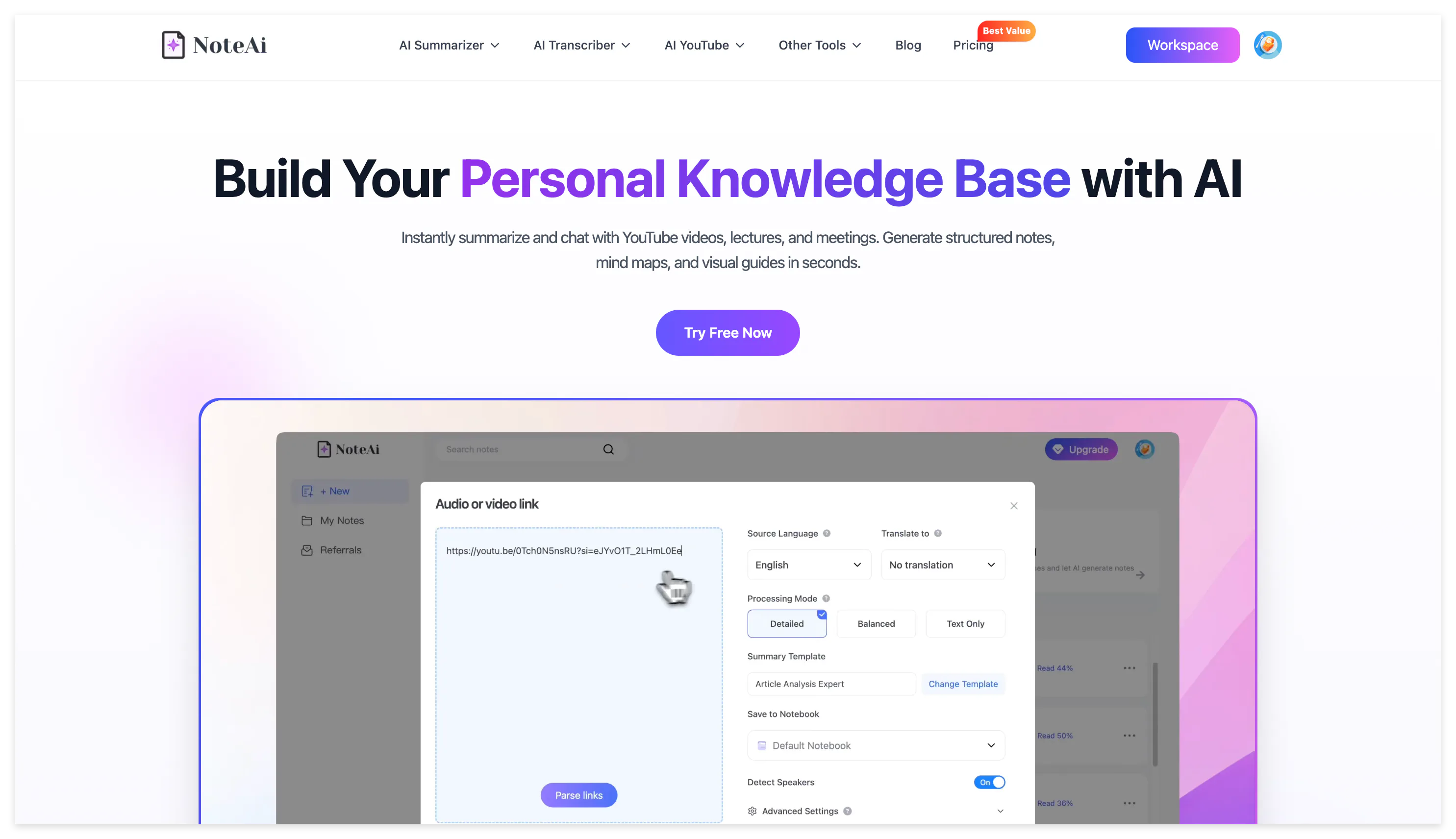
The result is not limited to screen recording transcription. You can continue from the transcript to a structured tutorial, add your own corrections, ask questions about the recording and export the finished guide as Markdown, Word, PDF or HTML.
What Makes a Screen Recording Note Useful?
A raw transcript records speech in chronological order. A tutorial needs to organize that speech around actions.
Suppose the presenter says:
“Now we’re going to open Settings, and then over here you’ll see Export. Click that and choose Markdown.”
The transcript is understandable while the video is playing, but it is not yet a good written instruction. The finished note should separate the actions, preserve the screen showing the Export menu and keep a timestamp in case the reader needs to check the original demonstration.
A useful screen recording note therefore needs three connected layers. The transcript preserves exact wording, the visual note shows what happened on screen, and the structured guide tells the reader what to do. If one layer is missing, the documentation becomes harder to follow or verify.
How to Turn a Screen Recording Into Notes With NoteAi
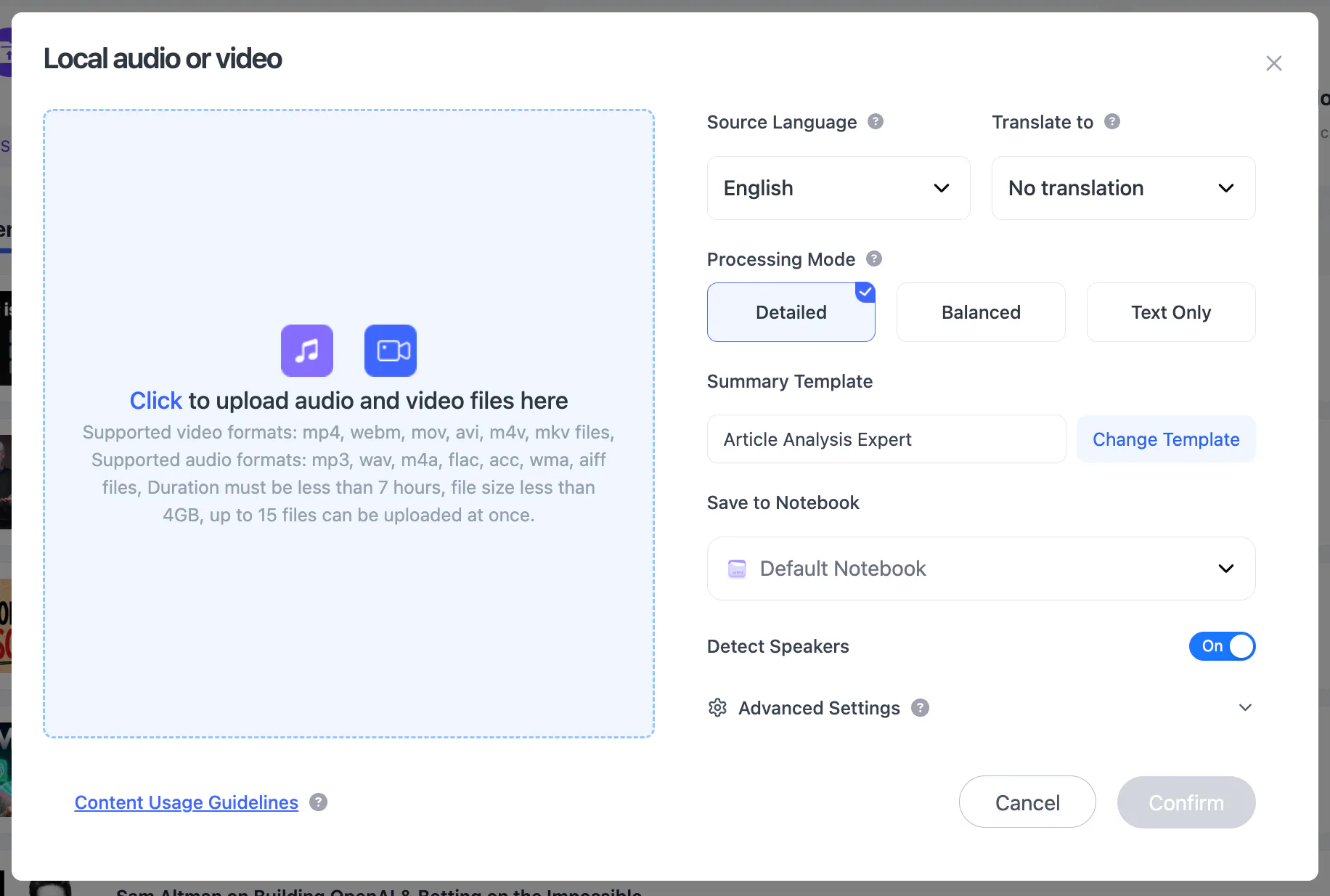
Record the process or upload an existing video
You can create a screen or voice recording in NoteAi, or upload a local video that has already been recorded.
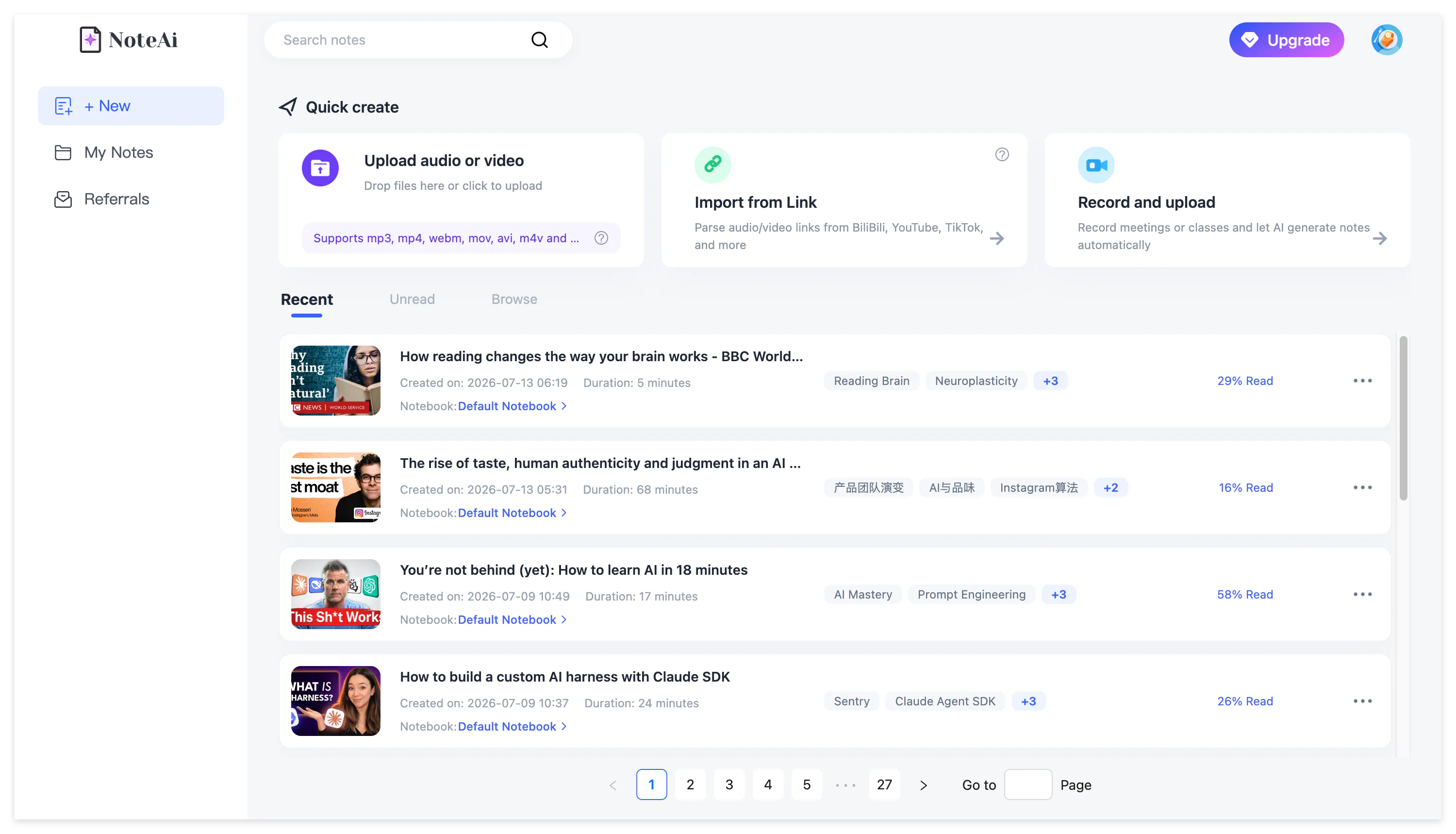
A local file may be up to seven hours and 4 GB. When a training course is divided into several lessons, as many as 15 files can be added in one batch.
The quality of the final guide begins with the recording itself. Name the button, menu or field while using it instead of saying only “click here.” It is also helpful to explain what should happen after an action. A sentence such as “Select Export and confirm that a Markdown file appears in the download folder” contains both the instruction and the expected result.
If more than one person appears in a training recording, let each speaker finish before another person responds. This makes speaker identification and the resulting transcript easier to follow.
Read the polished transcript and retain the original
After the recording is processed, NoteAi provides an original transcript and an AI-polished version. Both remain connected to timestamps.
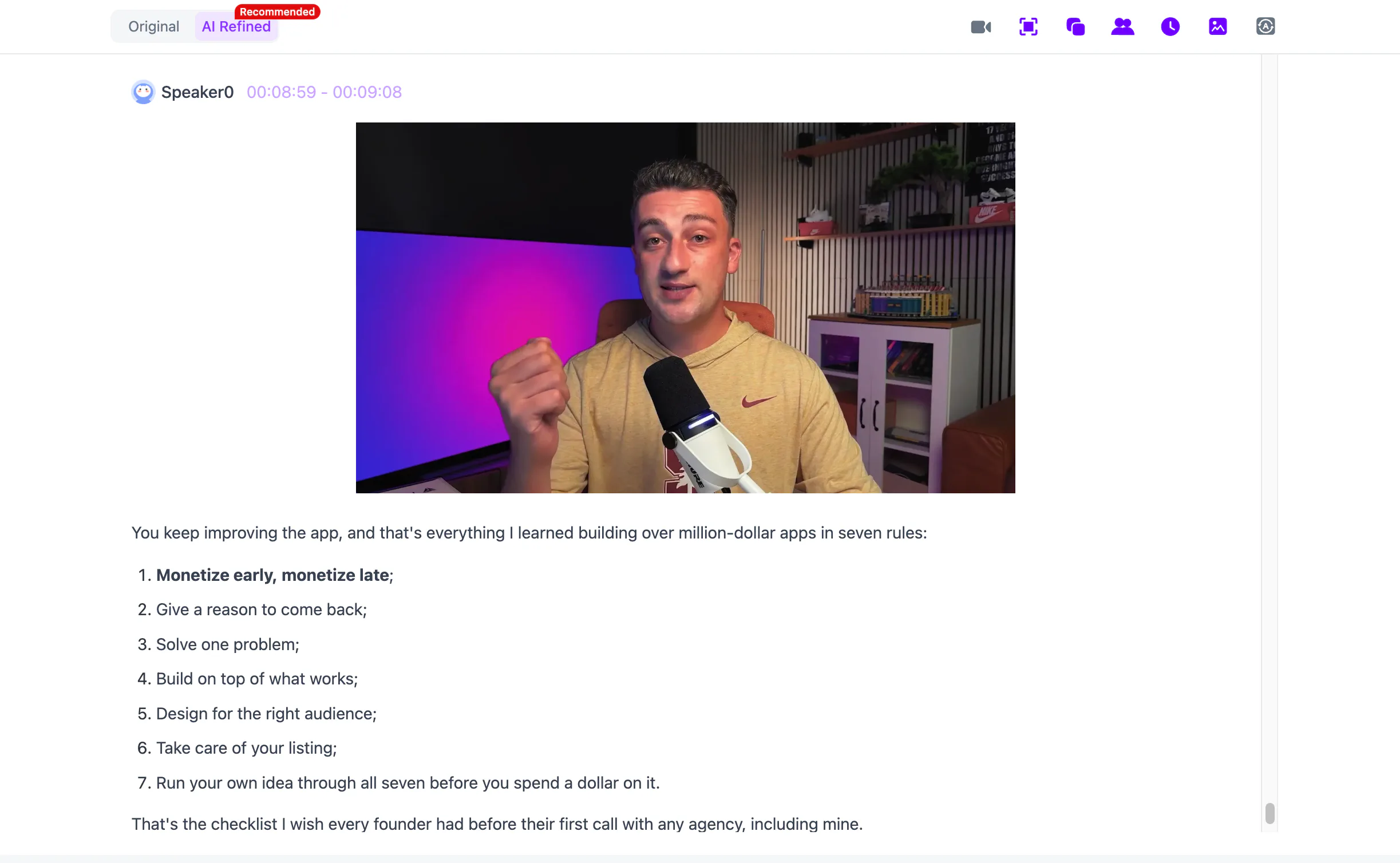
The polished version is normally the better foundation for written documentation because it removes repeated spoken phrases and other conversational clutter. The original remains important when checking commands, filenames, product terminology, numerical settings or anything that must be quoted precisely.
This avoids having to choose between a readable summary and a complete source. The final tutorial can stay concise while the evidence remains available underneath it.
Keep each instruction beside the relevant screen
Transcription alone cannot show which setting was selected or what a completed form should look like.
NoteAi automatically extracts important frames from the recording and places them beside the corresponding spoken content. These may include software interfaces, presentation slides, diagrams, charts, formulas or code.
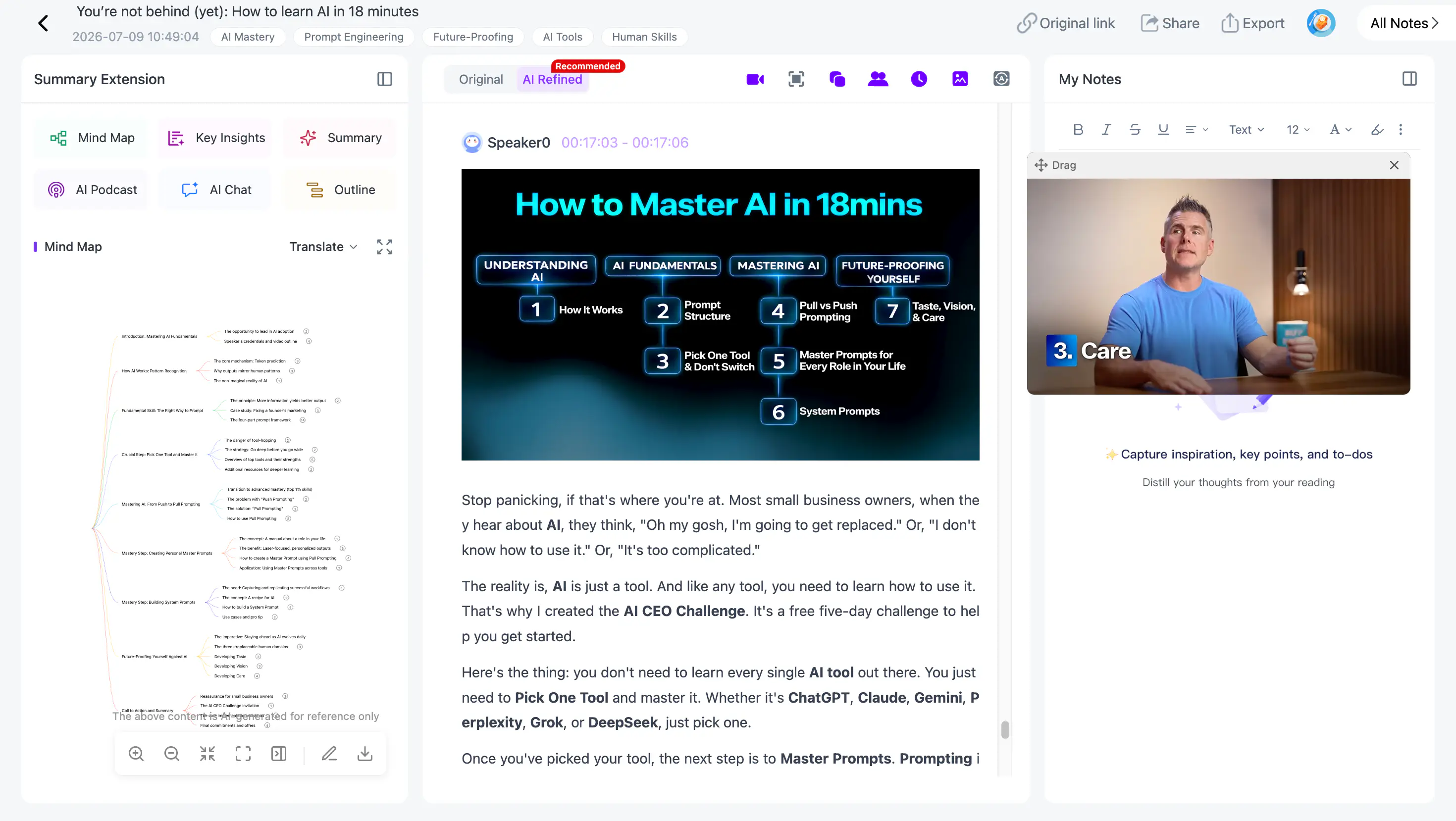
This is particularly useful when the presenter says “choose the option shown here” or “the result should look like this.” The written instruction remains understandable because the screen being referenced is still visible.
Picture-in-picture playback keeps the original recording available while the note is being reviewed. If a screenshot was captured too early or an instruction is unclear, you can check the relevant moment without leaving the reading page.
Turn the recording into a clear procedure
Once the transcript and visual content are ready, select a Summary Template or use a custom prompt to define the final document.
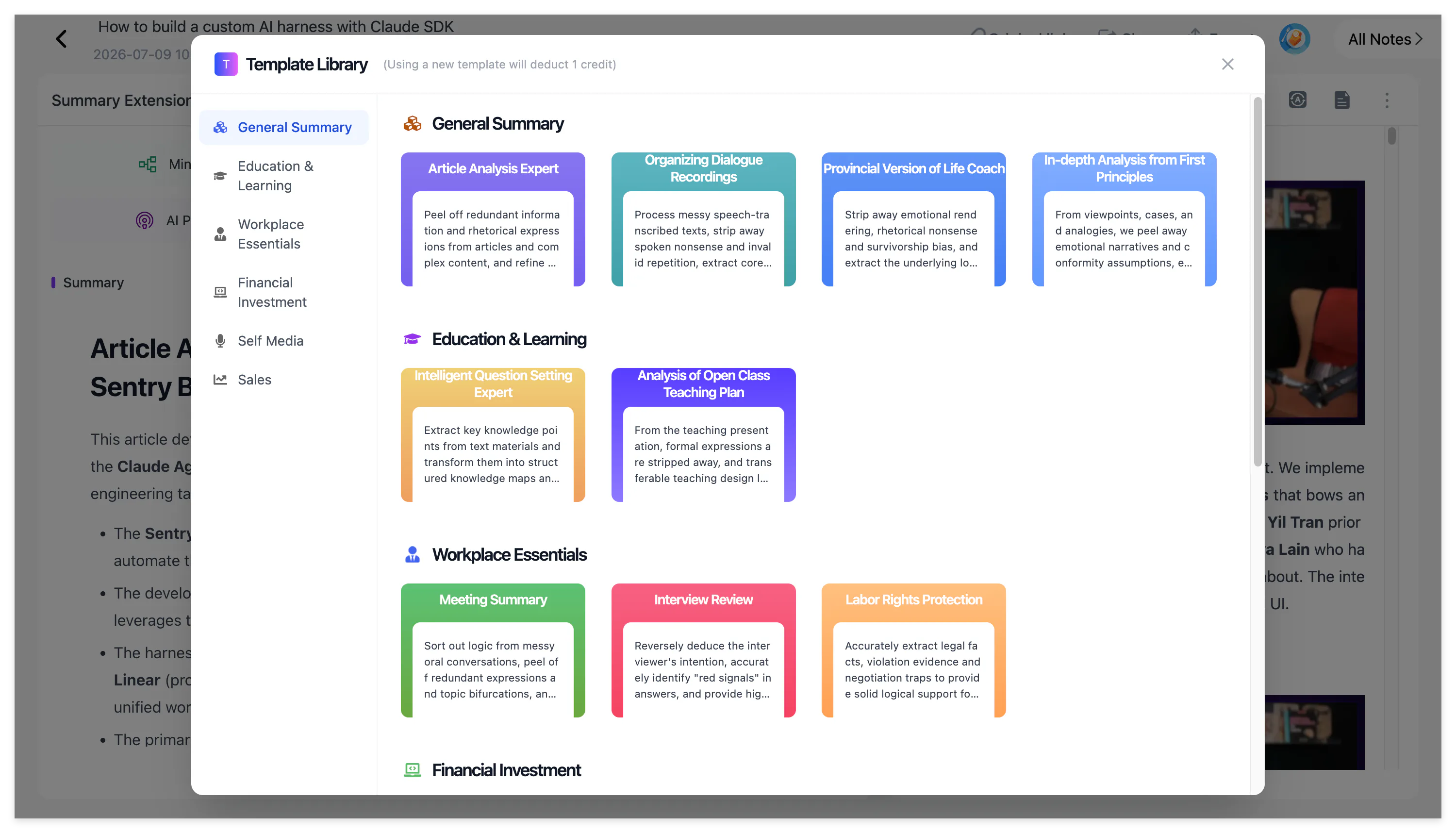
For a software tutorial, the prompt should ask for action-based headings, accurate menu names, prerequisites, warnings and expected results. It should also tell the AI not to invent actions that were never shown in the source recording.
A prompt can be as direct as:
Turn this screen recording into a step-by-step tutorial. Keep product names, menu labels, commands and settings accurate. Explain what the user should do and what result should appear. Retain timestamps for important steps and do not add instructions that were not shown in the video.
Key Insights helps check the overall process before you edit individual instructions. If the recording covers setup, configuration, testing and export, all four stages should appear in the summary.
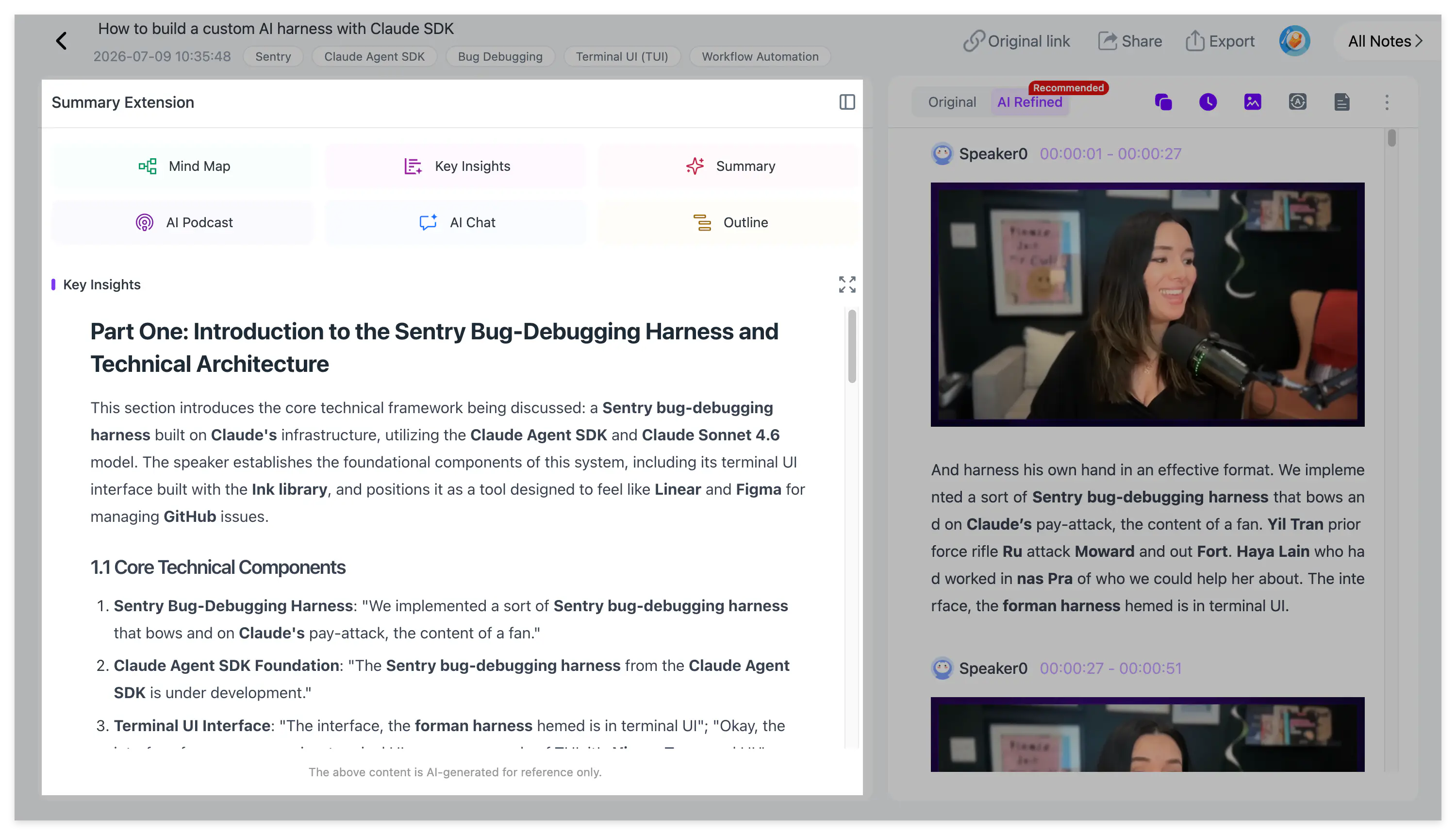
The template can be changed without uploading the source again. A product demonstration may become a customer tutorial, while the same recording could also be organized as internal training notes or a quality-control checklist.
Verify unclear actions before publishing
A generated tutorial should be treated as a structured draft. Commands, paths, interface labels and numerical settings still need to be checked against the source.
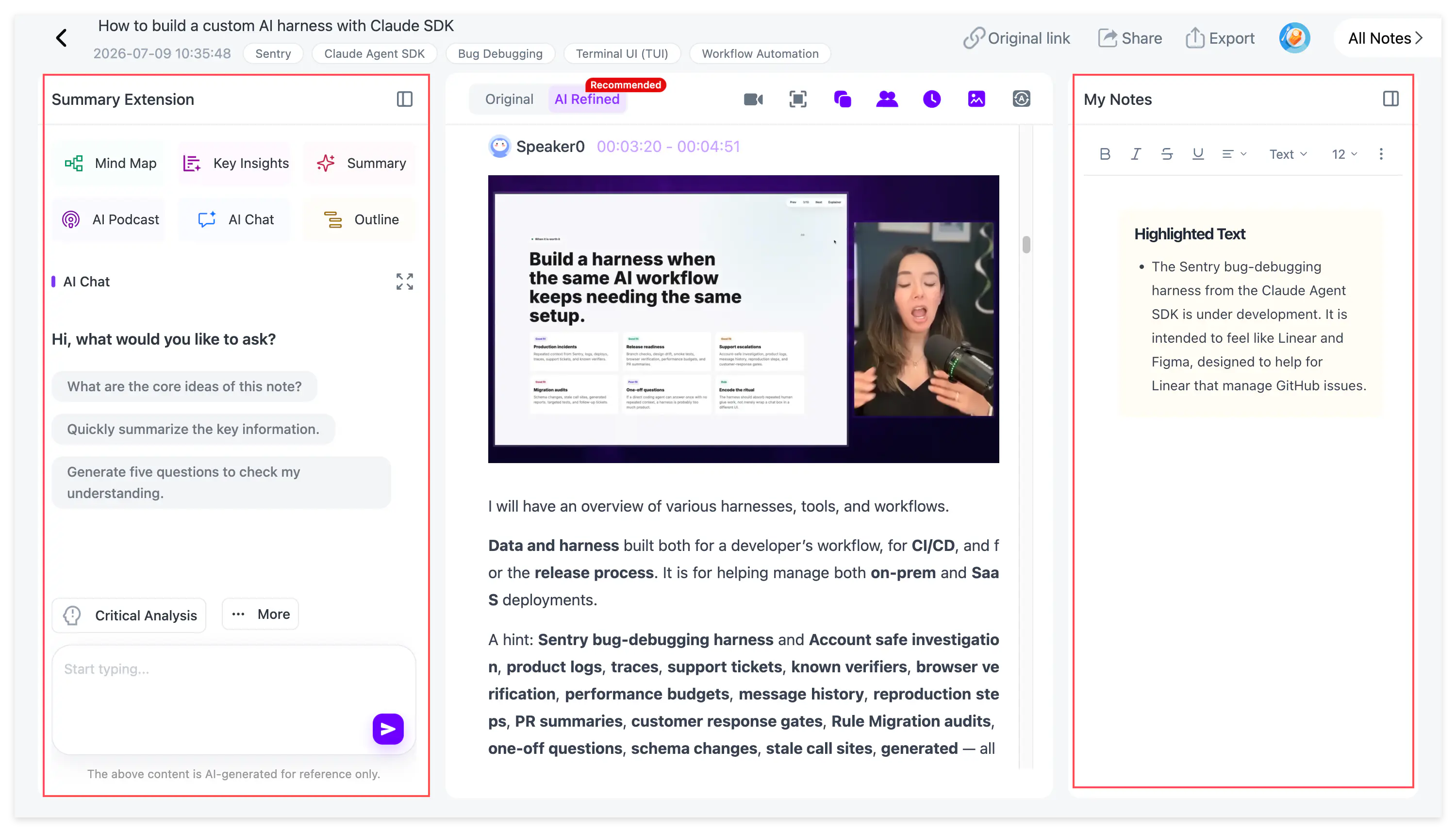
AI Chat in NoteAi helps locate these details. Instead of searching the complete transcript manually, ask where the presenter changed a setting, what appeared after a particular step or whether an alternative method was mentioned.
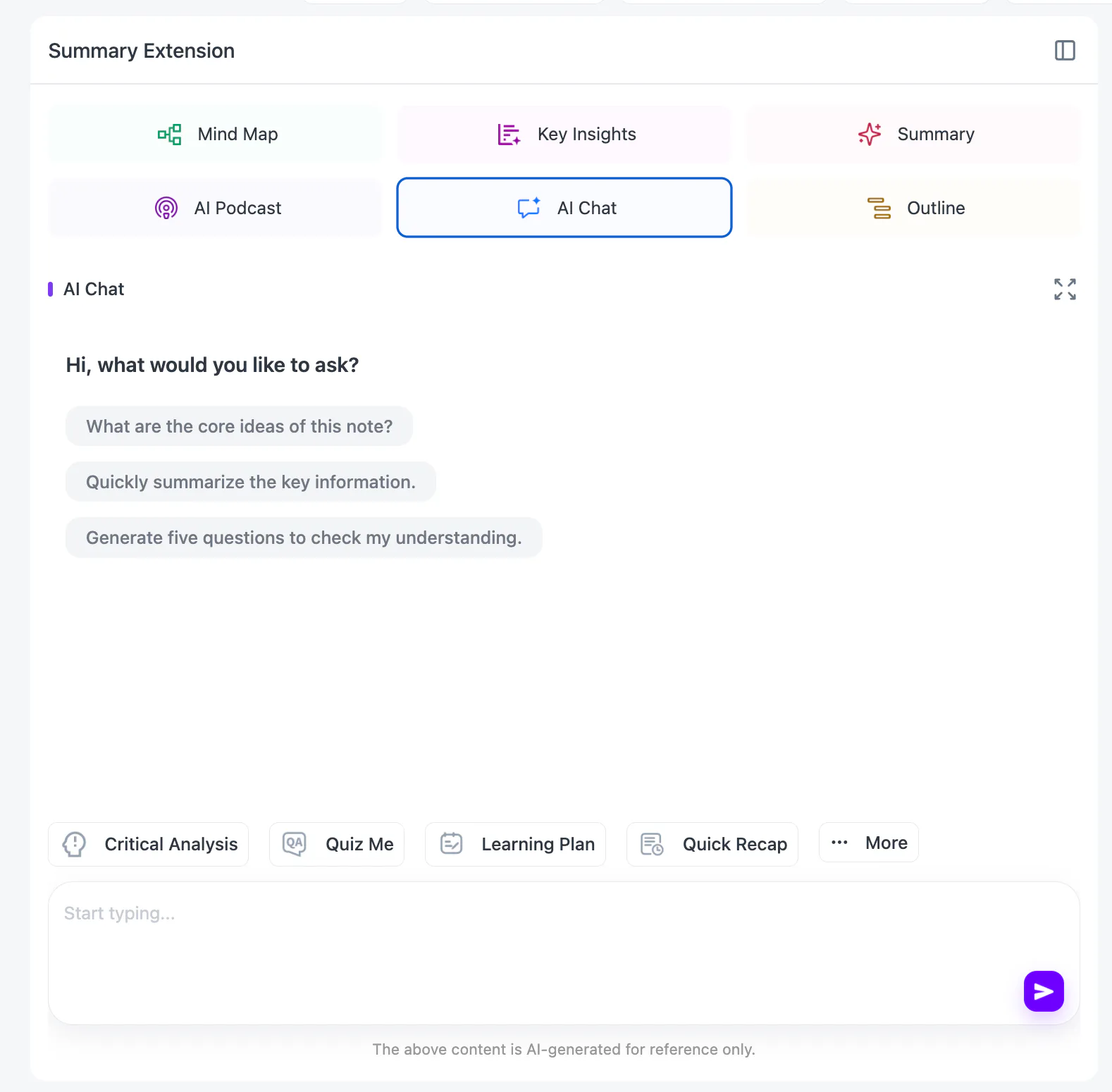
For example, asking “What must be prepared before the export step?” may reveal a requirement mentioned briefly at the beginning of the recording. Asking “Which error message appeared during setup?” can locate a troubleshooting detail that does not belong in the main summary but should be added to the final guide.
Personal annotations can then be placed beside the generated content. This is where you add company-specific permissions, updated product information, internal links or corrections that were not part of the original recording.
Export the guide or keep it searchable
When the tutorial has been checked, export it in the format required by the next step. DOCX works well for collaborative editing, PDF for a fixed training handout, HTML for publishing and Markdown for documentation systems such as Obsidian.

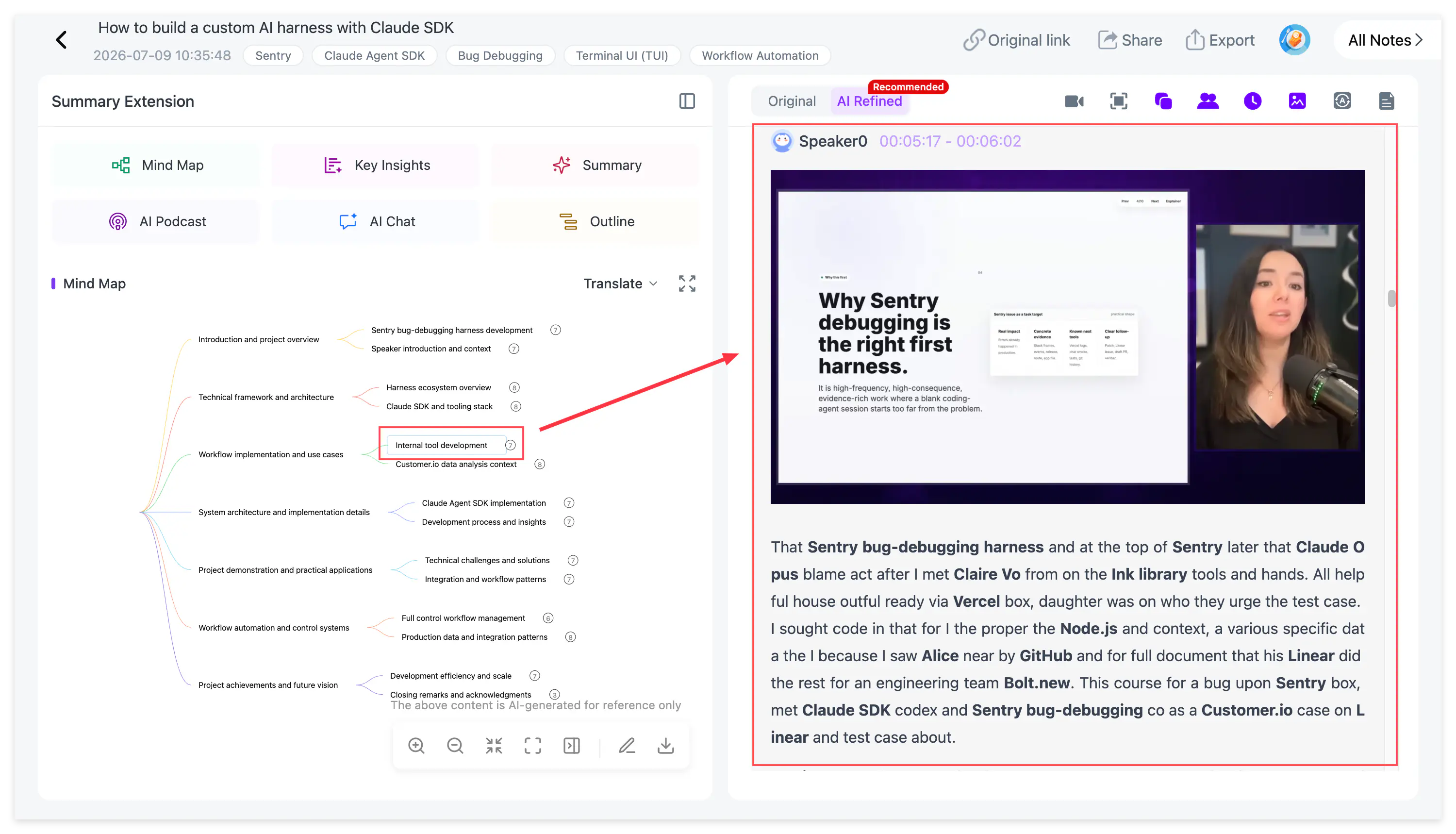
A complex workflow may also benefit from an editable mind map. The map shows the major stages and branches, while Smart Sync returns from a node to the matching moment in the recording.
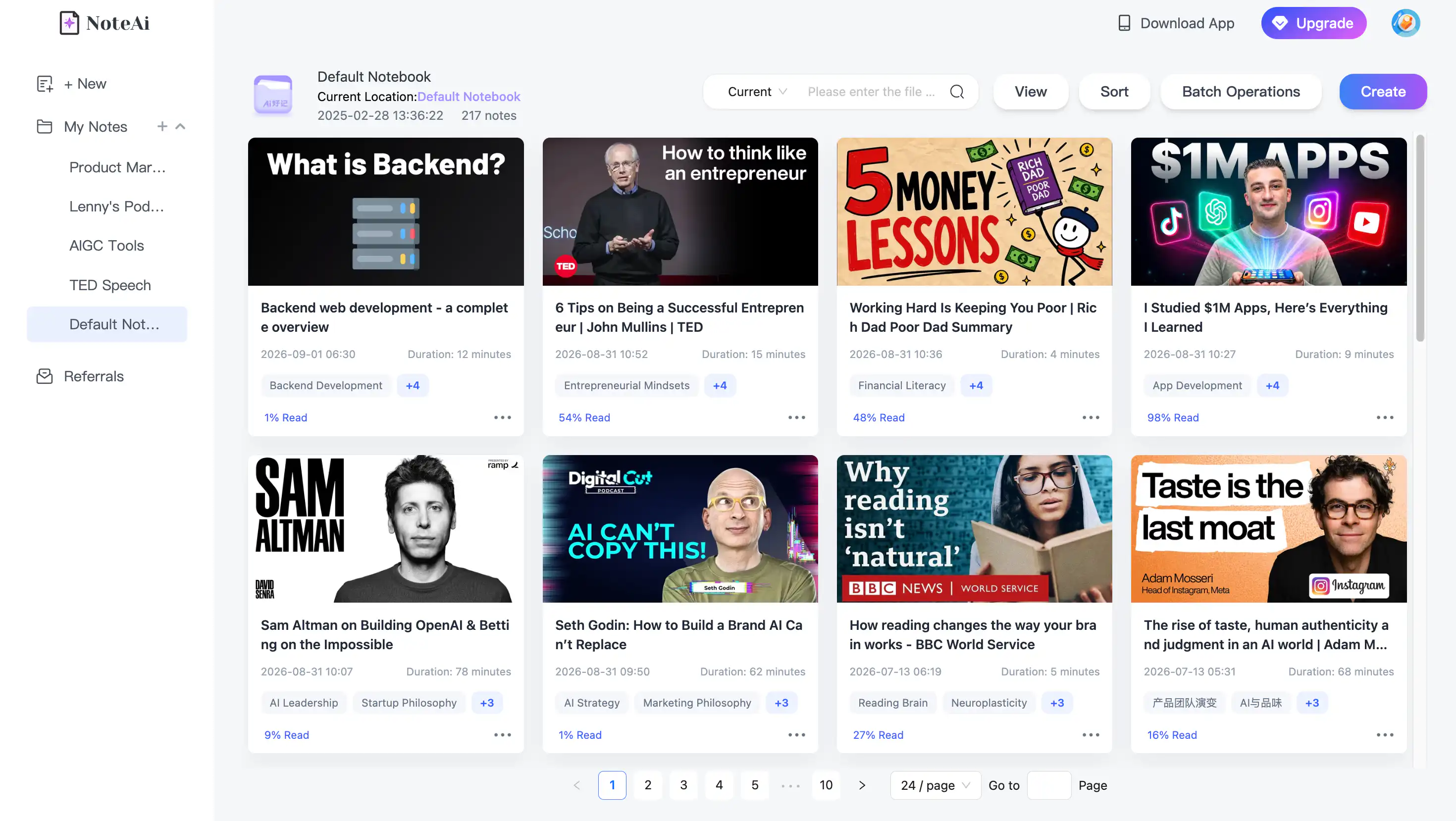
If the tutorial will be updated or reused, save it in the NoteAi Personal AI Knowledge Base. Multi-level categories can separate onboarding, product tutorials, customer support and internal procedures. Global search finds an older instruction even when you no longer remember which recording contained it.
A Practical Example: Turning a Product Demo Into a Help Article
Imagine a 25-minute recording that shows how to connect a calendar, create a project and assign the first task.
After uploading the video, begin with the polished transcript and Key Insights. The summary should reveal the three main stages without turning every sentence into a separate instruction.
Next, review the visual note. Keep the calendar authorization screen, project settings and completed task page because each image helps the reader confirm that the process is working. Remove frames that show only loading screens or repeated mouse movements.
Use a custom prompt to organize the final guide around the three actions. Check product names and permissions against the original transcript, add a short troubleshooting note and export the result as Markdown or HTML.
The 25-minute recording is now a help article that can be read in a few minutes, searched later and updated without transcribing the video again.
When This Workflow Works Best
Screen-recording notes are particularly valuable for software tutorials, employee onboarding, technical courses and standard operating procedures. These recordings usually contain information that speech-to-text alone cannot preserve.
The workflow is less necessary for a short video that contains only one simple instruction. In that case, a transcript or a few manual sentences may be quicker.
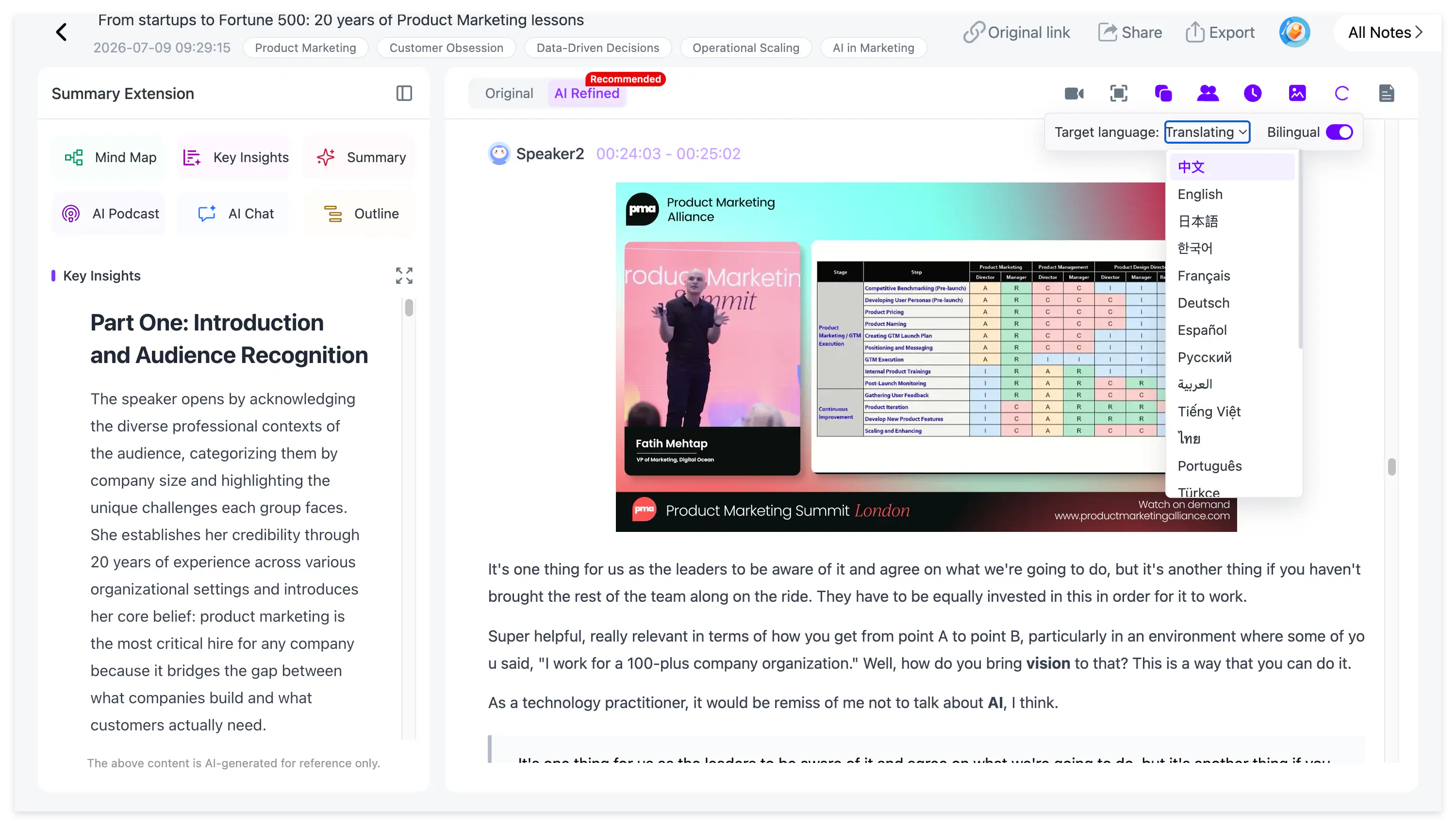
For a foreign-language training video, NoteAi supports 22 languages and a dual-language view. The original and translated text remain available together, making it easier to check technical terms before publishing the instructions.
Frequently Asked Questions
Can AI turn a screen recording into written instructions?
Yes. NoteAi transcribes the explanation, extracts useful screens and organizes the content into an editable step-by-step note. Technical details should still be checked before publishing.
Does the screen recording need subtitles?
No. NoteAi transcribes the audio from the recording, so an existing subtitle file is not required.
Can AI extract screenshots from a screen recording?
NoteAi extracts important interface screens, slides, charts, code and key frames and places them beside the related spoken content.
How long can an uploaded recording be?
A local video or audio file may be up to seven hours and 4 GB. Up to 15 links or files can be processed in one batch.
Can screen recording notes be exported to Obsidian?
Yes. Export the note as Markdown for an Obsidian workflow. Other available formats include DOCX, PDF and HTML.
Is NoteAi free?
NoteAi offers limited free credits so users can test the workflow. It is not an unlimited free screen recording transcription service.
Turn the Demonstration Into Something People Can Use
A recording shows the process once. A well-made note turns that process into a resource people can follow repeatedly.
With NoteAi, the spoken explanation, key screens, timestamps and personal corrections stay connected. The finished result can become a help article, training document, standard operating procedure or searchable knowledge-base entry.
Try NoteAi with your next screen recording and turn the demonstration into clear, reusable instructions.