

A transcript records what a lecturer said. Cornell notes turn that material into something you can review, question and recall.
With NoteAi, the practical workflow is:
- Paste the YouTube lecture link.
- Review the transcript, timestamps and important slides.
- Select the Cornell Notes summary template.
- Edit the generated notes and cue questions.
- Write a short summary in your own words.
- Test your understanding with AI Chat and the original video.
The AI removes much of the copying and formatting work. It does not replace the final learning step: deciding what matters and checking that you can explain it.

What Cornell Notes Add to a Video Transcript
The Cornell method separates a page into three functional areas.
| Section | Purpose | Useful content |
|---|---|---|
| Notes | Capture and organize the lecture | concepts, definitions, explanations, examples and formulas |
| Cues | Turn information into retrieval prompts | questions, keywords, likely exam prompts and relationships |
| Summary | Reconstruct the main argument | a short explanation written after reviewing the notes |
The notes section preserves the explanation
This is the largest section. It should preserve the lecturer’s reasoning—not every spoken sentence—including important distinctions, exceptions and examples.
The cue section creates active recall
Cues let you cover the notes and test yourself. “Photosynthesis” is a label; “Why does the light-dependent stage produce ATP?” is a question you can answer.
The summary tests whether the lecture makes sense
The summary should explain the lecture’s central claim and how its main ideas connect. If you cannot write it clearly, the notes may contain a gap.

Before You Generate the Notes
Define the learning goal
Ask what you need from the lecture before processing it.
- For an exam, prioritize definitions, mechanisms and likely comparison questions.
- For an assignment, preserve claims, evidence and source details.
- For a practical course, keep procedures, decisions and demonstrations.
Check how much meaning is visual
A lecture built around diagrams, equations or demonstrations cannot be understood from speech alone. Plan to review extracted key frames beside the transcript. For a talking-head lecture, the transcript will carry more of the content.
Make a short watch list
Write down unfamiliar terms, formulas or topics you already find difficult. These become checkpoints during transcript review.
How to Create Cornell Notes From a YouTube Lecture With NoteAi
Step 1: Paste the YouTube lecture URL
Open NoteAi, choose the link-import option and paste the individual YouTube video URL. Start processing the lecture and wait for the note workspace to open.
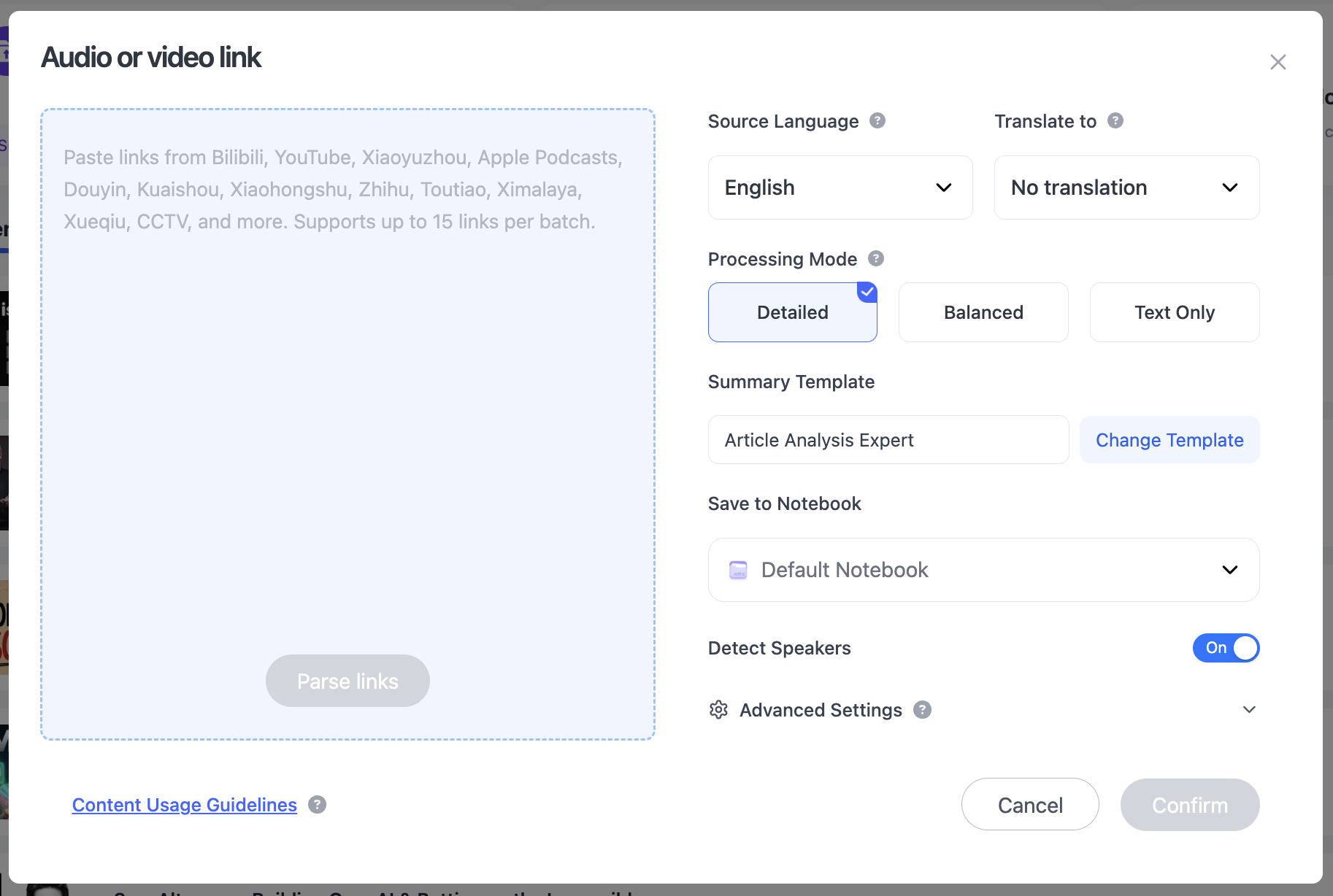
Use the exact lecture video, not a channel page. Process separate lectures as separate notes so each retains a clear source.
For a broader YouTube workflow, see YouTube to Notes: How to Turn a YouTube Video Into Study Notes With AI.
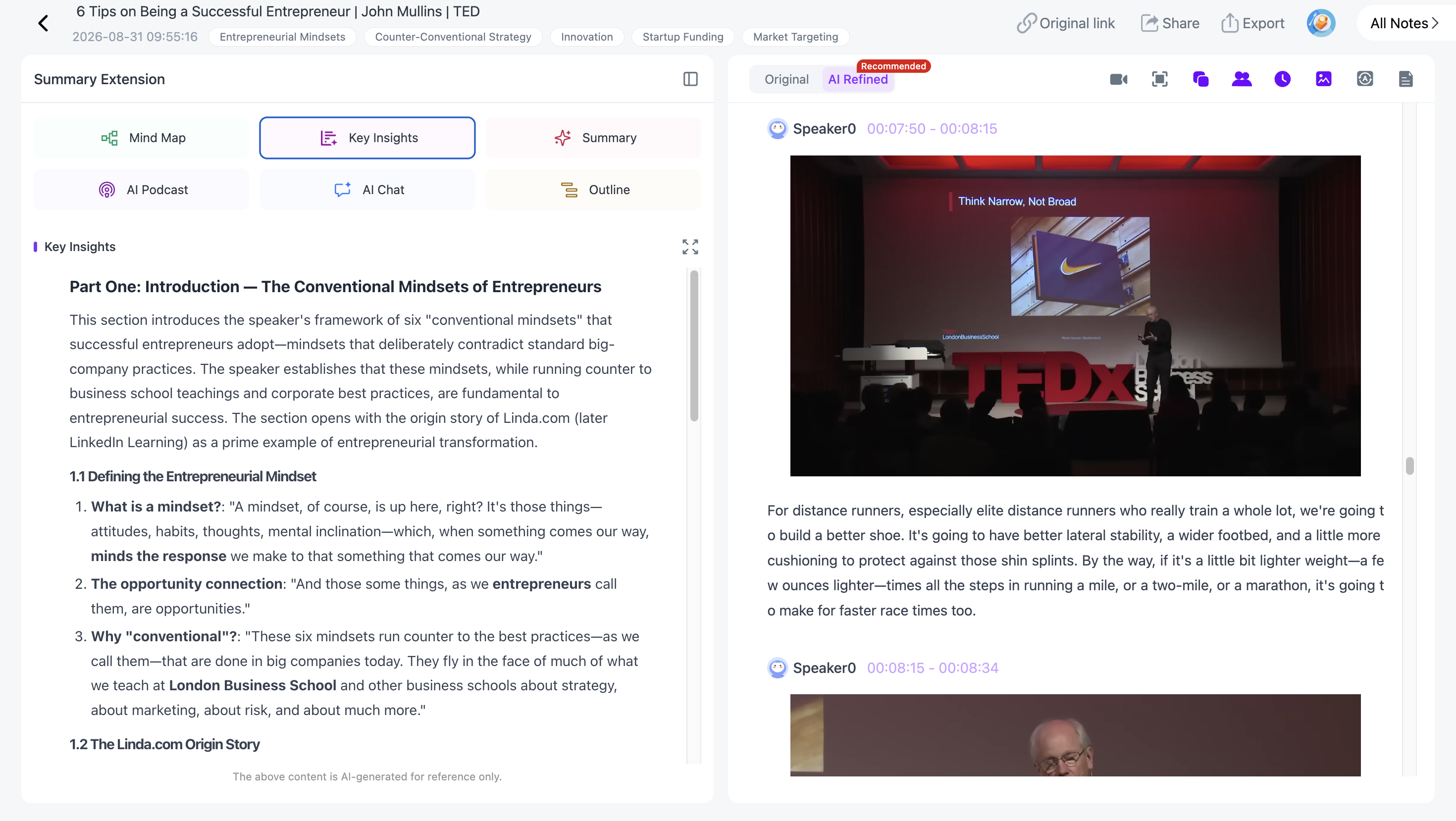
Step 2: Preview the lecture with Key Insights
Read Key Insights before editing. It gives you a quick map of the lecture and its main sections.
Do not copy these points directly into the cue column. First decide which ideas are central to your learning goal and which are background.
Step 3: Review the transcript before trusting the summary
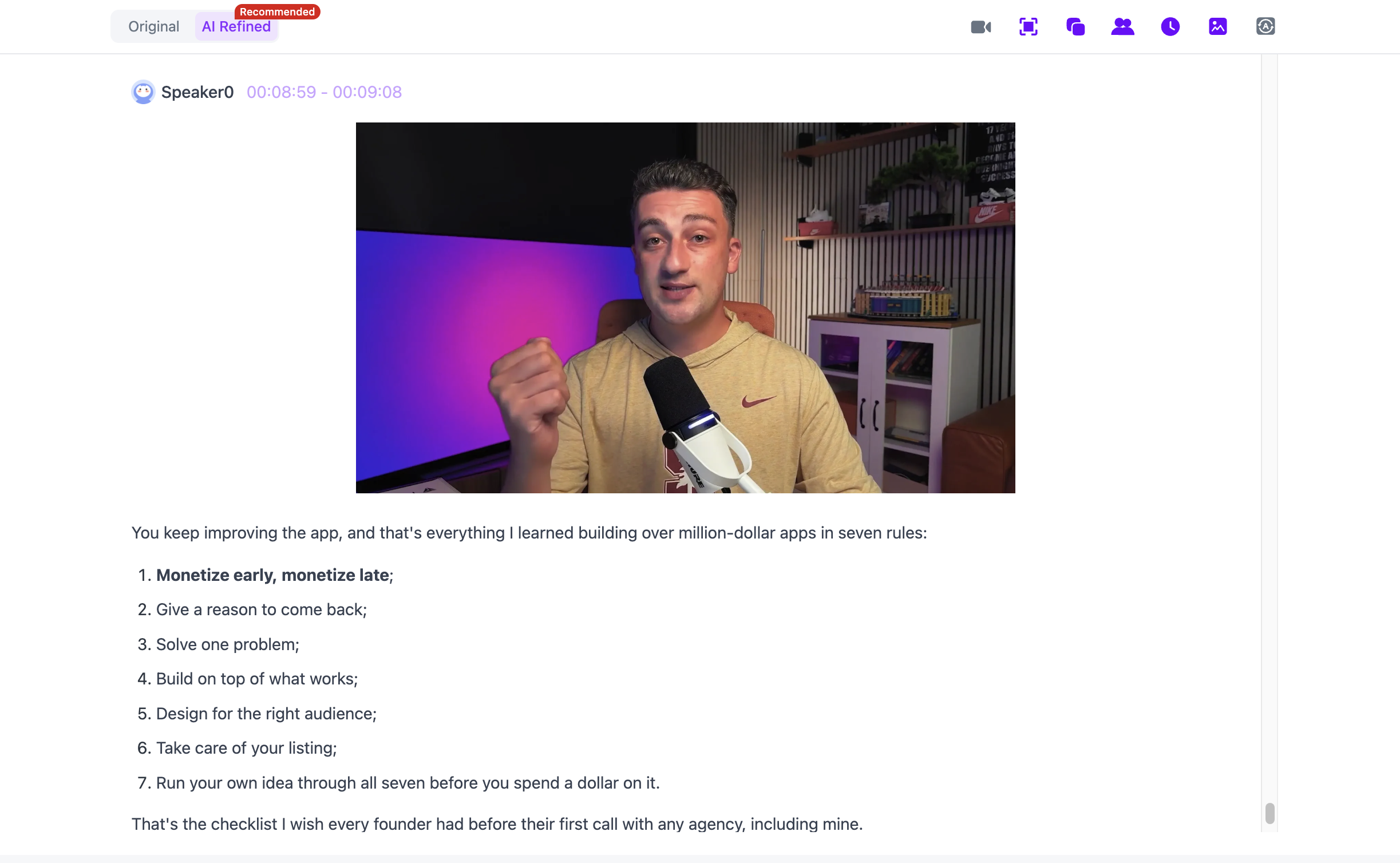
NoteAi keeps the source transcript with timestamps. It can also provide an AI-polished version that removes some filler and improves readability.
Use them for different purposes:
- Check names, numbers, terminology and possible quotations in the original transcript.
- Use the polished transcript to follow the argument more easily.
- Return to the video when poor audio, accents or specialist vocabulary make a line uncertain.
Step 4: Keep slides and key frames with the lecture explanation
Open Visual Notes and check the images extracted from the video. Match an important diagram or slide with the nearby explanation and timestamp.

Visual Notes preserve useful PPT pages and key frames; they do not recreate an editable slide deck or guarantee every frame. Add a short explanation so each image remains meaningful later.
The complete visual workflow is covered in Video to Notes: Turn Videos Into Visual Notes With AI.
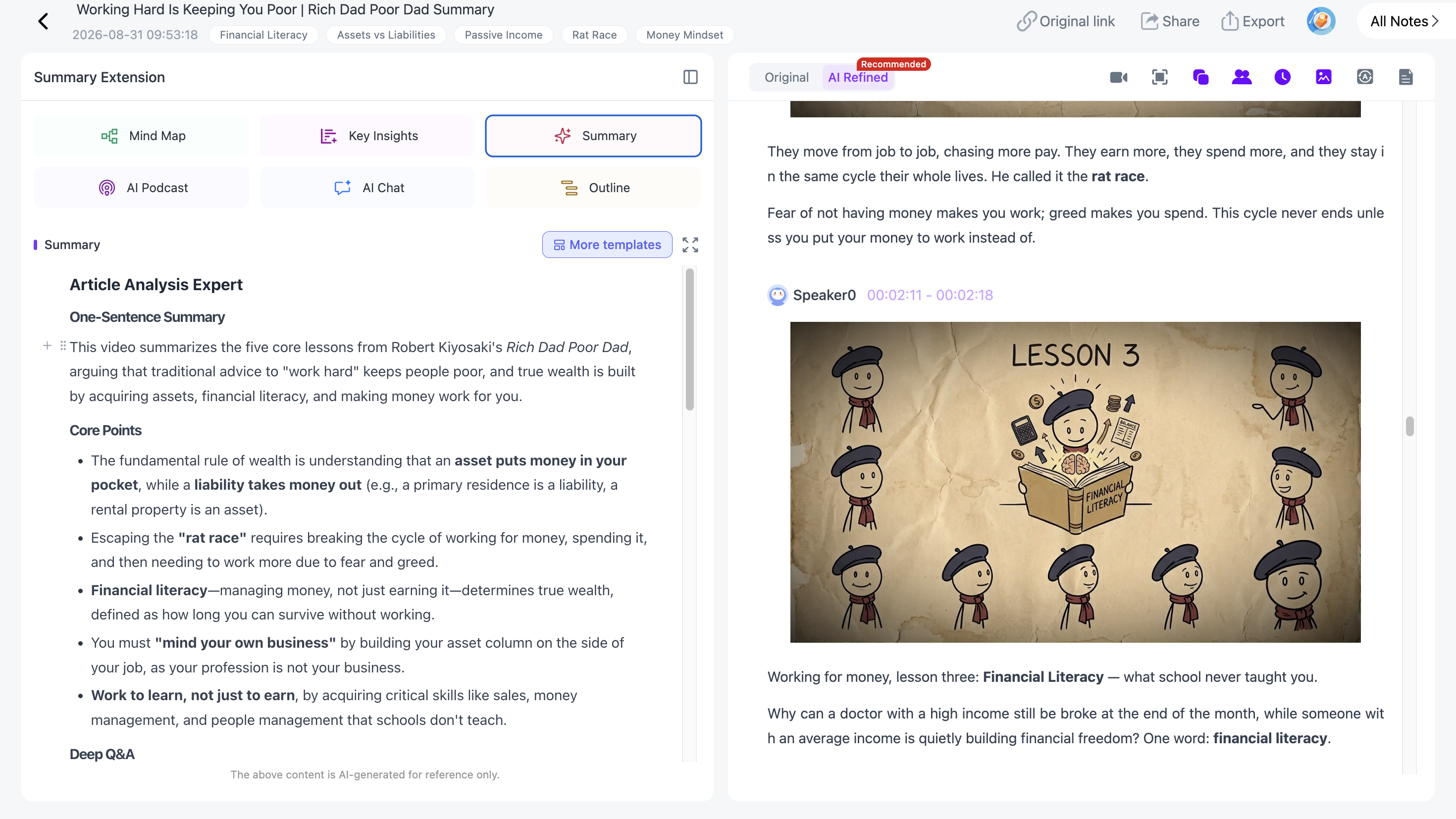
Step 5: Select the Cornell Notes summary template
After the lecture has been processed, open the summary-template options and choose Cornell Notes. The template is a deliberate choice; do not assume every new note is automatically formatted this way.

Generate the draft, then check it against the transcript and visuals. Treat the result as an editable first pass.
Step 6: Edit the notes section into useful units
Keep one idea per bullet or short block. Include the claim and the detail needed to understand it.
For example:
- Weak: “The professor discusses working memory.”
- Better: “Working memory has limited capacity; presenting several unfamiliar elements at once can overload it.”
- Best for review: Add the lecturer’s example and the relevant timestamp.
Delete repetition, but preserve qualifications, exceptions and useful examples.
Step 7: Rewrite the cue column as questions
Turn the main notes into prompts you can answer without looking at the right-hand section.
Useful cue patterns include:
- What does X mean?
- Why does X cause Y?
- How is X different from Y?
- When does this rule not apply?
- What does the diagram show?
- How would I use this idea in a new example?
One clear cue can test a complete concept; you do not need a question for every sentence.
Step 8: Write the summary after closing the notes
Cover the notes and explain the lecture from memory in three to five sentences. Reopen it and correct missing or inaccurate details.
A useful summary answers:
- What problem or question did the lecture address?
- What was the central explanation or argument?
- Which ideas support it?
- What conclusion should the learner remember?

Step 9: Use AI Chat to find gaps, not to skip recall
AI Chat can answer questions about the current processed lecture. Use it after attempting your own answer.
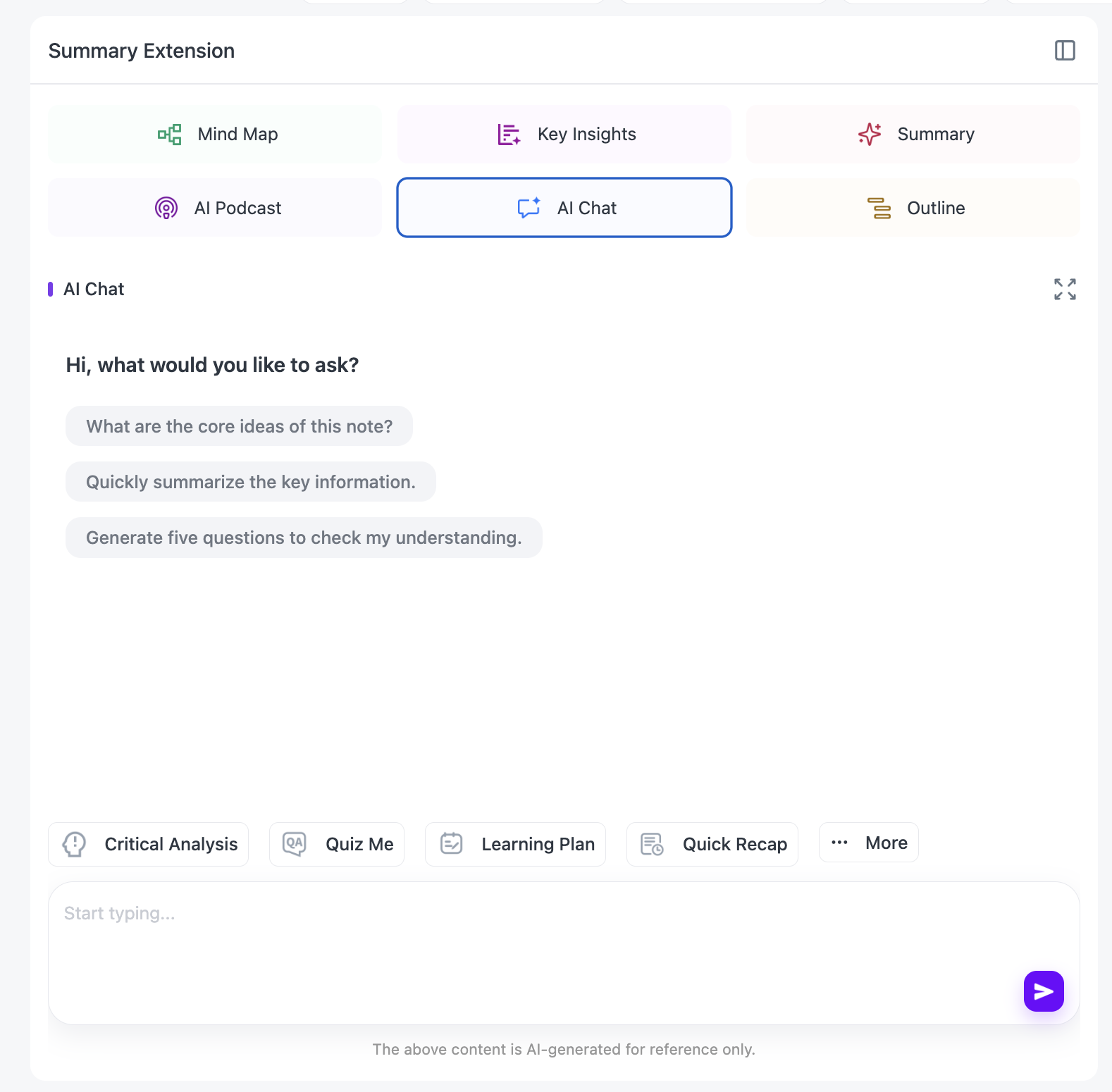
Try prompts such as:
Ask me five short-answer questions based only on this lecture. Do not show the answers until I respond.
Which two concepts in my notes are easiest to confuse? Explain the difference and point me to the relevant part of the source.
Find a claim that needs a visual or example to understand correctly.
Check important AI answers against the transcript and video.
Step 10: Review the structure with the Mind Map
Open the Mind Map to see the hierarchy of the lecture. Compare it with your cue questions: each major branch should have at least one prompt you can answer.
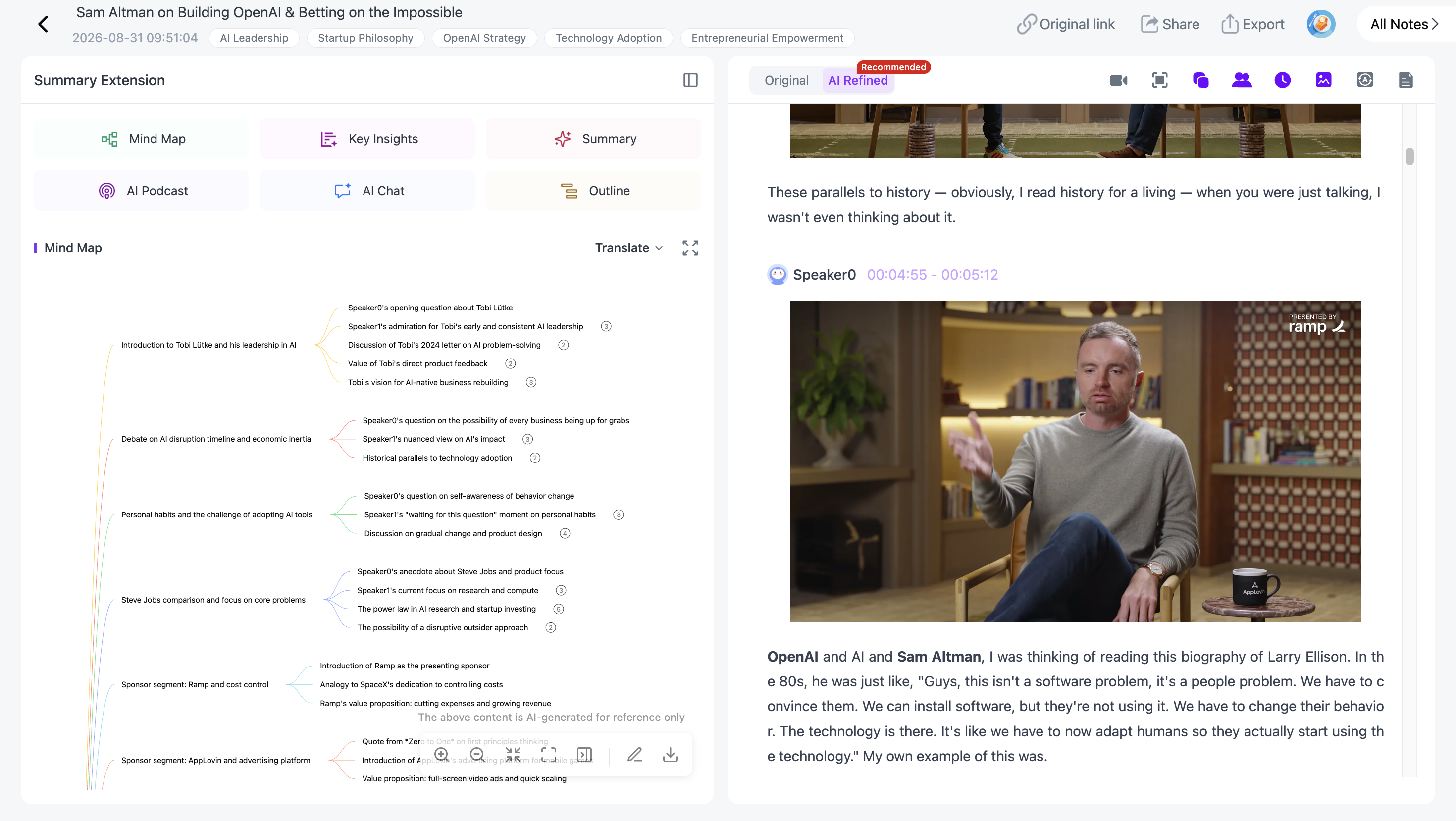
If a branch is missing, decide whether it is irrelevant or accidentally omitted. Smart Sync can return from a map node to the related source moment.

Step 11: Export the finished note
Export the note when the cues, notes and summary have been reviewed. NoteAi supports Word, PDF, Markdown and HTML exports.

Choose the format based on the next action:
- PDF: printing or fixed review copies;
- Word: continued editing in a document;
- Markdown: linking and reorganizing notes in a text-based knowledge base;
- HTML: portable browser-readable output.
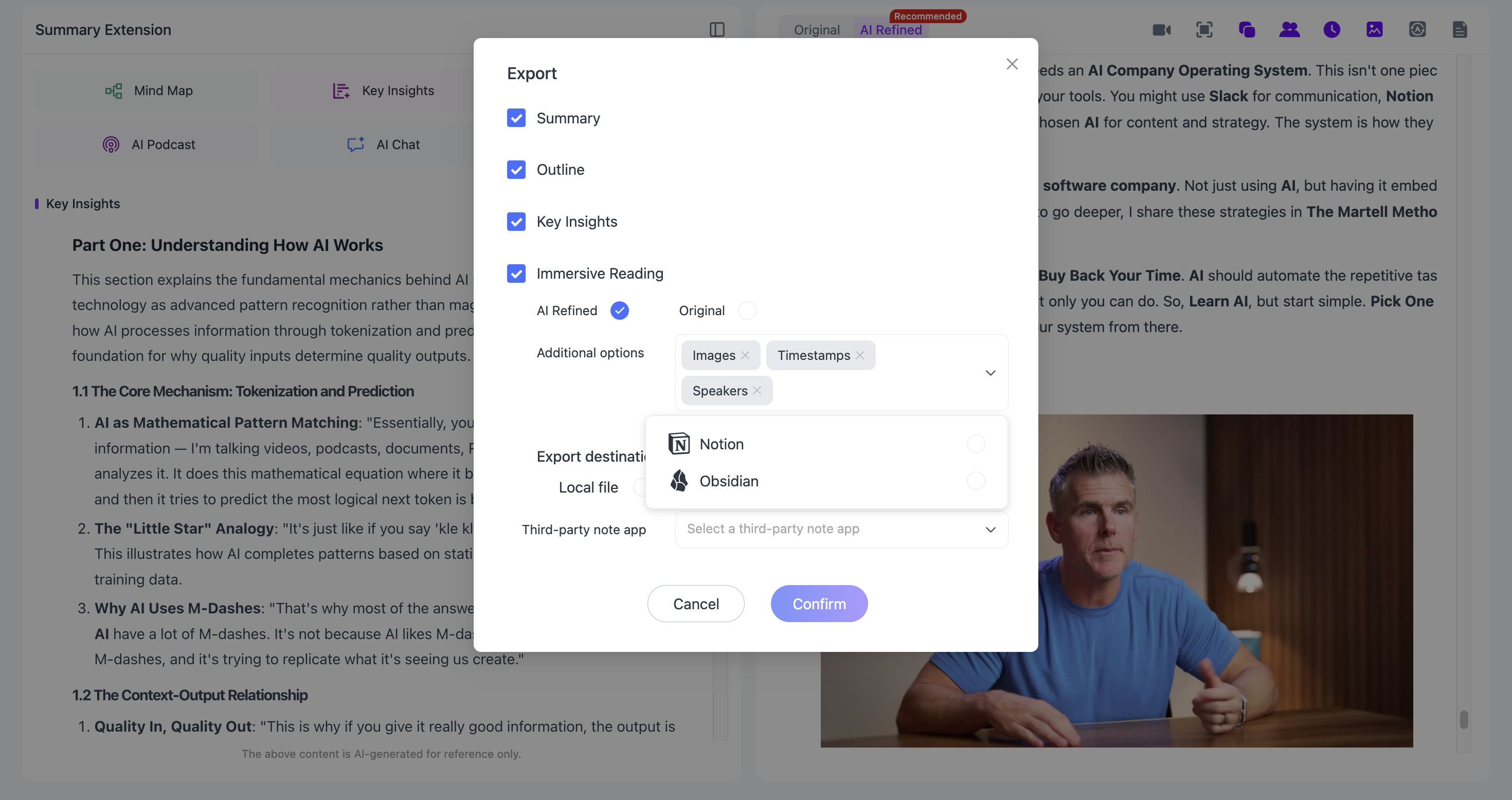
If Markdown is your destination, continue with How to Turn YouTube Videos Into Obsidian Notes With AI.
Worked Example: A 60-Minute Biology Lecture
Imagine a lecture explaining cellular respiration. The table below is an illustrative Cornell note, not the output of a claimed product test.
| Cue | Notes |
|---|---|
| What is the purpose of cellular respiration? | Cells convert energy stored in glucose into ATP that can power cellular work. |
| Where does glycolysis occur? | In the cytosol. It splits one glucose molecule and produces a small amount of ATP and electron carriers. |
| Why is oxygen important? | Oxygen serves as the final electron acceptor in the electron transport chain, allowing the process to continue efficiently. |
| How do the stages connect? | Products from glycolysis feed later stages; electron carriers transfer high-energy electrons to the electron transport chain. |
| What visual should I revisit? | The flow diagram connecting glycolysis, the citric acid cycle and oxidative phosphorylation. Add its timestamp. |
Summary: Cellular respiration transfers energy from glucose into ATP through connected stages. Glycolysis begins the process, later reactions load electron carriers, and the electron transport chain uses those electrons to support most ATP production. Oxygen enables the final transfer of electrons.
The note leaves out repetition and administration. It keeps the mechanism, relationships and visual checkpoint needed for review.
How to Study From the Finished Cornell Note
Run a cue-only review
Cover the notes section and answer every cue aloud or on paper. Mark each answer as correct, partial or missing.
Do not reread first. Recognition feels fluent but does not show that you can produce the answer.
Reopen the source only where recall fails
Use the timestamp, transcript search or Smart Sync to revisit the explanation. Correct unclear notes as well as weak recall.
Review again after a delay
Reuse the cues in later sessions. Remove trivial questions and add new ones for concepts you still confuse.
When Cornell Notes Are—and Are Not—the Best Format
Cornell notes suit concept-heavy lectures with definitions, explanations and relationships—especially when an exam requires recall or short written answers.
Choose another structure when the source has a different job:
| Source type | Better structure |
|---|---|
| Software or craft tutorial | numbered procedure with checkpoints |
| Debate or interview | claim, evidence, counterargument and source |
| Formula-heavy problem solving | worked examples with error notes |
| Very short explainer | concise summary plus two or three questions |
| Broad survey lecture | outline or Mind Map before detailed notes |
The best template follows the material. Cornell notes are a method, not a requirement for every video.
Frequently Asked Questions
Can AI create Cornell notes from any YouTube lecture?
It can create a useful draft when the audio is understandable and the content has structure. Poor audio, specialist terms and dense visuals require more checking.
Does NoteAi select the Cornell Notes template automatically?
No. Process the lecture first, then choose Cornell Notes from the available summary templates. This keeps the format under the user’s control.
Should I use the original or AI-polished transcript?
Use the polished version for reading and the original for exact wording, names and numbers. Return to the video when a detail matters.
Can NoteAi capture lecture slides?
Visual Notes can pair useful PPT pages and key frames with spoken content. It does not recreate an editable PPTX or guarantee every slide.
Can I ask questions about the lecture?
Yes. AI Chat can answer source-based questions about the processed note and can help generate practice questions. Verify high-stakes or ambiguous answers against the source.
Which export format is best for Cornell notes?
Use PDF for printing, Word for conventional editing and Markdown for a linked knowledge base such as Obsidian. HTML is useful when you want a portable browser-readable file.
Build the Note, Then Do the Learning
Turning a YouTube lecture into Cornell notes is not about making the most complete transcript. It is about building a compact path from the source to recall.
NoteAi can handle the transcript, key visuals, structured template and source-linked review. Correcting the draft, writing useful questions and explaining the lecture without looking turns it into a study tool.