

If you need the full text of a video, the useful questions are simple: how much is free, how long can each file be, do you get timestamps and speaker labels, and can you export the transcript?
This guide compares 8 popular free or free-to-try video-to-text tools: NoteAi, TurboScribe, Descript, VEED, Notta, HappyScribe, Otter and ScreenApp.
If you only want one recommendation, NoteAi is our pick when the transcript needs to stay useful after conversion. It keeps timestamps and speakers, then continues into Visual Notes, summaries, translation, Mind Maps, AI Q&A and a searchable knowledge base.
Quick Comparison: What’s Actually Free?
| Tool | Free limit | Per-file / job limit | Export rule | Best for |
|---|---|---|---|---|
| NoteAi | Free plan with limited credits | Local media technical limit: up to 7 hours or 4GB; free usage depends on credits | Notes support DOCX, PDF, HTML and Markdown export | Video-to-text that continues into notes, visuals and AI Q&A |
| TurboScribe | 3 transcripts/day | 30 min per free upload | TXT, DOCX and SRT are available in the free-account workflow | Straightforward recurring file transcription |
| Descript | 60 media min/month | 60 media min/month is the main Free-plan usage pool | Transcript export supports DOCX, HTML, Markdown, TXT and RTF | Creators who edit video through text |
| VEED | Free to try | Longer transcription depends on plan | Free can export the video with burned-in subtitles; separate TXT/SRT/VTT transcript files require paid | Captions, subtitles and social video |
| Notta | 120 min/month | 3 min per conversation on Free | Text can be copied on Free; downloadable transcript files are documented as Pro+ | Multilingual transcription and meetings |
| HappyScribe | 10-min AI trial | Free meeting recordings up to 45 min each | DOCX, TXT and SRT export; watermarked MP4 on Free | Multilingual transcripts and subtitles |
| Otter | 300 min/month | 30 min per transcription; 3 lifetime file imports | Basic exports TXT; paid plans add DOCX, PDF and SRT | Meetings and recorded conversations |
| ScreenApp | 2 free transcriptions | Up to 45 min each | PDF, DOCX, TXT, SRT and VTT export included | Public-link and file-to-transcript workflows |
Free-plan details last checked: September 24, 2026. Limits and export rules change frequently, so the volatile figures above are linked to official pricing or help pages. NoteAi's 7-hour/4GB figure is a technical local-media limit, not an unlimited free allowance.
What Should You Compare Beyond Free Minutes?
Free minutes are only useful if the result fits your workflow. For video-to-text, the practical differences are per-file limits, timestamps, speaker labels and export rules.
For lectures, interviews and tutorials, it also helps when the transcript can stay connected to the original video or continue into notes, translation and AI questions.
The eight tools below cover those needs in different ways.
8 Free Video-to-Text Tools to Try in 2026
1. NoteAi — Best for Turning Video Into Text You Can Keep Using
NoteAi is a strong fit when the transcript is not the finish line.
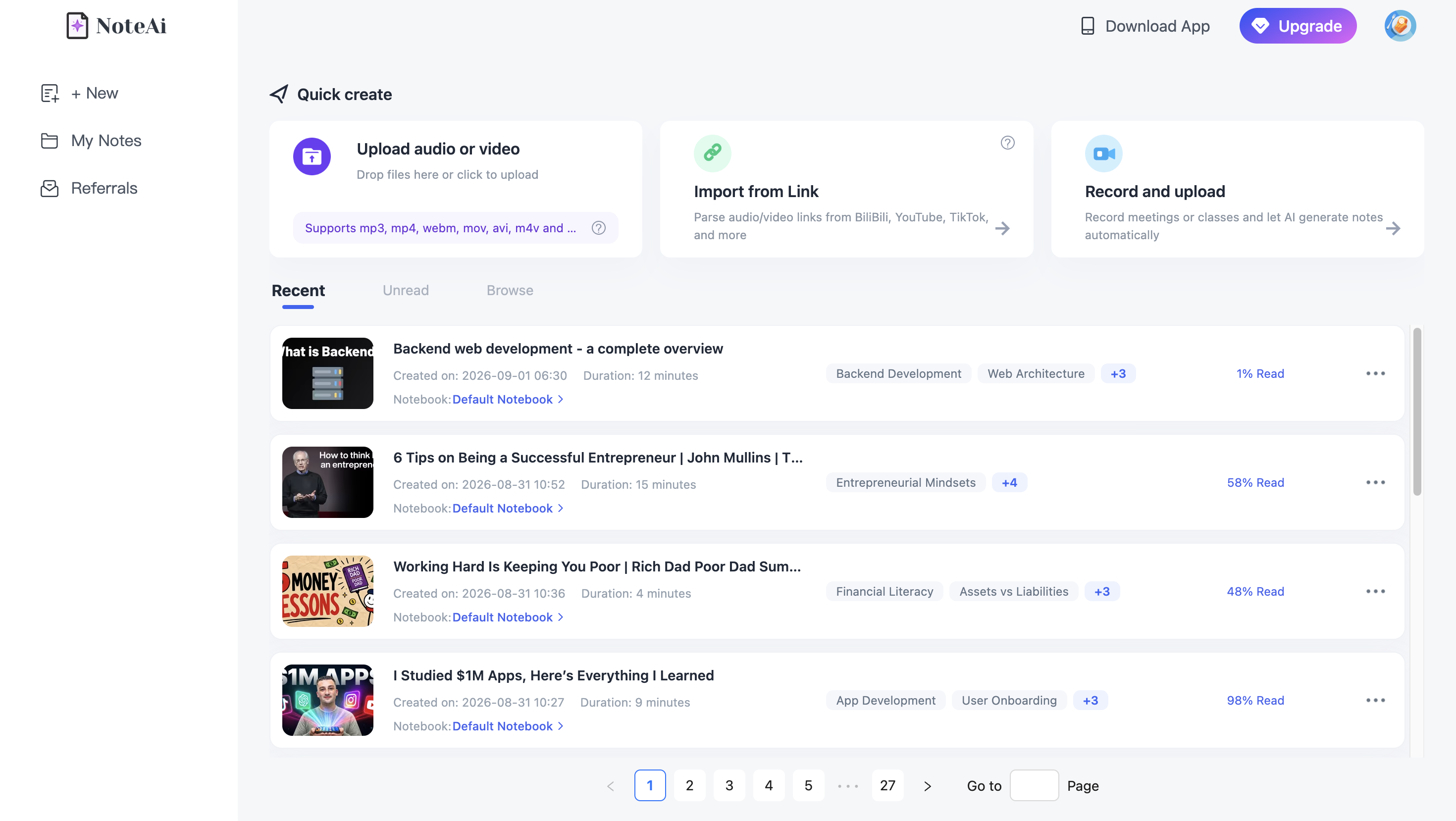
You can paste a YouTube link, upload local video/audio or work with recorded content.
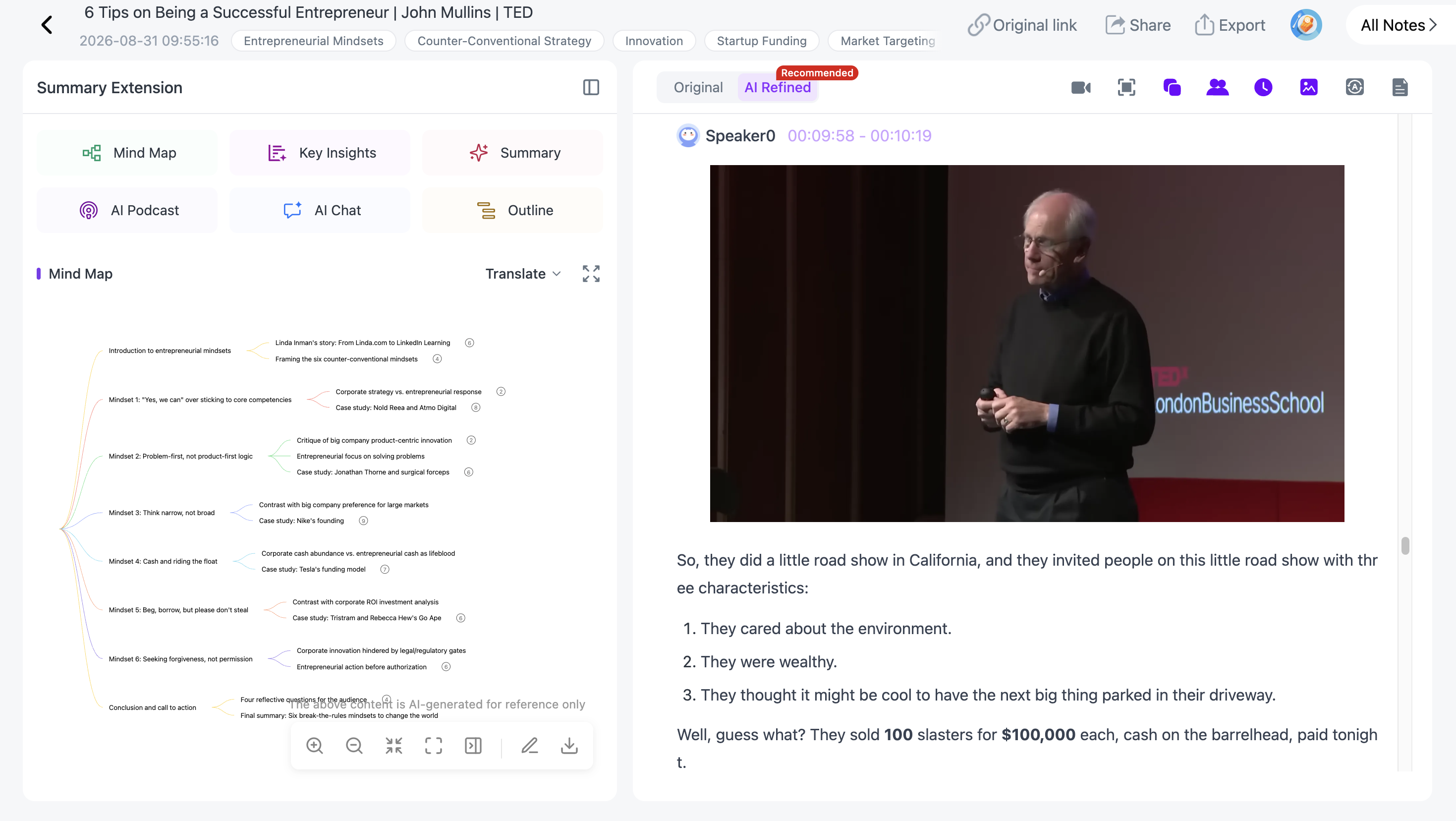
NoteAi generates the full transcript with timestamps and speaker-aware text, while keeping the source connected to the note.
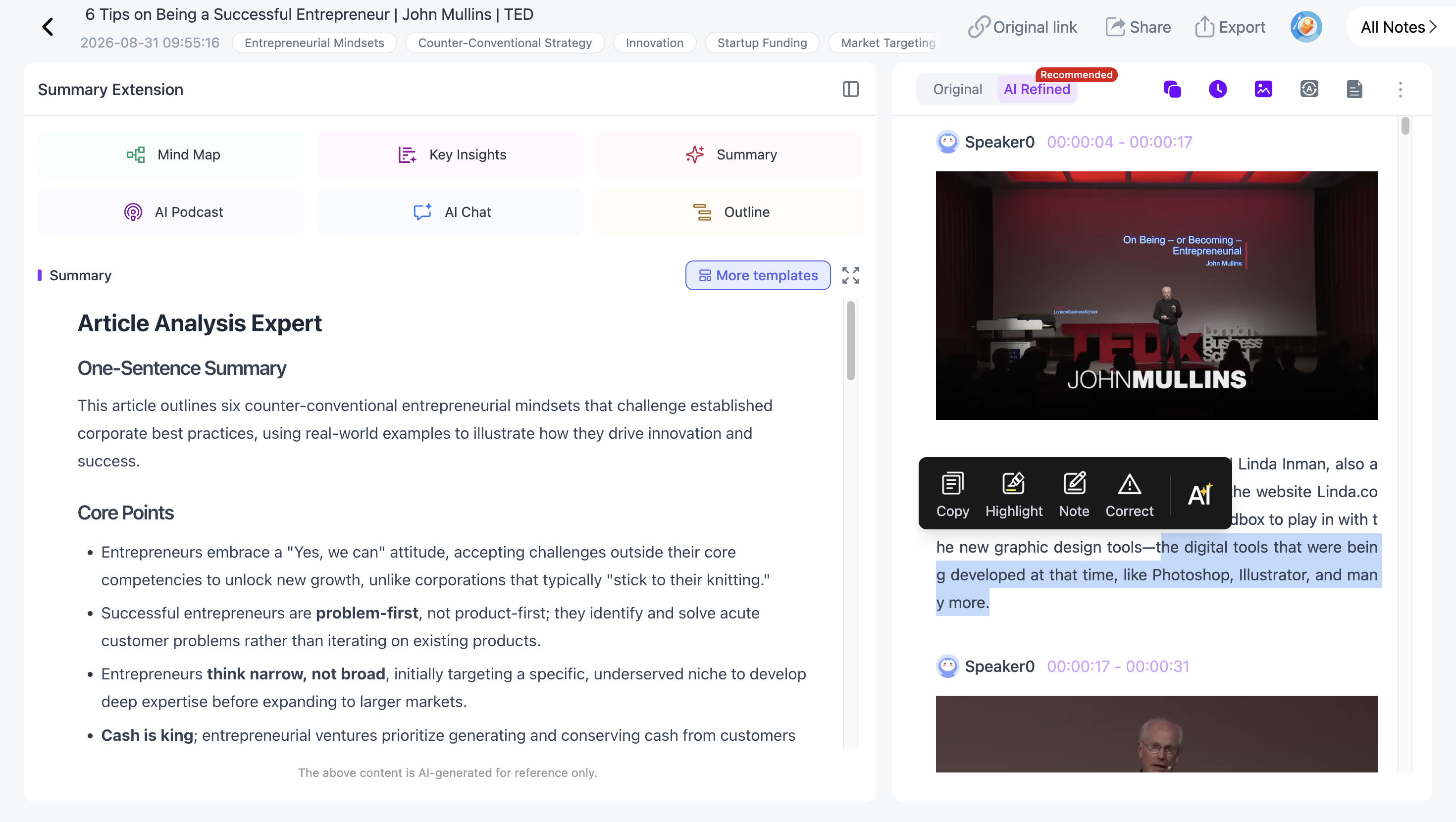
It also keeps an AI-polished reading version beside the original transcript. That is useful for lectures, interviews and long conversations where you want readable text without losing access to the source wording.
After transcription, the same video can continue into summaries, Visual Notes, translation, Mind Maps and AI Chat.
Free access: NoteAi has a free plan with limited credits.
Best for: students, researchers, creators and professionals who want a transcript plus a complete video-to-knowledge workflow.
2. TurboScribe — Best for a Clear Daily Free Transcription Allowance
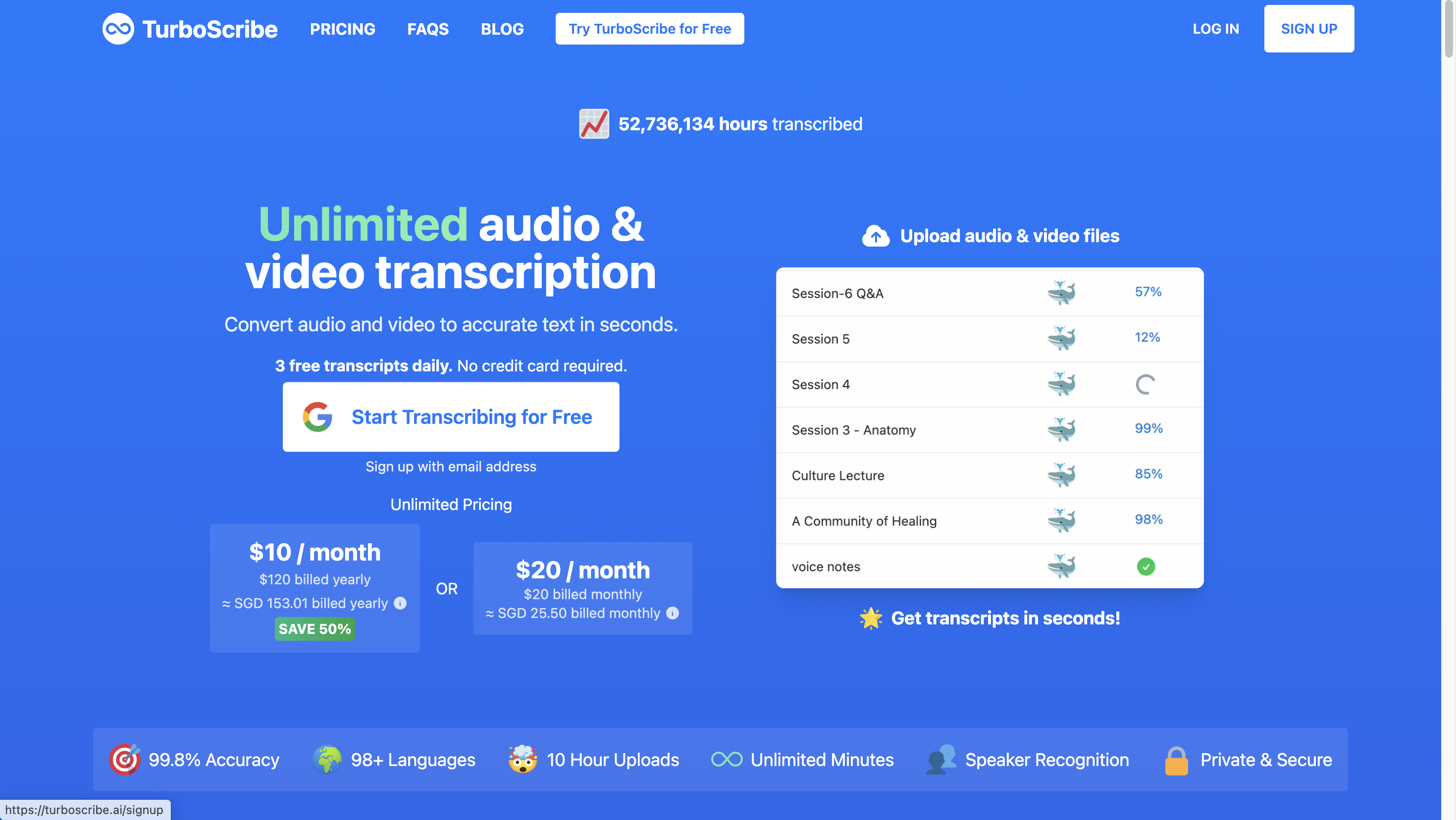
TurboScribe is one of the clearest options if your main goal is straightforward transcription.
Its current Free plan gives you 3 transcripts per day, with each free upload up to 30 minutes. It supports common video and audio formats, speaker recognition and transcript exports such as TXT, DOCX and SRT.
The transcript is synced to playback, so you can click into the text and return to the corresponding point in the source. TurboScribe also supports translation and timestamp controls.
Free access: 3 transcripts per day, up to 30 minutes each. TurboScribe's official free-account tutorial also documents TXT, DOCX and SRT transcript downloads.
Best for: regular file transcription with a simple recurring free quota.
3. Descript — Best for Creators Who Want to Edit the Video Through Text
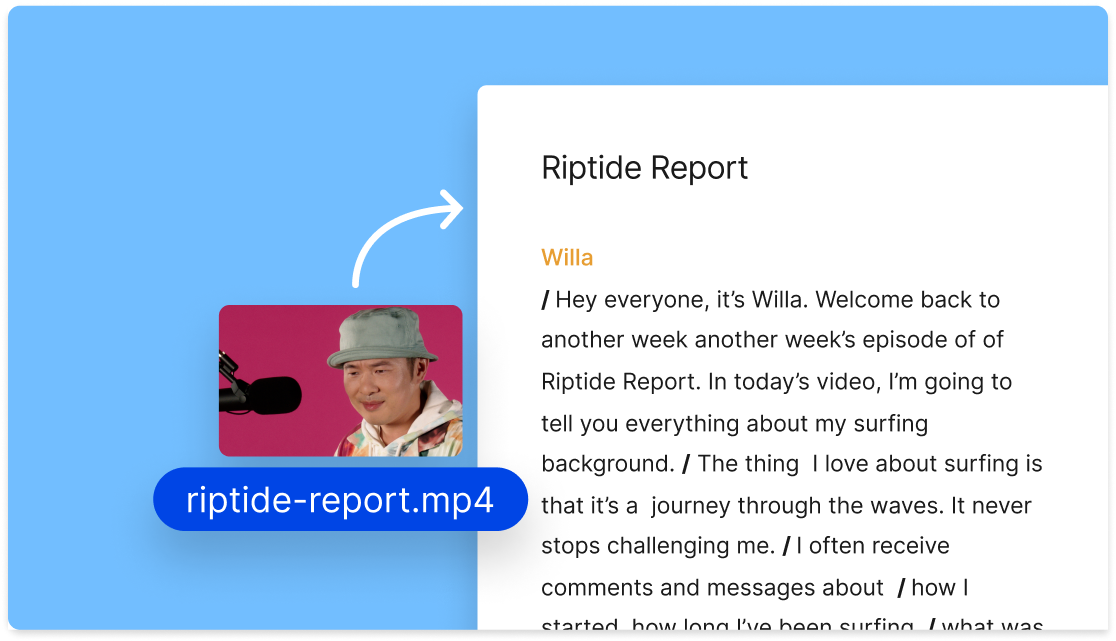
Descript treats the transcript as part of the video editor.
Upload or record media, and Descript converts the speech into editable text. You can then edit the recording by editing that text, which is useful for interviews, podcasts, tutorials and creator workflows.
Its current Free plan includes 60 media minutes per month, and Descript supports multi-language transcription across 25 languages.
That makes the product especially useful when video-to-text is only the first step before trimming clips, adding captions or repurposing the recording.
Free access: 60 media minutes per month on the current Free plan. Descript's transcript workflow supports exports including DOCX, HTML, Markdown, TXT and RTF.
Best for: creators who want transcription and media editing in the same workspace.
4. VEED — Best for Video-to-Text, Captions and Subtitles
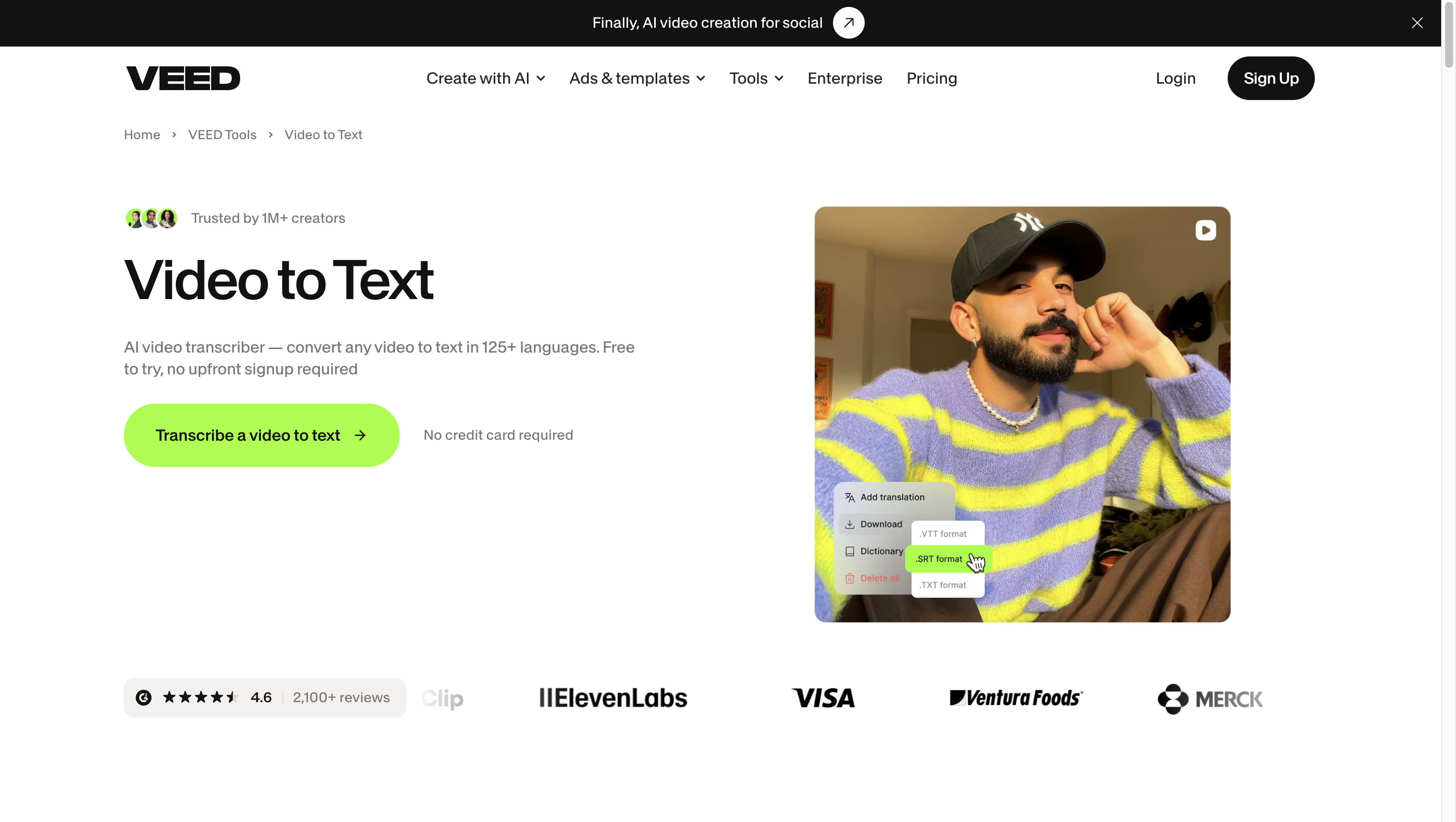
VEED is built around video creation, so transcription sits naturally beside subtitles and editing.
Upload a video, generate the transcript, edit the text and turn it into captions. The current Video to Text tool supports 125+ languages and can work with MP4, MOV, WebM, AVI and other common formats.
For people creating social video, tutorials or marketing content, the transcript can immediately become subtitles or repurposed text.
Free access: free to try with no upfront signup required. VEED lets Free users export a video with subtitles burned in; downloading the transcript itself as TXT, SRT or VTT is a paid-plan feature.
Best for: captions, subtitles and creator-focused video workflows.
5. Notta — Best for Multilingual Transcription and Meetings
Notta combines file transcription with meeting and note workflows.
Its current Free plan includes 120 transcription minutes per month, supports 50 file uploads per month and includes speaker identification and AI summaries. The current Free plan allows up to 3 minutes per conversation, so the monthly allowance and the per-recording allowance should be read together.
Notta is useful if you work across meetings, interviews and uploaded recordings and want the same transcripts synced across devices.
Free access: 120 transcription minutes per month, up to 3 minutes per conversation. Transcript text can be copied on all plans; Notta's current help documentation lists downloadable transcript files as a Pro-and-above feature.
Best for: multilingual transcription, meetings and searchable conversation notes.
6. HappyScribe — Best for Transcription, Subtitles and Multilingual Projects
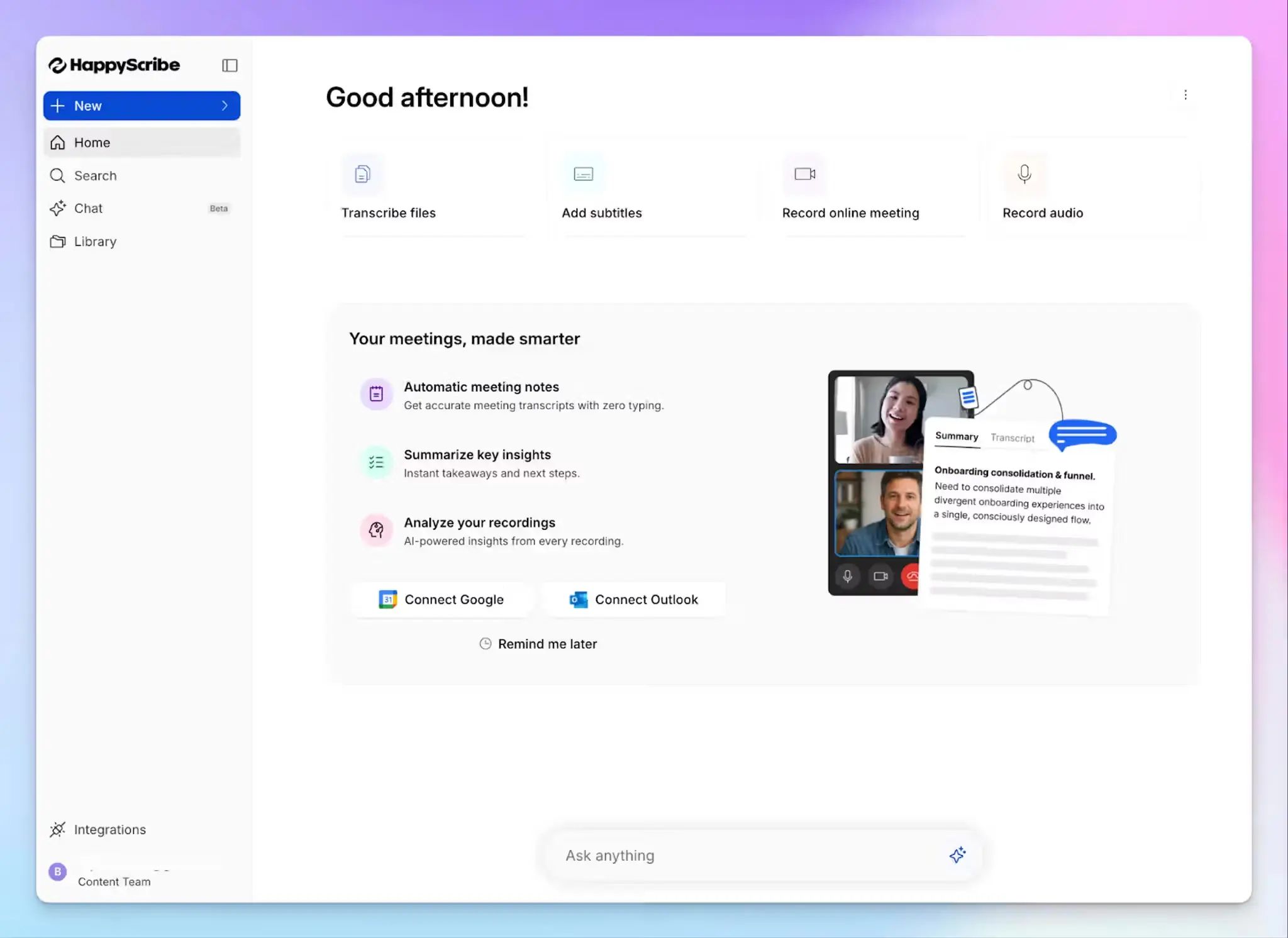
HappyScribe supports AI transcription, subtitling and translation in one workspace.
Its current Free plan includes a 10-minute trial of AI transcription, subtitling and translation, plus unlimited meeting recordings up to 45 minutes each. It supports automatic speaker detection and exports such as DOCX, TXT and SRT.
HappyScribe also integrates with YouTube, Vimeo, Google Drive, Box and Dropbox, which is useful when the source does not start as a local file.
Free access: 10-minute AI transcription, subtitling and translation trial, plus unlimited free meeting recordings of up to 45 minutes each. The Free plan lists DOCX, TXT and SRT exports and watermarked MP4 export.
Best for: multilingual transcripts, subtitles and teams that work with several source types.
7. Otter — Best for Meetings and Recorded Conversations
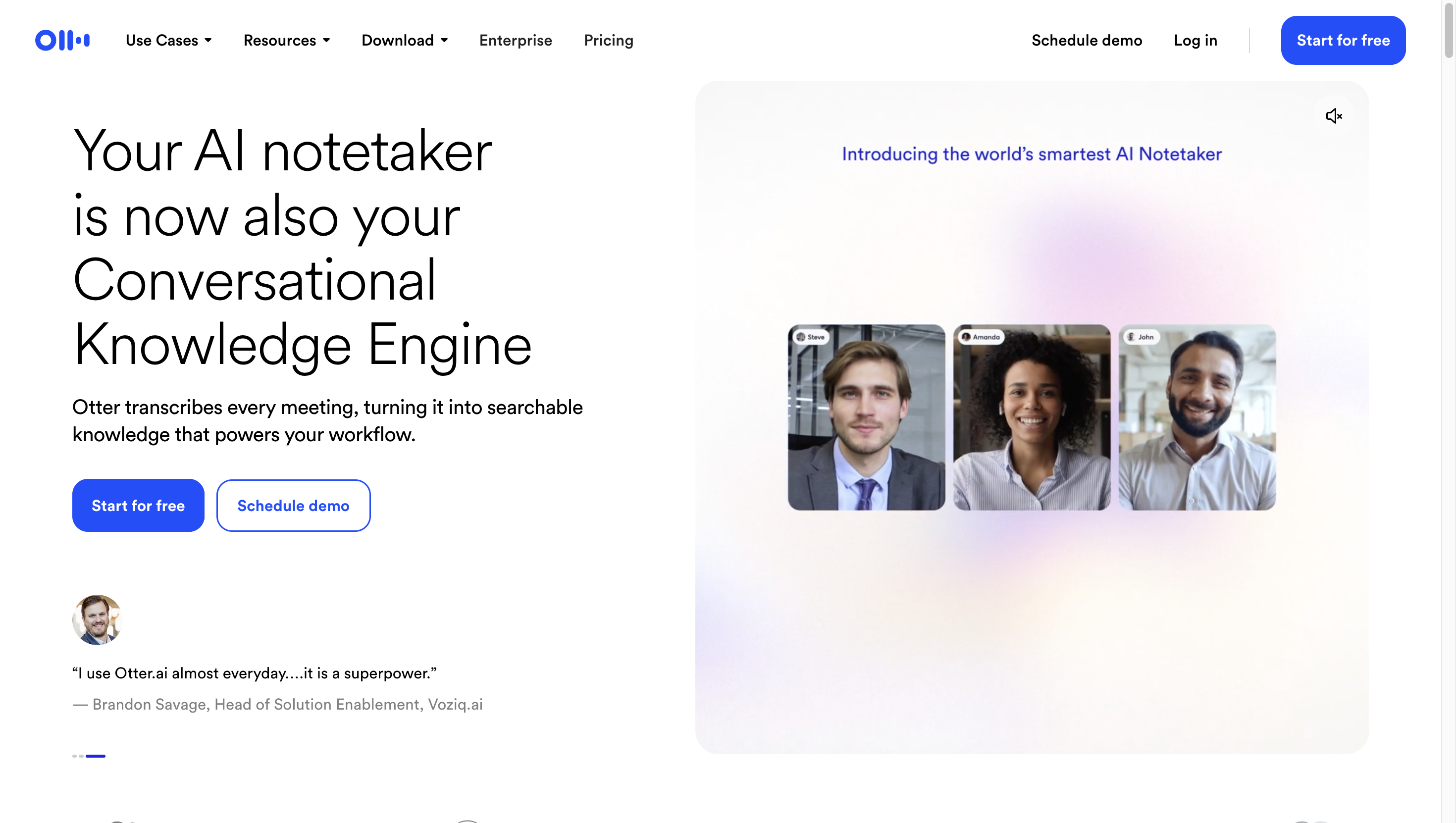
Otter is centered on conversations and meetings.
The current Basic plan includes 300 transcription minutes per month, with up to 30 minutes per transcription and 3 lifetime audio/video file imports. Once the recording is inside Otter, the transcript can continue into summaries, highlights and follow-up notes.
This makes it especially natural for meetings, interviews and team conversations where the transcript needs to stay connected to the people and discussion.
Free access: 300 minutes per month, 30 minutes per transcription and 3 lifetime audio/video imports. Otter Basic can export transcripts as TXT; additional transcript formats are available on paid plans.
Best for: live meetings and occasional imported conversation recordings.
8. ScreenApp — Best for Turning Public Video Links Into Searchable Text
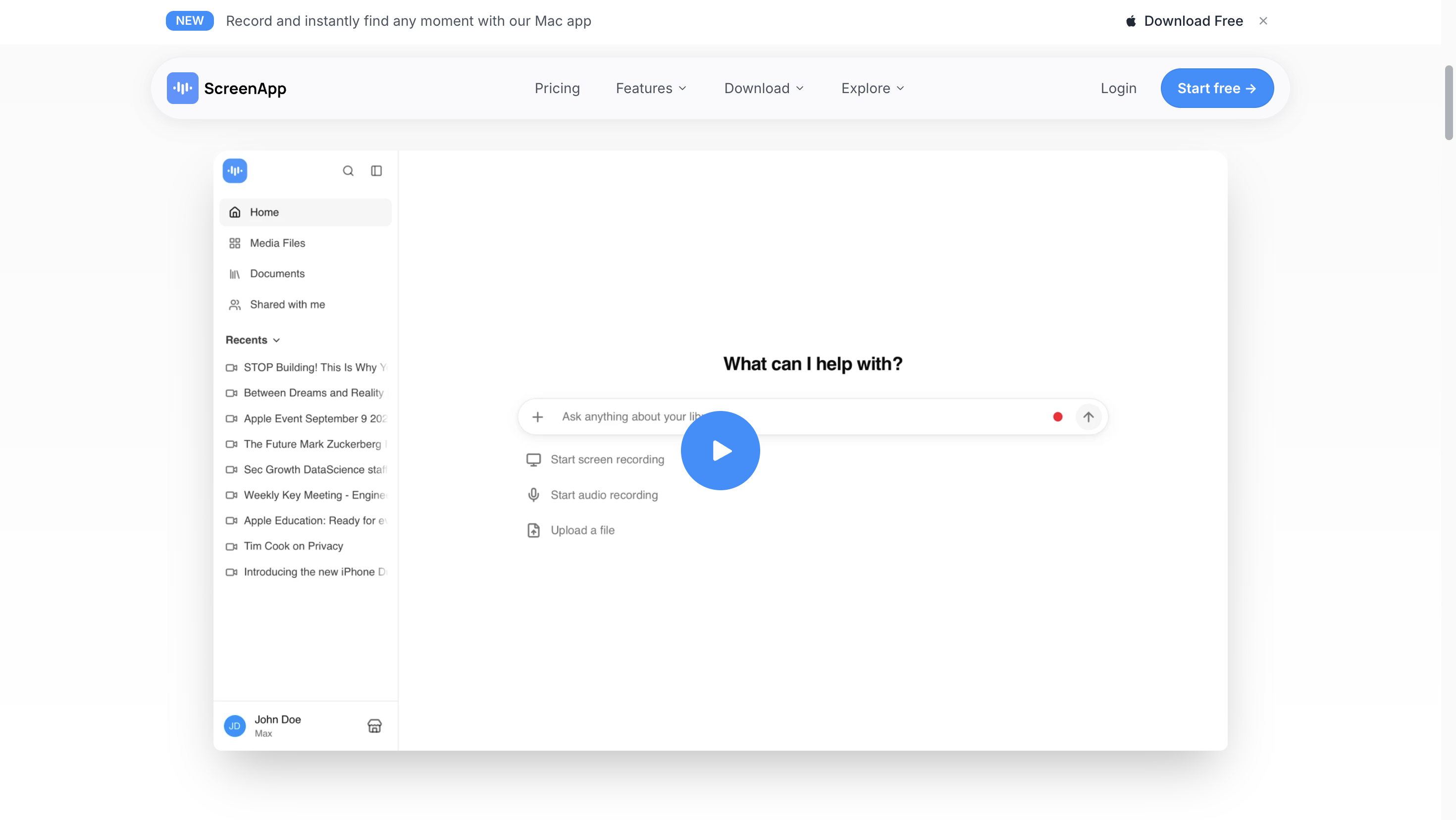
ScreenApp supports both uploaded files and public video links.
You can paste a YouTube, Vimeo, TikTok, Instagram or other supported link, then get a transcript with speaker labels and timestamps. The transcript can be searched and edited in the browser, and ScreenApp supports exports such as PDF, DOCX, TXT, SRT and VTT.
Its current Free plan includes 2 transcriptions of recordings up to 45 minutes each, with AI chat available on the processed content.
Free access: 2 free transcriptions, up to 45 minutes each. ScreenApp's current Video to Text page says PDF, DOCX, TXT, SRT and VTT export is included with the free transcription workflow.
Best for: link-to-transcript workflows and people who want searchable video text without downloading the original source first.
If You Only Choose One: Why We Recommend NoteAi
All eight tools can turn video into text.
The reason NoteAi is our single recommendation is that the transcript stays connected to the rest of the video.
For a lecture, interview or tutorial, the usual workflow does not stop at:“I have the text.”
You may want to know where one sentence came from, see the slide the speaker was explaining, switch between exact wording and a cleaner reading version, translate the source, ask questions or keep the material somewhere searchable.
NoteAi keeps those steps in one place.
Start With YouTube, Local Video or Recorded Content
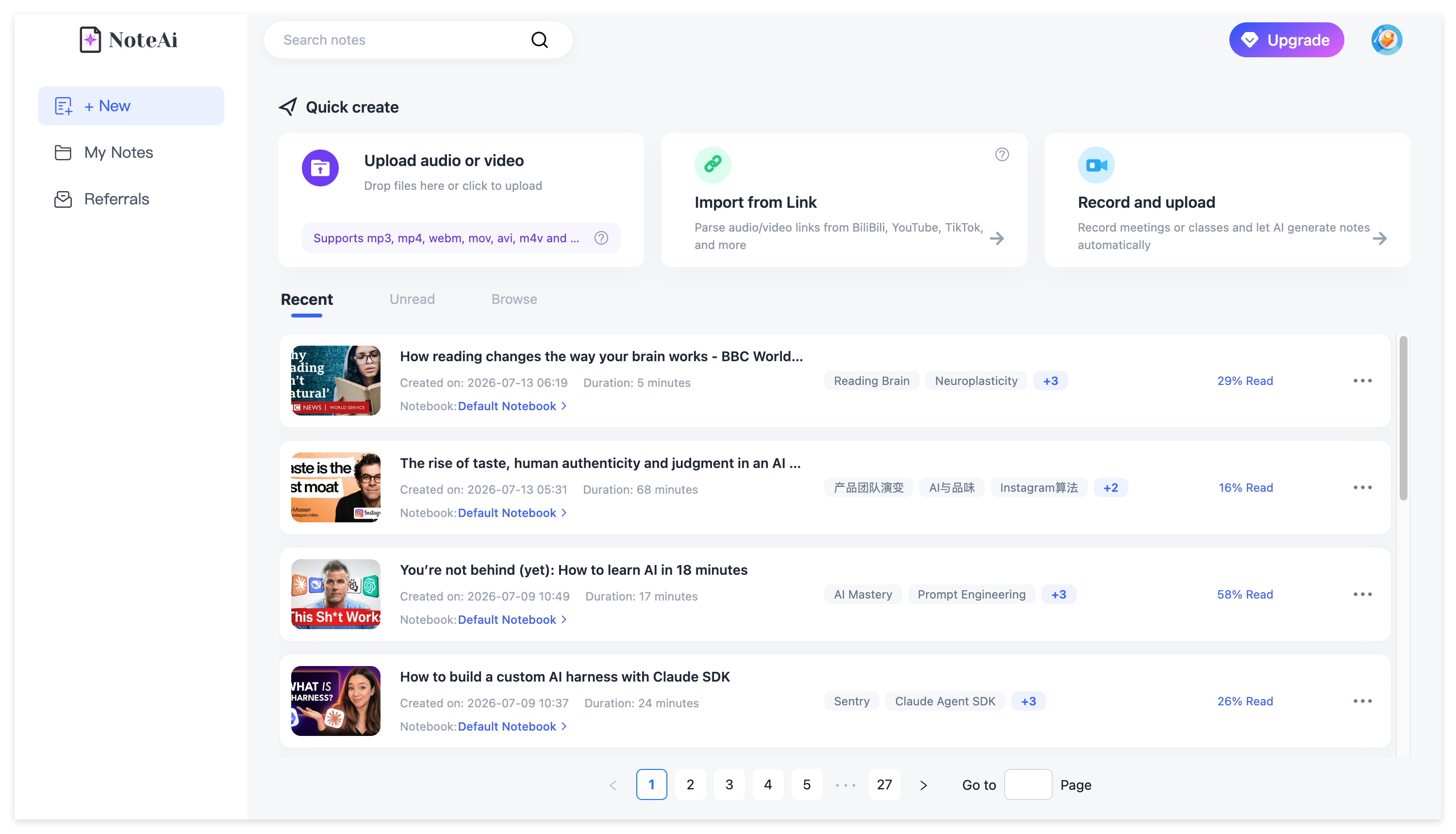
NoteAi can start from a YouTube link, supported online-video source, local video/audio file or recorded content.
For larger jobs, you can add up to 15 supported links or files in one batch, and local media can be up to 7 hours or 4GB.
That matters when your video-to-text workflow includes several source types. A YouTube lecture and an MP4 interview can go through the same workspace instead of being handled by separate tools.
Keep the Original Transcript and a Cleaner Reading Version
The most useful transcript is not always the easiest one to read.
NoteAi keeps the original transcript with timestamps and speaker information for source checking. It can also produce an AI-polished version that removes some spoken repetition and filler while leaving the original available.
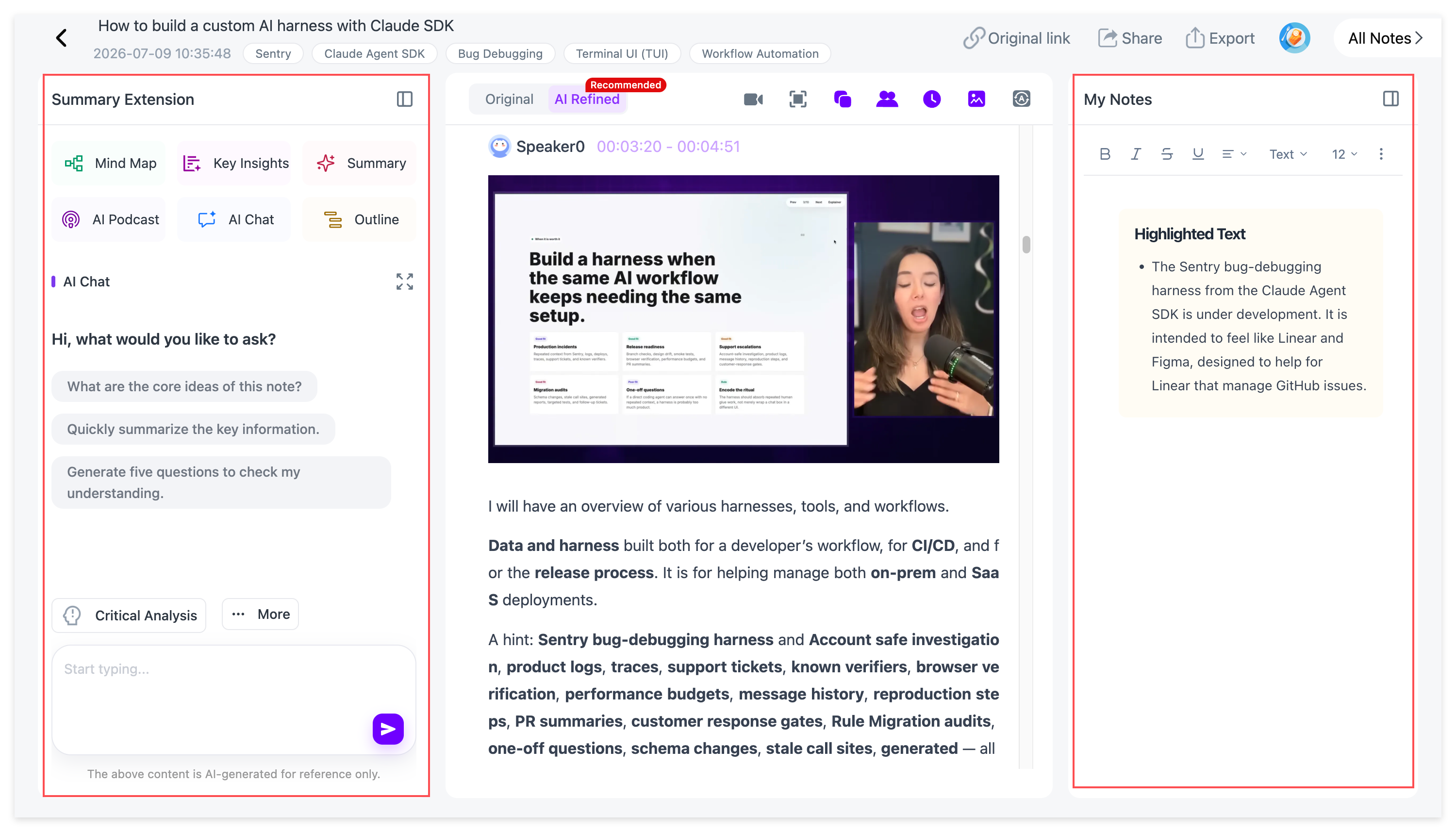
That gives you a simple choice:
original transcript when exact wording matters → polished text when you mainly want to read
For interviews, research videos and lectures, keeping both views is more useful than choosing between a raw transcript and an over-compressed summary.
Timestamps and Speakers Keep the Text Traceable
A transcript becomes much more useful when it can take you back to the source.
Timestamps let you verify a quote, replay a difficult explanation or check the tone around one line. Speaker identification keeps interviews and multi-person recordings readable.
This is especially useful when you are pulling quotes into research, meeting notes or creator work.
For a YouTube-specific workflow, see YouTube to Text: 3 Ways to Get a Transcript With Timestamps.
Visual Notes Keep What Was on Screen
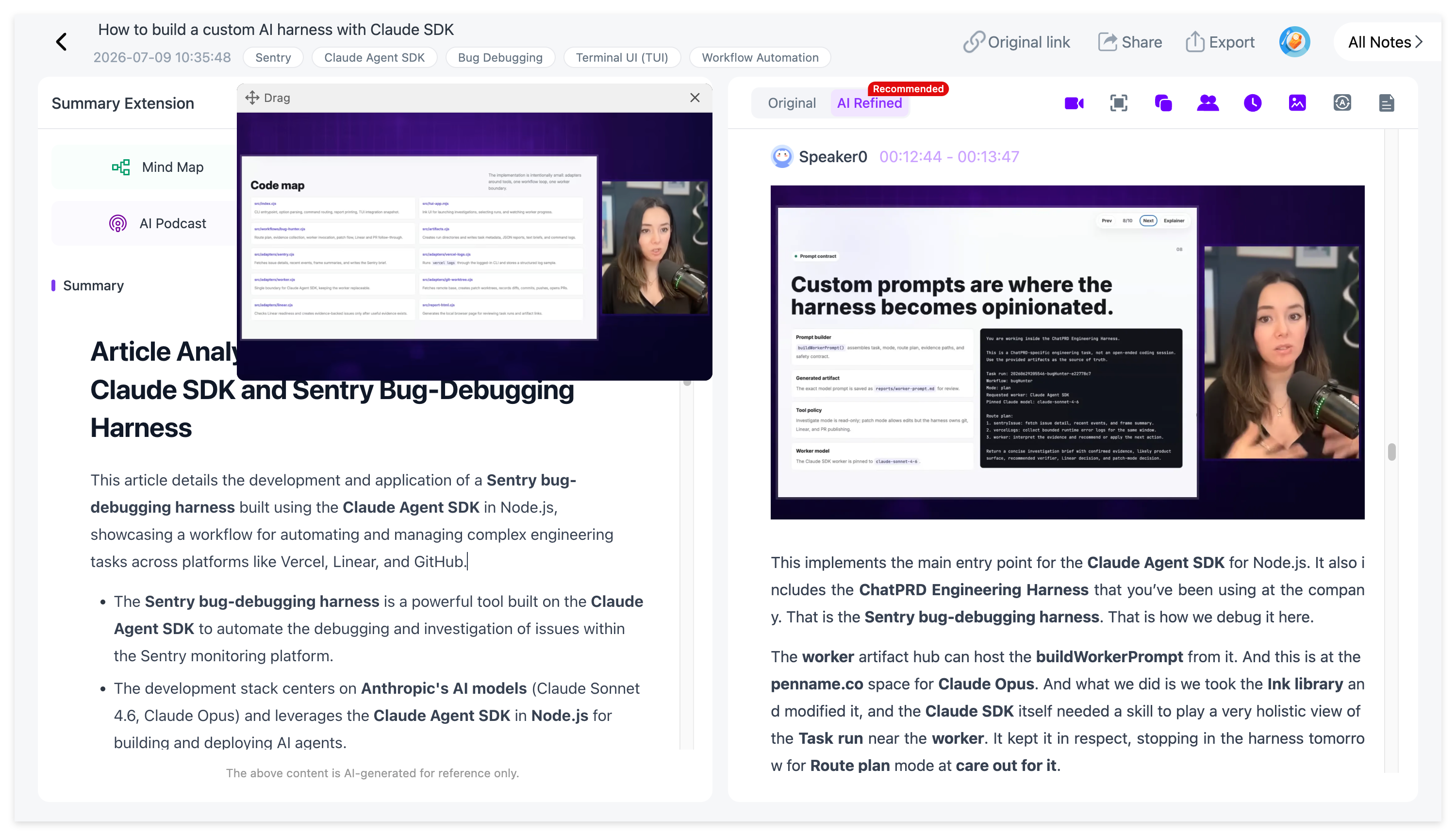
Video-to-text has one obvious blind spot: not everything in a video is spoken.
A lecturer may point to a chart. A tutorial may show code. A presentation may display a formula or diagram without reading every word aloud.
NoteAi's Visual Notes can automatically capture useful PPT pages, charts, diagrams, formulas, code, software interfaces and other key frames, then keep them beside the related text.
That is especially useful for lectures, software demos and tutorials where plain text only captures part of the information.
See Video to Notes: Turn Videos Into Visual Notes With AI for the full visual workflow.
Use the Summary to Find the Part Worth Reading
A full transcript of a two-hour video can still be very long.
NoteAi generates Key Insights and structured summaries so you can scan the main sections first, then open the transcript where the detail matters.
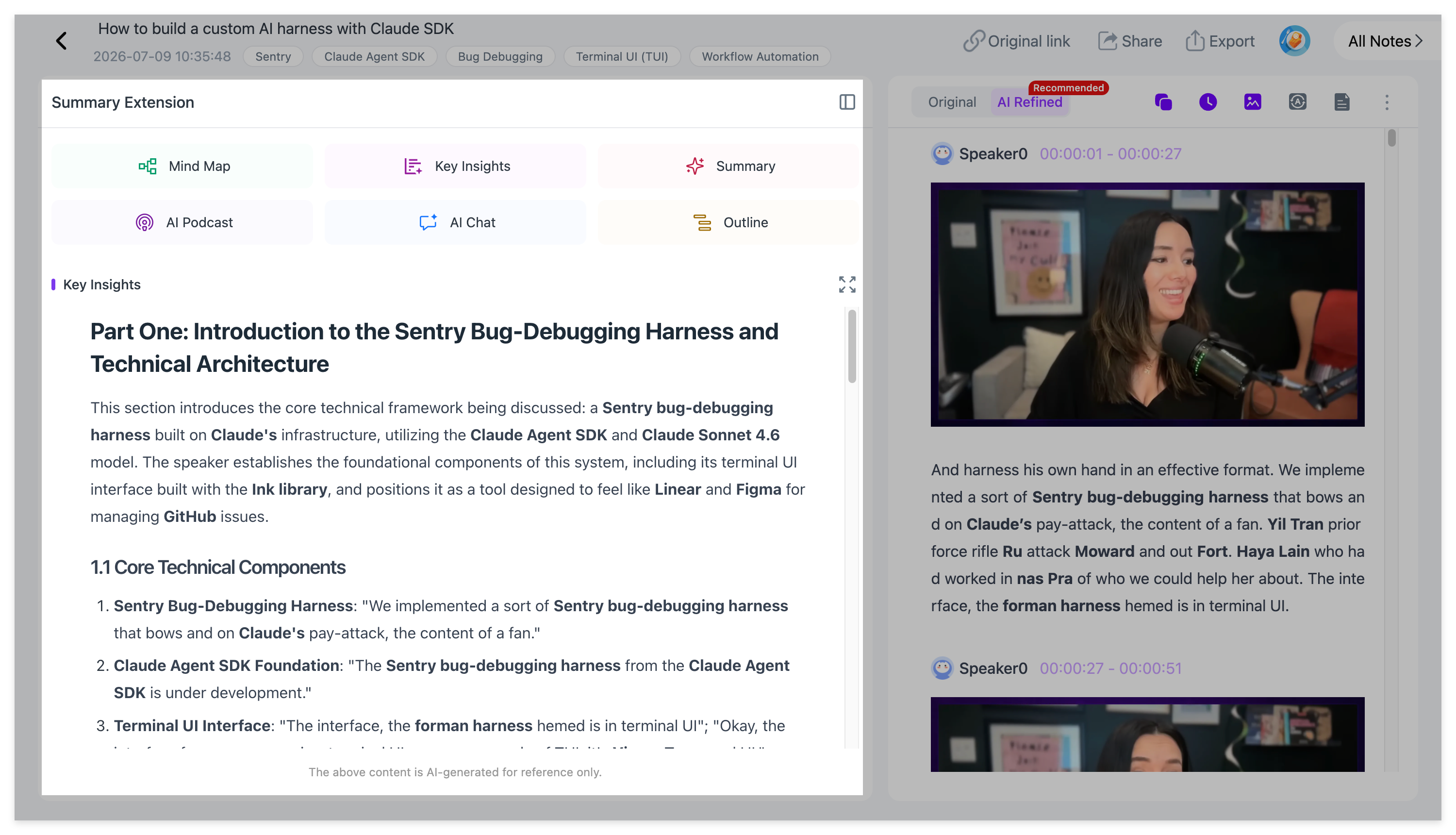
This keeps the relationship clear:
summary for orientation → transcript for detail → original video for verification
Translate the Transcript Without Losing the Original
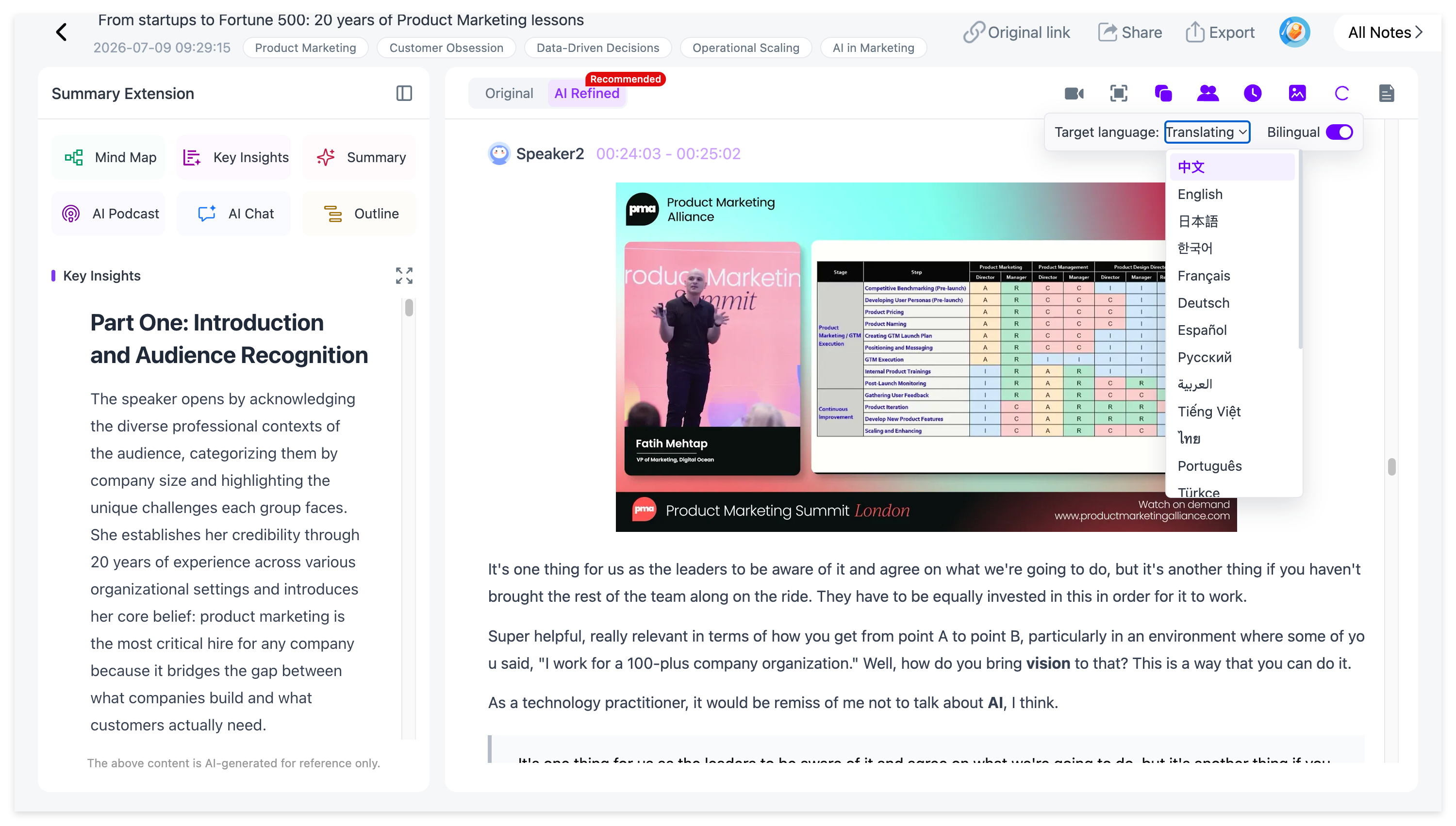
NoteAi supports translation across 22+ languages and can show the translated text beside the original.
That is useful for international lectures, interviews and language-learning content because names, technical terms and source wording remain easy to check.
Instead of turning the transcript into a separate translated document, both versions stay connected to the same source.
Ask Questions About the Transcript
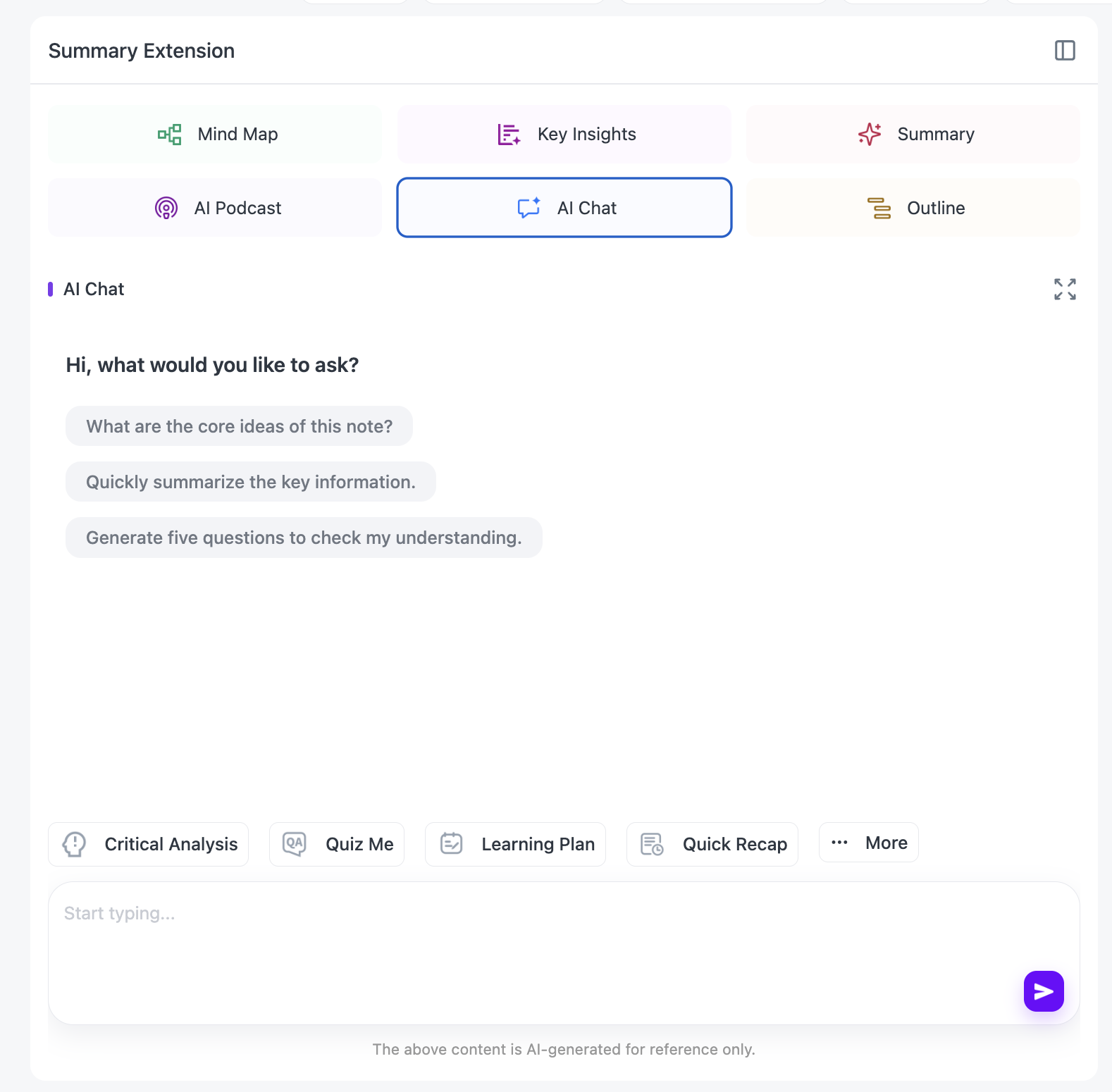
Once the video is transcribed, NoteAi lets you continue with AI Chat / Personal AI Tutor.
You can ask:
-
“Where did the speaker explain this term?”
-
“Find the section about pricing.”
-
“Compare the two methods mentioned in the interview.”
-
“Turn this transcript into revision questions.”
-
“What should I rewatch if I only have ten minutes?”
That is more useful than manually searching a long document every time you remember one topic but not the exact wording.
Turn the Transcript Into a Different Note Format
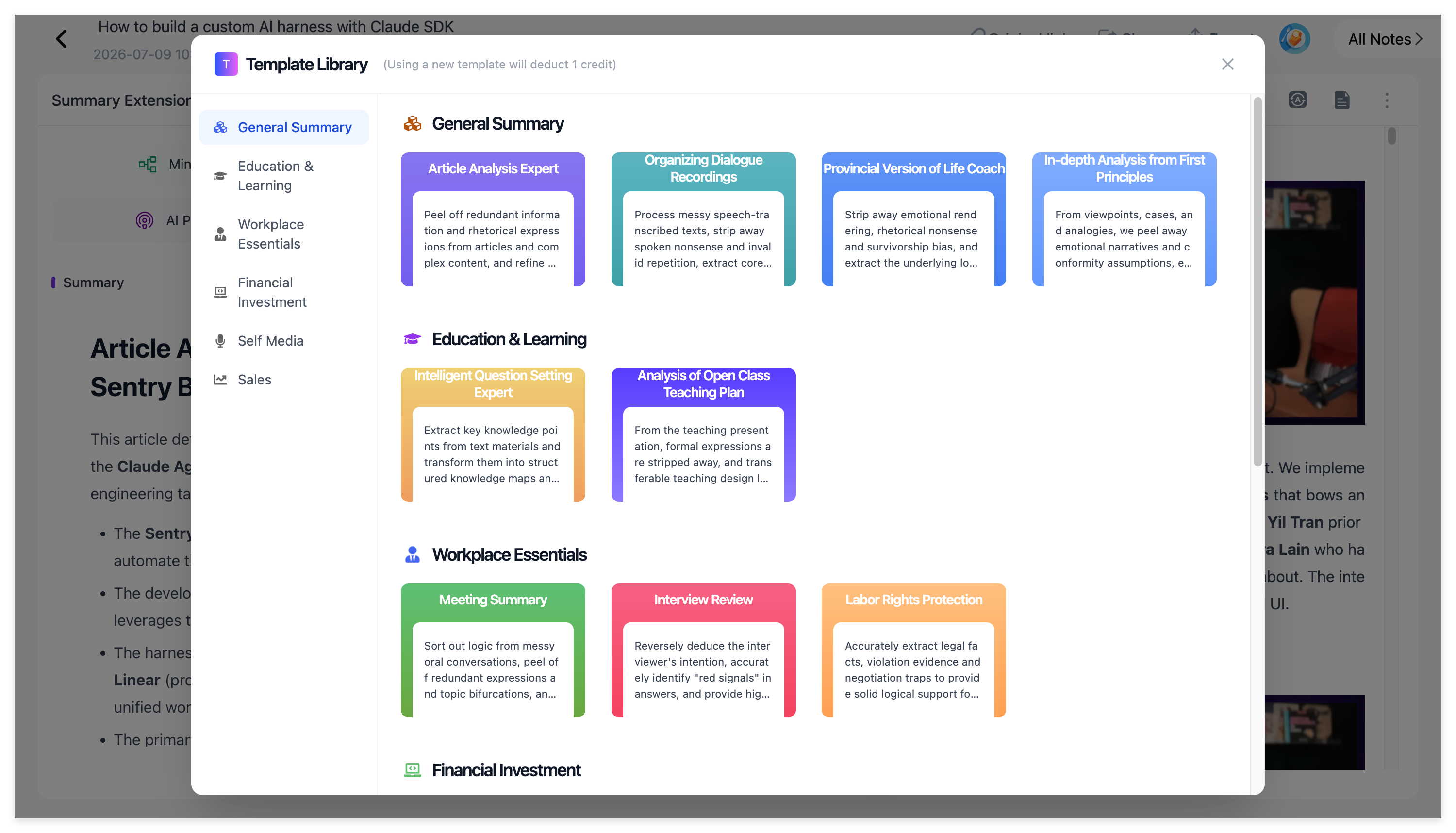
A transcript can also become the raw material for another kind of note.
NoteAi includes Summary Templates and custom prompts, so the same processed video can be reorganized into study notes, Cornell-style notes, meeting minutes, a glossary or a research brief.
You do not need to transcribe the video again every time the output format changes.
Export It or Keep It Searchable
A useful transcript should be easy to find again.
Processed videos can stay inside NoteAi's searchable knowledge base with categories, global search and batch note management.
If you prefer another system, general notes can be exported as DOCX, PDF, HTML or Markdown.
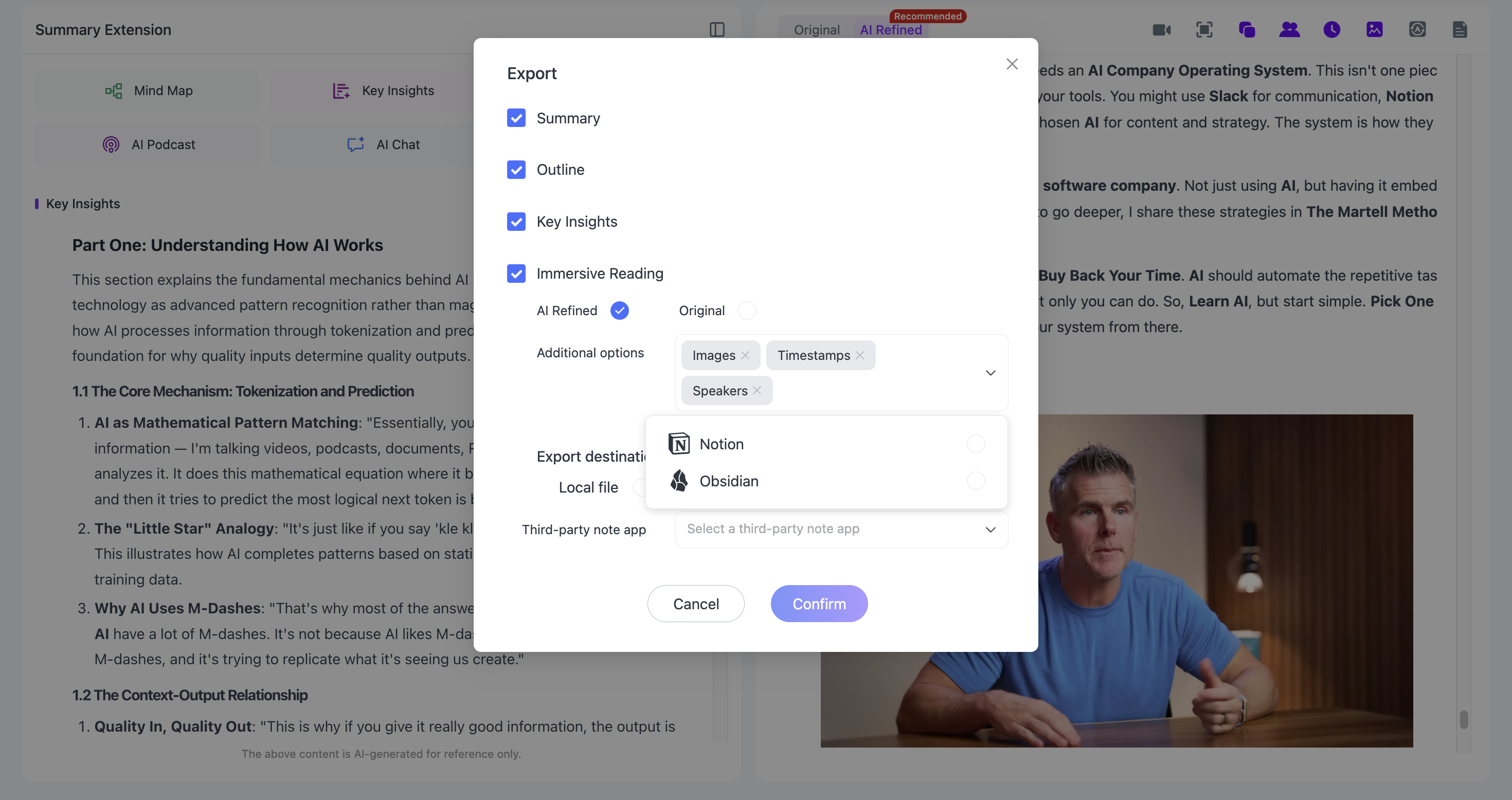
That makes it easy to continue in Notion or Obsidian instead of locking the transcript inside one app.
Which Free Video-to-Text Tool Should You Choose?
Choose **NoteAi** if you want the transcript to stay connected to the video and continue into visual notes, summaries, translation, AI Q&A and a searchable knowledge base.
Choose TurboScribe if you want a simple recurring daily transcription allowance for uploaded files.
Choose Descript if the transcript is part of a larger video-editing workflow.
Choose VEED if you mainly want video text for captions, subtitles and social content.
Choose Notta if meetings and multilingual transcription are central to your workflow.
Choose HappyScribe if you work with transcription, subtitles and multilingual media in the same environment.
Choose Otter if most of your recordings are meetings and conversations.
Choose ScreenApp if you want to paste public video links and move directly into searchable transcripts and AI questions.
Final Recommendation
If your goal is simply to get text out of a video, several tools here can do the job for free or let you test the workflow before paying.
If you want one tool that can take a YouTube link or uploaded video and keep going after transcription, we recommend **NoteAi**.
The useful path is:
video → timestamped transcript → visual context → summary → translation → AI questions → export or searchable knowledge
That makes the transcript useful not only as text, but as something you can study, search and reuse.
**Try NoteAi for video to text**
Frequently Asked Questions
What is the best free video-to-text tool?
It depends on the workflow. TurboScribe offers a clear daily free allowance, Otter is useful for meetings, VEED is strong for captions and NoteAi is our pick when the transcript also needs to continue into Visual Notes, AI Q&A and long-term knowledge management.
How can I convert video to text for free?
Upload the video or paste a supported link into a free or free-to-try transcription tool. NoteAi, TurboScribe, Descript, VEED, Notta, HappyScribe, Otter and ScreenApp all provide a free path, free plan or trial.
Can I convert MP4 to text for free?
Yes. Several tools in this list accept MP4 files. TurboScribe, Descript, VEED, Notta, HappyScribe, ScreenApp and NoteAi all support uploaded video workflows.
For a dedicated comparison, see MP4 to Text: 5 AI Transcription Tools Compared.
Can AI identify different speakers in a video?
Yes. NoteAi, TurboScribe, Notta, HappyScribe, Otter and ScreenApp all support speaker-aware transcription or speaker identification in their current workflows.
Can I transcribe a YouTube video without subtitles?
Yes, when the tool can transcribe the audio itself rather than only retrieving an existing caption track. NoteAi can generate a transcript from the video's speech and then continue into summaries, Visual Notes and AI Chat.
Which video-to-text tool is best for students?
Students working with recorded lectures often need timestamps, slides, readable notes and follow-up questions as well as the transcript. That is why NoteAi is especially well suited to lecture and study workflows.
Can I translate a video transcript?
Yes. Several tools support multilingual workflows. NoteAi supports 22+ languages with original and translated text shown together; TurboScribe, VEED, HappyScribe and Notta also offer multilingual transcription or translation features.
Can I export a video transcript to Notion or Obsidian?
NoteAi can export structured notes as Markdown and continue into Notion or Obsidian. Glasp is another tool in the broader transcript/notes category that supports PKM exports, although this article focuses on uploaded-video transcription tools.
Related NoteAi guides